Tune LLM CPU inference performance with multithreading
Introduction
Set up the environment
Understand PyTorch threading for CPU inference
Tune thread count for LLM inference
Next Steps
Tune LLM CPU inference performance with multithreading
Before you begin
Before you can tune PyTorch threading for LLM inference on Arm CPUs, you need to set up your development environment with Docker, PyTorch, and access to the Gemma-3 models from Hugging Face. This section walks you through creating your Hugging Face account, configuring an Arm server, and running the PyTorch container with all necessary dependencies.
This Learning Path uses Arm’s downstream canary release of PyTorch, which includes ready-to-use examples and scripts. This release provides access to the latest features but is intended for experimentation rather than production use.
Create a Hugging Face account
Create a Hugging Face account if you don’t already have one. After creating your account, request access to the 1B and 270M variants of Google’s Gemma-3 model. Access is typically granted within 15 minutes.
Connect to an Arm system and install Docker
If this is your first time using Arm-based cloud instances, see the getting started guide .
The example code uses an AWS Graviton 4 (m8g.24xlarge) instance running Ubuntu 24.04 LTS, based on the Neoverse V2 architecture. You can use any Arm server with at least 16 cores. Keep note of your CPU count so you can adjust the example code as needed.
Install Docker using the Docker install guide or the official documentation . Follow the post-installation steps to configure Docker for non-root usage.
Run the PyTorch-aarch64 Docker container image
You have two options for the Docker container. You can use a container image from Docker Hub or you can build the container image from source. Using a ready-made container makes it easier to get started, and building from source provides the latest software. The container image on Docker Hub is updated about once a month.
Open a terminal or use SSH to connect to your Arm Linux system.
Use container image from Docker Hub
Download the ready-made container image from Docker Hub:
docker pull armlimited/pytorch-arm-neoverse:latest
Create a new container:
docker run --rm -it armlimited/pytorch-arm-neoverse:latest
The shell prompt will appear, and you are ready to start.
aarch64_pytorch ~>
Build from source
To build from source, clone the repository.
git clone https://github.com/ARM-software/Tool-Solutions.git
cd Tool-Solutions/ML-Frameworks/pytorch-aarch64/
Build the container:
./build.sh -n $(nproc - 1)
On a 96-core instance such as AWS m8g.24xlarge, this build takes approximately 20 minutes.
After the build completes, create a Docker container. Replace <version> with the version of torch and torchao that was built:
./dockerize.sh ./results/torch-<version>-linux_aarch64.whl ./results/torchao-<version>-py3-none-any.whl
The shell prompt will appear, and you are ready to start.
aarch64_pytorch ~>
Log in to Hugging Face
Create a new Read token on Hugging Face by navigating to Create new Access Token .
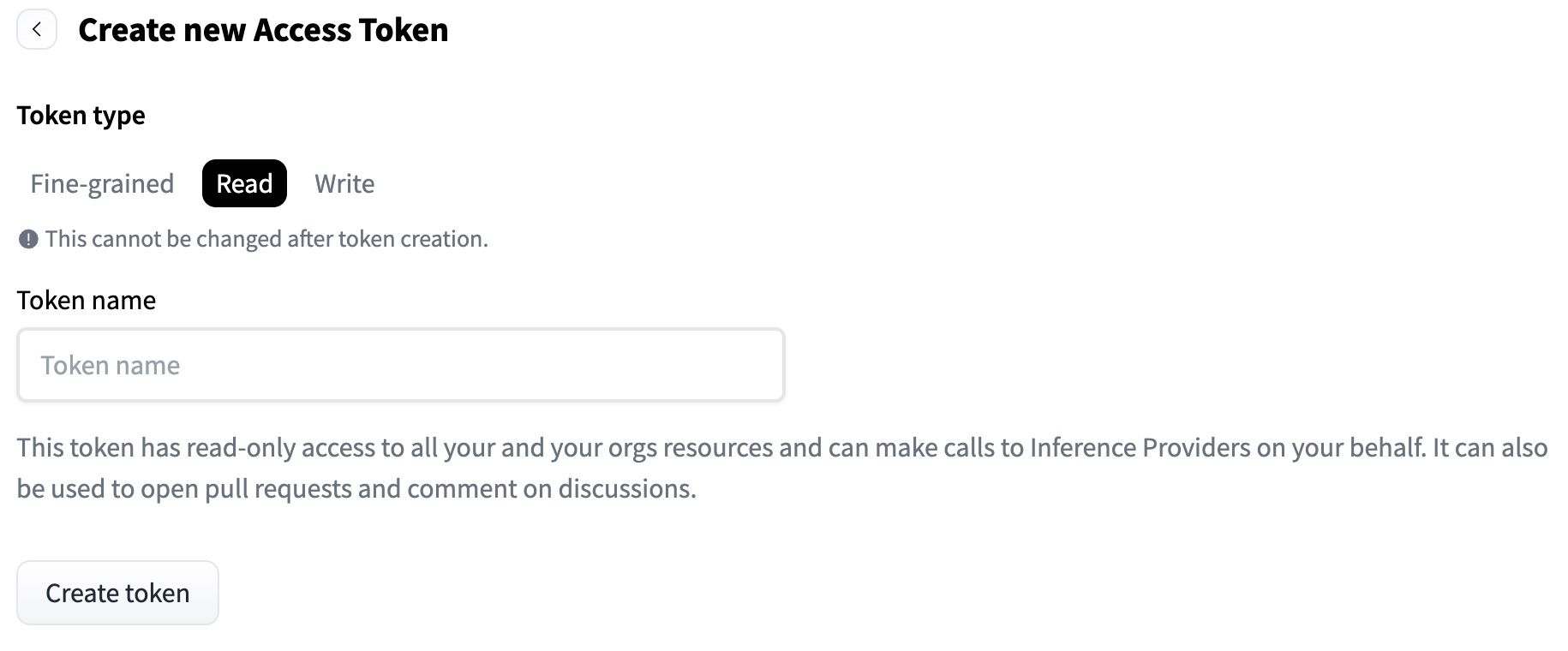 Hugging Face token creation interface
Provide a token name, create the token, and copy the generated value. From within the Docker container, run the following command and paste the token when prompted:
huggingface-cli login
Messages indicating the token is valid and login is successful are printed.
Be aware that the login doesn’t persist after the Docker container exits. You’ll need to log in again if you restart the container.
What you’ve accomplished and what’s next
You’ve set up your environment with:
- A Hugging Face account with access to the Gemma-3 models
- An Arm server or cloud instance with Docker installed
- The PyTorch-aarch64 container running and authenticated
You’re now ready to run LLM inference experiments and measure how thread count affects performance.