Deploy a live sensor dashboard with TimescaleDB and Grafana on Google Cloud C4A
Introduction
Get started with TimescaleDB on Google Axion C4A
Create a firewall rule for Grafana/TimescaleDB
Create a Google Axion C4A Arm virtual machine on GCP
Set up TimescaleDB on Arm64
Ingest real-time sensor data on Arm64
Install Grafana and configure the TimescaleDB data source
Build a live sensor temperature dashboard
Next Steps
Deploy a live sensor dashboard with TimescaleDB and Grafana on Google Cloud C4A
Introduction
Get started with TimescaleDB on Google Axion C4A
Create a firewall rule for Grafana/TimescaleDB
Create a Google Axion C4A Arm virtual machine on GCP
Set up TimescaleDB on Arm64
Ingest real-time sensor data on Arm64
Install Grafana and configure the TimescaleDB data source
Build a live sensor temperature dashboard
Next Steps
Create a live sensor temperature dashboard
In this section, you’ll create a Grafana dashboard that visualizes live temperature data stored in TimescaleDB. The dashboard continuously updates to display sensor temperature changes in near real time.
Prerequisites
Before proceeding, ensure the following are already completed:
- TimescaleDB is installed and running
- Grafana is installed and accessible
- PostgreSQL (TimescaleDB) data source is configured in Grafana
- Live data ingestion into the
sensor_datatable is running
You can verify live ingestion with:
sudo -u postgres psql sensors -c "SELECT COUNT(*) FROM sensor_data;"
The count should increase over time.
Access Grafana
Open Grafana in your browser:
http://<GRAFANA_PUBLIC_IP>:3000
Log in using your Grafana credentials.
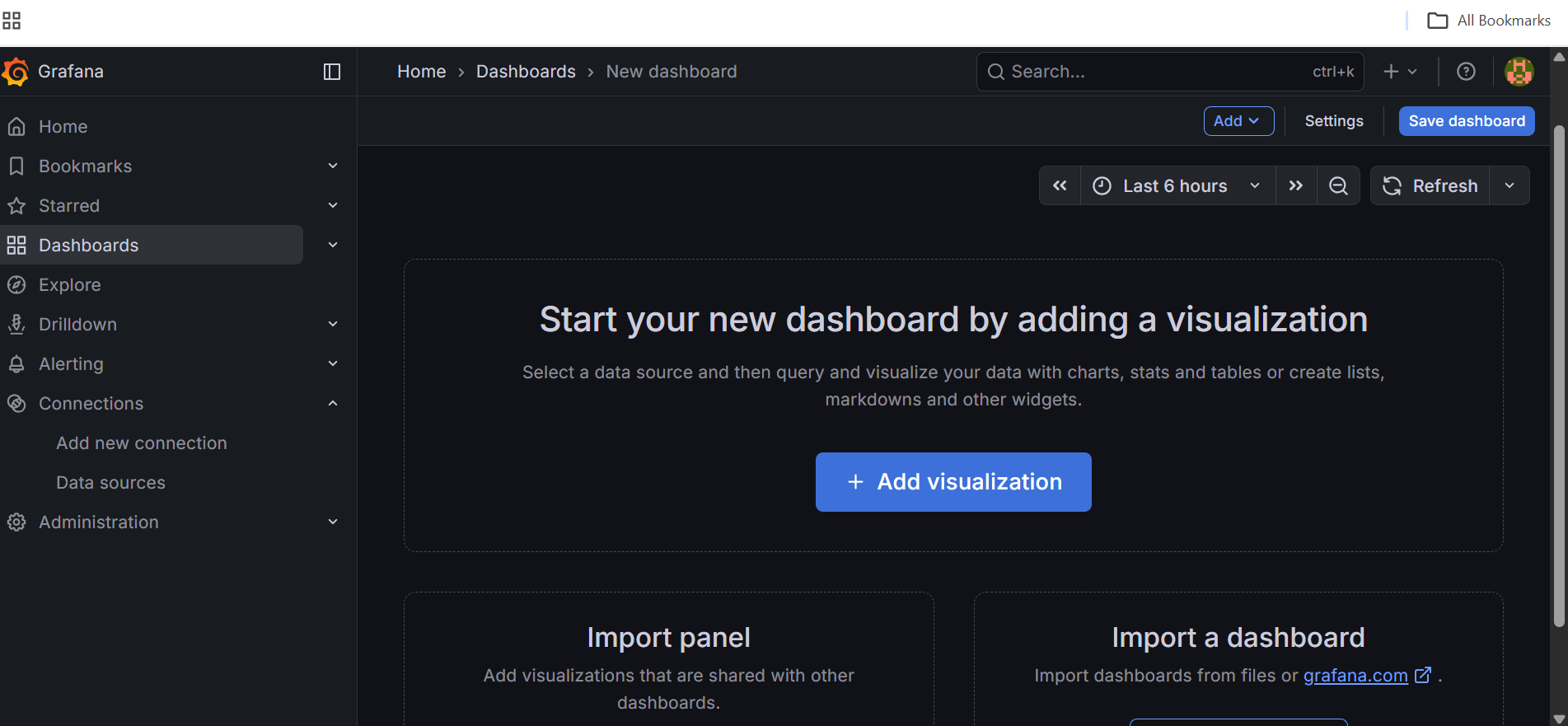
Create a New Dashboard
- From the left sidebar, select Dashboards
- Select New dashboard
- Select New visualization
You will be redirected to the Edit panel screen.
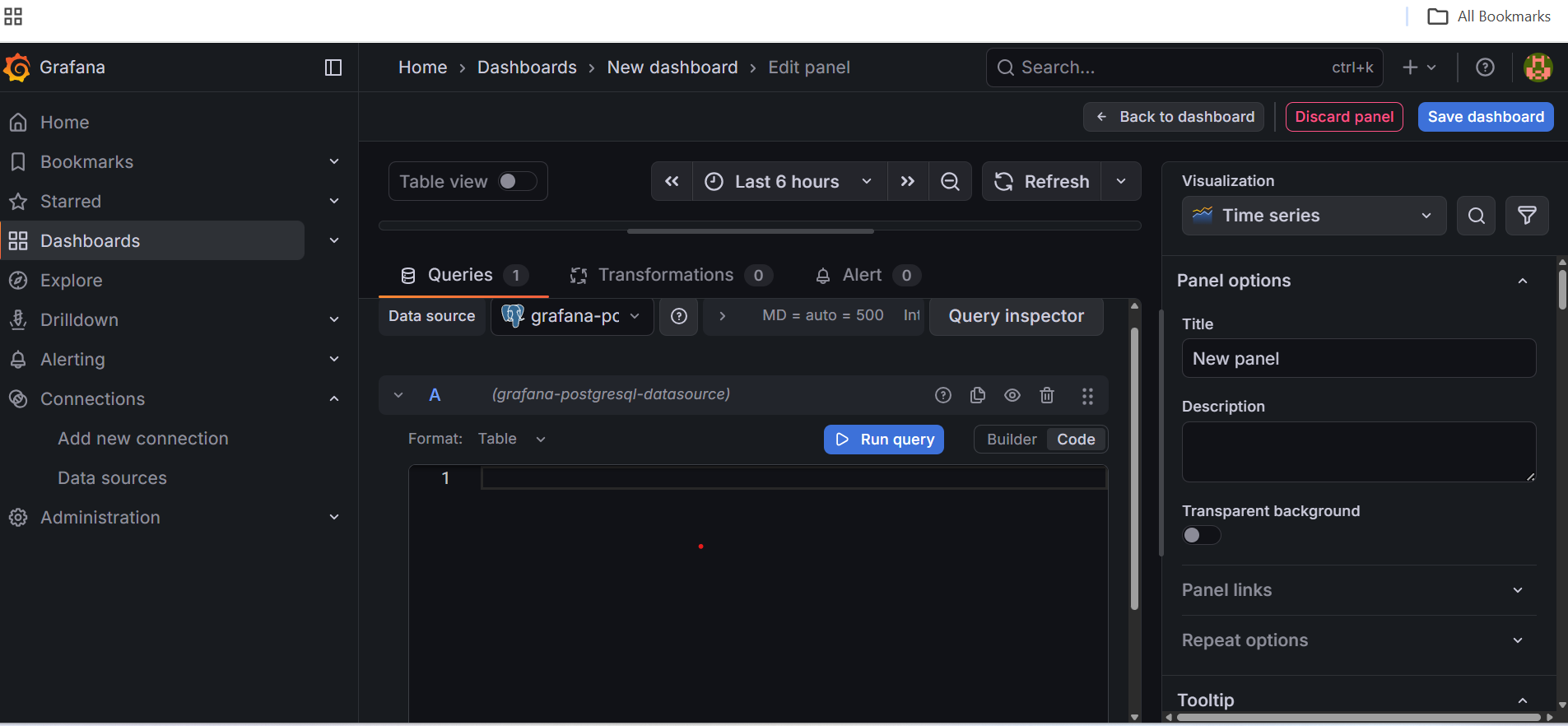
Configure the Live Sensor Query
In the Query section:
- Data source: PostgreSQL / TimescaleDB
- Query type: SQL
- Format: Time series
 Grafana visualization configuration
Paste the following query after selecting Code on the right of the query editor:
SELECT
  time AS "time",
  temperature
FROM sensor_data
WHERE $__timeFilter(time)
ORDER BY time;
 TimescaleDB SQL query editor
This query retrieves live sensor temperature data within the selected time range.
Apply the following settings in the right-hand panel:
Visualization Settings
- Visualization: Time series
- Panel title: Live Sensor Temperature
- Table view: Disabled
Time & Refresh Settings
- Time range: Last 5 minutes
- Refresh interval: 5s
These settings ensure the panel refreshes automatically with new data.
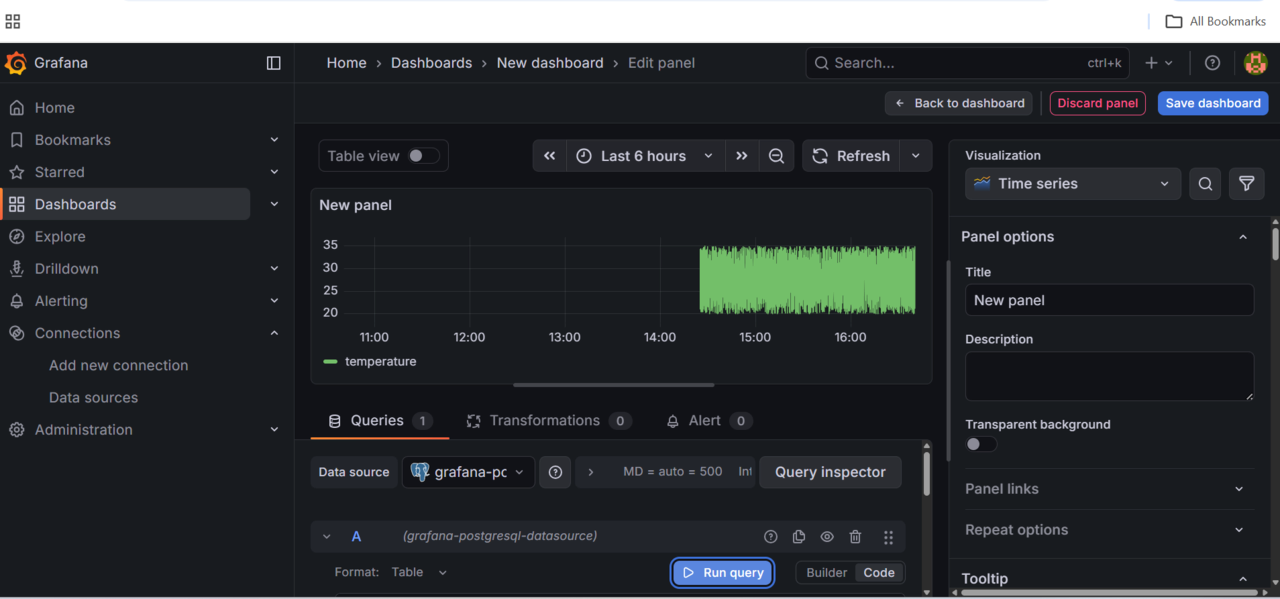
Validate the Live Sensor Panel
Once configured, the panel should display a continuously updating temperature graph.
 Live sensor temperature panel
Save the dashboard
- Select Save dashboard (top-right corner)
- Enter a name, for example: Live Sensor Monitoring Dashboard
- Select Save
The dashboard is now active.
What you’ve accomplished
You’ve built a complete time-series monitoring pipeline on Google Cloud C4A Axion Arm-based processors. TimescaleDB is running natively on Arm64, ingesting live sensor data through Python, and serving queries to Grafana for real-time visualization. From here you can add more sensors, create additional dashboards, set up alerting rules in Grafana, or tune TimescaleDB for your specific workload.