Deploy a live sensor dashboard with TimescaleDB and Grafana on Google Cloud C4A
Introduction
Get started with TimescaleDB on Google Axion C4A
Create a firewall rule for Grafana/TimescaleDB
Create a Google Axion C4A Arm virtual machine on GCP
Set up TimescaleDB on Arm64
Ingest real-time sensor data on Arm64
Install Grafana and configure the TimescaleDB data source
Build a live sensor temperature dashboard
Next Steps
Deploy a live sensor dashboard with TimescaleDB and Grafana on Google Cloud C4A
Introduction
Get started with TimescaleDB on Google Axion C4A
Create a firewall rule for Grafana/TimescaleDB
Create a Google Axion C4A Arm virtual machine on GCP
Set up TimescaleDB on Arm64
Ingest real-time sensor data on Arm64
Install Grafana and configure the TimescaleDB data source
Build a live sensor temperature dashboard
Next Steps
Install and configure Grafana
In this section, you install Grafana on a SUSE Arm64 virtual machine, access its web interface, and connect it to TimescaleDB. Grafana acts as the visualization layer that queries TimescaleDB and displays time-series data in dashboards.
This setup enables real-time monitoring and analytics of sensor data stored in TimescaleDB.
Python Sensor Ingest Script
        |
        v
TimescaleDB (PostgreSQL)
        |
        v
Grafana Dashboard
Install Grafana on SUSE
Grafana is available via RPM packages and works natively on Arm64.
cd $HOME
sudo zypper addrepo https://rpm.grafana.com grafana
sudo zypper refresh
sudo zypper install -y grafana
Enable and start Grafana
sudo systemctl start grafana-server
sudo systemctl enable grafana-server
Verify the service is running:
sudo systemctl status grafana-server
The output is similar to:
        ● grafana-server.service - Grafana instance
     Loaded: loaded (/usr/lib/systemd/system/grafana-server.service; enabled; vendor preset: disabled)
     Active: active (running) since Tue 2026-02-17 08:57:45 UTC; 1h 31min ago
Access the Grafana web UI
Open your browser and navigate to:
http://<VM-PUBLIC-IP>:3000
Default login credentials
| Field | Value |
|---|---|
| Username | admin |
| Password | admin |
You will be prompted to change the password on first login. Provide and save off a new password. Re-login if needed using the new password:
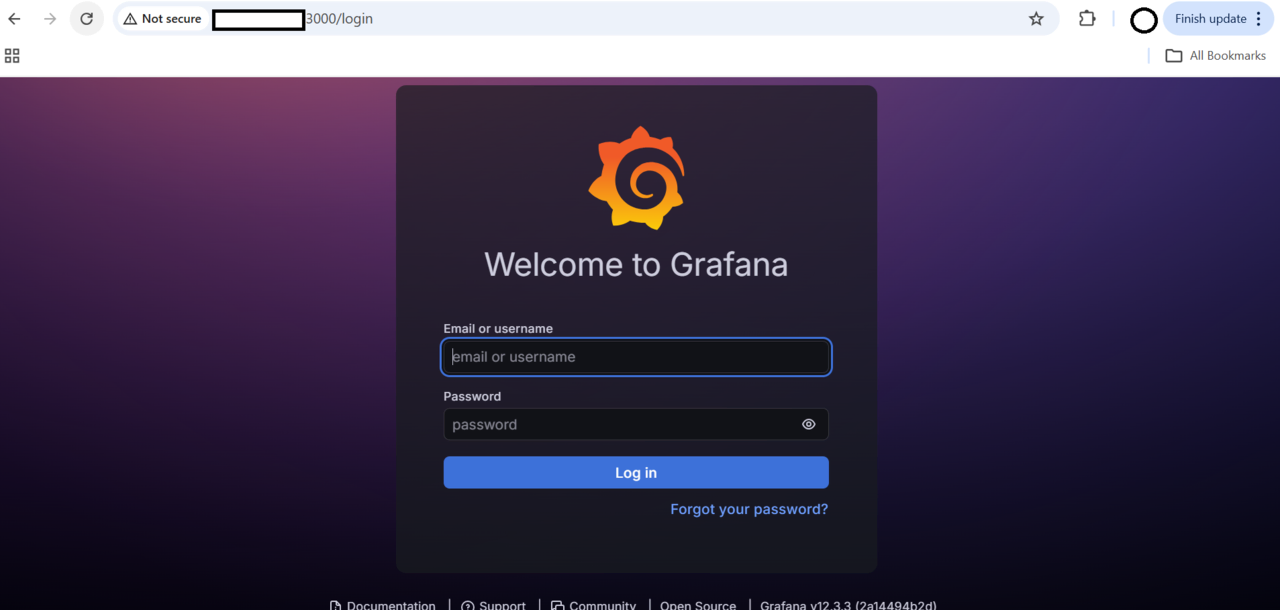 Grafana login page
You will be presented with the main dashboard for Grafana:
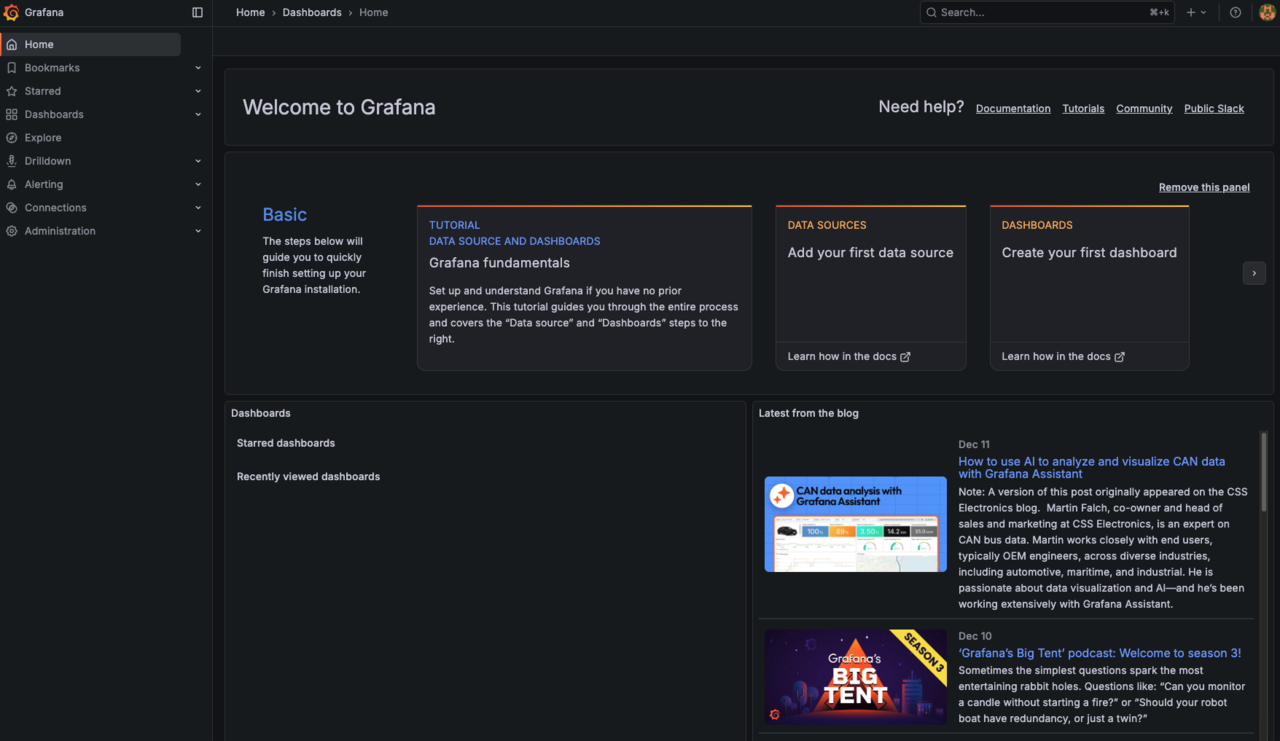 Grafana main dashboard
Add TimescaleDB as a data source
Step 1: Open data sources
From the Grafana sidebar, navigate to Connections → Data sources → Add data source.
Step 2: Choose PostgreSQL
Select PostgreSQL (TimescaleDB is PostgreSQL-compatible).
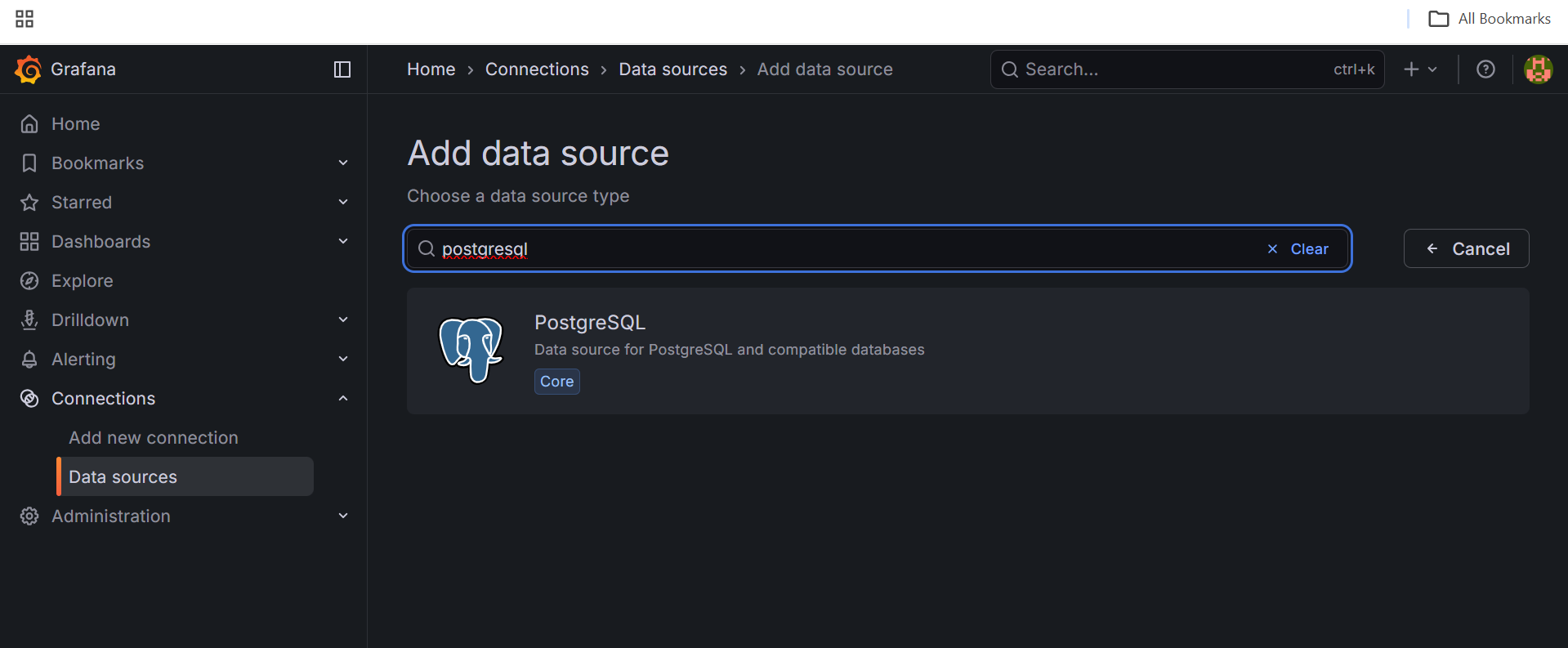 Add PostgreSQL data source
Step 3: Configure connection settings
Fill the form exactly as below:
| Field | Value |
|---|---|
| Host URL | localhost:5432 |
| Database name | sensors |
| Username | postgres |
| Password | <postgres password saved> |
| TLS/SSL Mode | disable |
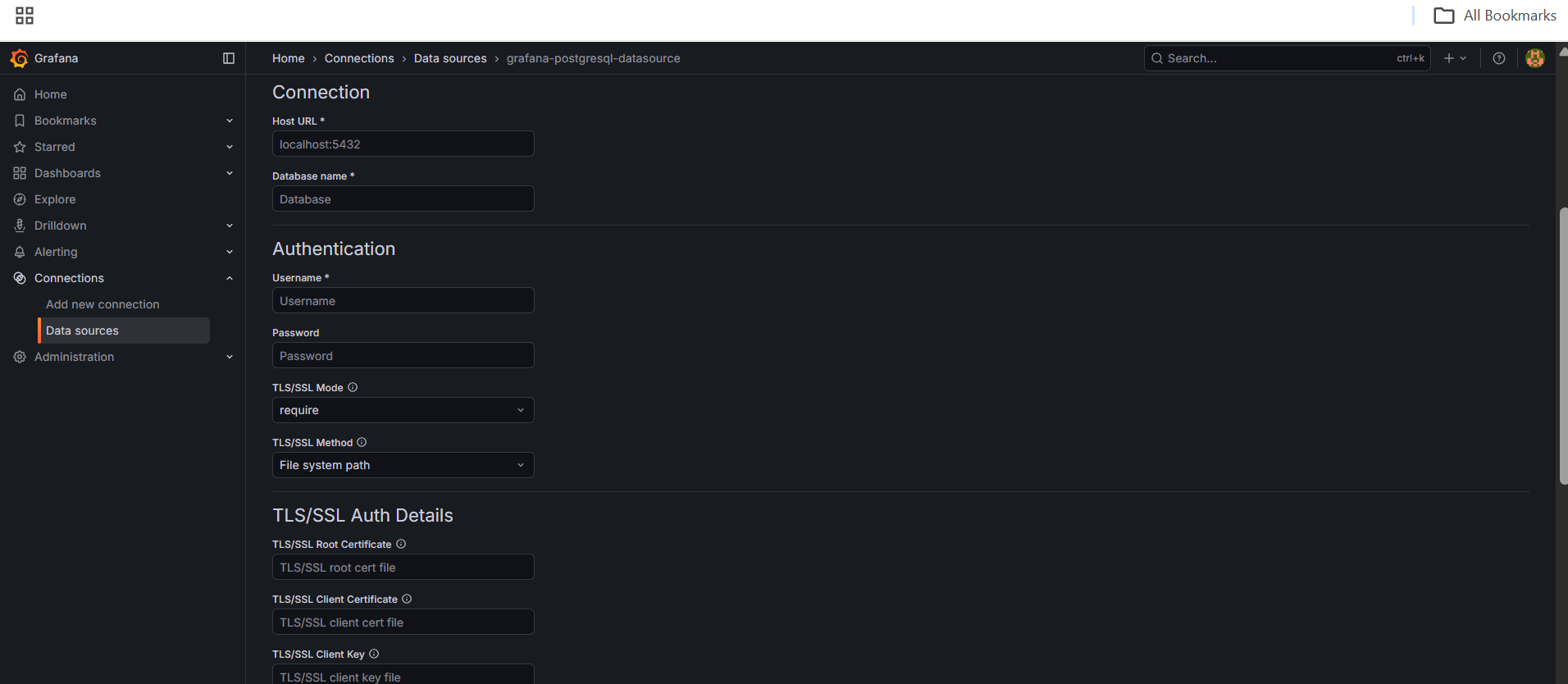 PostgreSQL data source settings
Scroll down and select Save & Test.
You should see “Database connection OK.”
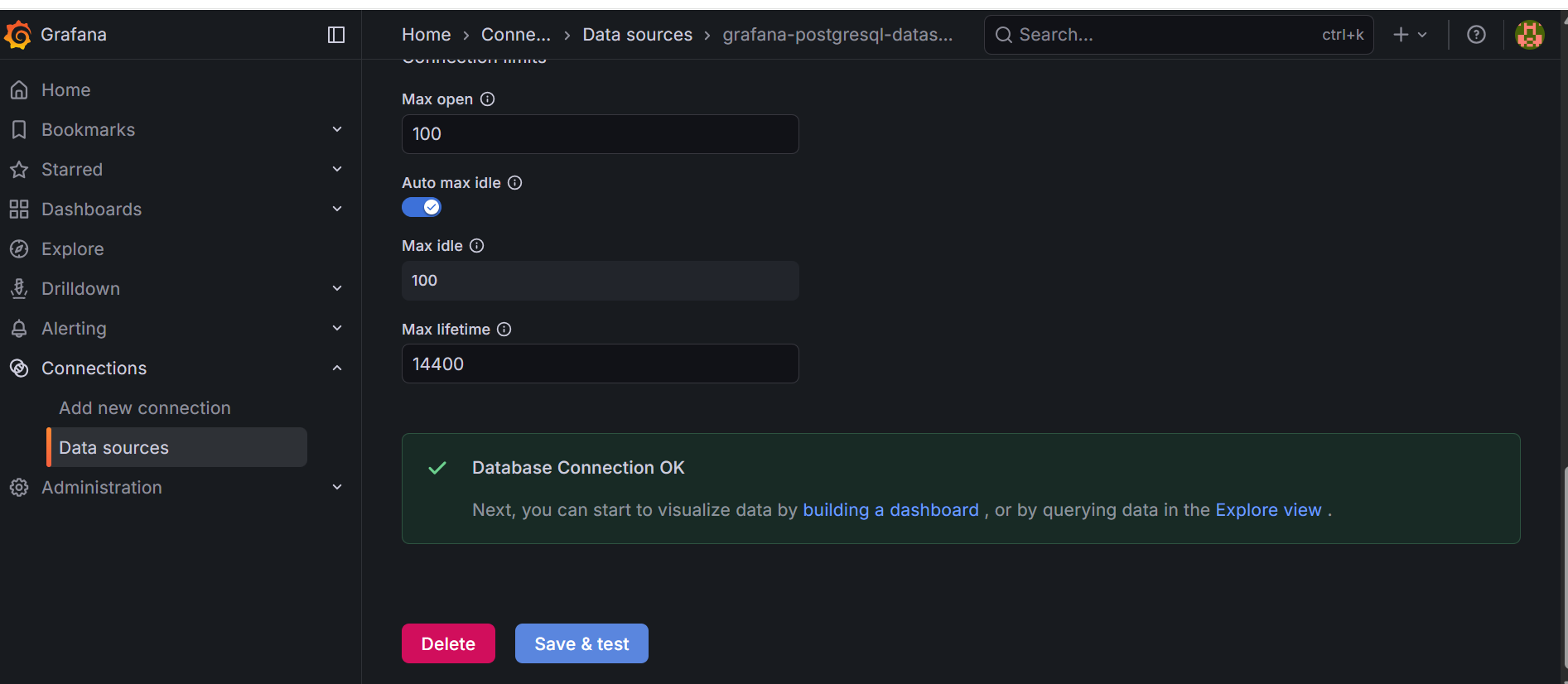 Grafana PostgreSQL data source save and test
What you’ve accomplished and what’s next
In this section, you:
- Installed Grafana on SUSE Arm64 and started the service
- Accessed the Grafana web UI and updated the default password
- Connected Grafana to TimescaleDB as a PostgreSQL data source
In the next section, you’ll create a live dashboard to visualize real-time sensor temperature data.