Run Spark applications on Microsoft Azure Cobalt 100 processors
Introduction
Getting started with Microsoft Azure Cobalt 100, Azure Linux 3.0, and Apache Spark
Create an Azure Cobalt 100 Arm64 virtual machine
Set up an Azure Linux 3.0 environment
Install Apache Spark on Azure Cobalt 100 processors
Validate Apache Spark on Azure Cobalt 100 Arm64 VMs
Benchmark Apache Spark
Next Steps
Run Spark applications on Microsoft Azure Cobalt 100 processors
Introduction
Getting started with Microsoft Azure Cobalt 100, Azure Linux 3.0, and Apache Spark
Create an Azure Cobalt 100 Arm64 virtual machine
Set up an Azure Linux 3.0 environment
Install Apache Spark on Azure Cobalt 100 processors
Validate Apache Spark on Azure Cobalt 100 Arm64 VMs
Benchmark Apache Spark
Next Steps
Create an Azure Cobalt 100 Arm64 VM using the Azure portal
You can create an Azure Cobalt 100 Arm64 virtual machine in several ways, including the Azure portal, the Azure CLI, or an Infrastructure as Code (IaC) tool.
In this Learning Path, you’ll use the Azure portal to create a VM with the Cobalt 100 processor, following a process similar to creating any other virtual machine in Azure.
Step-by-step: create the virtual machine
- In the Azure portal, go to Virtual Machines and select Create.
- Enter details such as Name and Region.
- Choose the image for your virtual machine (for example, Ubuntu 24.04) and select Arm64 as the architecture.
- In the Size field, select See all sizes, then choose the D-Series v6 family of virtual machines.
- Select D4ps_v6 from the list and create the virtual machine.
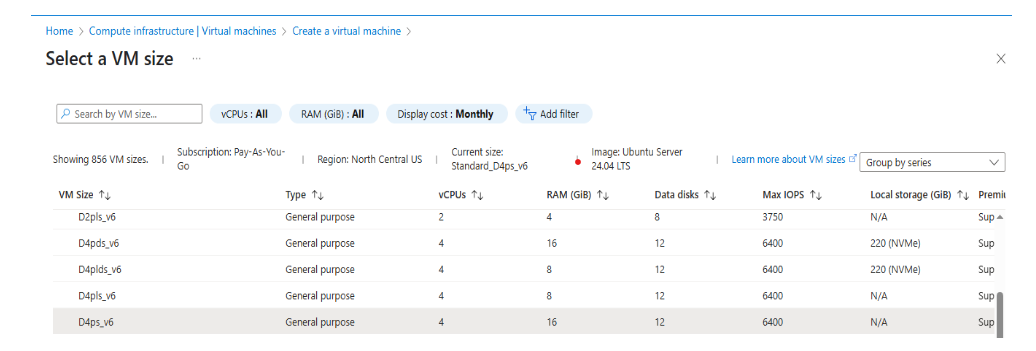 Figure 1: Create an Azure Cobalt 100 Arm64 VM in the Azure portal
Once the Arm64 virtual machine is running, you can SSH into it using the generated PEM key and the public IP address of the instance.
To learn more about Arm-based virtual machines in Azure, see the Learning Path Get started with Arm-based cloud instances .