Deploy Redis for data searching on Google Cloud C4A
Introduction
Get started with Redis on Google Axion C4A
Create a Compute Engine instance
Install Redis
Test Redis
Benchmark Redis
Next Steps
Deploy Redis for data searching on Google Cloud C4A
Overview
In this section, you will learn how to provision a Google Axion C4A Arm virtual machine on Google Cloud Platform (GCP) using the c4a-standard-4 (4 vCPUs, 16 GB memory) machine type in the Google Cloud Console.
For support on GCP setup, see the Learning Path Getting started with Google Cloud Platform .
Create your Google Axion C4A Arm virtual machine
To create a virtual machine based on the C4A instance type:
Navigate to the Google Cloud Console .
Go to Compute Engine > VM Instances and select Create Instance.
Under Machine configuration:
- Populate fields such as Instance name, Region, and Zone.
- Set Series to
C4A. - Select
c4a-standard-4for machine type.
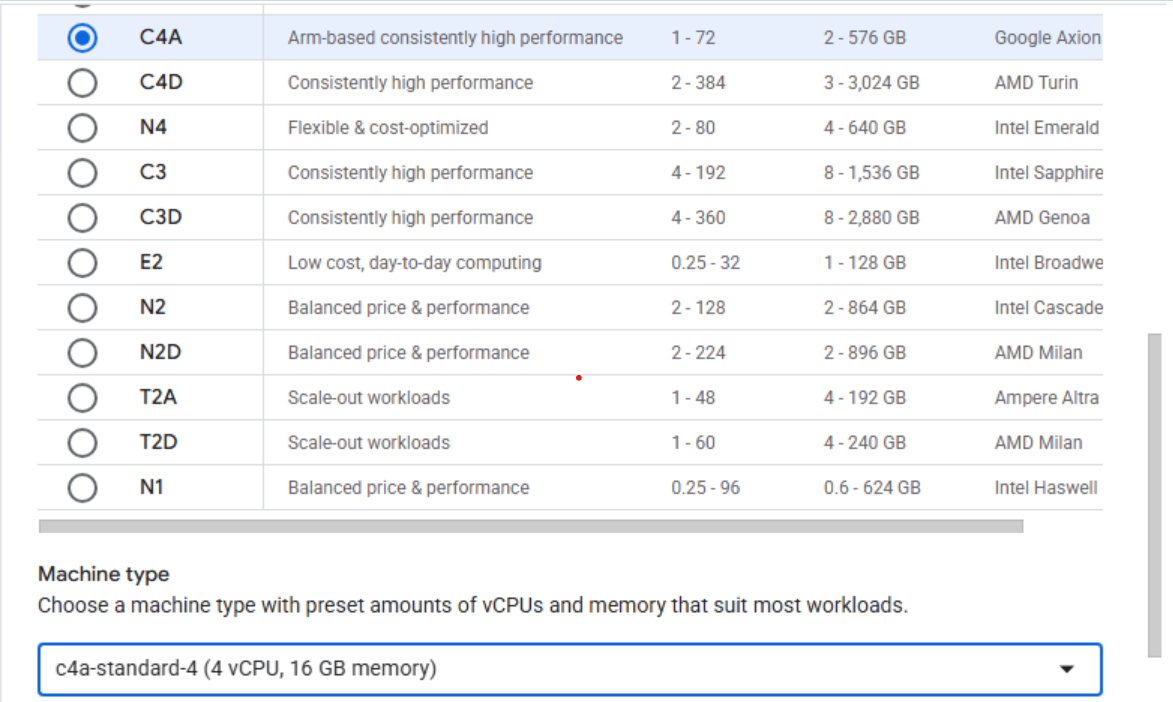 Create a Google Axion C4A Arm virtual machine
Under OS and Storage, select Change, then choose an Arm64-based OS image. For this Learning Path, use SUSE Linux Enterprise Server.
If using SUSE Linux Enterprise Server, select Pay As You Go for the license type.
Once appropriately selected, select Select.
Under Networking, enable Allow HTTP traffic.
Select Create to launch the instance.
Once created, you should see an SSH option to the right in your list of VM instances. Select this to launch an SSH shell into your VM instance:
 SSH connection to VM instance
A window from your browser opens and you see a shell into your VM instance:
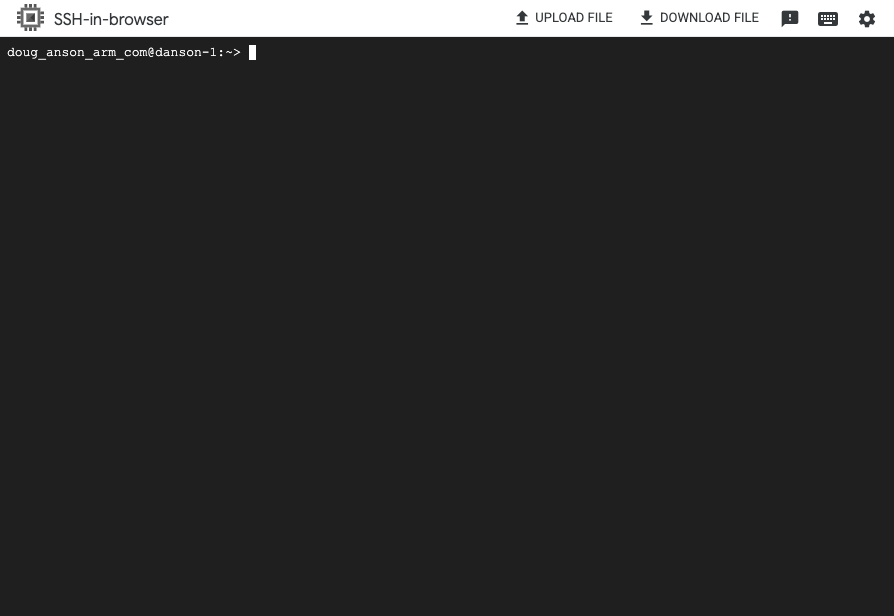 Terminal shell in VM instance
You’re now ready to install Redis.