Scale AI workloads with Ray on Google Cloud C4A Axion VM
Introduction
Get started with Ray on Google Axion C4A
Create a firewall rule for Ray Dashboard and Serve
Create a Google Axion C4A Arm virtual machine on GCP
Deploy Ray on GCP SUSE Arm64
Run Distributed Workloads with Ray
Ray Tune, Serve, and Benchmarking
Next Steps
Scale AI workloads with Ray on Google Cloud C4A Axion VM
Deploy Ray on GCP SUSE Arm64
This section guides you through installing Ray on a GCP Arm64 (Axion) virtual machine and setting up a single-node distributed computing cluster.
You’ll configure the environment, install dependencies, and initialize a Ray cluster optimized for Arm-based infrastructure.
Update your system
Update the system package index and upgrade all installed packages to the latest versions:
sudo zypper refresh
sudo zypper update -y
Install required dependencies
Install Python, development tools, and utilities required for building and running Ray:
sudo zypper install -y python311 python311-devel python311-pip git curl gcc gcc-c++ make
python311→ Python 3.11 runtimepython311-devel→ required for compiling Python packagespip→ Python package managergcc/g++/make→ build tools for dependencies
Create Python environment
Create an isolated Python environment to avoid conflicts with system packages:
python3.11 -m venv ray-env
source ray-env/bin/activate
venvcreates a virtual environment namedray-envsourceactivates the environment
Upgrade Python packaging tools:
pip install --upgrade pip setuptools wheel
- Ensures compatibility with modern Python packages
Install Ray and ML dependencies
Install Ray with all required modules:
pip install "ray[default]" "ray[train]" "ray[tune]" "ray[serve]"
ray[default]→ core distributed frameworkray[train]→ distributed trainingray[tune]→ hyperparameter tuningray[serve]→ model serving
Install common ML libraries:
pip install torch torchvision pandas scikit-learn
Verify the installation
Check that Ray is installed correctly:
python -c "import ray; print(ray.__version__)"
The output is similar to:
2.54.1
Start the Ray cluster
Start a Ray cluster in single-node mode:
ray start --head --dashboard-host=0.0.0.0 --num-cpus=4
--head→ starts the main node (scheduler)--dashboard-host=0.0.0.0→ allows external Ray Dashboard access--num-cpus=4→ allocates 4 CPU cores
The output is similar to:
        Local node IP: 10.0.0.19

--------------------
Ray runtime started.
--------------------

Next steps
  To add another node to this Ray cluster, run
    ray start --address='10.0.0.19:6379'

  To connect to this Ray cluster:
    import ray
    ray.init()

  To submit a Ray job using the Ray Jobs CLI:
    RAY_API_SERVER_ADDRESS='http://10.0.0.19:8265' ray job submit --working-dir . -- python my_script.py

  See https://docs.ray.io/en/latest/cluster/running-applications/job-submission/index.html
  for more information on submitting Ray jobs to the Ray cluster.

  To terminate the Ray runtime, run
    ray stop

  To view the status of the cluster, use
    ray status

  To monitor and debug Ray, view the dashboard at
    10.0.0.19:8265
Verify cluster status
Check cluster health and resource usage:
ray status
The output is similar to:
        Node status
---------------------------------------------------------------
Active:
 1 node_1819bcdd417a5b6945701142fdf1b90c68e8b4cfb6884d05e2e1be71
Pending:
 (no pending nodes)
Recent failures:
 (no failures)

Resources
---------------------------------------------------------------
Total Usage:
 0.0/4.0 CPU
 0B/10.48GiB memory
 0B/4.49GiB object_store_memory

From request_resources:
 (none)
Pending Demands:
 (no resource demands)
Access the Ray Dashboard
Open the following URL in your browser:
http://<VM-IP>:8265
The Ray Dashboard provides visibility into jobs, tasks, and resource utilization.
Ray Dashboard overview
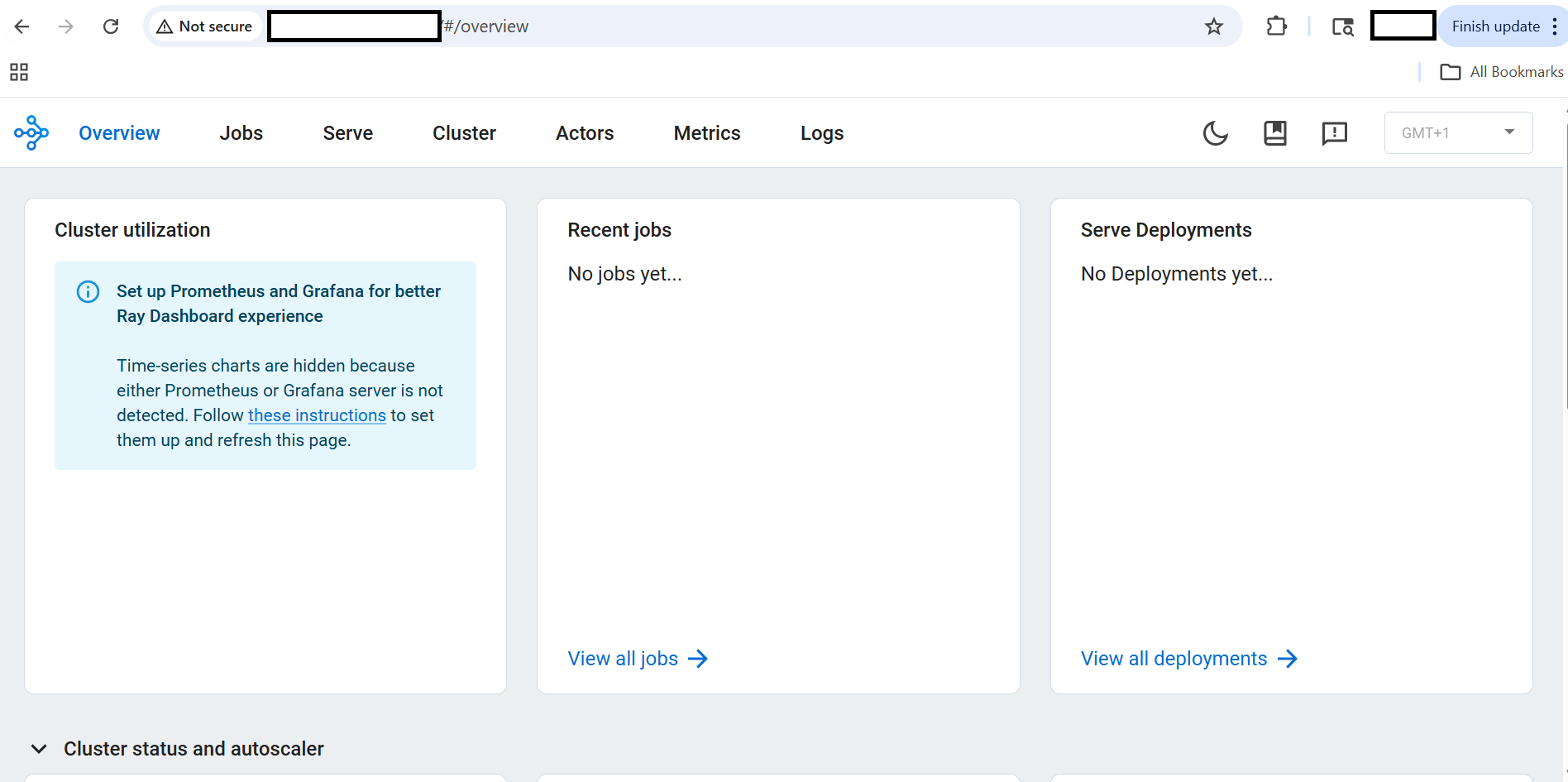 Ray Dashboard overview showing cluster status and metrics
The Ray Dashboard helps monitor distributed execution and debug workloads in real time.
What you’ve learned and what’s next
You have successfully:
- Installed Ray on an Arm-based SUSE VM
- Created an isolated Python environment
- Installed required dependencies
- Initialized a Ray cluster
- Verified cluster status and Ray Dashboard
Next, you’ll run distributed workloads using Ray.