Deploy RabbitMQ on Google Cloud C4A (Arm-based Axion VMs)
Introduction
Learn about RabbitMQ and Google Axion C4A
Create a firewall rule on GCP
Create a Google Axion C4A Arm virtual machine on GCP
Install RabbitMQ
Validate RabbitMQ installation
RabbitMQ use case 1: event processing with Python workers
RabbitMQ use case 2: WhatsApp notification
Next Steps
Deploy RabbitMQ on Google Cloud C4A (Arm-based Axion VMs)
Overview
In this section, you create a firewall rule within Google Cloud Console to expose TCP port 15672.
For support on GCP setup, see the Learning Path Getting started with Google Cloud Platform .
Create a firewall rule in GCP
To expose TCP port 15672, create a firewall rule.
Navigate to the Google Cloud Console , go to VPC Network > Firewall, and select Create firewall rule.
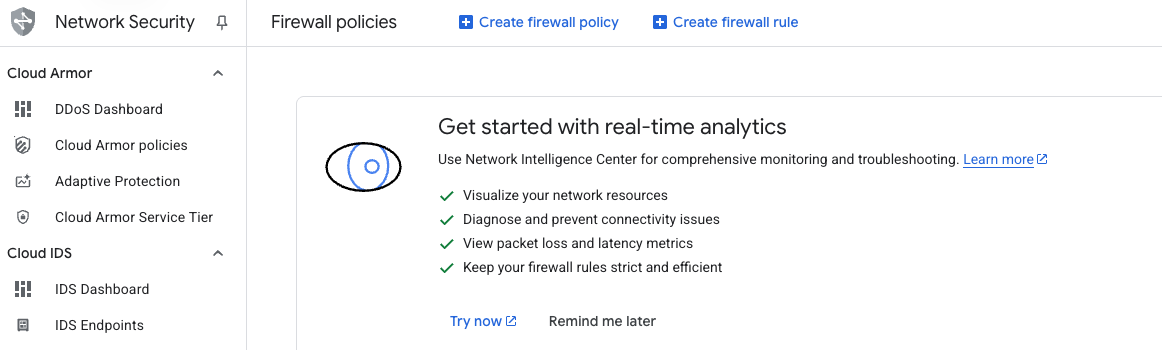 Create a firewall rule
Next, create the firewall rule that exposes TCP port 15672. Set the Name of the new rule to “allow-tcp-15672”. Select your network that you intend to bind to your VM (default is “autoscaling-net” but your organization might have others).
Set Direction of traffic to “Ingress”. Set Allow on match to “Allow” and Targets to “Specified target tags”. Enter “allow-tcp-15672” in the Target tags text field. Set Source IPv4 ranges to your IP address so that only you can access the application.
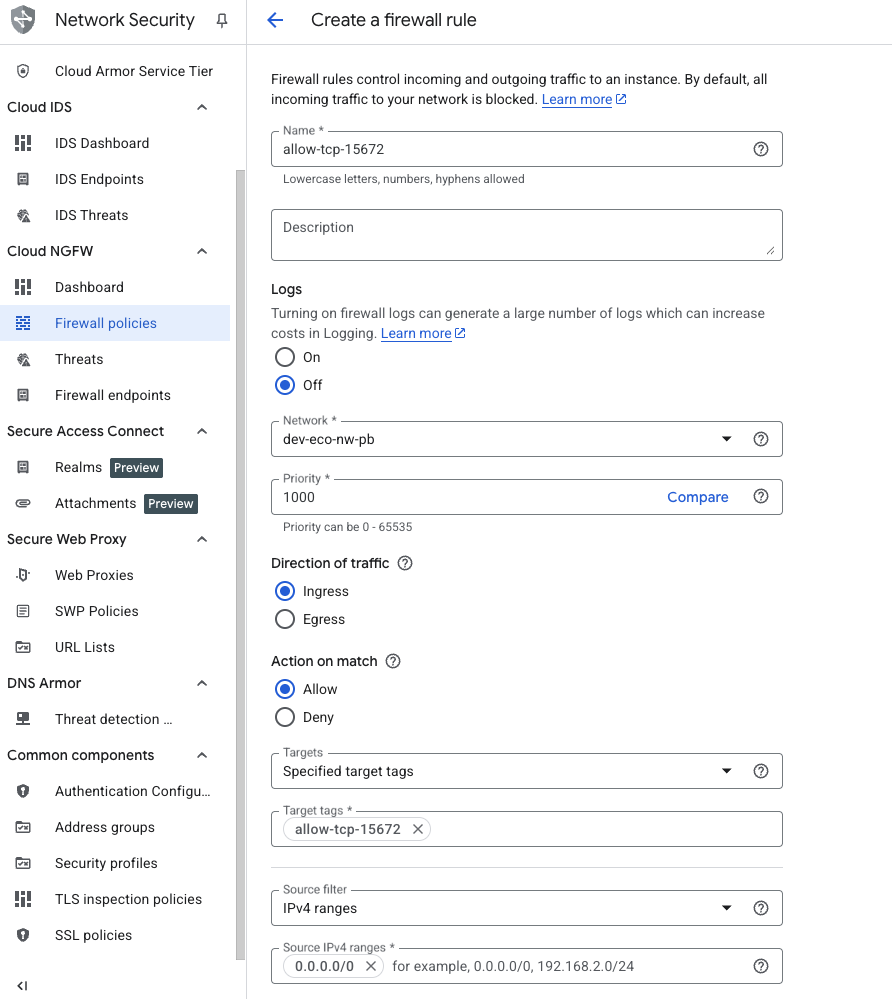 Creating the TCP/15672 firewall rule
Finally, select Specified protocols and ports under the Protocols and ports section. Select the TCP checkbox, enter “15672” in the Ports text field, and select Create.
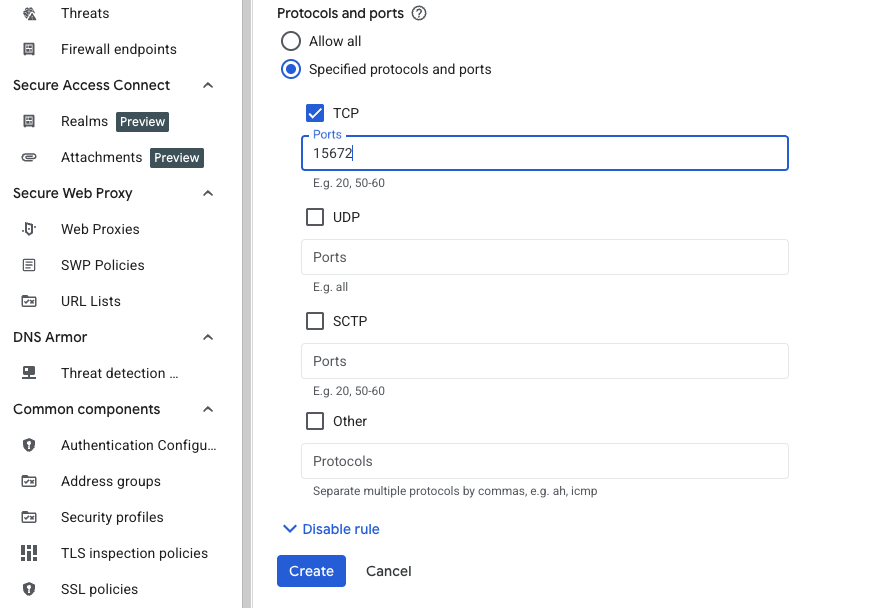 Specifying the TCP port to expose
What you’ve accomplished and what’s next
You’ve successfully created a firewall rule to allow TCP traffic on port 15672 for the RabbitMQ management interface. This firewall rule will be applied to your virtual machine using network tags. Next, you’ll provision the Google Axion C4A Arm virtual machine.