Deploy RabbitMQ on Arm64 Cloud Platforms (Azure and GCP)
Introduction
Learn about Arm-based cloud platforms for RabbitMQ
Create an Azure Cobalt 100 virtual machine
Install RabbitMQ on Azure Cobalt 100
Validate RabbitMQ on Azure
Create a firewall rule for RabbitMQ
Create a Google Axion C4A virtual machine
Install RabbitMQ on Google Cloud SUSE VM
Validate RabbitMQ on Google Cloud
RabbitMQ use Case 1 - event processing with Python Workers
RabbitMQ use case 2 - WhatsApp Notification
Next Steps
Deploy RabbitMQ on Arm64 Cloud Platforms (Azure and GCP)
Introduction
Learn about Arm-based cloud platforms for RabbitMQ
Create an Azure Cobalt 100 virtual machine
Install RabbitMQ on Azure Cobalt 100
Validate RabbitMQ on Azure
Create a firewall rule for RabbitMQ
Create a Google Axion C4A virtual machine
Install RabbitMQ on Google Cloud SUSE VM
Validate RabbitMQ on Google Cloud
RabbitMQ use Case 1 - event processing with Python Workers
RabbitMQ use case 2 - WhatsApp Notification
Next Steps
Introduction
There are several ways to create an Arm-based Cobalt 100 virtual machine: the Microsoft Azure console, the Azure CLI tool, or using your choice of IaC (Infrastructure as Code). This guide will use the Azure console to create a virtual machine with Arm-based Cobalt 100 Processor.
This learning path focuses on the general-purpose virtual machine of the D series. Please read the guide on Dpsv6 size series offered by Microsoft Azure.
Provision the virtual machine
Creating a Cobalt 100 virtual machine follows the same process as creating any other Azure virtual machine. Launch the Azure portal and navigate to Virtual Machines.
Select Create, then select Virtual Machine from the drop-down list. 2. Inside the “Basic” tab, fill in the Instance details such as “Virtual machine name” and “Region”. 3. Choose the image for your virtual machine (for example, Ubuntu Pro 24.04 LTS) and select “Arm64” as the VM architecture. 4. In the “Size” field, click on “See all sizes” and select the D-Series v6 family of virtual machines. Select “D4ps_v6” from the list.
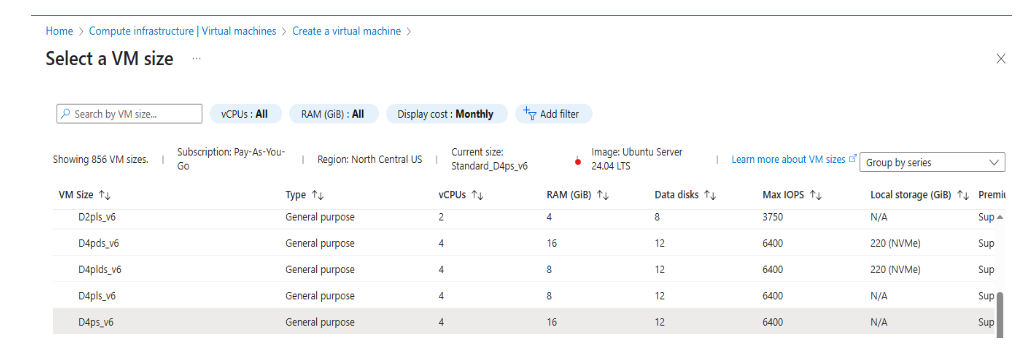 Figure 1: Select the D-Series v6 family of virtual machines
Select SSH public key as the authentication type. Azure automatically generates an SSH key pair and stores it for future use, providing a fast and secure way to connect to your virtual machine.
Fill in the administrator username for your VM.
Select Generate new key pair, then select RSA SSH Format as the SSH Key Type. RSA offers better security with keys longer than 3072 bits. Provide a name for your SSH key pair.
In the Inbound port rules section, select HTTP (80) and SSH (22) as the inbound ports.
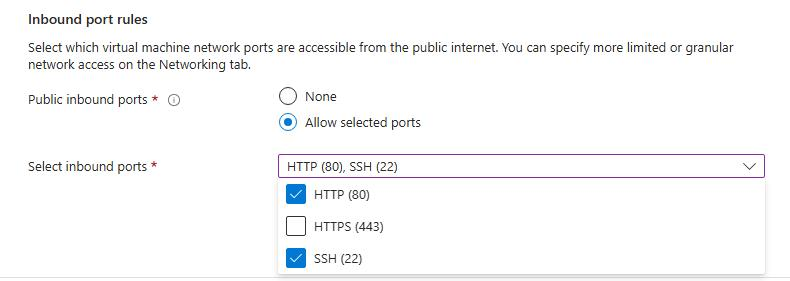 Figure 2: Allow inbound port rules
Select the Review + Create tab and review the configuration for your virtual machine. The configuration is similar to:
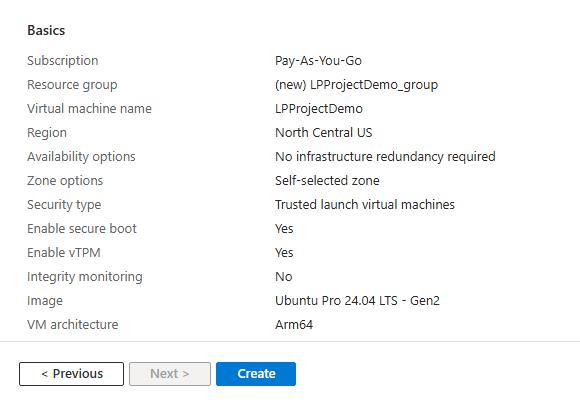 Figure 3: Review and Create an Azure Cobalt 100 Arm64 VM
When you’re satisfied with your configuration, select the Create button, then select Download Private Key and Create Resources.
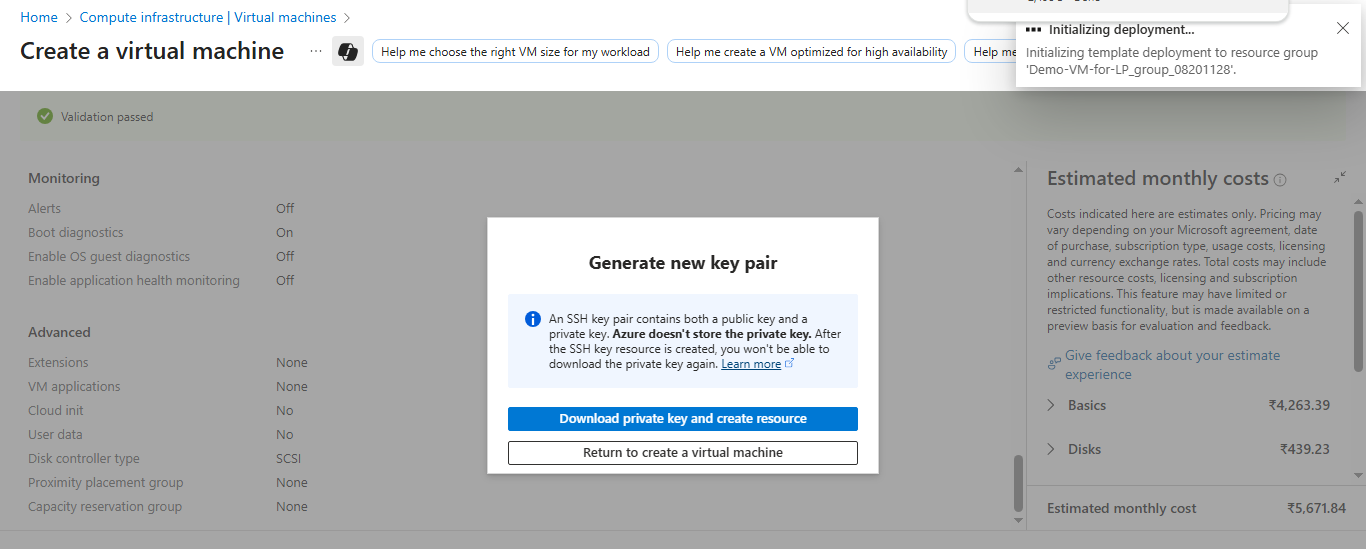 Download Private key and Create Resources
Your virtual machine deploys within a few minutes. SSH into the virtual machine using the downloaded private key and the public IP address.
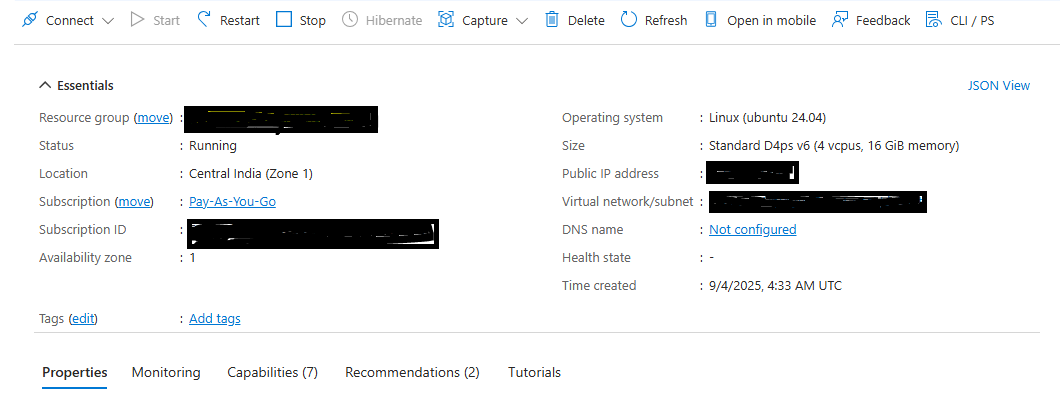 VM deployment confirmation in Azure portal
To learn more about Arm-based virtual machines in Azure, refer to “Getting Started with Microsoft Azure” in Get started with Arm-based cloud instances .