Build Semantic Search and Chatbot Retrieval Systems with Qdrant on Google Cloud C4A Axion processors
Introduction
Understand vector search with Qdrant on Google Axion
Create a Google Axion C4A Arm virtual machine
Install and run Qdrant on Axion
Generate and index vector embeddings
Query vector embeddings with semantic search
Build a chatbot with Qdrant on Axion
Understand the vector search architecture
Next Steps
Build Semantic Search and Chatbot Retrieval Systems with Qdrant on Google Cloud C4A Axion processors
Introduction
Understand vector search with Qdrant on Google Axion
Create a Google Axion C4A Arm virtual machine
Install and run Qdrant on Axion
Generate and index vector embeddings
Query vector embeddings with semantic search
Build a chatbot with Qdrant on Axion
Understand the vector search architecture
Next Steps
Provision Axion infrastructure for Qdrant
In this section you’ll create a Google Axion C4A arm64 virtual machine on Google Cloud Platform. You’ll use the c4a-standard-4 machine type, which provides 4 vCPUs and 16 GB of memory. This virtual machine hosts your Qdrant applications.
For help with GCP setup, see the Learning Path Getting started with Google Cloud Platform .
Provision the virtual machine in Google Cloud Console
To create a virtual machine based on the C4A instance type:
- Navigate to the Google Cloud Console .
- Go to Compute Engine > VM Instances and select Create Instance.
- Under Machine configuration:
- Populate fields such as Instance name, Region, and Zone.
- Set Series to
C4A. - Select
c4a-standard-4for machine type.
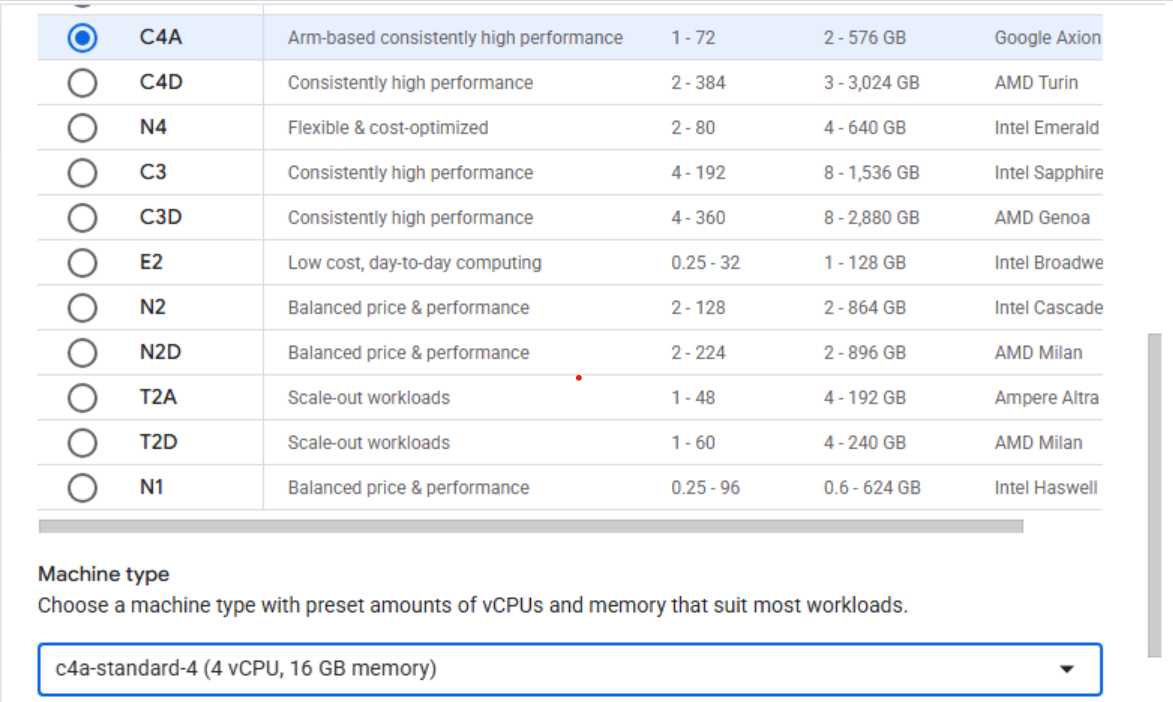 Configuring machine type to C4A in Google Cloud Console
- Under OS and storage, select Change, and then choose an arm64 operating system image.
- For this Learning Path, select SUSE Linux Enterprise Server.
- For the license type, choose Pay as you go.
- Increase Size (GB) from 10 to 100 to allocate sufficient disk space.
- Select Choose to apply the changes.
- Under Networking, enable Allow HTTP traffic and Allow HTTPS traffic
- For some organizations not using the ‘default’ network interface, you may need to select the network appropriate for your organization.
- Select Create to launch the virtual machine.
After the instance starts, select SSH next to the VM in the instance list to open a browser-based terminal session.
 Connecting to a running C4A VM using SSH
A new browser window opens with a terminal connected to your VM.
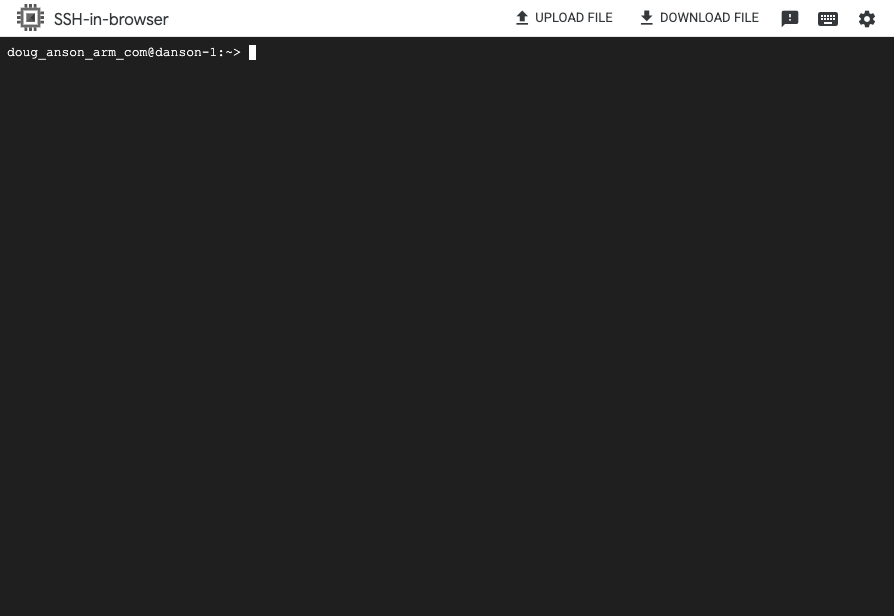 Terminal session connected to the VM
Summary
In this section:
- You provisioned a Google Axion C4A arm64 virtual machine with 4 vCPUs and 16 GB of memory
- You configured the VM with SUSE Linux Enterprise Server and 100 GB of storage
- You connected to your VM using SSH through the Google Cloud Console
Your virtual machine is now ready to host Qdrant.