Overview
In this section, you will learn how to provision a Google Axion C4A Arm virtual machine on Google Cloud Platform (GCP) using the c4a-standard-4 (4 vCPUs, 16 GB memory) machine type in the Google Cloud Console.
If you need help on setting up GCP, see the Learning Path Getting started with Google Cloud Platform .
Provision a Google Axion C4A Arm VM
To create a virtual machine based on the C4A instance type, start by navigating to the Google Cloud Console , and follow these steps:
In the Google Cloud Console, go to Compute Engine > VM Instances and select Create Instance.
Under Machine configuration, enter the following details:
- Instance name: Choose a unique name for your VM.
- Region and Zone: Select the location closest to your users or workloads.
- Series: Set to
C4Ato use Arm-based Axion processors. - Machine type: Select
c4a-standard-4(4 vCPUs, 16 GB memory).
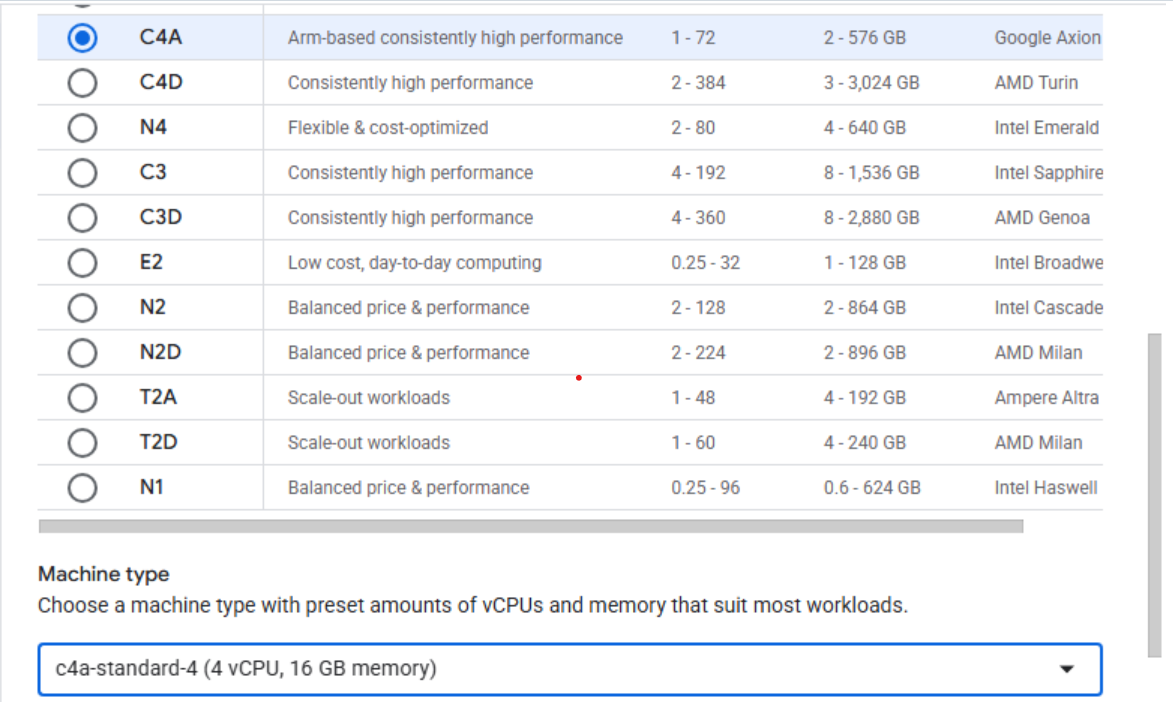 Creating a Google Axion C4A Arm virtual machine in Google Cloud Console
Under OS and storage, select Change, then choose an Arm64-based operating system image. For this Learning Path, select SUSE Linux Enterprise Server.
For SUSE Linux Enterprise Server, select Pay As You Go as the license type.
After selecting the image and license, select Select to confirm your choice.
Under Networking, enable Allow HTTP traffic to permit web access.
Select Create to launch your VM instance.
When the instance is ready, you’ll see an SSH option next to your VM in the list. Select SSH to open a shell session in your browser.
 Invoke a SSH session into your running VM instance
When you select SSH, a new browser window opens with a shell prompt for your VM instance. You now have direct command-line access to your Arm-based VM, ready to run commands and manage your environment.
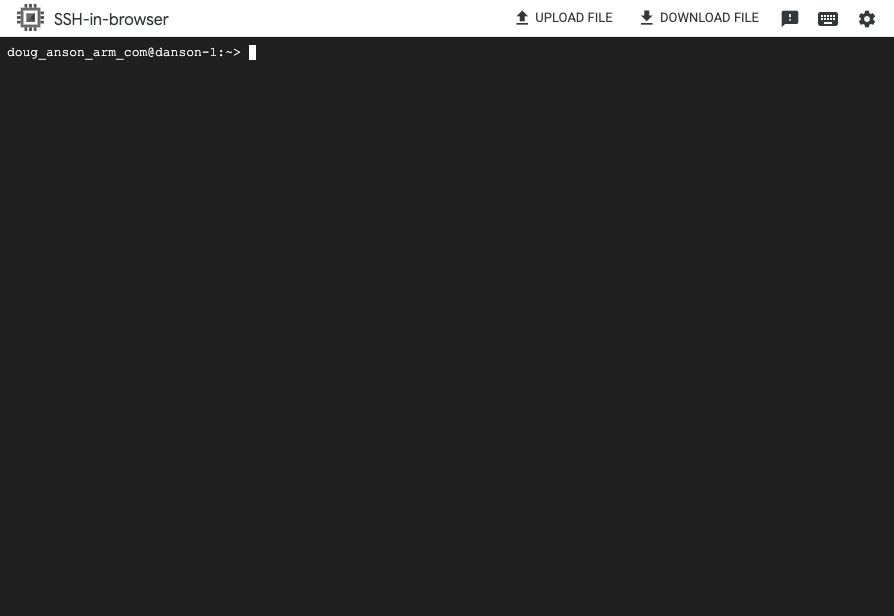 Terminal shell in your VM instance
What you’ve accomplished and what’s next
You have successfully provisioned a Google Axion C4A Arm virtual machine on Google Cloud Platform using the Console. You selected the Arm64-based SUSE Linux Enterprise Server image, configured networking, and launched your VM. You also connected to your instance using the built-in SSH feature. You now have a running Arm VM on GCP and access to its shell environment.
Next, you’ll install Puppet on your new instance to automate configuration and management tasks.