Identify code hotspots using Arm Performix through the Arm MCP Server
Introduction
Understand AI-driven profiling with Arm Performix MCP
Build the Mandelbrot example on Arm Neoverse
Run Code Hotspots with an AI agent
Optimize code with AI-driven profiling feedback
Next Steps
Identify code hotspots using Arm Performix through the Arm MCP Server
Execute profiling through the Arm MCP Server
In this section, you’ll use a GitHub Copilot prompt file to drive the Code Hotspots recipe through the Arm MCP Server. The agent confirms your target details, runs the recipe autonomously, and returns structured profiling results.
Use the Arm MCP performance-beginner prompt file
The section uses Visual Studio Code with GitHub Copilot. If you prefer a different AI assistant, see Configure other AI agents at the end of this section for equivalent configurations for Kiro and OpenAI Codex.
The Arm MCP Server repository includes a ready-made prompt file called performance-beginner that guides an AI agent through the full Code Hotspots workflow: baseline profiling, hotspot identification, targeted code changes, and re-profiling to confirm the improvement. You don’t need to write this file yourself, you copy it from the repository.
Open the Mandelbrot-Example repository in Visual Studio Code on your local machine. Create the directory .github/prompts/ if it doesn’t already exist:
mkdir -p .github/prompts
Download the prompt file from the Arm MCP repository and place it in that directory:
curl -o .github/prompts/performance-beginner.prompt.md \
  https://raw.githubusercontent.com/arm/mcp/main/agent-integrations/vs-code/performance-beginner.prompt.md
You can also view the full prompt at github.com/arm/mcp . It instructs the agent to confirm the workload command and target details with you before running, follow the loop of baseline profile → one focused code change → re-profile → compare delta, and report results in concrete numbers at each step.
Invoke the prompt file
With GitHub Copilot connected to the Arm MCP Server, open Copilot Chat in Agent Mode and invoke the prompt with the slash command:
/performance-beginner
Copilot reads the prompt file and walks you through a series of confirmation questions before running anything. Answer each question in turn:
Step 1: Select where the workload is running — choose Remote machine (SSH) for an Arm cloud instance.
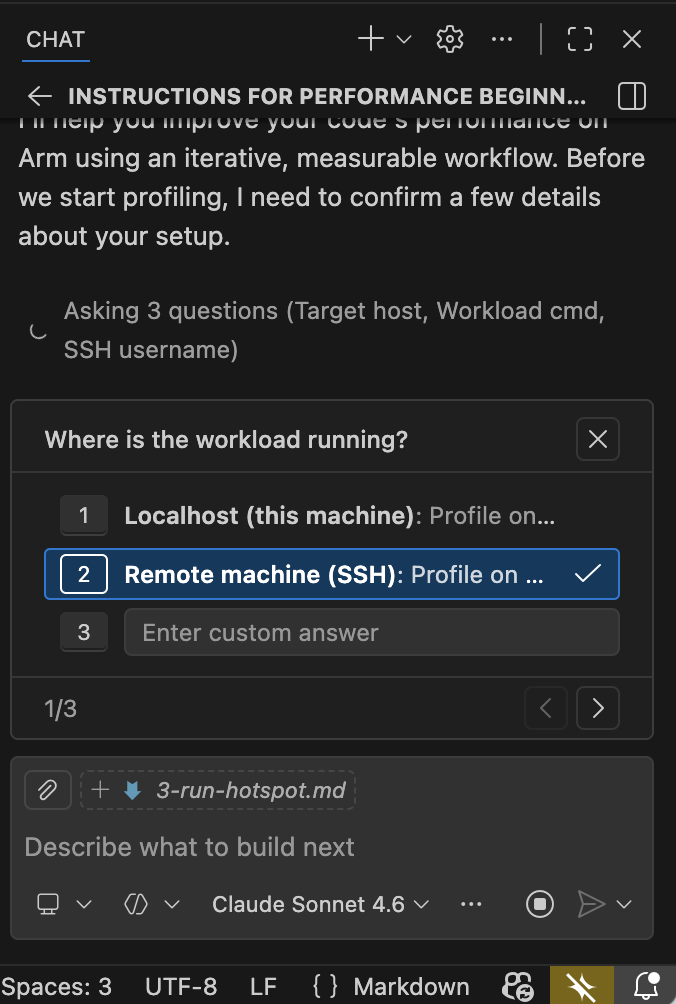 Agent prompt: select workload location
Step 2: Enter the absolute path to the binary on the remote server.
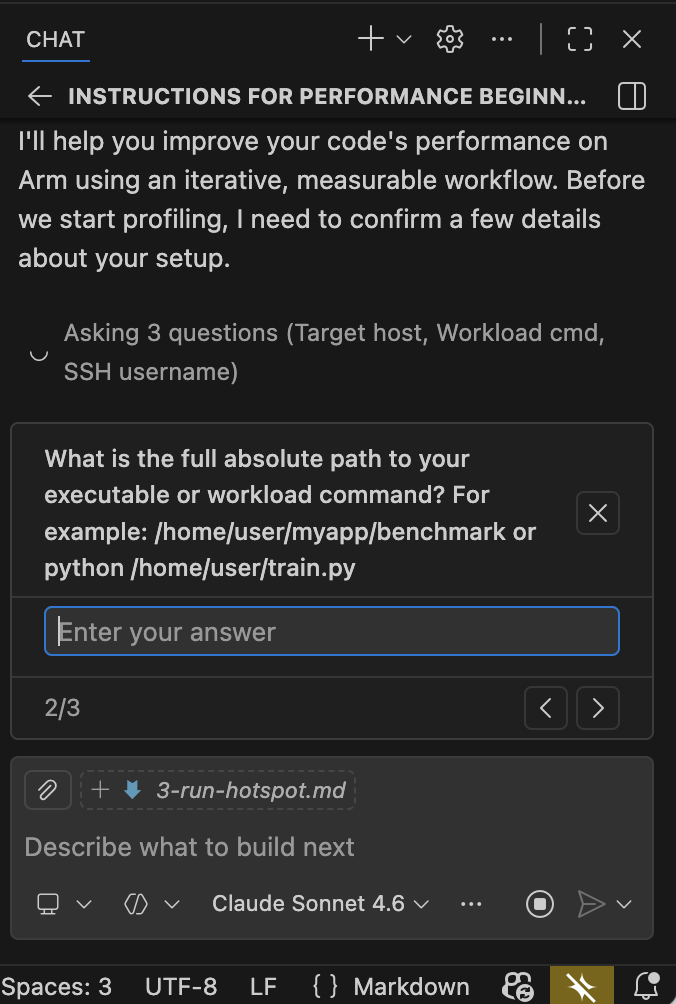 Agent prompt: enter binary path
Step 3: Enter the SSH username used to connect to the target machine.
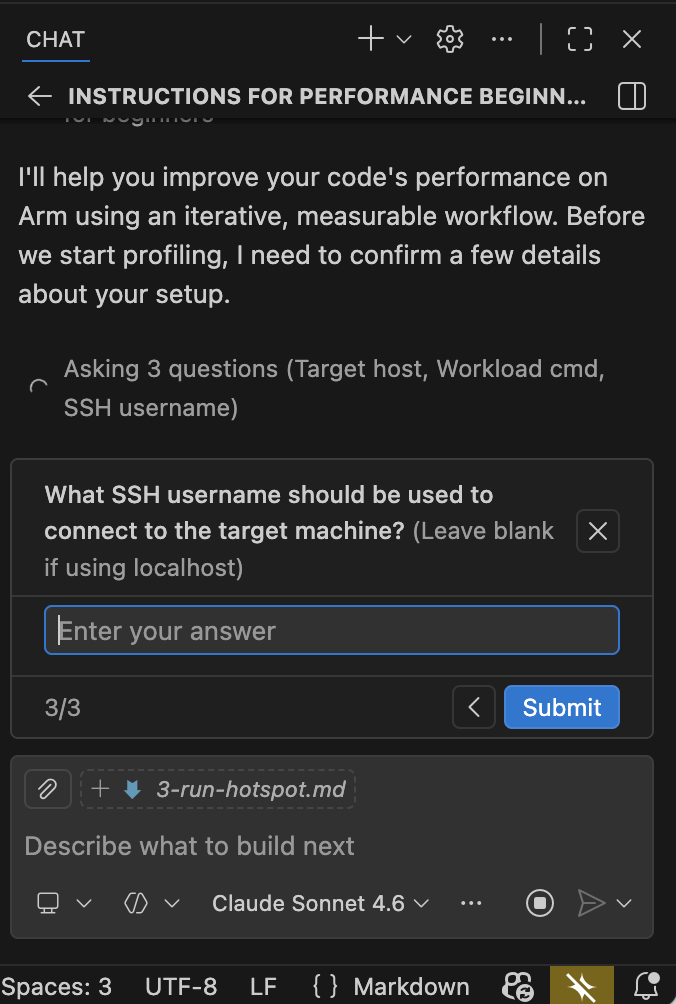 Agent prompt: enter SSH username
Step 4: Enter the IP address or hostname of your remote Arm machine.
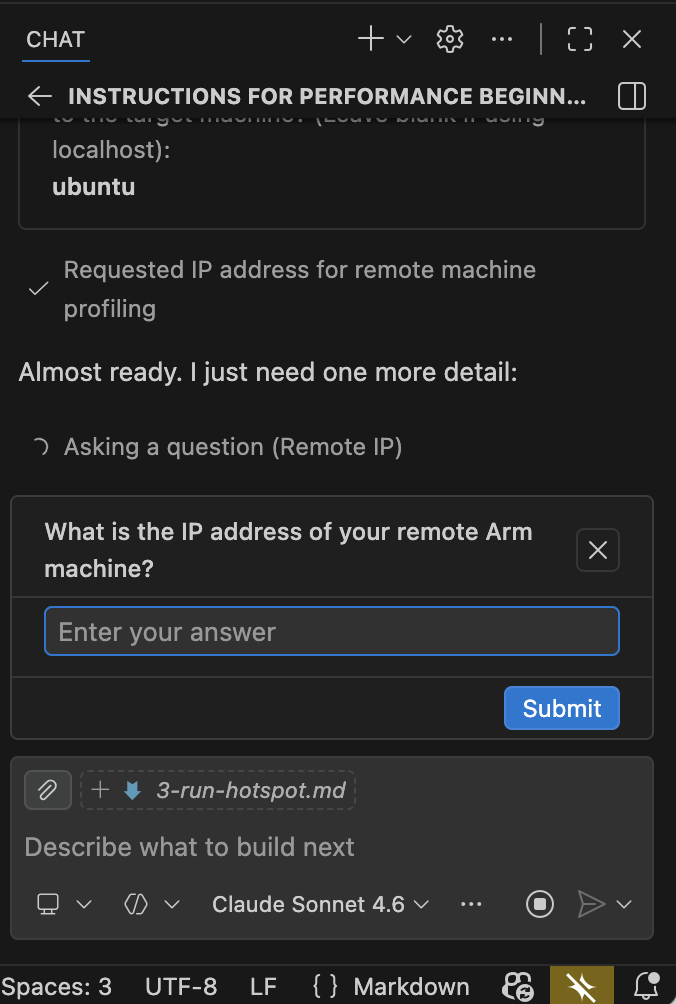 Agent prompt: enter remote IP address
Once you’ve answered all four questions, the agent calls arm-mcp/apx_recipe_run to start the Code Hotspots recipe and waits for the Mandelbrot binary to finish. The single-threaded build takes approximately one to two minutes to run.
Read the agent output
Once the profiling run completes, the agent returns a structured summary. The output looks similar to the following:
Code Hotspots recipe completed. Top functions by sample percentage:

1. Mandelbrot::Mandelbrot::getIterations(double, double)  — 28.5% of samples
   Called from: Mandelbrot::draw → Mandelbrot::getIterations
   The per-pixel Mandelbrot iteration loop. High sample count because every pixel
   calls this function up to MAX_ITERATIONS (1024) times before escaping or exhausting
   the iteration limit.

2. std::__complex_abs  — 18.5% of samples
   Called from: Mandelbrot::getIterations → std::abs → __complex_abs
   Computes the magnitude of a std::complex<double> value. Called on every iteration
   of the inner loop to check the escape condition abs(z) > THRESHOLD.

3. hypotf64  — 14.9% of samples
   Called from: std::__complex_abs → hypotf64
   The sqrt-based hypotenuse function underlying __complex_abs. Together with
   __complex_abs, these two libm symbols account for ~33% of total CPU time — all
   spent computing a square root that only needs to be compared against a threshold.

4. std::complex<double>::__rep()  — 14.6% of samples
   Accessor overhead from the un-inlined std::complex operator chain. Appears
   prominently because the debug build (-O0) prevents inlining of these small methods.

5. std::complex operator+, operator*=, operator*  — ~15% combined
   Arithmetic operator overhead, also un-inlined at -O0.

key observation: the inner loop in getIterations spends more than 60% of total
CPU time in the escape condition check and std::complex arithmetic machinery,
not in the Mandelbrot iteration itself.

knowledge_base_search result for "optimizing hypot libm Arm Neoverse":
  - Arm Performance Libraries vector math functions provide optimized implementations
    for Neoverse targets.
    Link: https://developer.arm.com/documentation/101004/latest

Proposed optimizations (not yet applied):
  1. Replace abs(z) > THRESHOLD with a squared-magnitude check:
     (z.real()*z.real() + z.imag()*z.imag()) > THRESHOLD*THRESHOLD
     This eliminates the sqrt call and removes hypotf64 and __complex_abs
     from the profile entirely.
  2. Replace std::complex<double> with plain double variables zr and zi.
     The iteration z = z*z + c expands to:
       zr_new = zr^2 - zi^2 + x
       zi_new = 2*zr*zi + y
     This removes all std::complex method call overhead from the inner loop.
  3. Build with -O3 rather than -O0 to enable inlining, loop unrolling,
     and auto-vectorization of the tight iteration loop.
The agent has surfaced the same hotspots that a manual Performix session would identify — __complex_abs and hypotf64 dominating through the inner loop in Mandelbrot::getIterations, plus significant std::complex operator overhead from the debug build — without you needing to open the Performix GUI, configure the recipe, or manually inspect the flame graph.
What you’ve accomplished and what’s next
You’ve used the Arm MCP performance-beginner prompt file — invoked with /performance-beginner — to drive the Arm Performix Code Hotspots recipe end-to-end through the Arm MCP Server. The agent confirmed your target details, ran the recipe autonomously, and identified getIterations as the dominant hotspot. It found that ~33% of total CPU time is spent inside the sqrt-based escape condition check (__complex_abs and hypotf64), and noted significant std::complex operator overhead from the debug build. It proposed three targeted optimizations: eliminating the sqrt, replacing std::complex with raw double arithmetic, and enabling compiler optimizations.
In the next section, you’ll apply those optimizations one at a time, rebuilding and re-profiling after each change to confirm the improvement with real data.
Configure other AI agents
The same profiling workflow works with other agentic AI assistants. The core prompt logic is identical across tools; only the file location and invocation format changes.
Kiro steering document
The Arm MCP repository includes a ready-made Kiro steering document for this workflow. Create the .kiro/steering/ directory if it doesn’t already exist, then download the file:
mkdir -p .kiro/steering
curl -o .kiro/steering/performance-beginner.md \
  https://raw.githubusercontent.com/arm/mcp/main/agent-integrations/kiro/performance-beginner.md
You can view the full steering document at
github.com/arm/mcp
. It uses inclusion: always, so Kiro loads it automatically for every session in the workspace. Reference it explicitly in chat by typing #performance-beginner.
OpenAI Codex prompt file
The Arm MCP repository also includes a ready-made Codex prompt file. Create the prompts directory if it doesn’t already exist, then download the file:
mkdir -p ~/.codex/prompts
curl -o ~/.codex/prompts/performance-beginner.md \
  https://raw.githubusercontent.com/arm/mcp/main/agent-integrations/codex/performance-beginner.md
You can view the full prompt at github.com/arm/mcp . Invoke it with:
codex /prompts:performance-beginner