Generate Arm Performix AI insights in VS Code with Claude Code
Introduction
Understand the AI-assisted Arm Performix insight workflow
Configure the Arm Performix MCP server in Claude Code
Create an Arm Performix Code Hotspots run
Generate Arm Performix AI insights for a Code Hotspots run
Open the run in Arm Performix for deeper inspection
Next Steps
Generate Arm Performix AI insights in VS Code with Claude Code
Choose a configuration method
The Claude Code extension and Claude CLI use the same Model Context Protocol (MCP) configuration. Choose one of the following methods to configure the MCP:
- Use the MCP interface of the Claude Code extension.
- Run
claude mcp addin a terminal. - Edit the user-scoped MCP configuration in
~/.claude.json.
You need to complete only one method. The MCP server is a local standard input and output (STDIO) process started by the apx executable.
Configure the server on the host where Claude Code runs. In a local Visual Studio Code (VS Code) session, this is your development computer. In a remote development session, confirm which host runs the Claude Code extension and which Arm Performix data directory it uses.
Configure the MCP server in the Claude Code extension
Adding servers through the MCP dialog requires Claude Code extension version 2.1.261 or later. If you use an older version, update the extension or use the CLI or JSON configuration method instead. For more information, see the Claude Code MCP configuration documentation .
To add the MCP server in VS Code:
- Install the official Claude Code extension for VS Code from Anthropic and open the Claude Code panel.
- Open the command menu by selecting
/in the prompt box. - Under Customize, select MCP servers.
- Add a Local command (stdio) server named
arm-performix. - For the command, enter the full path to the Arm Performix
apxexecutable.
On Linux, the default path is:
/opt/Arm Performix/assets/apx/apx
On Windows, the default path depends on whether you installed Arm Performix for all users or for a single user.
For an all-users installation, use:
C:\Program Files\Arm Performix\assets\apx\apx.exe
For a single-user installation, use:
C:\Users\<username>\AppData\Local\Programs\Arm Performix\assets\apx\apx.exe
On macOS, the default path is:
/Applications/Arm Performix.app/Contents/assets/apx/apx
- Add
mcpandstartas separate arguments. - Under Scope, select User to make the server available in all your projects, matching the CLI and JSON methods. Local command (stdio) is the transport type. It doesn’t determine the configuration scope.
- Add the server, then start a new Claude Code session.
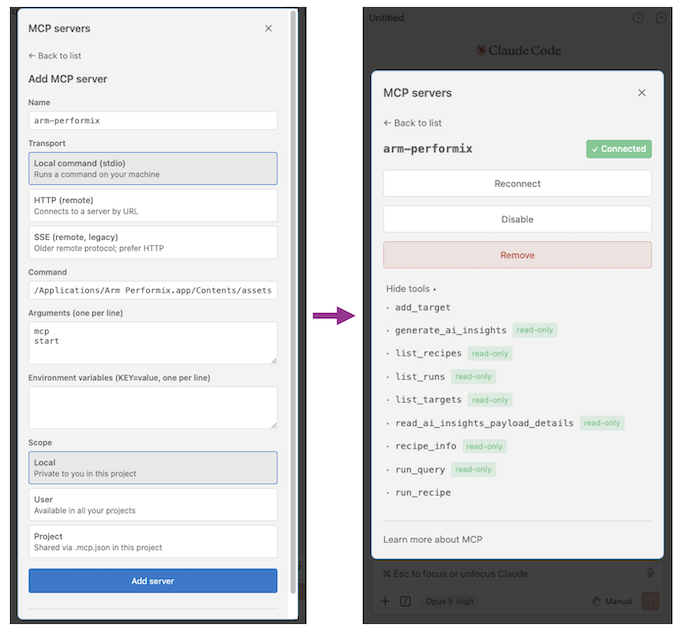 Configure the Arm Performix MCP server and view its tools in Claude Code for VS Code
The screenshot shows Local scope selected. For this Learning Path, select User instead before adding the server.
Configure the MCP server with Claude CLI
This method requires the
standalone Claude Code CLI
. Installing the VS Code extension doesn’t add claude to your terminal PATH.
If the claude command is available in your terminal, add the same user-scoped STDIO server from the command line:
claude mcp add --scope user --transport stdio arm-performix -- "<path-to-apx>" mcp start
Replace <path-to-apx> with the full executable path for your host.
For example, on macOS, the default install path for apx is /Applications/Arm Performix.app/Contents/assets/apx/apx:
claude mcp add --scope user --transport stdio arm-performix -- \
    "/Applications/Arm Performix.app/Contents/assets/apx/apx" mcp start
Claude Code confirms that it added the server:
        Added stdio MCP server arm-performix with command: /Applications/Arm Performix.app/Contents/assets/apx/apx mcp start to user config
File modified: /Users/<username>/.claude.json
Start a new Claude Code session after the command completes.
Configure the MCP server in the Claude Code JSON file
You can also configure the user-scoped MCP server directly in ~/.claude.json. Add the arm-performix entry to the existing top-level mcpServers object. If mcpServers doesn’t exist, create it. Preserve all other settings and server entries in the file.
Replace <path-to-apx> with the full path to the Arm Performix apx executable for your host:
{
  "mcpServers": {
    "arm-performix": {
      "type": "stdio",
      "command": "<path-to-apx>",
      "args": ["mcp", "start"],
      "env": {}
    }
  }
}
On Windows, escape each backslash in the JSON path. For example, use C:\\Program Files\\Arm Performix\\assets\\apx\\apx.exe for an all-users installation.
Save the ~/.claude.json file, then start a new Claude Code session.
Check that the MCP server is connected
After configuration, in a new Claude Code conversation in VS Code, enter /mcp. Select arm-performix and confirm that its status is Connected. This check uses the extension and doesn’t require a standalone CLI installation.
(Optional) Check Claude Code CLI connection
If you’ve installed the standalone Claude Code CLI, you can also list the configured servers from a terminal:
claude mcp list
The output includes the arm-performix command and connection status:
arm-performix: /Applications/Arm Performix.app/Contents/assets/apx/apx mcp start - ✔ Connected
Inspect the configuration in more detail:
claude mcp get arm-performix
The output should show a connected, user-scoped STDIO server:
        arm-performix:
  Scope: User config (available in all your projects)
  Status: ✔ Connected
  Type: stdio
  Command: /Applications/Arm Performix.app/Contents/assets/apx/apx
  Args: mcp start
  Environment:
Verify access to Performix data
Configuration alone doesn’t prove that the tools can read Performix data.
In a new Claude Code chat, enter:
Use the Arm Performix MCP server to list the available recipes and profiling runs. For each run, include its run ID, recipe, target, workload, and creation time when those fields are available.
If Claude Code returns Performix recipes or runs, the end-to-end connection works. An empty run list isn’t a connection failure if recipes or targets are returned.
Next, ask Claude Code to identify runs that support the insight workflow:
List the Arm Performix Code Hotspots runs that can be used to generate an AI insight. Include the run ID and enough workload and target details for me to choose the correct run.
Record the run ID that you want to analyze. A run name can be changed and might not be unique, so use the run ID in later prompts.
Troubleshoot the MCP connection
Use the following checks to diagnose MCP connection issues:
The Arm Performix MCP server isn’t listed
Enter /mcp in the Claude Code extension and look for arm-performix. If you’ve installed the standalone Claude Code CLI, you can also check from a terminal:
claude mcp list
Find arm-performix in the dialog or CLI output. Verify the following configuration details:
- The command is the full path to the
apxexecutable, includingapx.exeon Windows. - The arguments are
mcpandstart. - The server is enabled.
- You started a new Claude Code session after changing the configuration.
- You configured the server for the same user account and Claude Code host that runs the extension.
The MCP server fails to start
Run the built-in help of the executable from a terminal to separate an apx problem from a Claude Code configuration problem. Replace <path-to-apx> with the configured path:
On Linux or macOS, use bash or zsh:
"<path-to-apx>" mcp --help
On Windows, use PowerShell. The & call operator runs the executable at the quoted path:
& "<path-to-apx>" mcp --help
If the help text doesn’t appear, check the executable path, file permissions, and installed Arm Performix version. If the text appears, enter /mcp in Claude Code and check the server status.
In a remote development session, verify that apx is installed on the Claude Code host. Also verify that the installation uses the expected Performix configuration and run data.
Claude Code doesn’t use Arm Performix
Name the server and task explicitly:
Use the Arm Performix MCP server to list the available Arm Performix runs.
For a specific run, specify the run ID:
Use Arm Performix to generate an AI insight for run ID "<run-id>".
If you have several MCP servers, an ambiguous prompt such as give me insights might not select Arm Performix.
Code Hotspots runs are missing
Verify that the following conditions are met:
- You created at least one completed Code Hotspots run.
- The MCP server runs as the same user who created or imported the run.
- The GUI, CLI, and MCP server use the same Arm Performix data location.
- The selected run contains enough samples and profile data for analysis.
- A remote VS Code environment isn’t using a different home directory or Performix configuration.
Compare the MCP result with the CLI:
apx run list
If the CLI also returns no run, create or import a run. If the CLI returns the run but Claude Code doesn’t, recheck which host, user, and configuration start the MCP server.
What you’ve accomplished and what’s next
You’ve now configured and tested the MCP connection.
Next, you’ll create a Code Hotspots run if no supported run is available. If you already have a supported run, skip to Generate Arm Performix AI insights for a Code Hotspots run .