Deploy OpenTelemetry on Google Cloud C4A Axion processors
Introduction
Get started with OpenTelemetry on Google Axion C4A
Create firewall rules on GCP for Flask and observability components
Create a Google Axion C4A Arm virtual machine on GCP
Set up OpenTelemetry environment and application on Arm64
Deploy the OpenTelemetry observability stack on Arm64
Next Steps
Deploy OpenTelemetry on Google Cloud C4A Axion processors
Introduction
Get started with OpenTelemetry on Google Axion C4A
Create firewall rules on GCP for Flask and observability components
Create a Google Axion C4A Arm virtual machine on GCP
Set up OpenTelemetry environment and application on Arm64
Deploy the OpenTelemetry observability stack on Arm64
Next Steps
Provision a Google Axion C4A Arm VM
In this section you’ll create a Google Axion C4A Arm-based virtual machine on Google Cloud Platform. You’ll use the c4a-standard-4 machine type, which provides 4 vCPUs and 16 GB of memory. This VM will host your OpenTelemetry application.
For help with GCP setup, see the Learning Path Getting started with Google Cloud Platform .
Provision a Google Axion C4A Arm VM in Google Cloud Console
To create a virtual machine based on the C4A instance type:
- Navigate to the Google Cloud Console .
- Go to Compute Engine > VM Instances and select Create Instance.
- Under Machine configuration:
- Populate fields such as Instance name, Region, and Zone.
- Set Series to
C4A. - Select
c4a-standard-4for machine type.
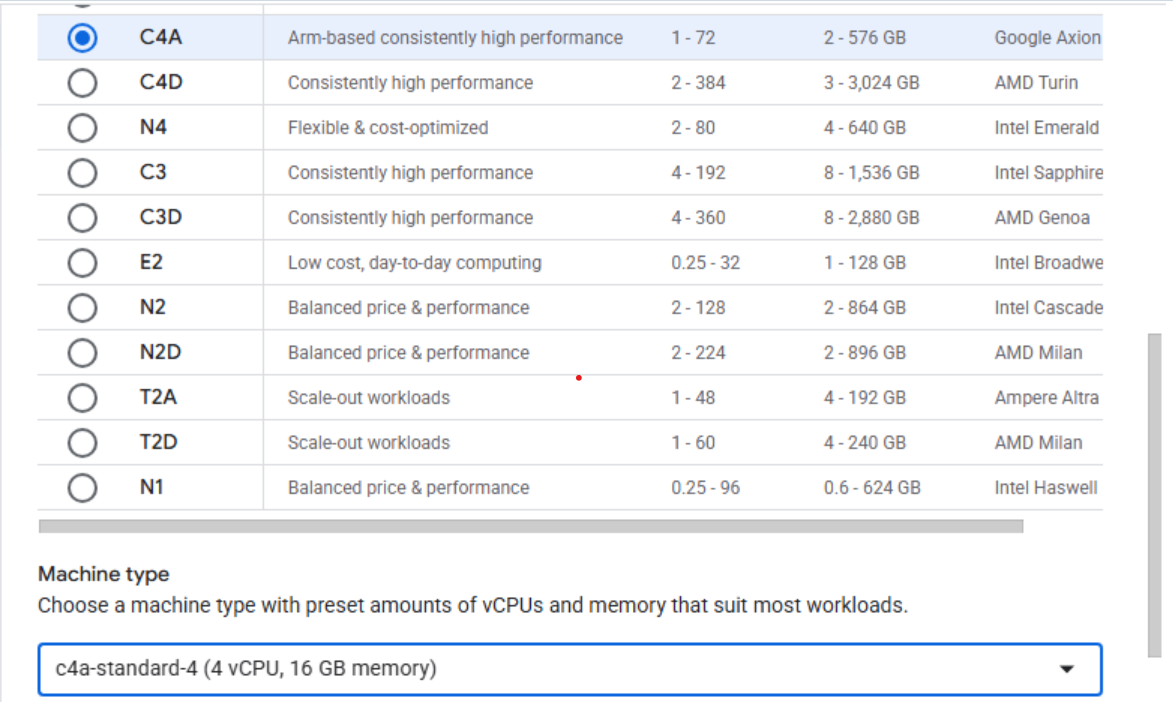 Configuring machine type to C4A in Google Cloud Console
- Under OS and storage, select Change, and then choose an Arm64-based operating system image.
- For this Learning Path, select SUSE Linux Enterprise Server.
- For the license type, choose Pay as you go.
- Increase Size (GB) from 10 to 100 to allocate sufficient disk space.
- Select Choose to apply the changes.
- Under Networking, enable Allow HTTP traffic and Allow HTTPS traffic
- Also, add the following tag:
allow-all-opentelemetryto allow all TCP ports through for OpenTelemetry. - For some organizations not using the ‘default’ network interface, you may need to select the network appropriate for your organization.
- Select Create to launch the virtual machine.
After the instance starts, select SSH next to the VM in the instance list to open a browser-based terminal session.
 Connecting to a running C4A VM using SSH
A new browser window opens with a terminal connected to your VM.
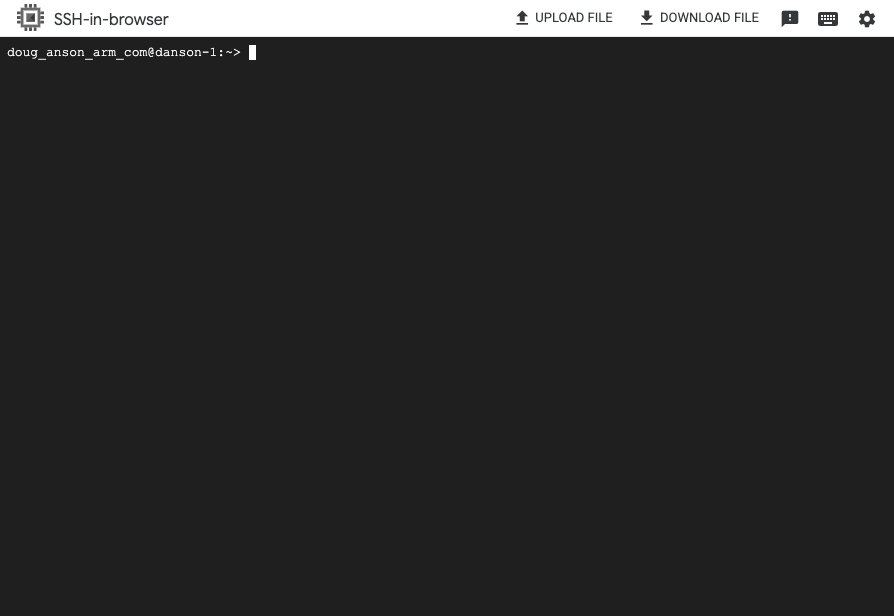 Terminal session connected to the VM
What you’ve accomplished and what’s next
In this section:
- You provisioned a Google Axion C4A Arm VM with 4 vCPUs and 16 GB of memory
- You configured the VM with SUSE Linux Enterprise Server and 100 GB of storage
- You connected to your VM using SSH through the Google Cloud Console
Your VM is now ready to host the OpenTelemetry application. In the next section, you’ll install Docker and Docker Compose, then deploy your instrumented Flask application.
Next, you’ll install Docker, Docker Compose, and the OpenTelemetry-instrumented Flask application on your VM.