Deploy OpenStack on Azure Cobalt 100 Arm64 Virtual Machine
Introduction
Understand Azure Cobalt 100 and OpenStack
Create an Azure Cobalt 100 Arm64 virtual machine for DevStack
Deploy OpenStack on an Azure Cobalt 100 Arm64 virtual machine using DevStack
Prepare Azure Arm64 virtual machine for Kolla-Ansible
Deploy OpenStack using Kolla-Ansible on an Azure Ubuntu Arm64 virtual machine
Validate OpenStack deployment and launch a virtual machine on Azure Cobalt 100
Next Steps
Deploy OpenStack on Azure Cobalt 100 Arm64 Virtual Machine
Introduction
Understand Azure Cobalt 100 and OpenStack
Create an Azure Cobalt 100 Arm64 virtual machine for DevStack
Deploy OpenStack on an Azure Cobalt 100 Arm64 virtual machine using DevStack
Prepare Azure Arm64 virtual machine for Kolla-Ansible
Deploy OpenStack using Kolla-Ansible on an Azure Ubuntu Arm64 virtual machine
Validate OpenStack deployment and launch a virtual machine on Azure Cobalt 100
Next Steps
In the previous section, you completed the DevStack deployment on the first VM. The Kolla-Ansible deployment runs on a separate Azure VM with two network interfaces (NICs) and a dedicated data disk.
Create a new VM using the same base process as the first VM with the following specifications:
| Specification | VM for Kolla-Ansible |
|---|---|
| vCPUs | 4 (8 recommended) |
| RAM | 16 GB recommended |
| OS disk | 100 GB |
| Data disk | 32 GB (for Cinder/Docker) |
| NICs | 2 (eth0 management + eth1 external) |
| OS | Ubuntu 24.04 |
After the new VM is running, follow these steps to add the required networking and storage.
Add a second network interface in Azure
Kolla-Ansible requires two NICs: eth0 and eth1. eth0 is a management network that carries API traffic between OpenStack services. eth1 is an external/provider network that carries traffic to and from virtual machine instances.
To add a second NIC to the VM, follow these steps:
Stop the VM
Azure does not allow NIC attachment to a running VM. To add an NIC, you’ll need to first stop the VM.
Navigate to Virtual Machines, select your VM, and click Stop.
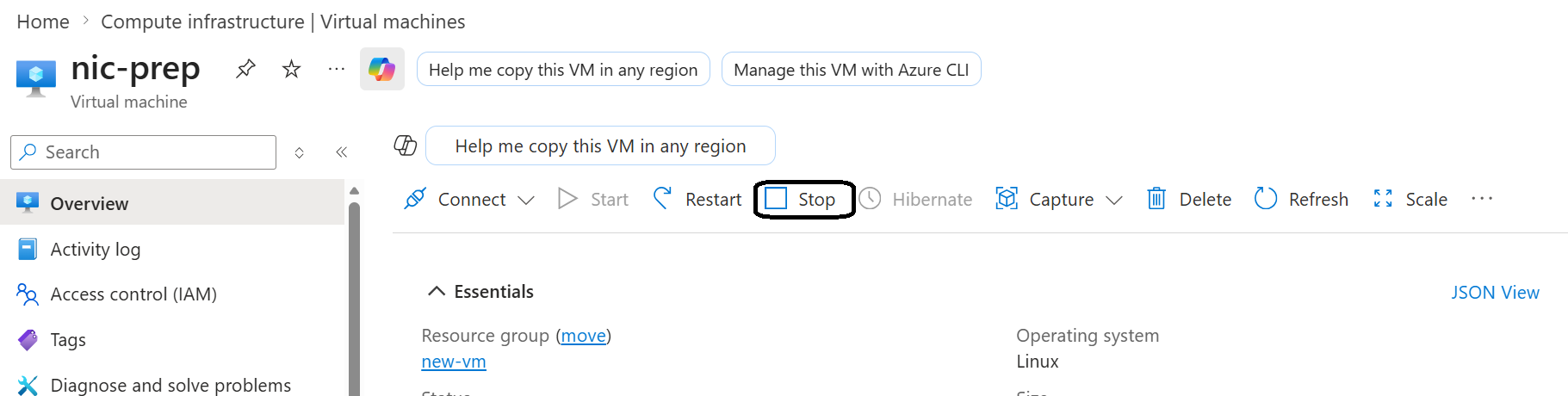 Stop the VM before attaching a network interface
Create and attach a new network interface
After stopping the VM, to attach a new NIC, follow these steps:
- In the Azure portal, navigate to Networking and then Network settings
- Click Attach network interface
- Click Create new NIC
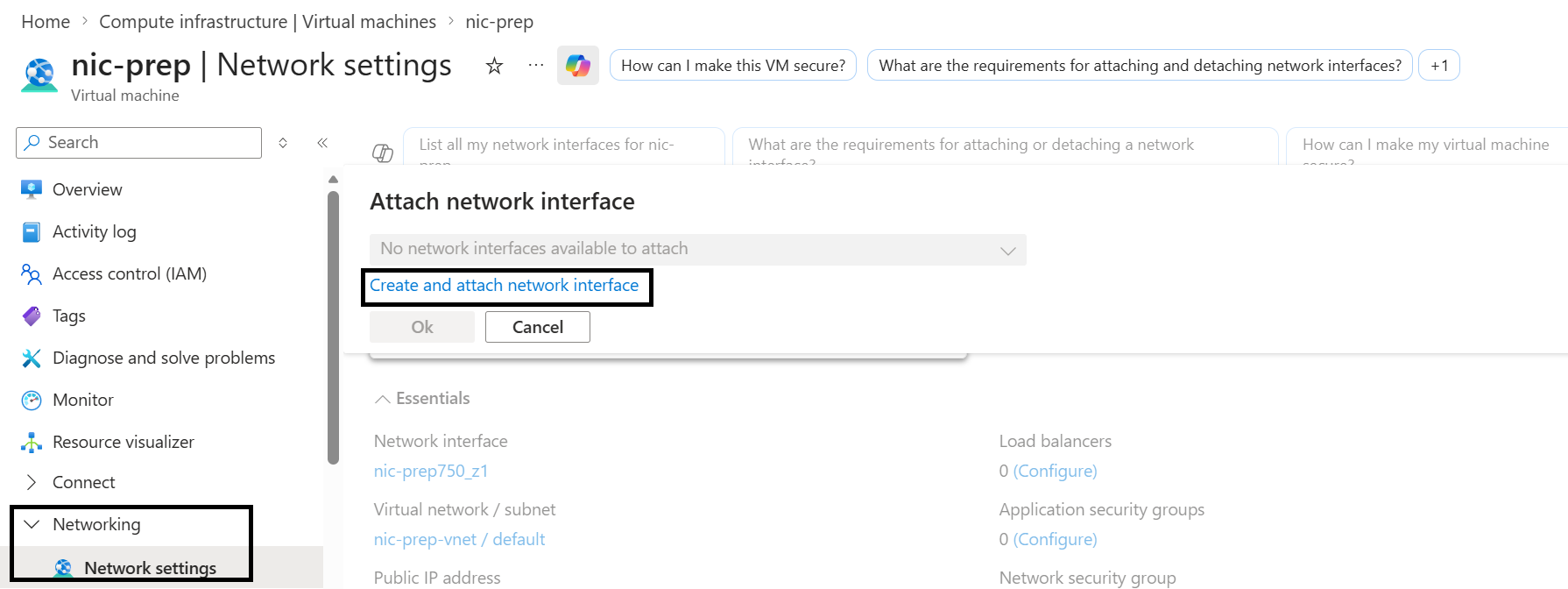 Create a new NIC for the OpenStack external network
- Enter a Name for the NIC
- For Virtual Network, keep the NIC in the same Virtual Network
- For Subnet, select the same subnet
- For Public inbound ports, select None
- Click Create
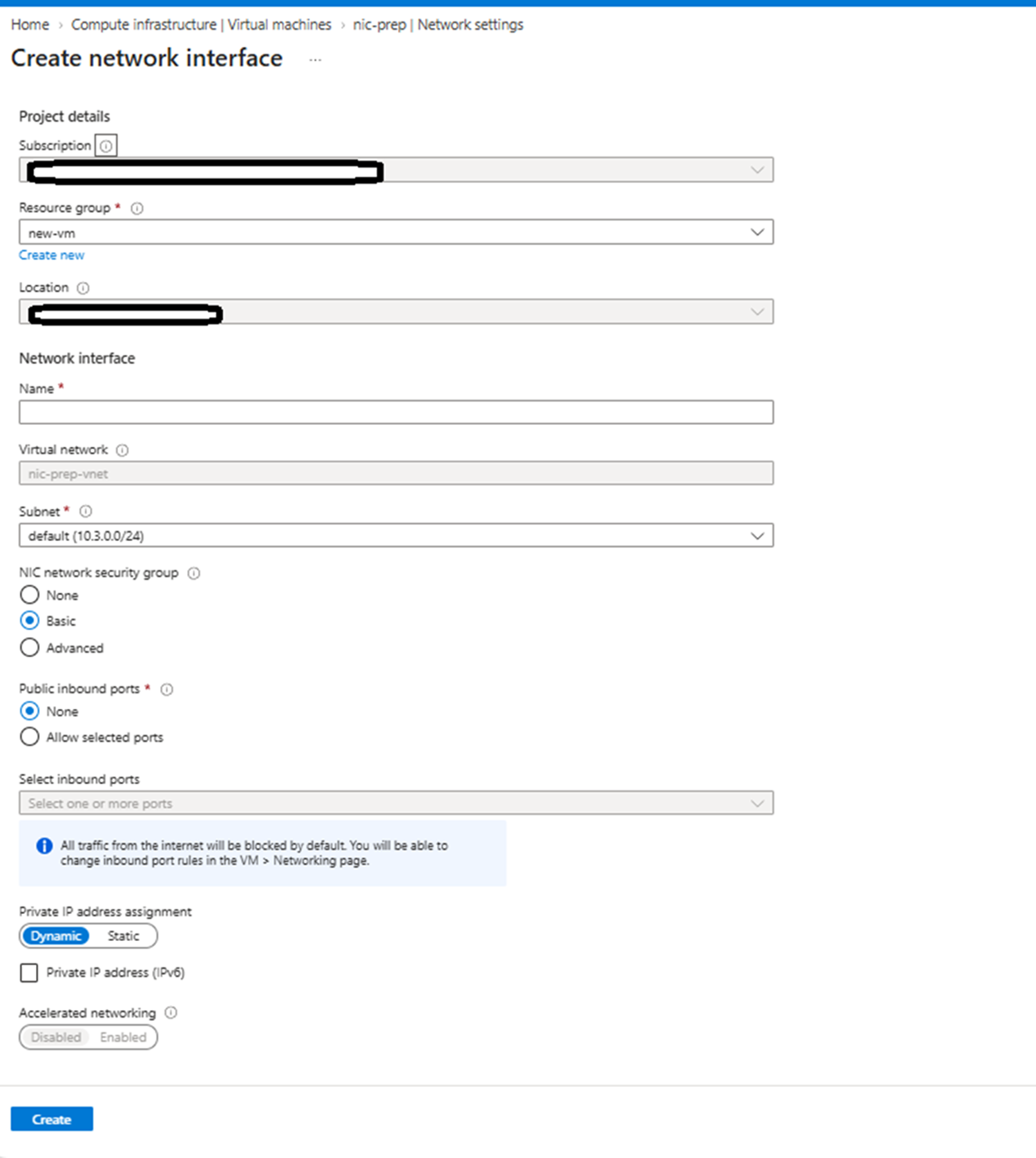 Attach network interface in Azure Networking settings
Restart the VM
To restart the VM, go back to the VM overview and then click Start.
Create and attach a data disk in Azure
After restarting the VM, attach a data disk to it by following these steps:
- In the Azure Portal, navigate to Virtual Machines
- Click Disks
- Click Create and attach a new disk
- For Disk name, enter
openstack-disk - For Size, enter 32 GB, which is the recommended minimum
- For Storage type, select Standard SSD
- Click Apply
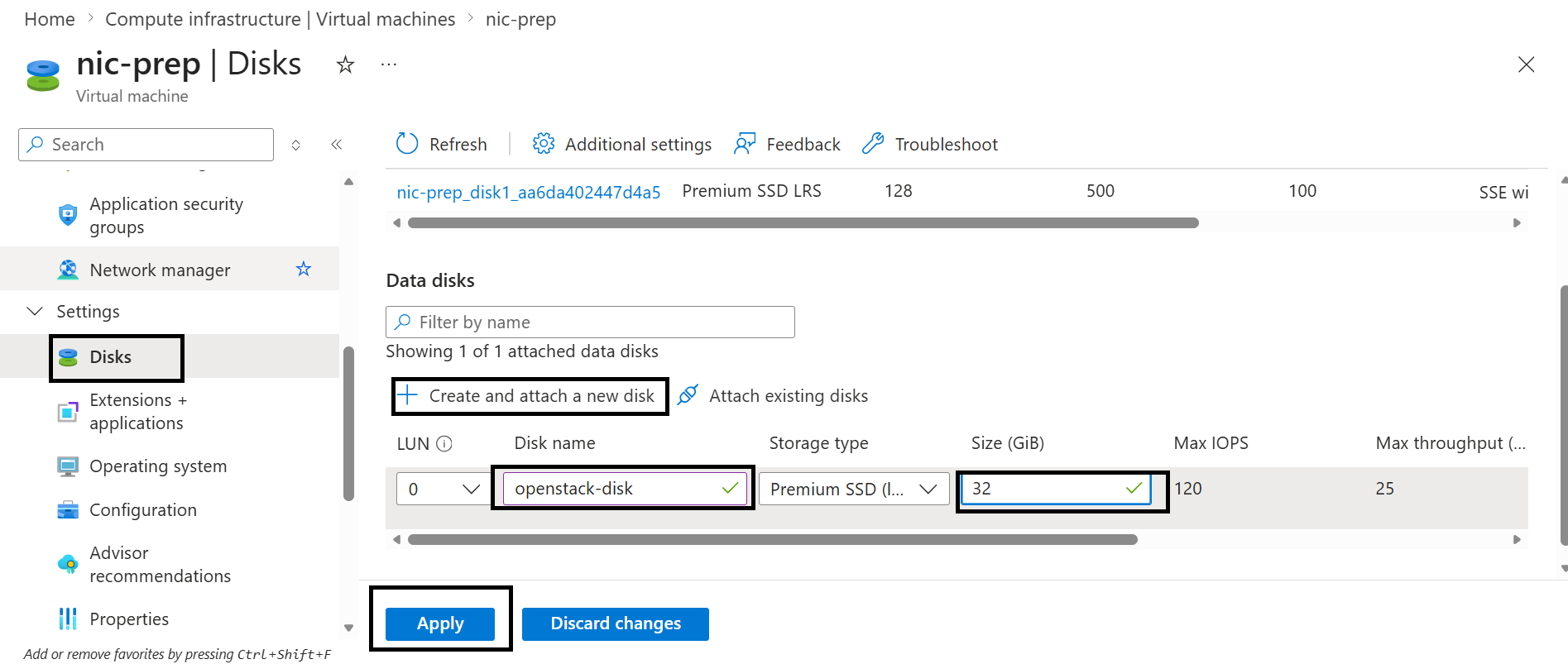 32 GB data disk attached for OpenStack storage
Why this disk is required
Kolla-Ansible uses a dedicated disk for Cinder and Docker volumes. Cinder provides block storage volumes to OpenStack instances. Docker volumes store container data for all OpenStack services.
Using a separate disk keeps OpenStack data off the OS disk and avoids filling it during deployment.
What you’ve accomplished and what’s next
In this section, you configured a second Azure Arm64 VM for Kolla-Ansible. The VM has a second NIC (eth1) for OpenStack’s provider network, and a dedicated 32 GB data disk for Cinder and Docker volumes.
In the next section, you’ll install Kolla-Ansible and deploy OpenStack as containers on this VM.