Deploy OpenStack on Azure Cobalt 100 Arm64 Virtual Machine
Introduction
Understand Azure Cobalt 100 and OpenStack
Create an Azure Cobalt 100 Arm64 virtual machine for DevStack
Deploy OpenStack on an Azure Cobalt 100 Arm64 virtual machine using DevStack
Prepare Azure Arm64 virtual machine for Kolla-Ansible
Deploy OpenStack using Kolla-Ansible on an Azure Ubuntu Arm64 virtual machine
Validate OpenStack deployment and launch a virtual machine on Azure Cobalt 100
Next Steps
Deploy OpenStack on Azure Cobalt 100 Arm64 Virtual Machine
Introduction
Understand Azure Cobalt 100 and OpenStack
Create an Azure Cobalt 100 Arm64 virtual machine for DevStack
Deploy OpenStack on an Azure Cobalt 100 Arm64 virtual machine using DevStack
Prepare Azure Arm64 virtual machine for Kolla-Ansible
Deploy OpenStack using Kolla-Ansible on an Azure Ubuntu Arm64 virtual machine
Validate OpenStack deployment and launch a virtual machine on Azure Cobalt 100
Next Steps
In this section, you’ll deploy OpenStack using DevStack on the Arm-based Azure virtual machine (VM) running Azure Cobalt 100 that you created in the previous section. DevStack is a script-based installer designed for development and testing. It runs all OpenStack services directly on the host OS and deploys Nova, Keystone, Glance, and Horizon on a single node.
The environment that you’ll create will run OpenStack services on your Azure Cobalt 100 VM, provide access to the Horizon dashboard, and support Arm64 (aarch64) architecture. You’ll be able to access the environment using both browser and CLI.
Clean previous setup
Before starting, remove any previous DevStack or etcd installation:
sudo rm -rf ~/devstack
sudo rm -rf /opt/stack
sudo rm -rf /var/lib/etcd
sudo rm -f /etc/systemd/system/etcd.service
This ensures there are no leftover configuration conflicts. It also helps clean the environment for deployment and avoid service startup failures.
System preparation
Update packages and install required tools:
sudo apt update && sudo apt upgrade -y

sudo apt install -y \
git curl vim net-tools python3-pip
You’ll use git for cloning the DevStack repository, curl for downloading dependencies, vim for editing configuration files, and net-tools for network debugging.
Configure hostname
Setting a hostname avoids registration issues where OpenStack services identify themselves by hostname. To configure a hostname, run:
sudo hostnamectl set-hostname devstack-arm
exec bash
Install stable etcd package
DevStack uses etcd internally for service coordination. The etcd package included in Ubuntu 24.04 is not built for Arm and is unstable in this environment. Install a stable Arm64 binary directly from the etcd GitHub releases instead:
cd /tmp
wget https://github.com/etcd-io/etcd/releases/download/v3.5.13/etcd-v3.5.13-linux-arm64.tar.gz
tar -xvf etcd-v3.5.13-linux-arm64.tar.gz
cd etcd-v3.5.13-linux-arm64
sudo cp etcd etcdctl /usr/local/bin/
Configure etcd service
Update the configuration file for the etcd service:
sudo vi /etc/systemd/system/etcd.service
[Unit]
Description=etcd
After=network.target

[Service]
User=azureuser
ExecStart=/usr/local/bin/etcd \
  --data-dir=/var/lib/etcd
Restart=always

[Install]
WantedBy=multi-user.target
This configuration ensures that etcd starts automatically on boot and data is stored persistently. The service is managed via systemd.
Start etcd
To start etcd, run:
sudo mkdir -p /var/lib/etcd
sudo chown -R $USER:$USER /var/lib/etcd

sudo systemctl daemon-reload
sudo systemctl enable etcd
sudo systemctl start etcd
Verify that etcd is running:
sudo systemctl status etcd
The output is similar to:
Active: active (running)
Install DevStack
Clone the DevStack repository that contains the scripts that install and configure all OpenStack services:
cd ~
git clone https://opendev.org/openstack/devstack
cd devstack
Get private IP
DevStack binds OpenStack services to the VM’s private IP.
Retrieve the private IP:
hostname -I
If the output shows two addresses, use the first one. The second is usually an Azure secondary IP configuration.
Configure DevStack
Create a local.conf file in the DevStack directory. This file controls which services are installed and how they are configured.
vi local.conf
[[local|localrc]]
ADMIN_PASSWORD=admin
DATABASE_PASSWORD=admin
RABBIT_PASSWORD=admin
SERVICE_PASSWORD=admin

HOST_IP=<Private_IP>
SERVICE_HOST=<Private_IP>

enable_service horizon

disable_service neutron
disable_service q-agt
disable_service q-dhcp
disable_service q-l3
disable_service q-meta
disable_service q-svc
disable_service ovn-controller
disable_service ovs-vswitchd
disable_service ovsdb-server

disable_service etcd3

KEYSTONE_USE_MOD_WSGI=False
ENABLE_HTTPD_MOD_WSGI_SERVICES=False

LIBVIRT_TYPE=qemu

disable_service tempest

GIT_DEPTH=1
Replace <Private_IP> with the IP address from the previous step.
The following are some of the key configuration choices:
disable_service neutron— simplifies the deployment by removing advanced networking, which has compatibility issues on Arm Azure VMsdisable_service etcd3— delegates etcd to the version you installed manually and disables DevStack’s built-in etcd setup that doesn’t work reliably on ArmLIBVIRT_TYPE=qemu— ensures Nova uses Quick Emulator (QEMU) software emulation because Azure Cobalt 100 VMs don’t support nested Kernel-based Virtual Machine (KVM) virtualizationenable_service horizon— enables the web dashboardGIT_DEPTH=1— performs shallow clones to reduce download size and avoid failures on slow or rate-limited connections
Deploy OpenStack
Run the following script to install all OpenStack services, configure database and messaging, and start services:
./stack.sh | tee stack.log
The deployment can take about 15–25 minutes.
When the deployment completes successfully, the output is similar to:
        This is your host IP address: 10.3.0.5
This is your host IPv6 address: ::1
Horizon is now available at http://10.3.0.5/dashboard
Keystone is serving at http://10.3.0.5/identity/
The default users are: admin and demo
The password: admin

Services are running under systemd unit files.
For more information see:
https://docs.openstack.org/devstack/latest/systemd.html

DevStack Version: 2026.2
Change: 03ece8f88040be9b0b14dd1cfe93076ad2419a80 Merge "[neutron] Configure ovn-bgp service-plugin" 2026-04-10 12:15:11 +0000
OS Version: Ubuntu 24.04 noble

2026-04-23 16:30:00.225 | stack.sh completed in 464 seconds.
Access Horizon dashboard
Access the Horizon dashboard in a browser by pasting a link similar to the following:
http://<PUBLIC_IP>/dashboard
Example:
http://4.186.31.18/dashboard
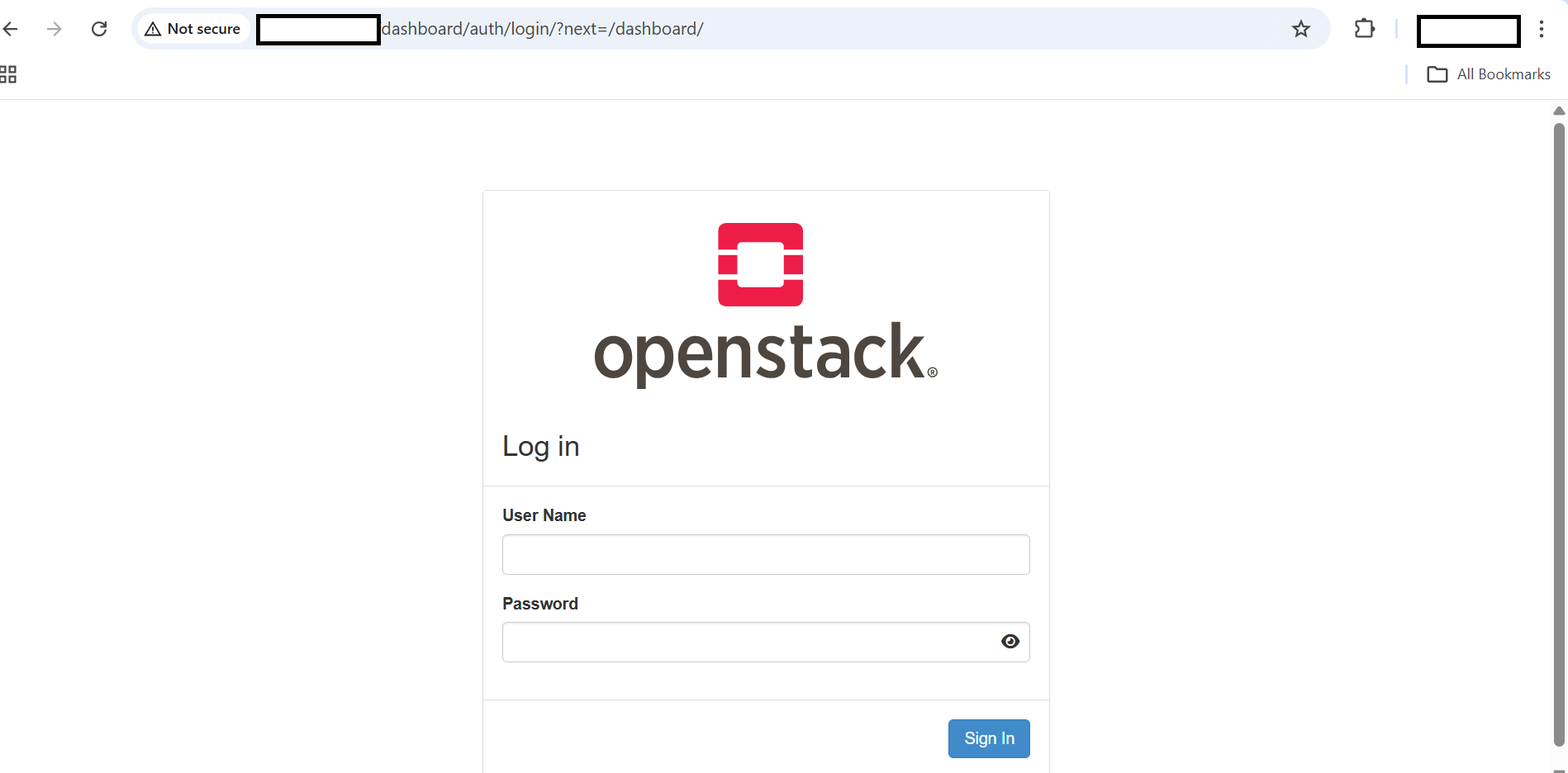 OpenStack Horizon login screen
Enter the username and password as follows:
Username: admin
Password: admin
If you see a ServiceCatalogException: Invalid service catalog: network error after logging in to Horizon, it means Horizon is trying to look up the Neutron network service in Keystone’s service catalog. Because Neutron is disabled in this setup, the service doesn’t exist.
To fix this, append a Horizon configuration override and restart Apache:
sudo tee -a /opt/stack/horizon/openstack_dashboard/local/local_settings.py << 'EOF'

OPENSTACK_NEUTRON_NETWORK = {
    'enable_router': False,
    'enable_quotas': False,
    'enable_distributed_router': False,
    'enable_ha_router': False,
    'enable_fip_topology_check': False,
}
EOF
sudo systemctl restart apache2
Reload the dashboard in your browser. The error should no longer appear.
Verify via CLI
Activate the admin credentials, then list the registered services and compute services:
source openrc admin admin

openstack service list
openstack compute service list
The output is similar to:
        +----------------------------------+-------------+----------------+
| ID                               | Name        | Type           |
+----------------------------------+-------------+----------------+
| 0a0554a3a6bf45e8937fa389ab559be3 | glance      | image          |
| 448f4e62b7344cac969c9ec18af4048d | nova        | compute        |
| 5cf7336818784a4383c0a543303ab4d7 | keystone    | identity       |
| 6ebdc6a1d7814f138f59ac5719bb4394 | cinder      | block-storage  |
| b86d2058e0604db6bcc9b12f3d2b16b4 | nova_legacy | compute_legacy |
| fd998beaffe64e2191795082470d03c0 | placement   | placement      |
+----------------------------------+-------------+----------------+

+--------------------------------------+----------------+--------------+----------+---------+-------+----------------------------+
| ID                                   | Binary         | Host         | Zone     | Status  | State | Updated At                 |
+--------------------------------------+----------------+--------------+----------+---------+-------+----------------------------+
| 46946541-a6c1-4b8c-92e3-5d037bb2d577 | nova-scheduler | devstack-arm | internal | enabled | up    | 2026-04-14T08:14:42.000000 |
| e1aa2f20-3f39-4d12-9702-4b144a739f56 | nova-conductor | devstack-arm | internal | enabled | up    | 2026-04-14T08:14:46.000000 |
| caeab24b-a938-420b-9ae0-e335ed8acfea | nova-conductor | devstack-arm | internal | enabled | up    | 2026-04-14T08:15:56.000000 |
| b612363d-b7ad-4c9e-93b8-afd20fb9b863 | nova-compute   | devstack-arm | nova     | enabled | up    | 2026-04-14T08:15:05.000000 |
+--------------------------------------+----------------+--------------+----------+---------+-------+----------------------------+
All services should show status enabled and state up. If you see import eventlet lines before the table, these are Python deprecation warnings from older OpenStack libraries and can be ignored.
(Optional) Stop DevStack
Before moving on to the Kolla-Ansible deployment, stop all DevStack services to free up the ports and resources they hold:
cd /home/azureuser/devstack && ./unstack.sh 2>&1 | tail -10
The Kolla-Ansible deployment must run on a separate VM, so this step is optional if you’re done with DevStack. Run it if you want to reuse this VM later or clean up resources.
What you’ve accomplished and what’s next
In this section, you deployed OpenStack using DevStack on an Azure Cobalt 100 Arm64 VM. You then verified the deployment using the CLI and accessed the Horizon dashboard using a browser.
In the next section, you’ll create a VM for deploying OpenStack using Kolla-Ansible.