Use OpenEBS for Kubernetes-native persistent storage on Azure Cobalt 100-based Arm64 virtual machines
Introduction
Understand how OpenEBS provides Kubernetes-native persistent storage on Azure
Create an Arm64 virtual machine powered by Azure Cobalt 100
Deploy OpenEBS on an Arm-based virtual machine
Validate persistent storage with OpenEBS on an Arm-based virtual machine
Allow access to the OpenEBS application on Azure
Next Steps
Use OpenEBS for Kubernetes-native persistent storage on Azure Cobalt 100-based Arm64 virtual machines
Introduction
Understand how OpenEBS provides Kubernetes-native persistent storage on Azure
Create an Arm64 virtual machine powered by Azure Cobalt 100
Deploy OpenEBS on an Arm-based virtual machine
Validate persistent storage with OpenEBS on an Arm-based virtual machine
Allow access to the OpenEBS application on Azure
Next Steps
Configure external traffic for the OpenEBS application
To allow external traffic to the Kubernetes application, open the Kubernetes NodePort in the Network Security Group (NSG) of your virtual machine (VM).
For more information about Azure setup, see the Getting started with Microsoft Azure Platform Learning Path .
Identify the Kubernetes NodePort
In the previous section, you exposed the NGINX deployment as a NodePort service. Run the following command on your VM to find the port that Kubernetes assigned:
kubectl get svc
The output is similar to:
        NAME            TYPE        CLUSTER-IP      EXTERNAL-IP   PORT(S)
nginx-openebs   NodePort    10.x.x.x        <none>        80:31635/TCP
In this example, the NodePort is 31635. Kubernetes assigns this port dynamically, so your value may differ. Use the port shown in your own output in the firewall rule.
Add an inbound firewall rule in Azure
To expose the Kubernetes NodePort externally, create a firewall rule:
- Navigate to the Azure portal , then go to Virtual Machines, and select your VM.
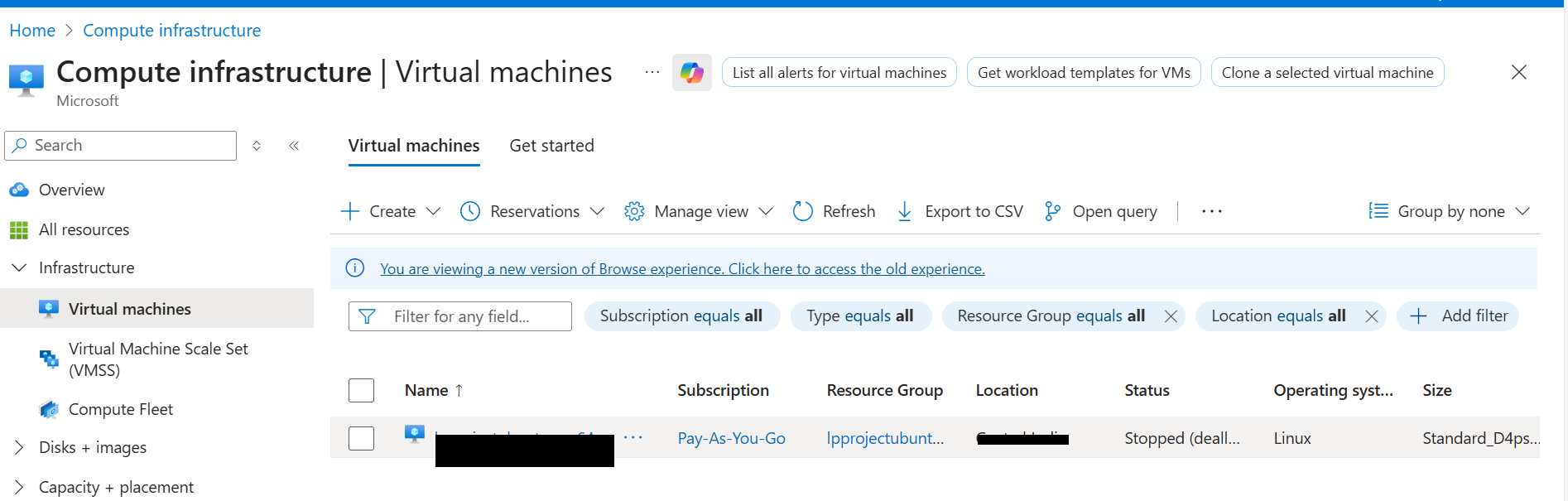 Virtual machines
- In the left menu, select Networking, then select Network settings.
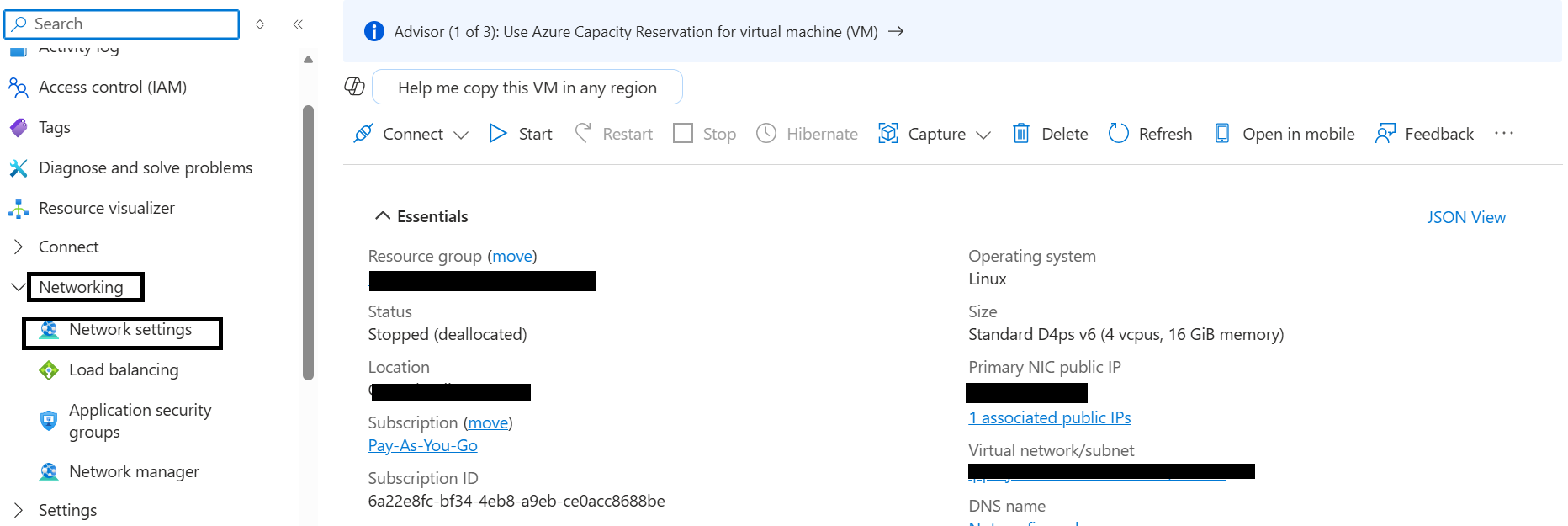 Network settings
- Navigate to Create port rule, and select Inbound port rule.
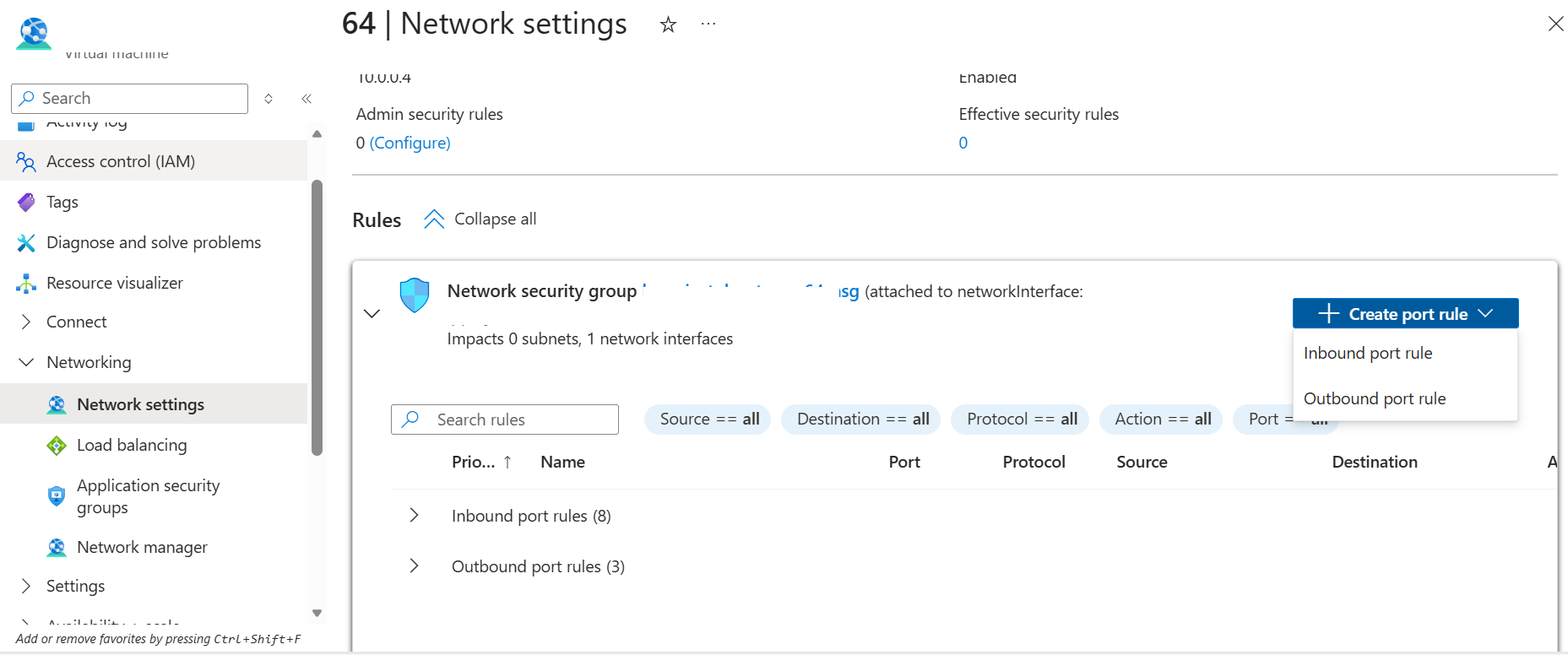 Create rule
Configure the inbound security rule with the following settings:
- Source: My IP address
- Source IP addresses: (auto-populated with your current public IP)
- Source port ranges:
* - Destination: Any
- Destination port ranges: 31635 (replace with your actual NodePort)
- Protocol: TCP
- Action: Allow
- Name:
allow-openebs-port
My IP address restricts access to the Kubernetes application to your current machine only. The Source port ranges setting remains set to * because this refers to the client’s ephemeral outbound port, which is dynamically assigned. If your IP address changes or you need to access the application from another machine, update the source IP in this rule.- After providing the details, select Add to save the rule.
Access the application
Open the following URL in your browser. Replace <VM_PUBLIC_IP> with the public IP address of your Azure VM, and replace 31635 with your NodePort if it differs.
http://<VM_PUBLIC_IP>:31635
You should see the content written to the persistent volume in the previous section:
OpenEBS on Azure Cobalt D4ps Arm64
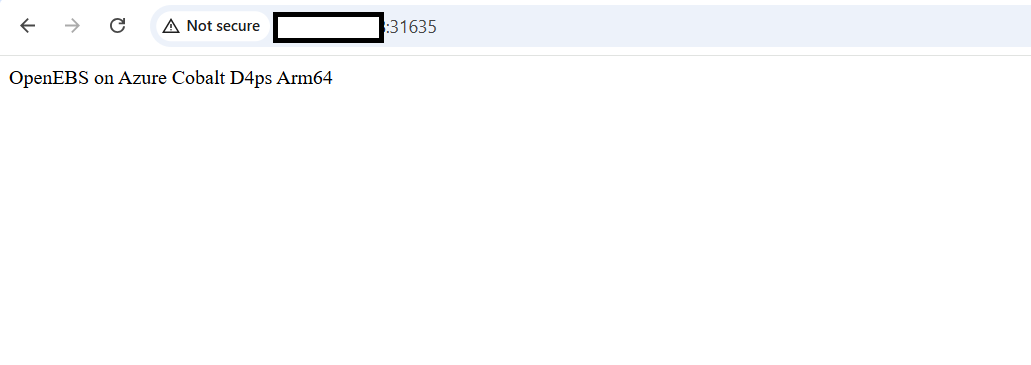 NGINX application using OpenEBS persistent storage
(Optional) Clean up resources
Delete the deployment:
kubectl delete -f nginx-openebs.yaml
Delete the PVC:
kubectl delete -f pvc.yaml
What you’ve accomplished
You’ve configured the Azure Network Security Group to allow external access to the Kubernetes application running with OpenEBS LocalPV persistent storage, and confirmed that the application is reachable from your browser.
The persistent data that you wrote earlier survived pod recreation and is now served by a stateful NGINX workload backed by OpenEBS.
You can use the workflow described in this Learning Path to add persistent storage backed by OpenEBS to your own Kubernetes applications running on Arm-based cloud infrastructure.