Build computer vision pipelines with OpenCV on a Google Cloud C4A Axion VM
Introduction
Understand OpenCV on Google Axion C4A
Create a firewall rule for OpenCV browser visualization
Create a Google Axion C4A Arm virtual machine
Build OpenCV pipelines on Google Axion
Use machine learning models with OpenCV on Google Axion
Next Steps
Build computer vision pipelines with OpenCV on a Google Cloud C4A Axion VM
Set up OpenCV on an Arm-based virtual machine
In this section, you’ll learn how to set up OpenCV on an Arm-based VM and build image and video processing pipelines with browser visualization.
Update your system
Refresh the package metadata to ensure you install the latest available versions:
sudo zypper refresh
Install dependencies
Install Python 3.11 and the build tools that OpenCV’s pip package requires to compile native extensions:
sudo zypper install -y \
python311 python311-pip python311-devel \
gcc gcc-c++ make cmake
Create the project directory
Create a dedicated workspace for your OpenCV project and navigate to it:
mkdir -p ~/opencv-project
cd ~/opencv-project
Set up a Python virtual environment
Create an isolated Python environment to keep OpenCV and its dependencies separate from the system Python installation:
python3.11 -m venv cv-env
source cv-env/bin/activate
Install Python packages
Install the following Python packages:
pip install --upgrade pip
pip install numpy opencv-python-headless flask
opencv-python-headless is the server-appropriate OpenCV build. It omits GUI window support, which is not available on a remote VM. flask is included for optional HTTP serving use cases.
Start the browser server
Before verifying any output in the browser, start an HTTP server in the background. This server serves files from ~/opencv-project on port 8000 and must remain running throughout this Learning Path.
python -m http.server 8000 &
The & runs the server as a background process so you can continue using the same terminal. To stop it later, run kill %1 or pkill -f "http.server".
Verify OpenCV is working
Before building pipelines, verify that OpenCV is working correctly. This script creates an image using OpenCV and saves it for browser viewing.
python - <<EOF
import cv2
import numpy as np

# Create a blank image
img = np.zeros((300,300,3), dtype=np.uint8)

# Add text using OpenCV
cv2.putText(img, "OpenCV OK", (30,150),
            cv2.FONT_HERSHEY_SIMPLEX, 1,
            (255,255,255), 2)

# Save output
cv2.imwrite("test.jpg", img)

print("Test image created")
EOF
Open the following URL in your browser, replacing <VM-IP> with your VM’s external IP address:
http://<VM-IP>:8000/test.jpg
You should see an image with the following text:
OpenCV OK
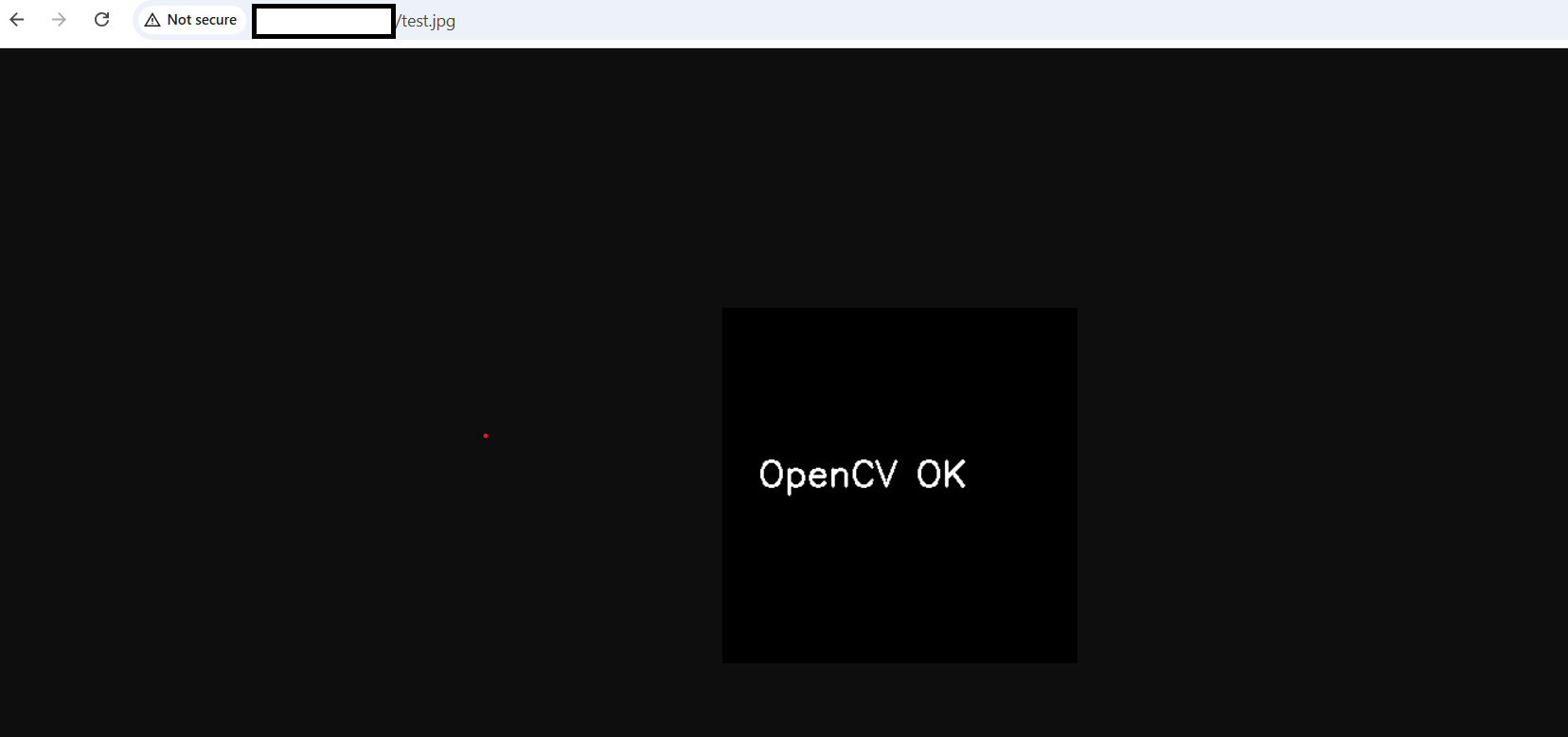 OpenCV verification output
Set up an image pipeline
The image pipeline reads an input image, applies transformations using OpenCV, and saves the result so the HTTP server can serve it to your browser.
Create image pipeline
First, create the image pipeline.
Create the pipeline script by saving the following in image_pipeline.py:
import cv2

img = cv2.imread("input.jpg")

if img is None:
    print("Image not found")
    exit()

img = cv2.resize(img, (800,600))

cv2.putText(img, "IMAGE PIPELINE", (20,40),
            cv2.FONT_HERSHEY_SIMPLEX, 1, (0,255,0), 2)

cv2.imwrite("latest.jpg", img)
The script loads an image using OpenCV and applies basic processing such as resize and text overlay. It then saves output as latest.jpg. The output file is used for browser visualization.
Generate a sample input image
Instead of downloading an external image, generate an image locally. Doing so ensures the pipeline works in all environments without an internet dependency.
python - <<EOF
import cv2
import numpy as np

# Create blank image
img = np.zeros((600,800,3), dtype=np.uint8)

# Add ARM-themed labels
cv2.putText(img, "ARM PROCESSOR", (150,250),
            cv2.FONT_HERSHEY_SIMPLEX, 1.2, (0,255,0), 3)

cv2.putText(img, "OpenCV PIPELINE", (150,350),
            cv2.FONT_HERSHEY_SIMPLEX, 1, (255,255,255), 2)

# Save image
cv2.imwrite("input.jpg", img)

print("Generated input.jpg")
EOF
The output is similar to:
Generated input.jpg
Run the image pipeline
Run the pipeline against the generated input image:
python image_pipeline.py
Open the processed image in your browser, replacing <VM-IP> with your VM’s external IP address:
http://<VM-IP>:8000/latest.jpg
You should see the resized image with the IMAGE PIPELINE label overlaid in green.
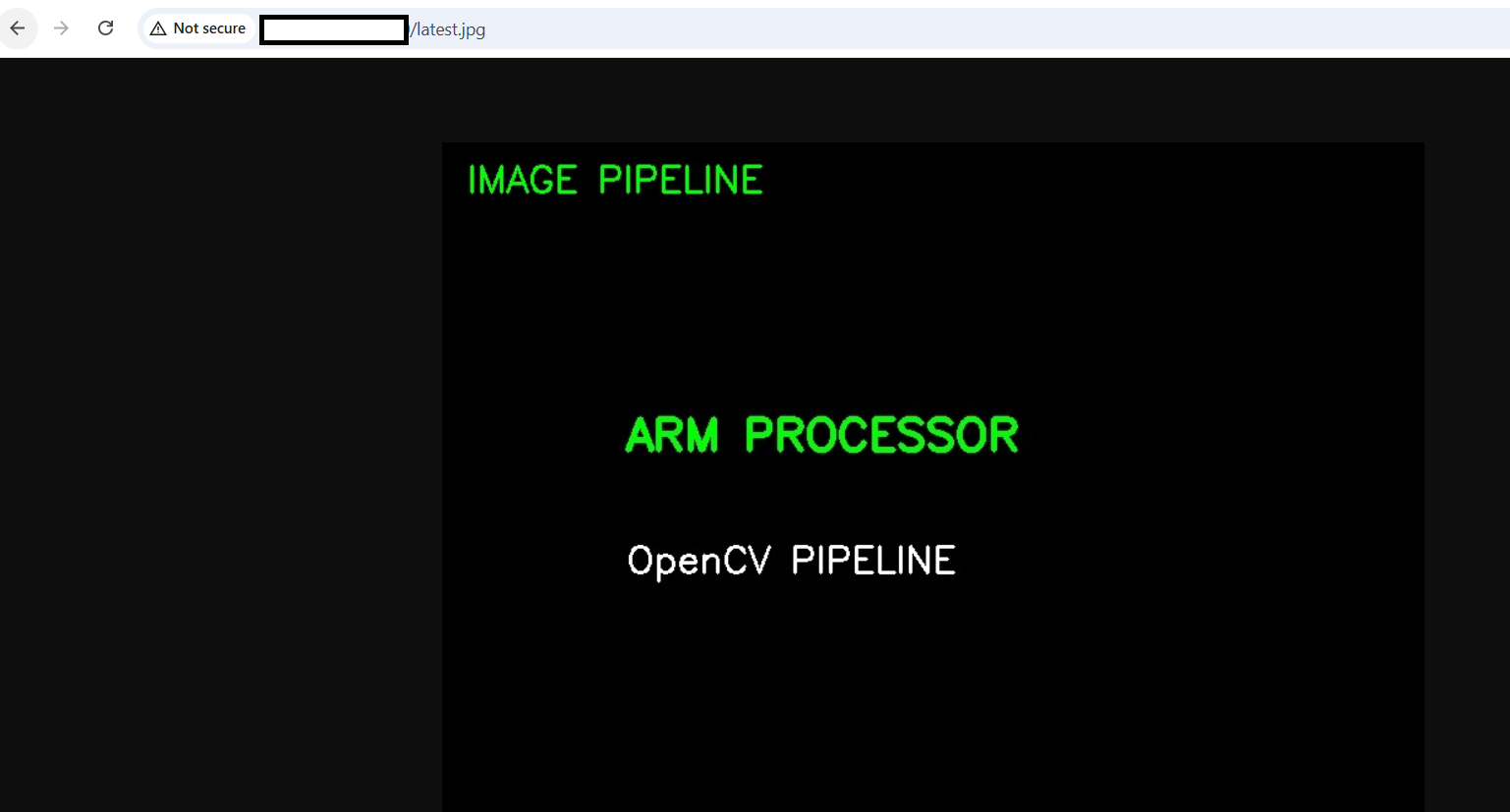 OpenCV image pipeline output
Set up a video pipeline
The video pipeline reads frames from a video file in a loop, overlays a text label on each frame, and writes the current frame to latest.jpg. The HTTP server always serves the latest file on disk. This is why refreshing latest.jpg in your browser shows the current frame, providing a live video effect without requiring a streaming protocol.
Create a video file
First, create a synthetic video file so you don’t depend on an external video source.
cat > create_video.py <<'EOF'
import cv2
import numpy as np

out = cv2.VideoWriter("video.mp4",
                      cv2.VideoWriter_fourcc(*'mp4v'),
                      20,
                      (640,480))

for i in range(200):
    frame = np.zeros((480,640,3), dtype=np.uint8)
    cv2.putText(frame, f"Frame {i}", (100,240),
                cv2.FONT_HERSHEY_SIMPLEX, 1, (255,255,255), 2)
    out.write(frame)

out.release()
EOF
This creates a 200-frame MP4 at 20 fps (10 seconds total). Each frame is a black 640×480 image with the frame number written in white.
Run the script to generate video.mp4:
python create_video.py
When the script completes, verify the file was created:
ls -lh video.mp4
The output is similar to:
-rw-r--r-- 1 user user 1.2M May 11 10:00 video.mp4
Create the video pipeline
The pipeline reads frames from video.mp4 in a continuous loop. When the video ends, cap.set(cv2.CAP_PROP_POS_FRAMES, 0) resets playback to the first frame so it loops indefinitely. Each frame is written to latest.jpg and the loop sleeps for 50 ms, giving an effective frame rate of 20 fps in the browser.
cat > video_pipeline.py <<'EOF'
import cv2
import time

cap = cv2.VideoCapture("video.mp4")

while True:
    ret, frame = cap.read()

    if not ret:
        cap.set(cv2.CAP_PROP_POS_FRAMES, 0)
        continue

    cv2.putText(frame, "VIDEO PIPELINE", (20,40),
                cv2.FONT_HERSHEY_SIMPLEX, 1, (255,0,0), 2)

    cv2.imwrite("latest.jpg", frame)

    time.sleep(0.05)
EOF
Run the video pipeline
The pipeline runs as a foreground process and loops continuously. Press Ctrl+C to stop it.
python video_pipeline.py
View the live video feed in your browser
The index.html viewer uses a JavaScript setInterval to reload latest.jpg every 200 ms with a cache-busting query string. This gives a live video effect without requiring a streaming protocol, as the browser keeps fetching the latest frame written to disk by the pipeline.
Create the viewer:
cat > index.html <<'EOF'
<html>
<head>
<title>Video Pipeline</title>
</head>
<body>

<h2>Live Video Feed</h2>

<img id="img" src="latest.jpg" width="640">

<script>
setInterval(function(){
    document.getElementById("img").src =
        "latest.jpg?t=" + new Date().getTime();
}, 200);
</script>

</body>
</html>
EOF
Open the viewer in your browser, replacing <VM-IP> with your VM’s external IP address:
http://<VM-IP>:8000/index.html
With the video pipeline running in the terminal, you should see frames update automatically in the browser with the VIDEO PIPELINE label overlaid in blue.
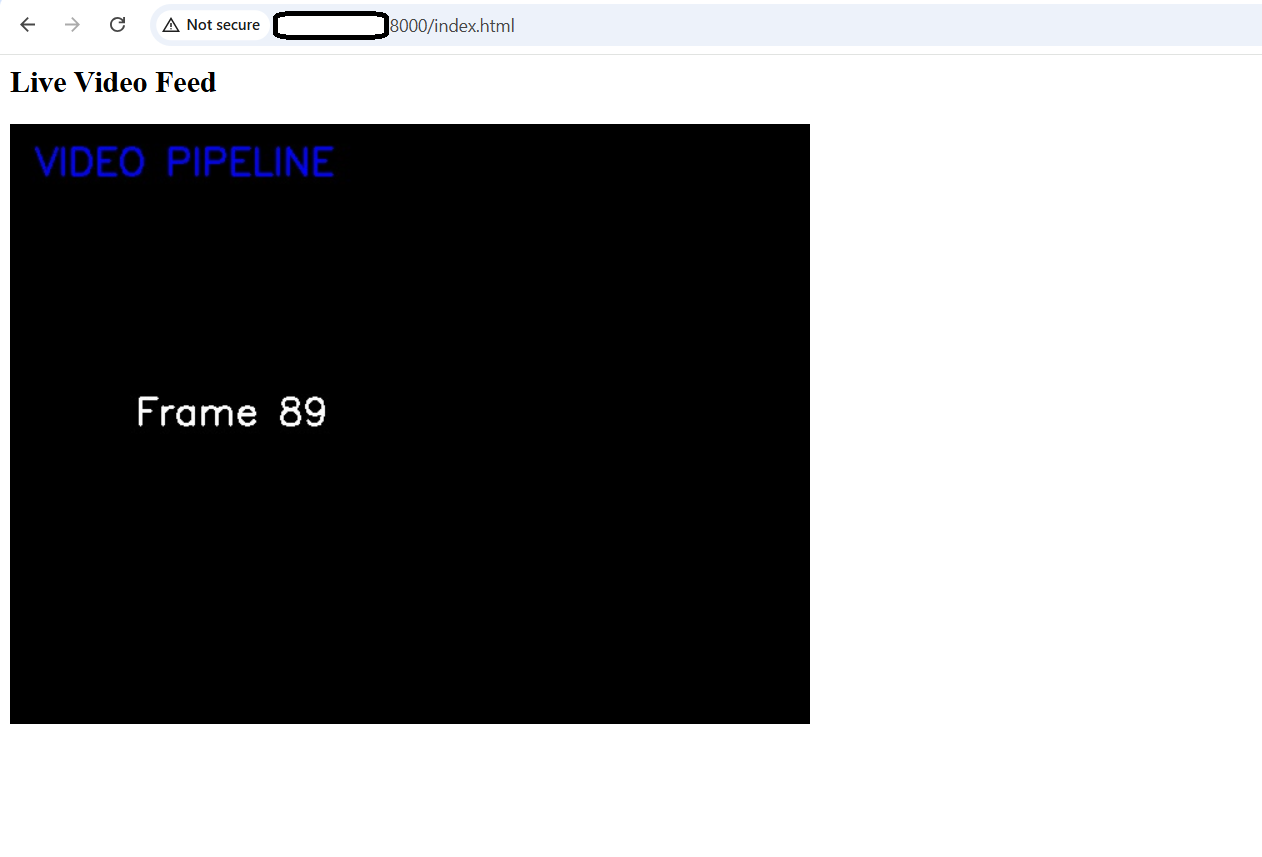 OpenCV video pipeline browser output
What you’ve learned and what’s next
You’ve now installed OpenCV on a Google Axion Arm VM. You’ve built an image pipeline that applies transformations and saves output for browser viewing. You’ve also created a video pipeline that loops frames and serves them as a live feed via a lightweight HTTP server.
Next, you’ll extend this setup by integrating a machine learning model with the OpenCV pipeline.