Build computer vision pipelines with OpenCV on a Google Cloud C4A Axion VM
Introduction
Understand OpenCV on Google Axion C4A
Create a firewall rule for OpenCV browser visualization
Create a Google Axion C4A Arm virtual machine
Build OpenCV pipelines on Google Axion
Use machine learning models with OpenCV on Google Axion
Next Steps
Build computer vision pipelines with OpenCV on a Google Cloud C4A Axion VM
Expose port for OpenCV browser-based visualization
Create a firewall rule in Google Cloud Console to allow browser access to your OpenCV output on port 8000.
For help with Google Cloud Platform setup, see the Learning Path Getting started with Google Cloud Platform .
Configure the firewall rule
Configure the firewall rule using the Google Cloud Console:
- Open the Google Cloud Console , navigate to VPC Network > Firewall, and select Create firewall rule.
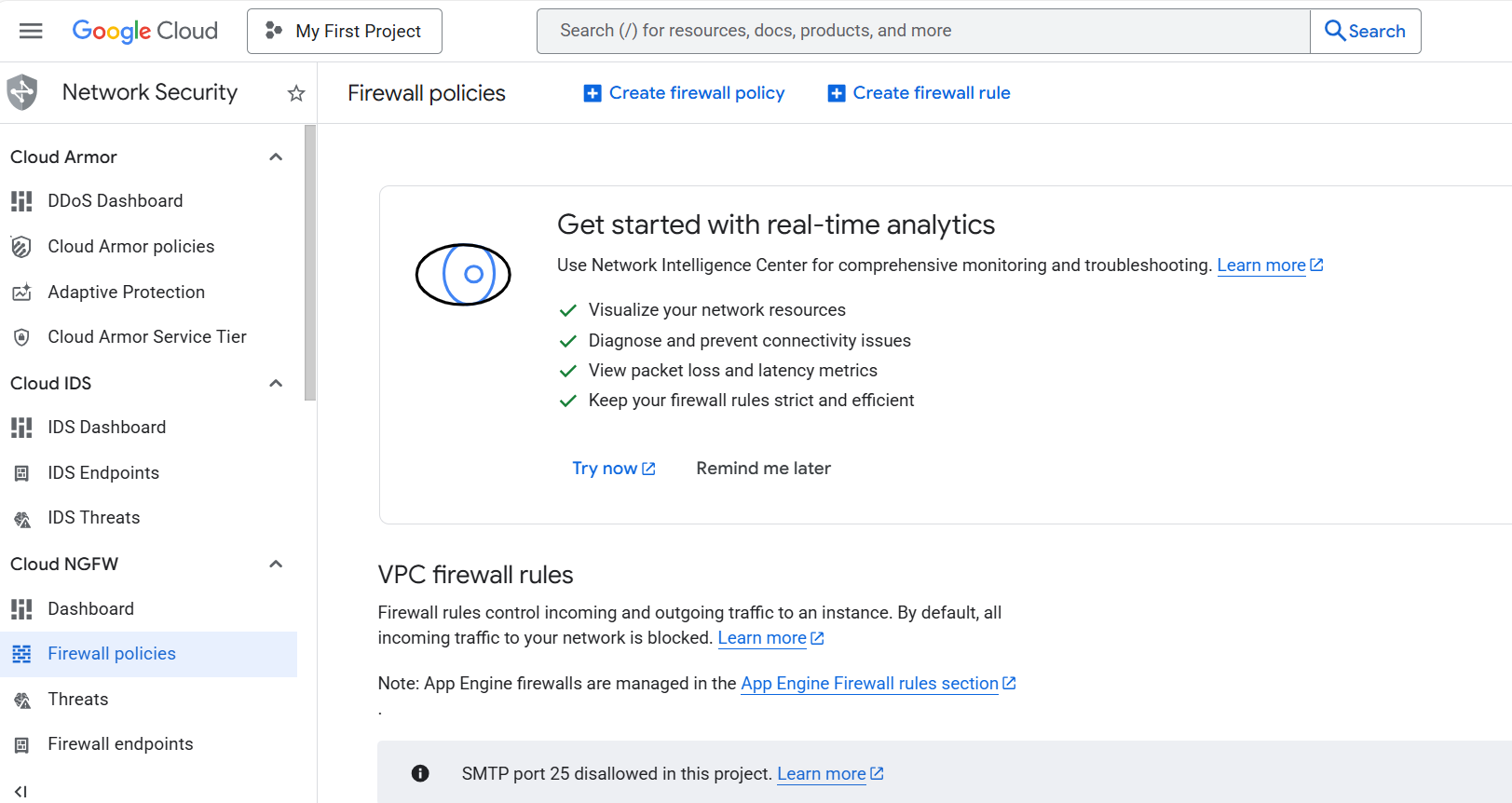 Create a firewall rule in Google Cloud Console
Set the Name of the new rule to allow-opencv-port. Select the network that you intend to bind to your VM.
For Direction of traffic, select Ingress.
For Allow on match, select Allow.
For Targets, select Specified target tags.
For Target tags, enter allow-opencv.
Set Source IPv4 ranges to your current machine’s public IP address. Run the following command in a terminal on your local machine to find the address:
curl -4 ifconfig.me
The -4 flag forces an IPv4 response. Take the returned address and append /32 to convert it to CIDR notation, for example 203.0.113.42/32. Restricting access to your own IP prevents port 8000 from being exposed to the public internet.
0.0.0.0/0 opens the port to all traffic and is not recommended.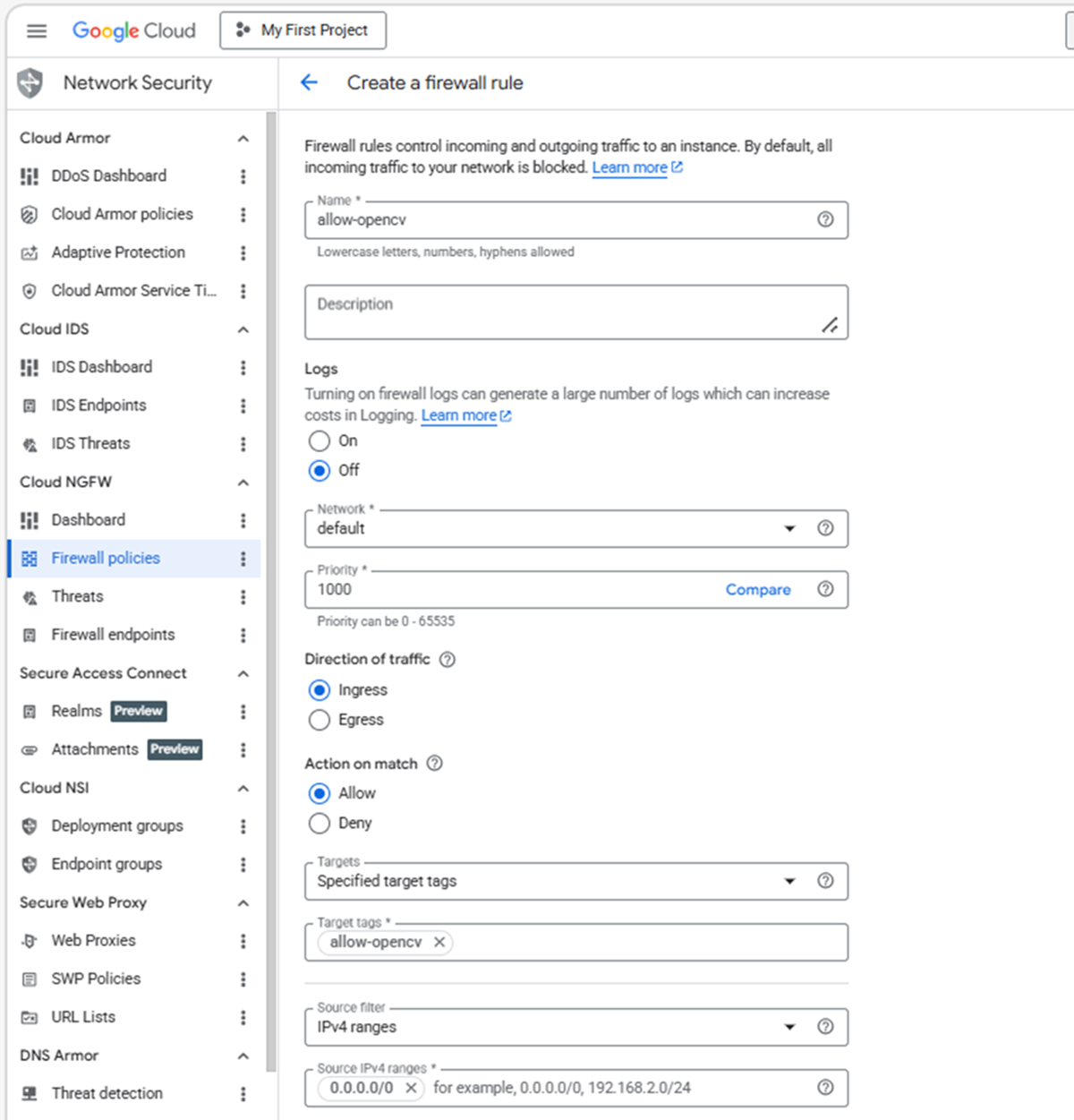 Configuring the OpenCV firewall rule
For Protocols and ports, select Specified protocols and ports.
Select the TCP checkbox and, for Ports, enter 8000.
Select Create.
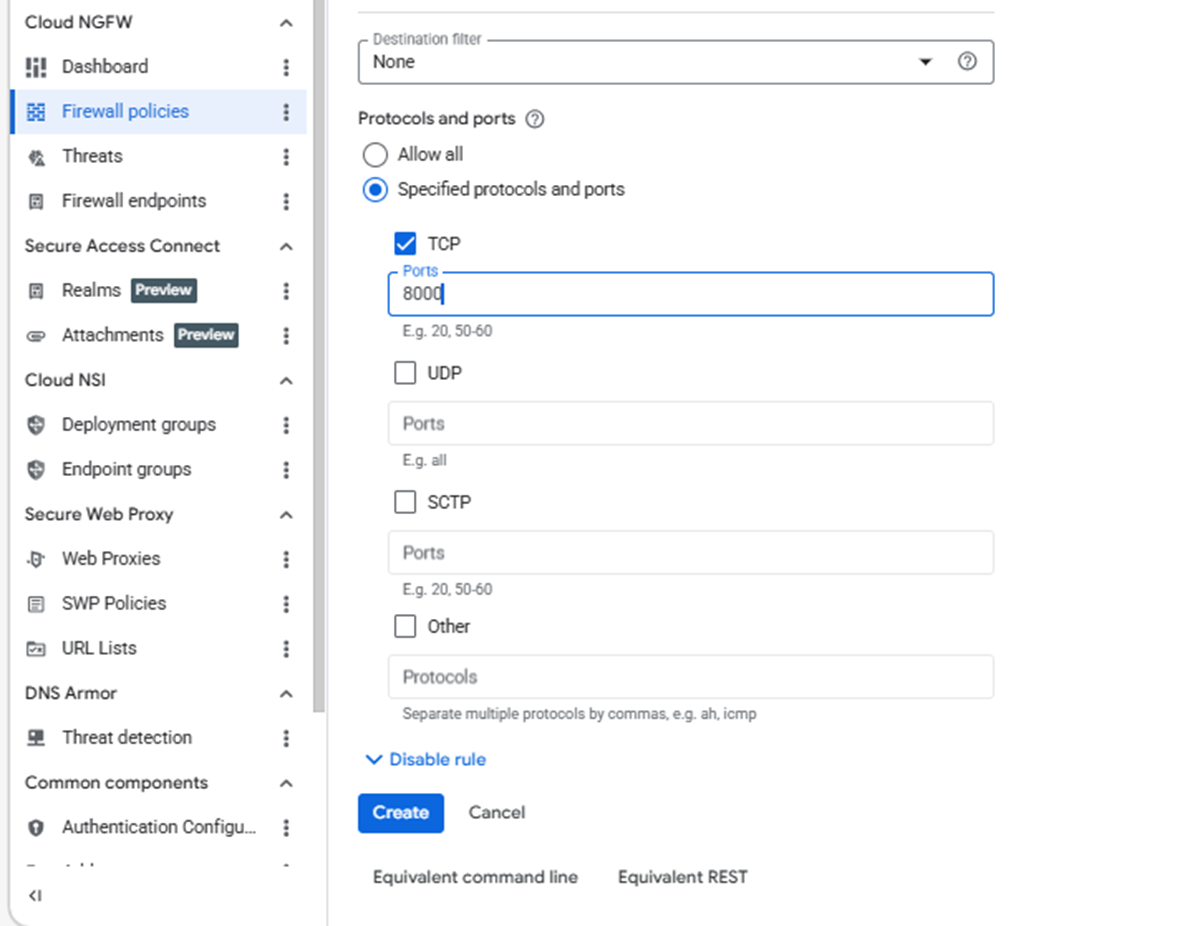 Setting ports in the firewall rule
What you’ve accomplished and what’s next
You’ve now created a firewall rule for OpenCV visualization that enables external browser access to your VM and exposes port 8000 for real-time pipeline outputs.
Next, you’ll create a Google Axion virtual machine to host your OpenCV application.