Deploy Node.js on Google Cloud C4A Arm-based Axion virtual machines
Introduction
Getting started with Node.js on Google Axion C4A (Arm Neoverse-V2)
Create a Google Axion C4A Arm virtual machine on GCP
Install Node.js using Node Version Manager
Validate Node.js baseline on Google Axion C4A Arm virtual machine
Benchmark Node.js performance with Autocannon
Next Steps
Deploy Node.js on Google Cloud C4A Arm-based Axion virtual machines
Overview
In this section, you will learn how to provision a Google Axion C4A Arm virtual machine on Google Cloud Platform (GCP) using the c4a-standard-4 (4 vCPUs, 16 GB memory) machine type in the Google Cloud Console.
For support on GCP setup, see the Learning Path Getting started with Google Cloud Platform .
Provision a Google Axion C4A Arm VM in Google Cloud Console
To create a virtual machine based on the C4A instance type:
Navigate to the Google Cloud Console .
Go to Compute Engine > VM Instances and select Create Instance.
Under Machine configuration:
- Populate fields such as Instance name, Region, and Zone.
- Set Series to
C4A. - Select
c4a-standard-4for machine type.
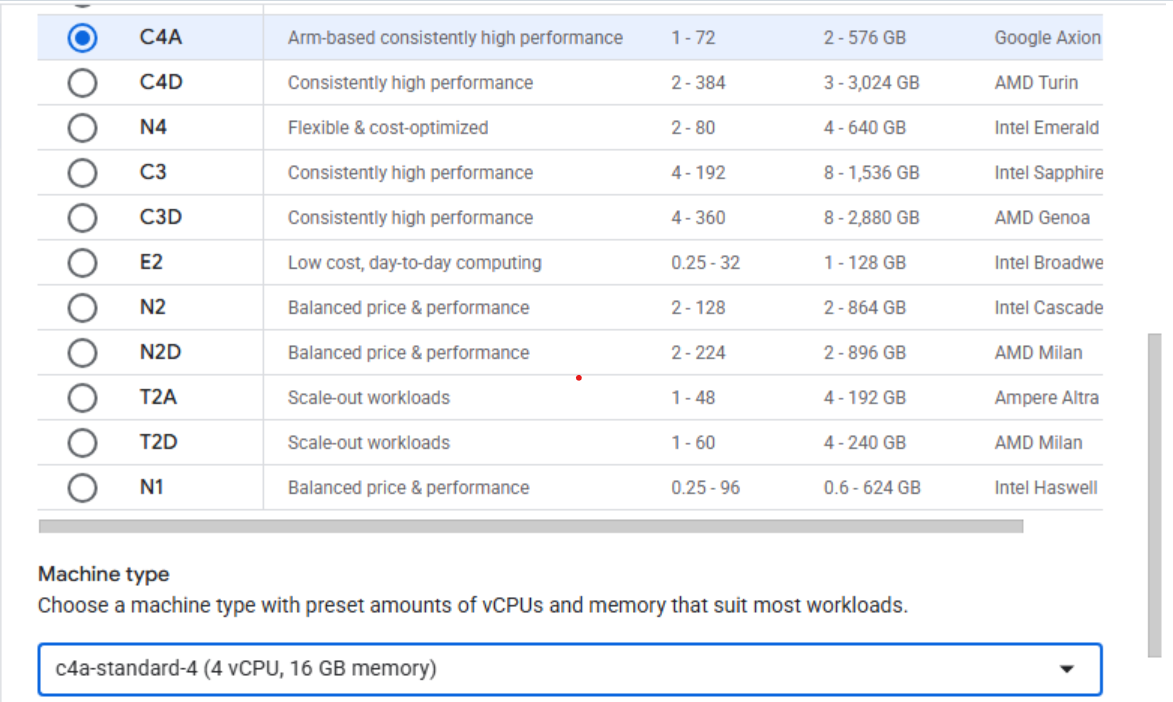 Creating a Google Axion C4A Arm virtual machine in Google Cloud Console
Under OS and Storage, select Change, then choose an Arm64-based OS image. For this Learning Path, use SUSE Linux Enterprise Server or Ubuntu.
- If using use SUSE Linux Enterprise Server. Select “Pay As You Go” for the license type.
- If using Ubuntu, under the Version tab, please scroll down and select the aarch64 version of Ubuntu 22.04 LTS.
Once appropriately selected, please Click Select.
Under Networking, enable Allow HTTP traffic.
Click Create to launch the instance.
Once created, you should see a “SSH” option to the right in your list of VM instances. Click on this to launch a SSH shell into your VM instance:
 Invoke a SSH session into your running VM instance
- A window from your browser should come up and you should now see a shell into your VM instance:
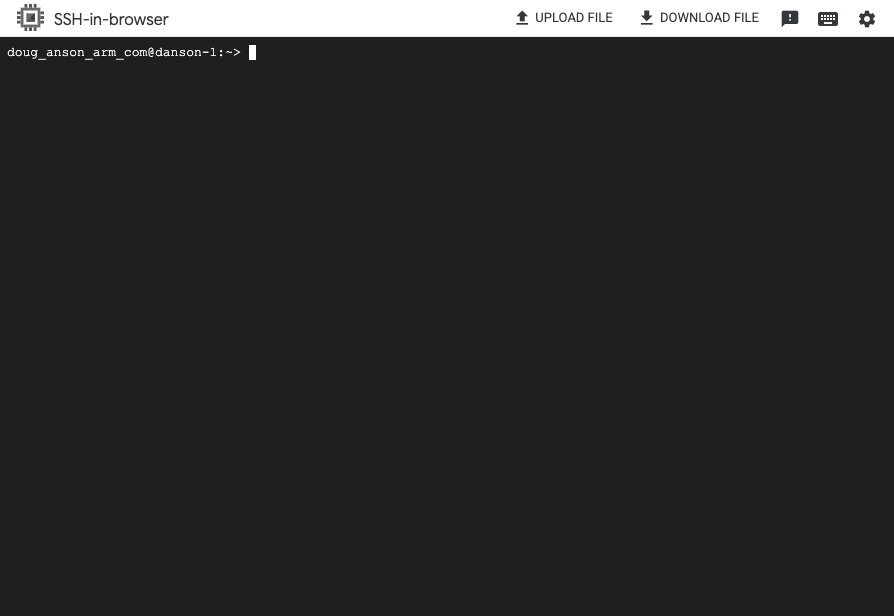 Terminal shell in your VM instance
Explore your instance
Run uname
Use the uname utility to verify that you are using an Arm-based server. For example:
uname -m
will identify the host machine as aarch64.
Run hello world
Install the gcc compiler:
sudo apt update
sudo apt install -y build-essential
sudo zypper refresh
sudo zypper install -y gcc
Using a text editor of your choice, create a file named hello.c with the contents below:
#include <stdio.h>
int main(){
    printf("hello world\n");
    return 0;
}
Build and run the application:
gcc hello.c -o hello
./hello
The output is shown below:
hello world
Automating Arm Based Infrastructure Deployment
Cloud infrastructure deployment is typically done via Infrastructure as code (IaC) automation tools. There are Cloud Service Provider specific tools like Google Cloud Deployment Manager .
There are also Cloud Service Provider agnostic tools like Terraform .There is a deploying Arm VMs on (GCP) using Terraform learning path that should be reviewed next.