Deploy Node.js on Google Cloud C4A Arm-based Axion virtual machines
Introduction
Getting started with Node.js on Google Axion C4A (Arm Neoverse-V2)
Create a Google Axion C4A Arm virtual machine on GCP
Install Node.js using Node Version Manager
Validate Node.js baseline on Google Axion C4A Arm virtual machine
Benchmark Node.js performance with Autocannon
Next Steps
Deploy Node.js on Google Cloud C4A Arm-based Axion virtual machines
Validate Node.js installation with a baseline test
Confirm that your Node.js installation works as expected before benchmarking performance on your Arm-based VM. Run these baseline tests to verify that Node.js is installed correctly and can execute JavaScript code and serve HTTP requests. Catch setup issues early and ensure your environment is ready for further testing.
Run a simple REPL test
Start the Node.js REPL (Read-Eval-Print Loop) to run JavaScript commands interactively:
node
Type the following command inside the REPL:
console.log("Hello from Node.js");
The output is similar to:
        Hello from Node.js
undefined
This confirms that Node.js can execute JavaScript commands successfully. Press “Ctrl-D” to exit node.
Test a basic HTTP server
Create a file named app.js with the following code to validate that Node.js can handle web requests:
const http = require('http');

const server = http.createServer((req, res) => {
  res.writeHead(200, { 'Content-Type': 'text/plain' });
  res.end('Baseline test successful!\n');
});

server.listen(80, '0.0.0.0', () => {
  console.log('Server running at http://0.0.0.0:80/');
});
The server listens for incoming connections on port 80, which is the default port for HTTP traffic. By binding to the IP address 0.0.0.0, the server accepts connections from any network interface, not just from localhost. This configuration enables access from other devices on the network.
Run the HTTP server in the background using sudo:
export MY_NODE=`which node`
sudo ${MY_NODE} app.js &
The expected output is:
Server running at http://0.0.0.0:80/
Test locally with curl
Run the following command to test the server locally:
curl http://localhost:80
The expected output is:
Baseline test successful!
Test from a browser
Print your VM’s public URL and open it in a browser:
echo "http://$(curl -s ifconfig.me):80/"
You should see the following message in your browser, confirming that your Node.js HTTP server is running successfully:
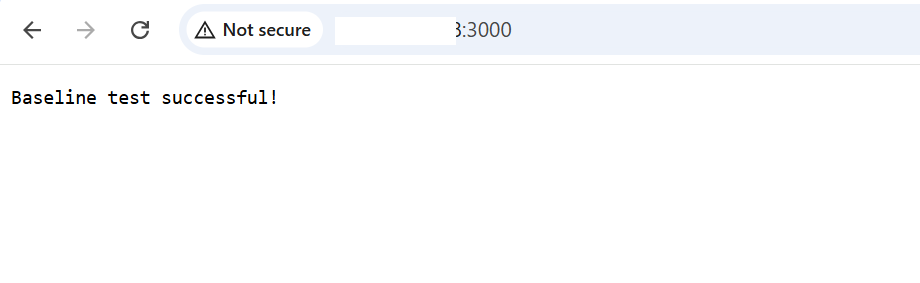 Browser displaying baseline test successful dialogue message
You have now validated that Node.js is working correctly on your Arm VM. Proceed to benchmarking and performance testing.