Configure and run nested virtualization on an Arm server
Introduction
Prepare the host for nested virtualization
Prepare and start an L1 guest virtual machine
Create a hypervisor virtual machine on the host
Prepare and boot a nested L2 guest VM in the hypervisor VM
Benchmark Arm nested virtualization with sysbench
Next Steps
Configure and run nested virtualization on an Arm server
Why use nested virtualization
Virtualization allows organizations to partition large multi-core servers into smaller environments with a strong level of resource isolation. It’s a foundational technology for cloud computing. Cloud service providers typically provide compute resources to their customers using virtualization.
Nested virtualization enables guest virtual machines (VMs) to serve as hypervisors and run guest VMs inside a VM or cloud instance. There are a few use cases where this functionality is useful.
Resource isolation
When running container applications in cloud instances, containers share a common operating system. By running containers inside microVMs such as Firecracker VM, the container workloads share nothing with the host operating system.
Mobile application development and testing
Developers often want to build and test Android applications on cloud infrastructure such as Kubernetes. Cloud hosted Kubernetes compute nodes are typically VM instances. Running Android environments in Kubernetes in this situation requires nested virtualization.
Testing and development of embedded applications
Many embedded applications run specialized real-time or embedded operating systems, rather than Linux. Developing and testing these environments requires virtualization, which means developing on bare metal or VMs with nested virtualization enabled.
Terminology and server setup
The bare metal server is referred to as L0. VMs running on the bare metal server are referred to as L1. Nested VMs are referred to as L2. An Arm64 bare metal host with 64 cores or more is used as an example. You’ll start two VMs on the host, called fedora-l1-guest and fedora-l1-hyper. Inside fedora-l1-hyper, you’ll create another VM called fedora-l2-guest. Both guest VMs are 8-core VMs, and the fedora-l1-hyper VM is assigned 16 cores.
This lets you allocate similar amounts of resources, and pin those resources to specific cores. By doing so, you can minimize any potential resource conflicts across the bare metal host and the VMs when you compare the performance of a reference benchmark.
The following diagram shows the nested virtualization layout:
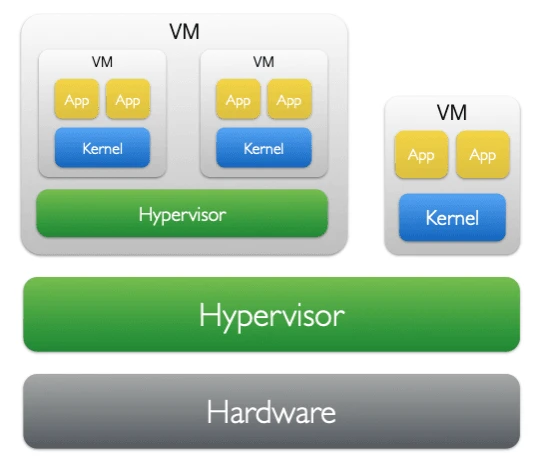 Nested virtualization layout
Install the virtualization software stack
The host is an Arm64 server running Fedora 44, which includes a recent enough kernel and qemu-kvm to support nested virtualization. Complete the following steps to install the remaining virtualization tools with the dnf package manager.
The server must run on a bare metal Arm64 server, whether a cloud bare metal instance or a local physical machine. Nested virtualization needs direct access to the processor’s EL2 virtualization support, which isn’t available inside a standard VM. Running these steps inside an existing VM doesn’t enable nested virtualization.
Nested virtualization on Arm64 also depends on a recent Linux kernel (6.13 or later, preferably 7.2 or later) and qemu-kvm version 10.1.0 or later. Fedora 44 meets these requirements. You can adapt the steps to another distribution that meets the requirements.
Install the virtualization packages
Install the prerequisite packages:
sudo dnf -y install libvirt libvirt-daemon-qemu libvirt-client qemu-kvm virt-install dnsmasq genisoimage
Enable nested virtualization
Enable nested virtualization on the host by passing the kernel argument kvm-arm.mode=nested to the Linux kernel at boot time, then reboot the server:
sudo grubby --args="kvm-arm.mode=nested" --update-kernel=ALL
sudo reboot
Verify that nested virtualization is enabled
After the reboot, verify that the capability is available:
sudo dmesg | grep -iE "Nested Virtualization Support|VHE\+NV2"
The output is similar to:
        CPU features: detected: Nested Virtualization Support
kvm [1]: VHE+NV2 mode initialized successfully
The VHE+NV2 mode initialized successfully line is the key confirmation that nested virtualization is active. If you see only VHE mode initialized successfully without +NV2, nested virtualization isn’t enabled. This usually means that the kernel argument wasn’t applied or that the hardware doesn’t support FEAT_NV2.
What you’ve accomplished and what’s next
You’ve installed all of the virtualization tools that you’ll use to prepare and start VMs on the bare metal host. You’ve also confirmed that your host is now running with nested virtualization enabled.
Next, you’ll create and start an L1 guest VM running Fedora 44.