Migrate MySQL from on-premises x64 to Arm-based Azure virtual machines
Introduction
Understand Azure Cobalt 100 VMs and MySQL migration strategy
Create an Azure x64 virtual machine as an on-premises simulator
Prepare the on-premises source instance
Perform the lift-and-shift migration into Azure cloud
Benchmark MySQL performance on Azure Cobalt 100
Next Steps
Migrate MySQL from on-premises x64 to Arm-based Azure virtual machines
Prepare to run the benchmark
From your local machine, open an SSH shell to the on-premises simulator by replacing YOUR_RSA_FILENAME and YOUR_ONPREM_IP_ADDRESS:
ssh -i $HOME/.ssh/YOUR_RSA_FILENAME azureadmin@YOUR_ONPREM_IP_ADDRESS
From that on-premises shell, identify the SSH key in $HOME/.ssh used for the Azure VM. Then connect to the Arm-based Azure VM:
ssh -i $HOME/.ssh/AZURE_CLOUD_RSA_FILENAME azureadmin@YOUR_ARM_BASED_VM_PUBLIC_IP_ADDRESS
You should now have an SSH shell into your Arm-based Azure VM.
Create a file named run.sh with the following content. The script runs sysbench oltp_read_write at five thread counts (16, 32, 64, 96, and 128), each for 60 seconds, and writes the results to separate .perf files.
#!/bin/bash


run_bench() {
    THR=$1
    LENGTH=$2
    FILENAME=${PREFIX}_${THR}.perf
    if [ -f ${FILENAME} ]; then
        rm ${FILENAME}
    fi
    set -x
    sysbench /usr/share/sysbench/oltp_read_write.lua --table-size=1000000 --db-driver=mysql --mysql-db=testdb --mysql-user=${ADMIN} --mysql-password=${PW} --time=${LENGTH} --max-requests=0 --threads=${THR} run 2>&1 1>${FILENAME}
    set +x
}

main() {
  run_bench 16 60
  run_bench 32 60
  run_bench 64 60
  run_bench 96 60
  run_bench 128 60
}

export ADMIN=$1
export PW=$2
export PREFIX=$3
shift 3

main $*
Make the script executable:
sudo chmod 755 ./run.sh
In the same shell, retrieve the MySQL root password file used by the migration script:
sudo su -
cat /root/mysql_root_password.txt
exit
Run the benchmark
The script creates five .perf files with sysbench oltp_read_write results at different thread counts. Run run.sh, replacing AZURE_CLOUD_MYSQL_ADMIN_PW with the password value you retrieved:
./run.sh admin AZURE_CLOUD_MYSQL_ADMIN_PW cobalt_100_arm64
Interpret the results
First, download the five .perf files from the Azure VM to your on-premises simulator shell. Replace AZURE_CLOUD_RSA_FILENAME and YOUR_ARM_BASED_VM_PUBLIC_IP_ADDRESS:
cd $HOME
scp -i $HOME/.ssh/AZURE_CLOUD_RSA_FILENAME azureadmin@YOUR_ARM_BASED_VM_PUBLIC_IP_ADDRESS:*.perf .
Next, from your local machine, copy those files from the on-premises simulator to your local host. Replace ON_PREM_RSA_FILENAME(private key/pem file downloaded earlier) and YOUR_ON_PREM_SIM_IP_ADDRESS:
cd $HOME
scp -i $HOME/.ssh/ON_PREM_RSA_FILENAME azureuser@YOUR_ON_PREM_SIM_IP_ADDRESS:\*.perf .
You should now have five .perf files on your local host.
To summarize key metrics quickly, run:
for f in *.perf; do
  echo "== $f =="
  grep -E "threads:|transactions:|queries:|95th percentile:" "$f"
  echo
done
To compare throughput and latency across thread counts, look at:
- Higher
transactions:values that indicate better throughput. - Lower
95th percentile:values that indicate better tail latency.
You can also look for where adding threads no longer increases throughput meaningfully.
The following example image shows benchmark output from this workflow:
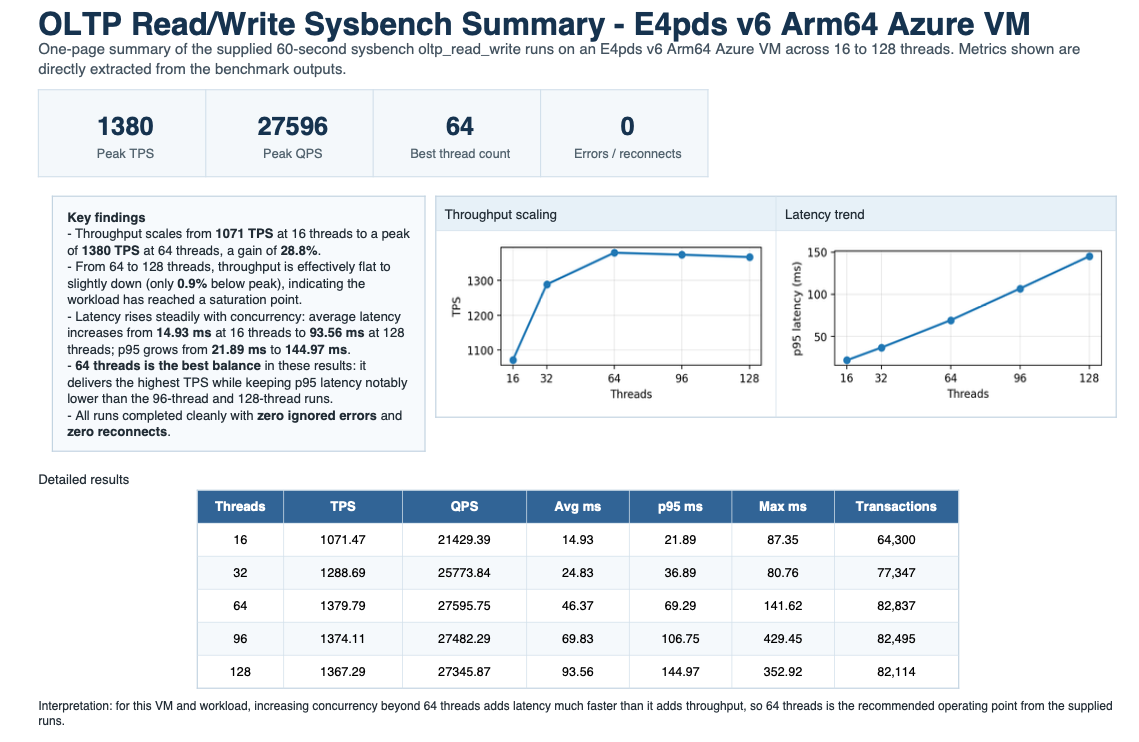 Azure Cobalt 100 Arm64 E4pds_v6 sysbench results
What you’ve accomplished
You’ve provisioned an Arm-based Azure VM for MySQL migration, moved a database from an on-premises x64 simulator, and evaluated performance by reading sysbench throughput and latency metrics.