Deploy MongoDB on an Arm-based Google Axion C4A virtual machine
Introduction
About Google Axion C4A series and MongoDB
Create Google Axion instance
Install MongoDB
Baseline Testing
MongoDB Benchmarking
Next Steps
Deploy MongoDB on an Arm-based Google Axion C4A virtual machine
Overview
This section walks you through creating a Google Axion C4A Arm virtual machine on GCP with the c4a-standard-4 (4 vCPUs, 16 GB Memory) machine type, using the Google Cloud Console.
If you haven’t set up a Google Cloud account, see the Learning Path Getting started with Google Cloud Platform .
Create an Arm-based virtual machine (C4A)
To create a VM based on the C4A Arm architecture:
- Open the Google Cloud Console .
- Go to Compute Engine and select Create instance.
- In Machine configuration:
- Enter the Instance name, Region, and Zone.
- Set Series to
C4A. - Choose a machine type such as
c4a-standard-4.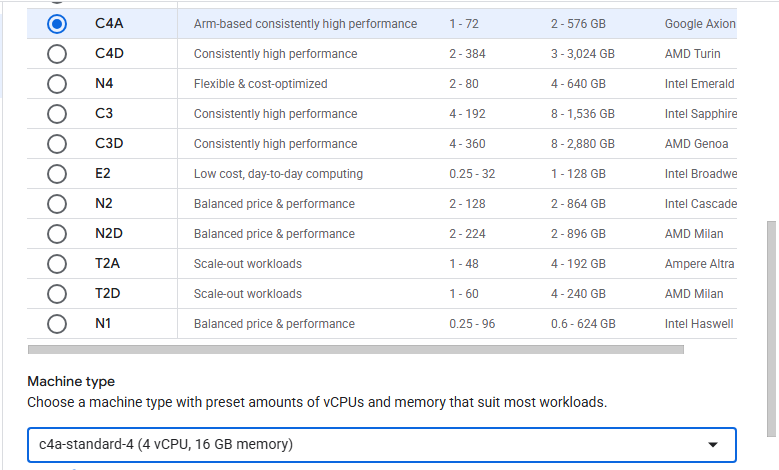 Selecting the C4A series and c4a-standard-4 machine type
- In OS and storage, select Change, choose Red Hat Enterprise Linux as the operating system, and Red Hat Enterprise Linux 9 as the version. Make sure you select the Arm image.
- In Networking, enable Allow HTTP traffic so you can test services later in this Learning Path.
- Select Create to launch the instance.
Do not leave Allow HTTP traffic enabled permanently. For long-term use, restrict access to only the IP addresses you need.
To open a shell on the VM, select SSH in the instance details page. Use this terminal for the commands in the next sections, where you will install and configure MongoDB on your Axion C4A instance.