Manage the machine learning lifecycle with MLflow on a Google Cloud C4A Axion virtual machine
Introduction
Learn about MLflow and Google Axion C4A for machine learning
Configure Google Cloud firewall rules for MLflow
Create a Google Axion C4A virtual machine for MLflow
Install MLflow and track machine learning experiments
Deploy MLflow models as REST APIs
Next Steps
Manage the machine learning lifecycle with MLflow on a Google Cloud C4A Axion virtual machine
Install and configure MLflow on SUSE Linux
In this section, you’ll install MLflow on a GCP Arm64 (Axion) virtual machine (VM) running SUSE Linux with Python 3.11. You’ll then start the MLflow tracking server and run machine learning experiments.
You’ll be using one terminal (terminal A) for setup, training, and running commands. You’ll use another terminal (terminal B) to run the MLflow tracking server.
Open both terminals connected to the VM before starting.
Connect to the VM
Connect to the VM using terminal A:
ssh <your-user>@<your-vm-ip>
Verify system
Check your system architecture:
uname -m
cat /etc/os-release
The output is similar to:
        aarch64
NAME="SLES"
VERSION="15-SP5"
VERSION_ID="15.5"
PRETTY_NAME="SUSE Linux Enterprise Server 15 SP5"
ID="sles"
ID_LIKE="suse"
ANSI_COLOR="0;32"
CPE_NAME="cpe:/o:suse:sles:15:sp5"
DOCUMENTATION_URL="https://documentation.suse.com/"
This confirms you are on an Arm-based VM.
Update your system
Update all system packages:
sudo zypper refresh
sudo zypper update -y
This ensures your system is up to date before installing anything.
Install required dependencies
Now install Python 3.11 and other tools:
sudo zypper install -y \
  python311 \
  python311-pip \
  python311-setuptools \
  python311-wheel \
  sqlite3 \
  gcc \
  gcc-c++ \
  make \
  git
python311 is the Python 3.11 runtime. sqlite3 is for the MLflow database. gcc, gcc-c++, and make are used as build tools. python311-pip is used to install Python packages.
Verify:
python3.11 --version
pip3.11 --version
The output is similar to:
        Python 3.11.10
pip 22.3.1 from /usr/lib/python3.11/site-packages/pip (python 3.11)
Create Python environment
Create the project directory and a Python virtual environment to isolate the MLflow dependencies from the system Python installation:
mkdir -p ~/mlflow-learning-path
cd ~/mlflow-learning-path

python3.11 -m venv mlflow-env
source mlflow-env/bin/activate
Upgrade the packaging tools inside the virtual environment:
pip install --upgrade pip setuptools wheel
Install MLflow
Install MLflow and the machine learning libraries used in this Learning Path:
pip install mlflow scikit-learn pandas numpy matplotlib
Create directories
Create the directory structure that the MLflow server uses to store experiment metadata and model artifacts:
mkdir -p backend artifacts demo
backend/— stores experiment metadata in a SQLite database (created automatically by the server on first run)artifacts/— stores model files and other artifacts logged during training runsdemo/— stores the training and alias scripts you create in this Learning Path
Start MLflow server
Use terminal B to run:
ssh <your-user>@<your-vm-ip>
cd ~/mlflow-learning-path
source mlflow-env/bin/activate
After that, run the following command to start the MLflow tracking server and keep it running. The following key flags configure how the server binds to the network and where it stores data:
--host 0.0.0.0— listens on all network interfaces so the UI is reachable from your browser via the VM’s public IP--port 5000— serves the tracking UI and REST API on port 5000--backend-store-uri— stores experiment metadata (parameters, metrics, run IDs) in a local SQLite database--artifacts-destination— stores model files and other artifacts on the local filesystem--allowed-hosts "*"and--cors-allowed-origins "*"— permit connections from any origin; suitable for this Learning Path but not for production deployments
mlflow server \
  --host 0.0.0.0 \
  --port 5000 \
  --backend-store-uri sqlite:///$(pwd)/backend/mlflow.db \
  --artifacts-destination file://$(pwd)/artifacts \
  --allowed-hosts "*" \
  --cors-allowed-origins "*"
The output is similar to:
        2026/05/04 13:33:43 INFO mlflow.store.db.utils: Creating initial MLflow database tables...
2026/05/04 13:33:43 INFO mlflow.store.db.utils: Updating database tables
[MLflow] Security middleware enabled. Allowed hosts: *. CORS origins: *.
2026/05/04 13:33:44 INFO:     Uvicorn running on http://0.0.0.0:5000 (Press CTRL+C to quit)
2026/05/04 13:33:44 INFO:     Started parent process [3817]
2026/05/04 13:33:45 INFO:     Started server process [3820]
2026/05/04 13:33:45 INFO:     Waiting for application startup.
2026/05/04 13:33:45 INFO:     Application startup complete.
2026/05/04 13:33:45 INFO:     Started server process [3821]
2026/05/04 13:33:45 INFO:     Waiting for application startup.
2026/05/04 13:33:45 INFO:     Application startup complete.
2026/05/04 13:33:46 INFO:     Started server process [3823]
2026/05/04 13:33:46 INFO:     Waiting for application startup.
2026/05/04 13:33:46 INFO:     Application startup complete.
2026/05/04 13:33:46 INFO:     Started server process [3822]
2026/05/04 13:33:46 INFO:     Waiting for application startup.
2026/05/04 13:33:46 INFO:     Application startup complete.
2026/05/04 13:33:47 INFO mlflow.server.jobs.utils: Registered online_scoring_scheduler periodic task (runs every 1 minute)
Leave terminal B open and don’t run any commands on it. The server must stay running throughout the rest of this Learning Path.
Access MLflow UI
Open a browser and navigate to:
http://<VM-IP>:5000
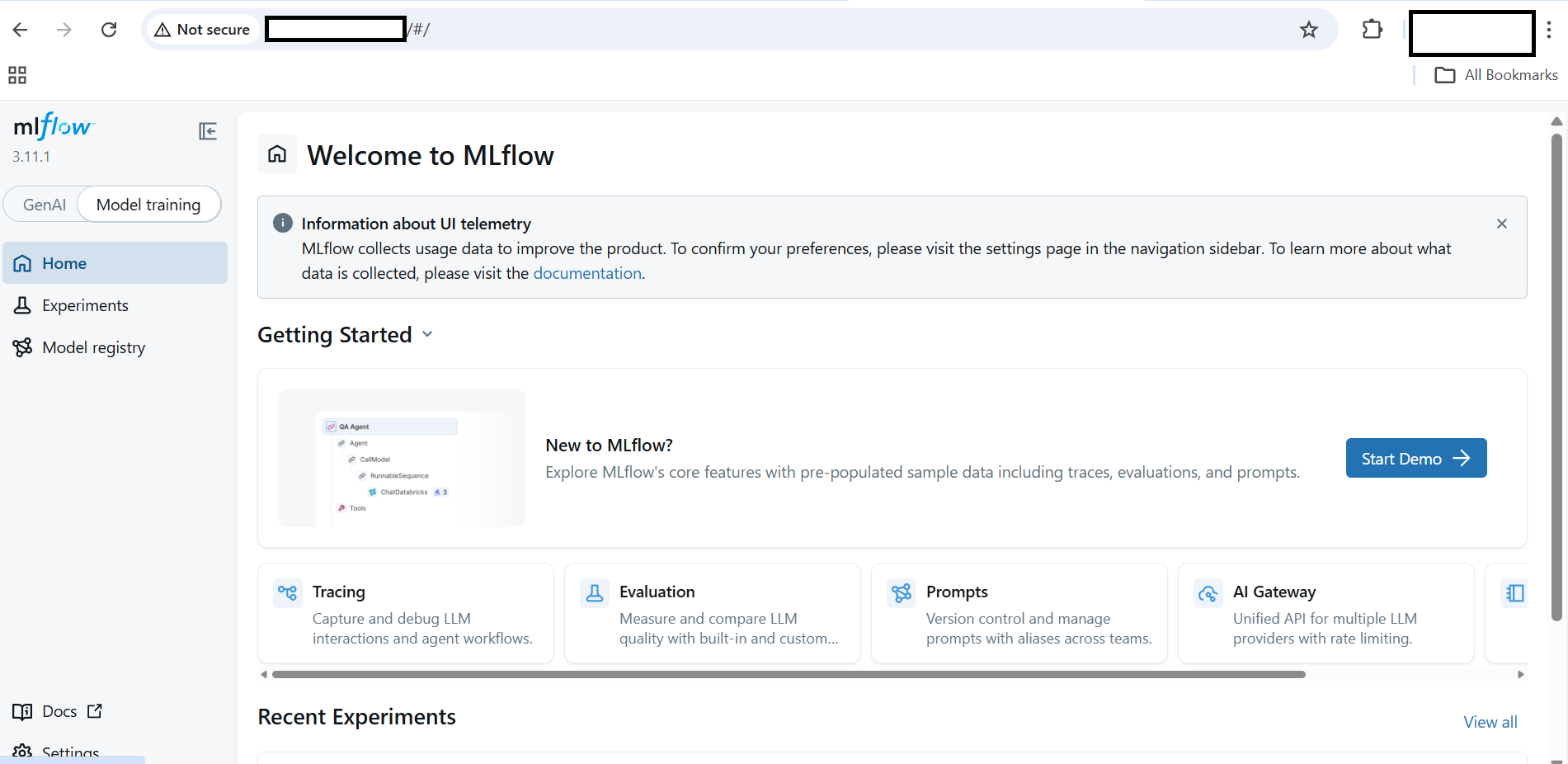 MLflow UI landing page after first launch
Select the Experiments tab to see tracked runs, compare metrics across runs, and inspect logged parameters.
Create a machine learning training script
In the first terminal, navigate to the demo directory and create the training script:
cd ~/mlflow-learning-path/demo
cat > train.py <<'EOF'
import os
import mlflow
import mlflow.sklearn
from sklearn.datasets import load_iris
from sklearn.model_selection import train_test_split
from sklearn.linear_model import LogisticRegression
from sklearn.metrics import accuracy_score

mlflow.set_tracking_uri("http://127.0.0.1:5000")
mlflow.set_experiment("iris-exp")

X, y = load_iris(return_X_y=True)
X_train, X_test, y_train, y_test = train_test_split(X, y)

C = float(os.getenv("C", 1.0))

with mlflow.start_run():
    model = LogisticRegression(C=C, max_iter=200)
    model.fit(X_train, y_train)

    preds = model.predict(X_test)
    acc = accuracy_score(y_test, preds)

    mlflow.log_param("C", C)
    mlflow.log_metric("accuracy", acc)

    mlflow.sklearn.log_model(
        model,
        name="model",
        registered_model_name="iris-model"
    )

    print("Accuracy:", acc)
EOF
This script trains a logistic regression model on the Iris dataset. It logs the C parameter and accuracy metric to MLflow Tracking, and registers the trained model in the MLflow Model Registry under the name iris-model.
Run machine learning experiments with MLflow
Set the tracking URI so the MLflow client sends data to Terminal B’s server:
export MLFLOW_TRACKING_URI=http://127.0.0.1:5000
The C argument in train.py is the inverse regularization strength in logistic regression. A lower value of C applies stronger regularization, which can reduce overfitting. Running with different C values simulates a hyperparameter sweep. Each run is tracked separately in MLflow so you can compare results:
python train.py
export C=0.5
python train.py
export C=2.0
python train.py
Each run logs the C value and accuracy as a separate entry in the iris-exp experiment and registers a new model version in the MLflow Model Registry.
The output for the first run is similar to:
        Registered model 'iris-model' already exists. Creating a new version of this model...
2026/04/22 04:44:42 INFO mlflow.store.model_registry.abstract_store: Waiting up to 300 seconds for model version to finish creation. Model name: iris-model, version 2
Created version '2' of model 'iris-model'.
Accuracy: 1.0
🏃 View run unequaled-grub-345 at: http://127.0.0.1:5000/#/experiments/1/runs/8a9e3cf1ab3b4f669a37fb0cbe1e469c
🧪 View experiment at: http://127.0.0.1:5000/#/experiments/1

(mlflow-env) gcpuser@mlfow-new:~/mlflow-learning-path/demo> export C=0.5
(mlflow-env) gcpuser@mlfow-new:~/mlflow-learning-path/demo> python train.py

Registered model 'iris-model' already exists. Creating a new version of this model...
2026/04/22 04:44:52 INFO mlflow.store.model_registry.abstract_store: Waiting up to 300 seconds for model version to finish creation. Model name: iris-model, version 3
Created version '3' of model 'iris-model'.
Accuracy: 1.0
🏃 View run vaunted-horse-22 at: http://127.0.0.1:5000/#/experiments/1/runs/4e10db3266c5495bae43df36a46ebd13
🧪 View experiment at: http://127.0.0.1:5000/#/experiments/1

(mlflow-env) gcpuser@mlfow-new:~/mlflow-learning-path/demo> export C=2.0
(mlflow-env) gcpuser@mlfow-new:~/mlflow-learning-path/demo> python train.py

2026/04/22 04:45:00 INFO mlflow.store.model_registry.abstract_store: Waiting up to 300 seconds for model version to finish creation. Model name: iris-model, version 4
Created version '4' of model 'iris-model'.
Accuracy: 1.0
🏃 View run defiant-hound-237 at: http://127.0.0.1:5000/#/experiments/1/runs/8b2517b64bb34df199a78f2a8b29137c
🧪 View experiment at: http://127.0.0.1:5000/#/experiments/1
Each subsequent run creates a new model version and logs its accuracy metric.
View experiment results in the MLflow UI
In the MLflow UI at http://<VM-IP>:5000, go to the Experiments tab, select iris-exp, and open the Runs view. You should see three runs with their C parameter values and accuracy metrics. Select the Models tab to see the three registered model versions.
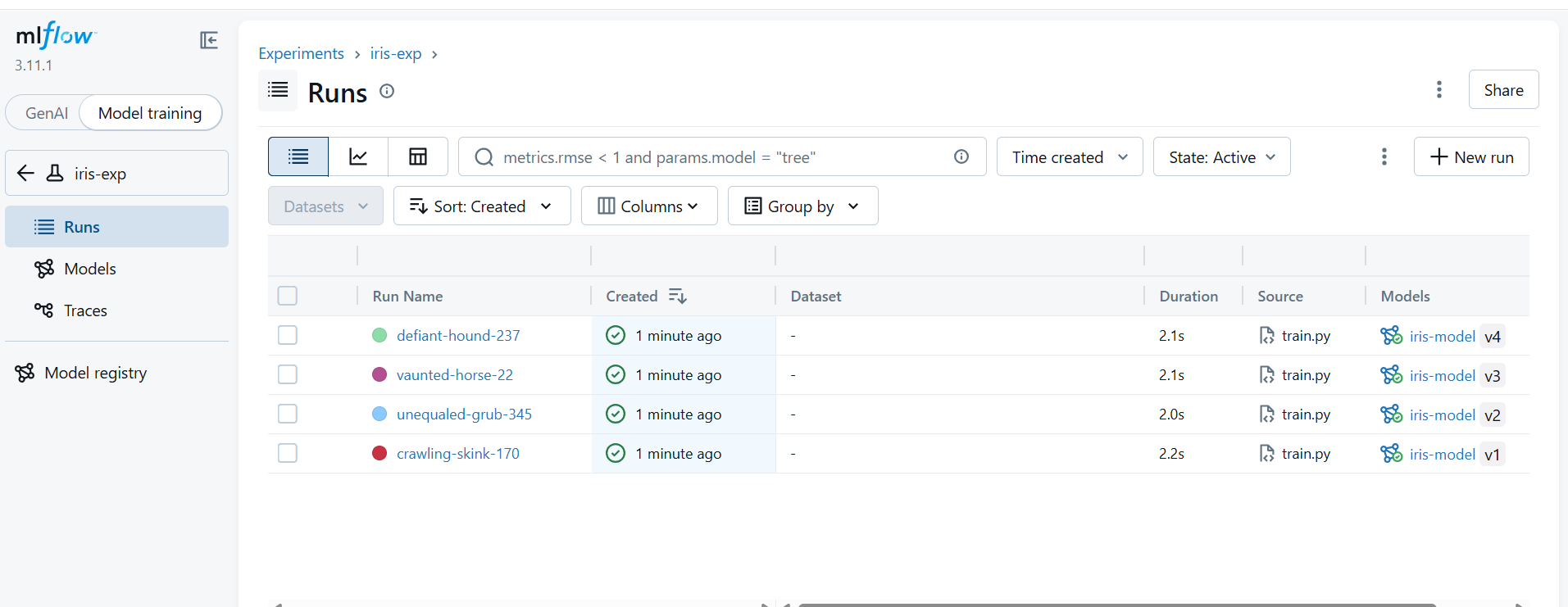 MLflow Runs view showing three tracked experiments with different C values
What you’ve accomplished and what’s next
You’ve now successfully installed MLflow on SUSE ARM64 and configured a Python 3.11 environment. You’ve started an MLflow tracking server, logged experiments and metrics, and registered models.
Next, you’ll deploy and serve the model.