Manage the machine learning lifecycle with MLflow on a Google Cloud C4A Axion virtual machine
Introduction
Learn about MLflow and Google Axion C4A for machine learning
Configure Google Cloud firewall rules for MLflow
Create a Google Axion C4A virtual machine for MLflow
Install MLflow and track machine learning experiments
Deploy MLflow models as REST APIs
Next Steps
Manage the machine learning lifecycle with MLflow on a Google Cloud C4A Axion virtual machine
Set up the virtual machine
In this section, you’ll create a Google Axion C4A Arm-based virtual machine (VM) on Google Cloud Platform (GCP). You’ll use the c4a-standard-4 machine type, which provides 4 vCPUs and 16 GB of memory. This VM will host your MLflow tracking server and model serving API.
For help with GCP setup, see the Learning Path Getting started with Google Cloud Platform .
Configure the C4A virtual machine in Google Cloud Console
To create a virtual machine based on the C4A instance type in the console:
- Navigate to the Google Cloud Console .
- Go to Compute Engine > VM Instances and select Create Instance.
- Under Machine configuration, populate fields such as Instance name, Region, and Zone.
- Set Series to
C4A, then selectc4a-standard-4for Machine type.
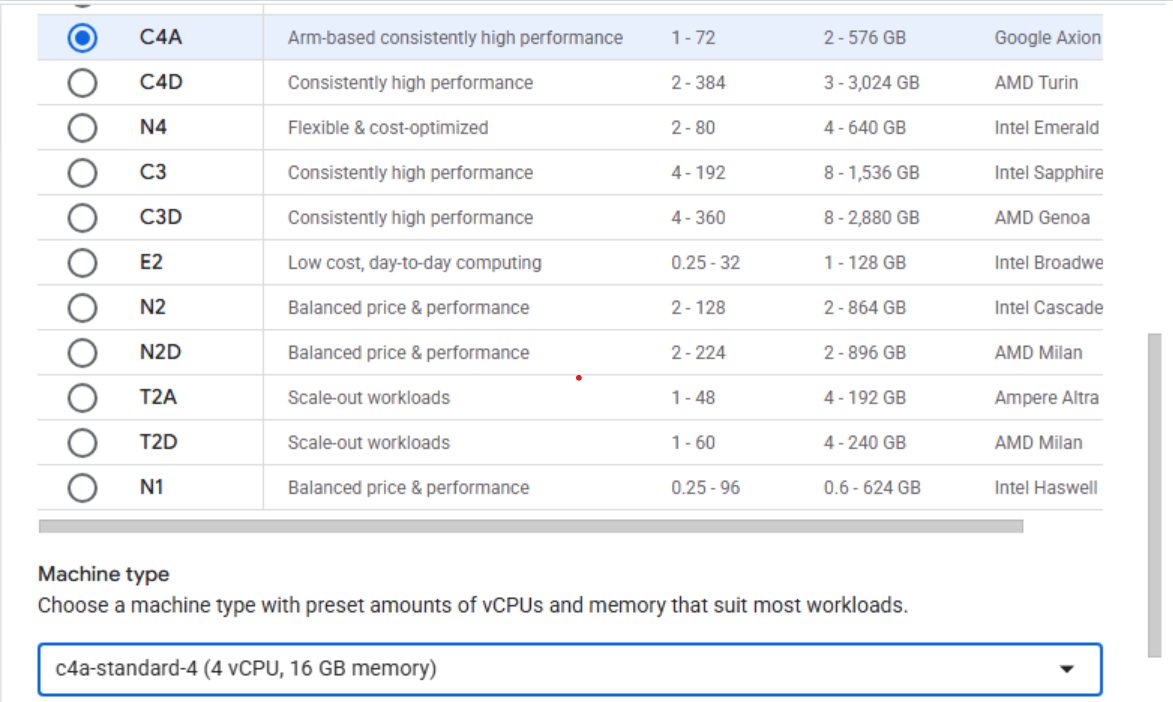 Configuring machine type to C4A in Google Cloud Console
- Under OS and storage, select Change and then choose an Arm64-based operating system image. For this Learning Path, select SUSE Linux Enterprise Server.
- For the license type, choose Pay as you go.
- Increase Size (GB) from 10 to 100 to allocate sufficient disk space, and then select Choose.
- Expand Advanced options and select Networking.
- Under Network tags, enter
allow-mlflow-portsto link the VM to the firewall rule from the previous step and allow inbound access to ports 5000 (MLflow UI) and 6000 (model serving API). - Select Create to launch the virtual machine.
After the instance starts, select SSH next to the VM in the instance list to open a browser-based terminal session.
 Connecting to a running C4A VM using SSH
A new browser window opens with a terminal connected to your VM.
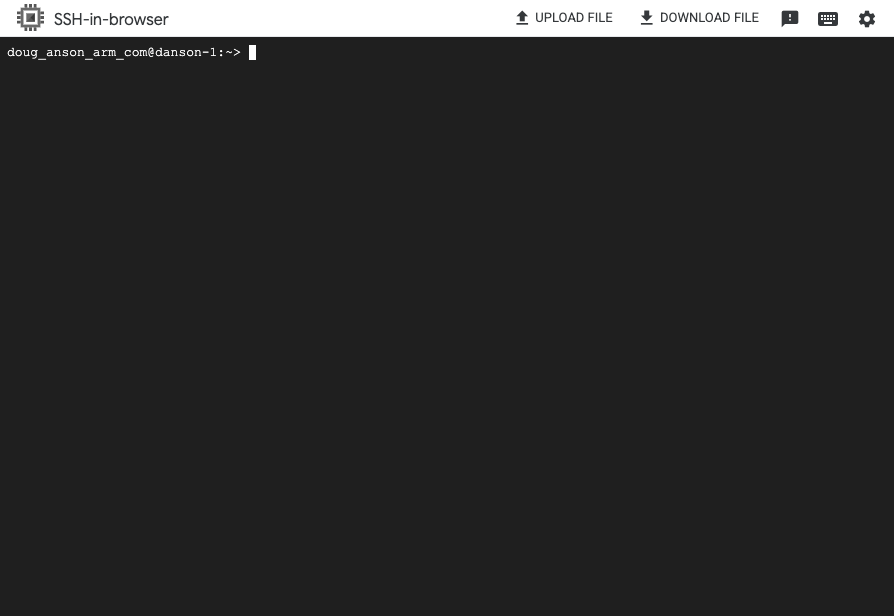 Terminal session connected to the VM
What you’ve accomplished and what’s next
You’ve now provisioned a Google Axion C4A Arm VM and connected to it using SSH.
Next, you’ll install MLflow and the required dependencies on your VM.