Manage the machine learning lifecycle with MLflow on a Google Cloud C4A Axion virtual machine
Introduction
Learn about MLflow and Google Axion C4A for machine learning
Configure Google Cloud firewall rules for MLflow
Create a Google Axion C4A virtual machine for MLflow
Install MLflow and track machine learning experiments
Deploy MLflow models as REST APIs
Next Steps
Manage the machine learning lifecycle with MLflow on a Google Cloud C4A Axion virtual machine
Allow inbound access to MLflow
Create a firewall rule in Google Cloud Console to expose required ports for the MLflow UI and Model Serving API.
For help with GCP setup, see the Learning Path Getting started with Google Cloud Platform .
Configure the firewall rule in Google Cloud Console
To configure a firewall rule for the MLflow UI and the Model Serving API:
- Navigate to the Google Cloud Console , go to VPC Network > Firewall, and select Create firewall rule.
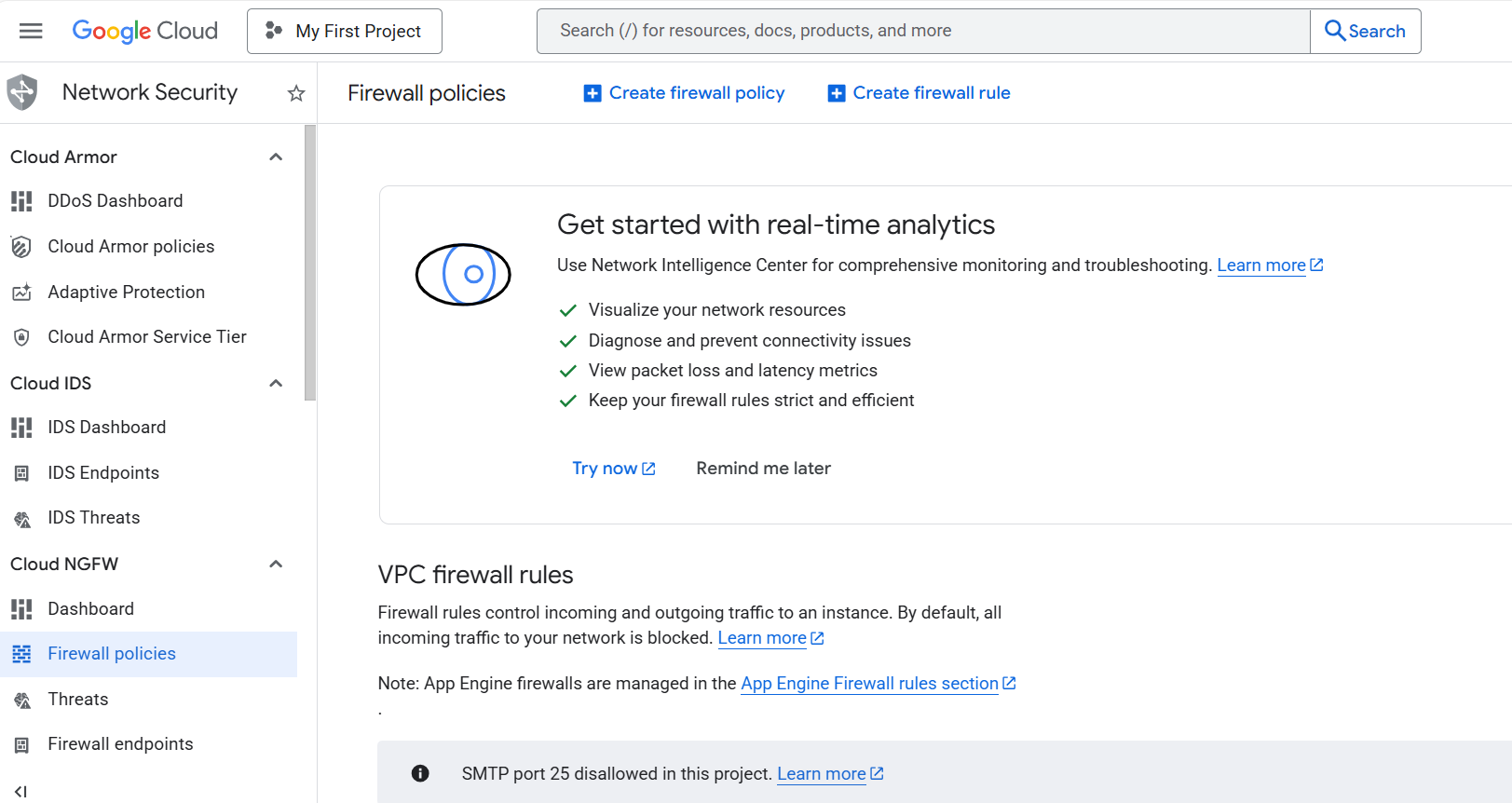 Create a firewall rule in Google Cloud Console
Create a firewall rule that exposes the ports required for MLflow.
Set Name to
allow-mlflow-ports, then select the network you want to bind to your virtual machine.Set Direction of traffic to Ingress, set Action on match to Allow, set Targets to All instances in the network, and set Source IPv4 ranges to 0.0.0.0/0.
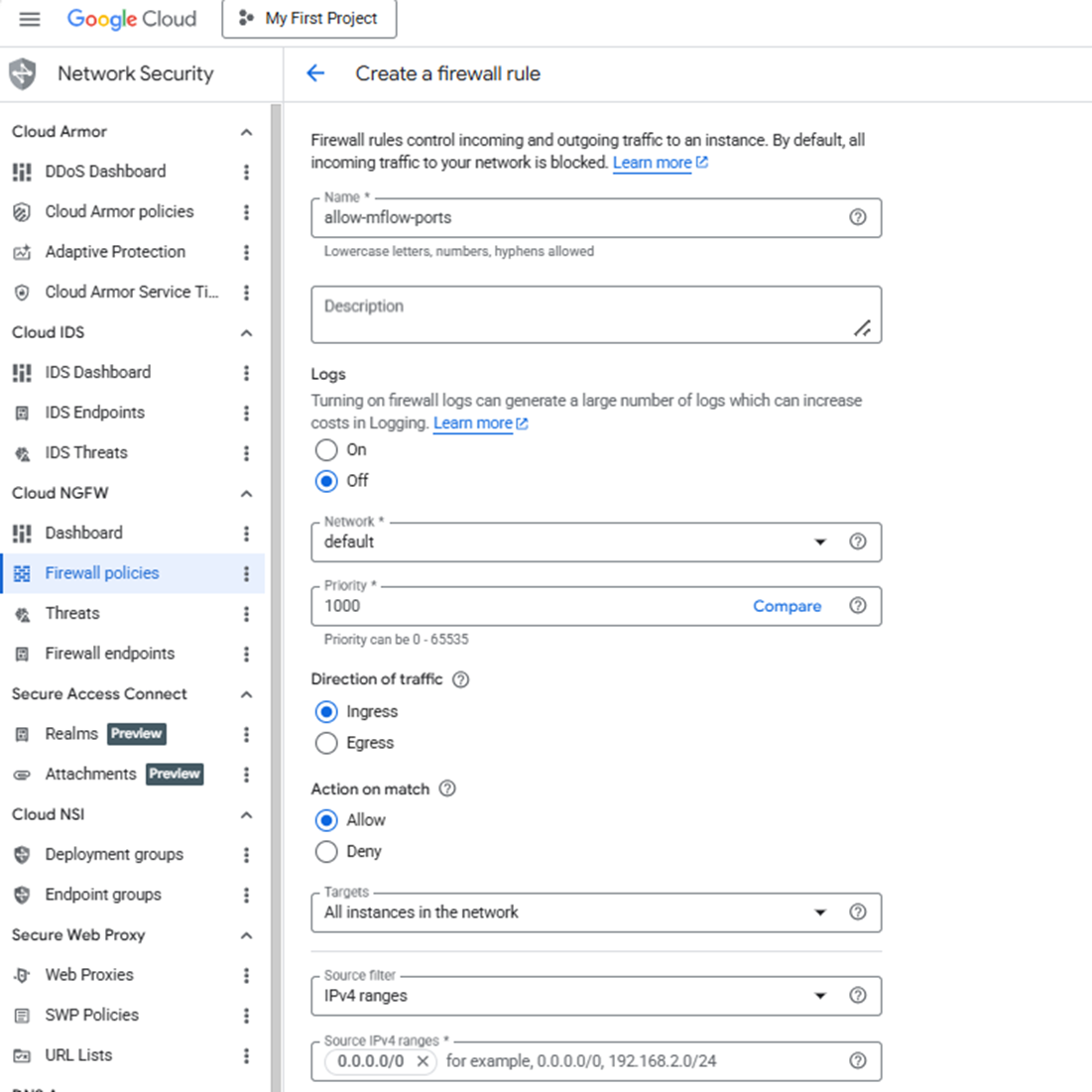 Configuring the allow-mlflow-ports firewall rule
- Under Protocols and ports, select Specified protocols and ports.
- Select the TCP checkbox and enter:
5000,6000
Use port mapping 5000 for the MLflow Tracking UI and 6000 for the MLflow Model Serving API.
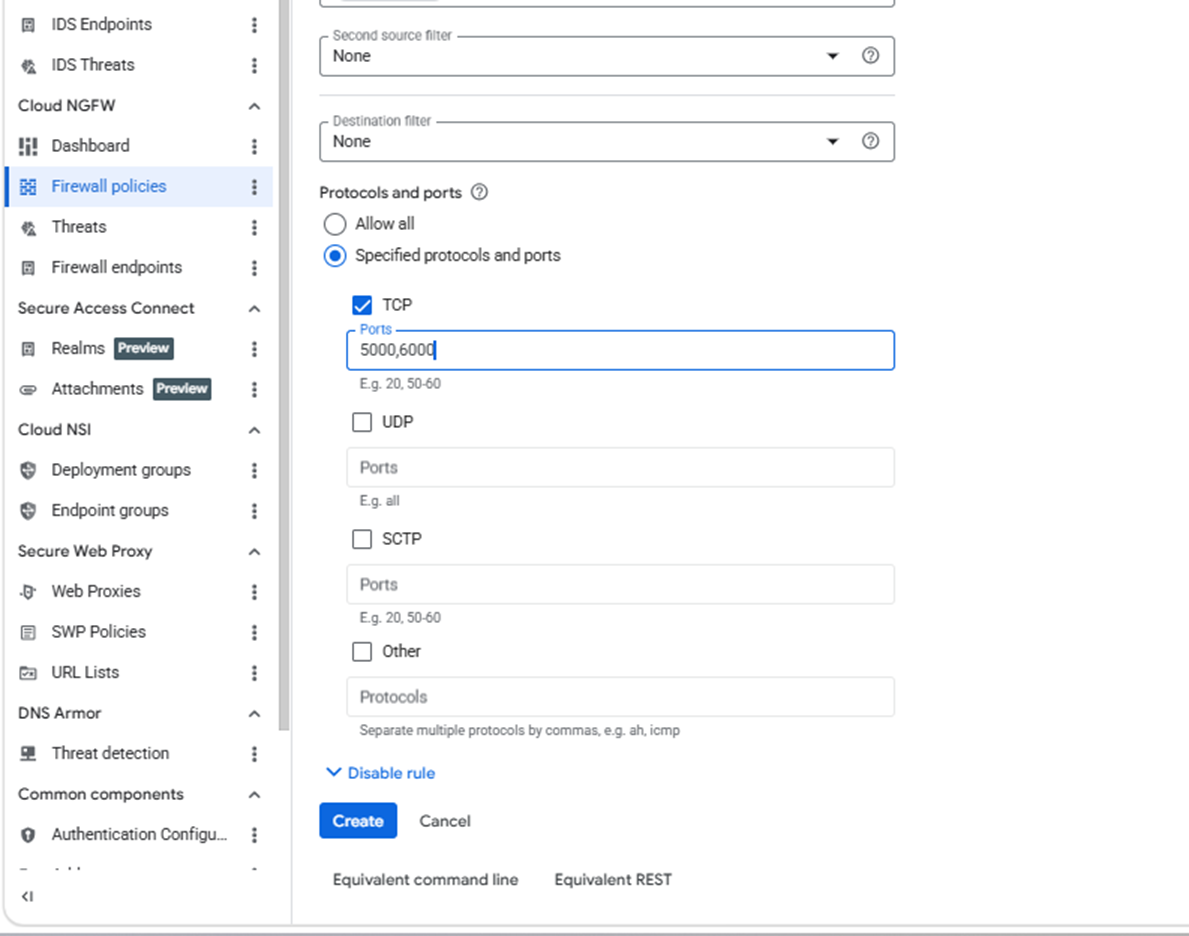 Setting MLflow ports in the firewall rule
- Select Create.
What you’ve accomplished and what’s next
You’ve created a firewall rule to expose the MLflow UI and the model serving API. You also enabled external access to monitor experiments and access deployed models.
Next, you’ll create a C4A Arm virtual machine and attach it to this firewall rule.