Deploy MinIO on Azure Cobalt 100
Introduction
Overview of Azure Cobalt 100 and MinIO
Create an Azure Cobalt 100 virtual machine
Open MinIO ports in the Azure Network Security Group
Install and configure MinIO on Azure Cobalt 100
Benchmark MinIO storage performance on Azure Cobalt 100
Use MinIO for AI/ML Dataset and Model Storage
Next Steps
Deploy MinIO on Azure Cobalt 100
Introduction
Overview of Azure Cobalt 100 and MinIO
Create an Azure Cobalt 100 virtual machine
Open MinIO ports in the Azure Network Security Group
Install and configure MinIO on Azure Cobalt 100
Benchmark MinIO storage performance on Azure Cobalt 100
Use MinIO for AI/ML Dataset and Model Storage
Next Steps
Architecture overview
This architecture represents a single-node object storage deployment.
Azure Cobalt 100 VM (Ubuntu 24.04)
        │
        ▼
MinIO Server (S3-compatible storage)
        │
        ▼
Object Storage (/data/minio)
Connect to your virtual machine
SSH into your virtual machine using the private key you downloaded earlier and the public IP address shown in the Azure Portal.
ssh -i <your-key>.pem azureuser@<VM-IP>
Replace <your-key>.pem with the path to your downloaded private key file and <VM-IP> with your virtual machine’s public IP address.
Update the system
Update the system packages to ensure you have the latest security patches and dependencies.
sudo apt update
sudo apt install -y wget curl unzip python3-pip python3-venv python-is-python3
Install MinIO
Download and install the MinIO binary compiled for Arm architecture.
wget https://dl.min.io/server/minio/release/linux-arm64/minio
chmod +x minio
sudo mv minio /usr/local/bin/
Confirm MinIO is installed and print the version:
minio --version
The output is similar to:
        minio version RELEASE.2025-09-07T16-13-09Z (commit-id=07c3a429bfed433e49018cb0f78a52145d4bedeb)
Runtime: go1.24.6 linux/arm64
License: GNU AGPLv3 - https://www.gnu.org/licenses/agpl-3.0.html
Copyright: 2015-2025 MinIO, Inc.
The output confirms MinIO is installed and running on your virtual machine.
Create storage directory
Create a directory where MinIO will store object data.
sudo mkdir -p /data/minio
sudo chown -R $USER:$USER /data/minio
Set environment variables
Set the credentials MinIO uses to control access to your object storage.
Replace yourpassword with a strong, unique password before running these commands. Do not use a default or example value in any environment accessible from the internet.
export MINIO_ROOT_USER=admin
export MINIO_ROOT_PASSWORD=yourpassword
Start MinIO server
Start the MinIO server using the storage directory.
minio server /data/minio --console-address ":9001"
The MinIO server runs in the foreground. Leave this terminal open and open a second SSH session for the remaining steps.
Access MinIO console
Open a browser and navigate to http://<VM-IP>:9001, replacing <VM-IP> with your virtual machine’s public IP address. This opens the MinIO web console. The S3-compatible API is also available on port 9000 for use with SDKs and CLI tools.
Log in with username admin and the password you set in MINIO_ROOT_PASSWORD.
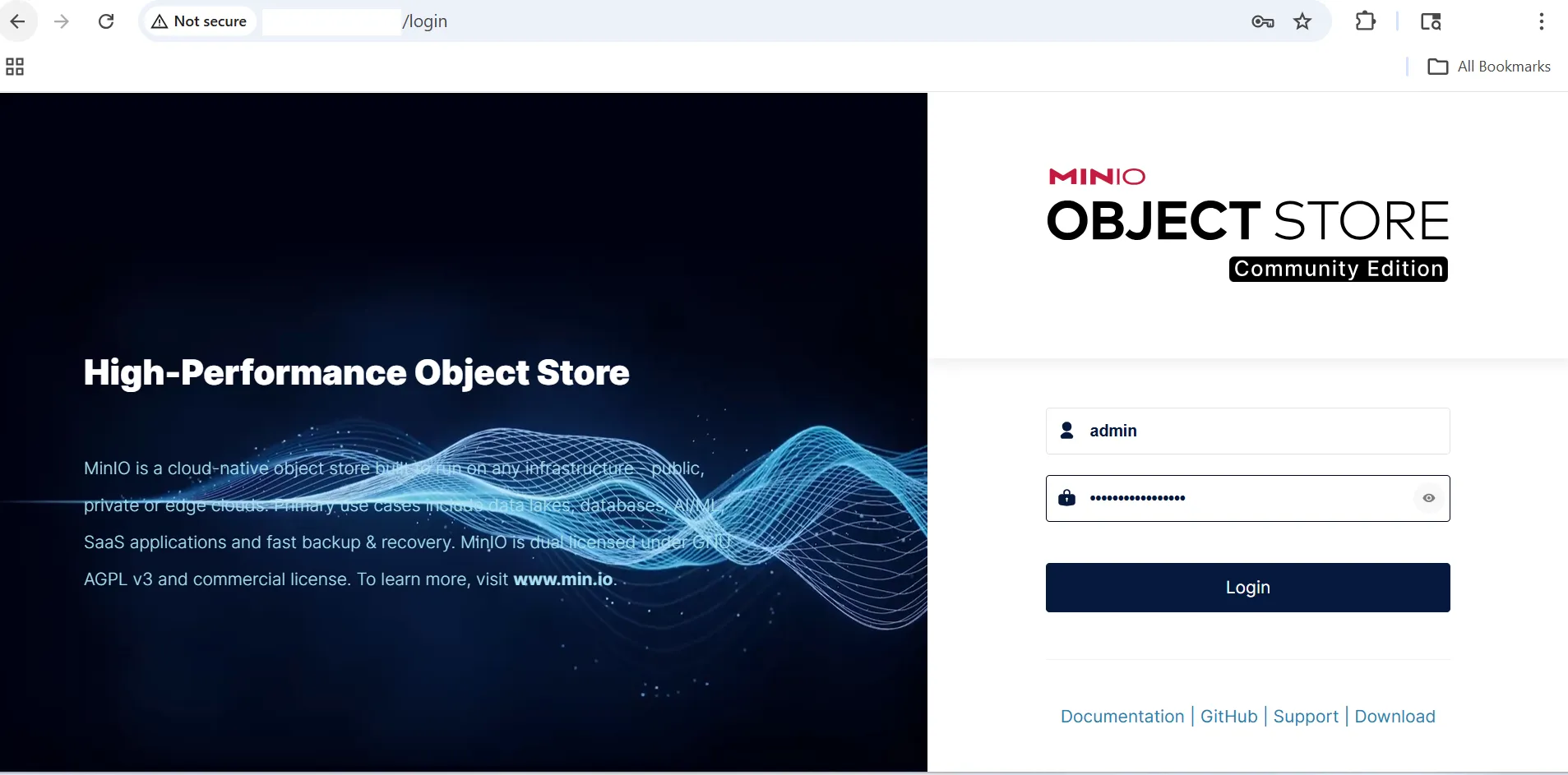 MinIO web console login page
Create a bucket
Buckets are the containers you use to store objects in MinIO. To create one:
- Select Buckets in the left menu.
- Select Create Bucket.
- Enter
ml-datasetsas the bucket name and select Create Bucket.
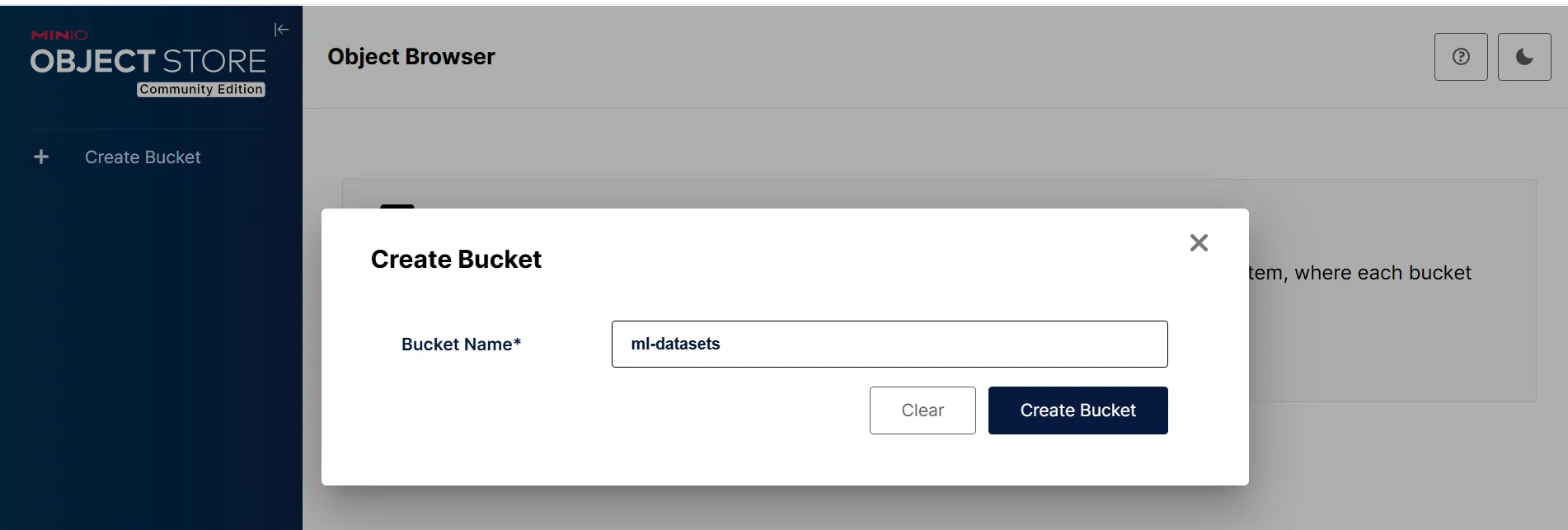 Create a bucket in MinIO
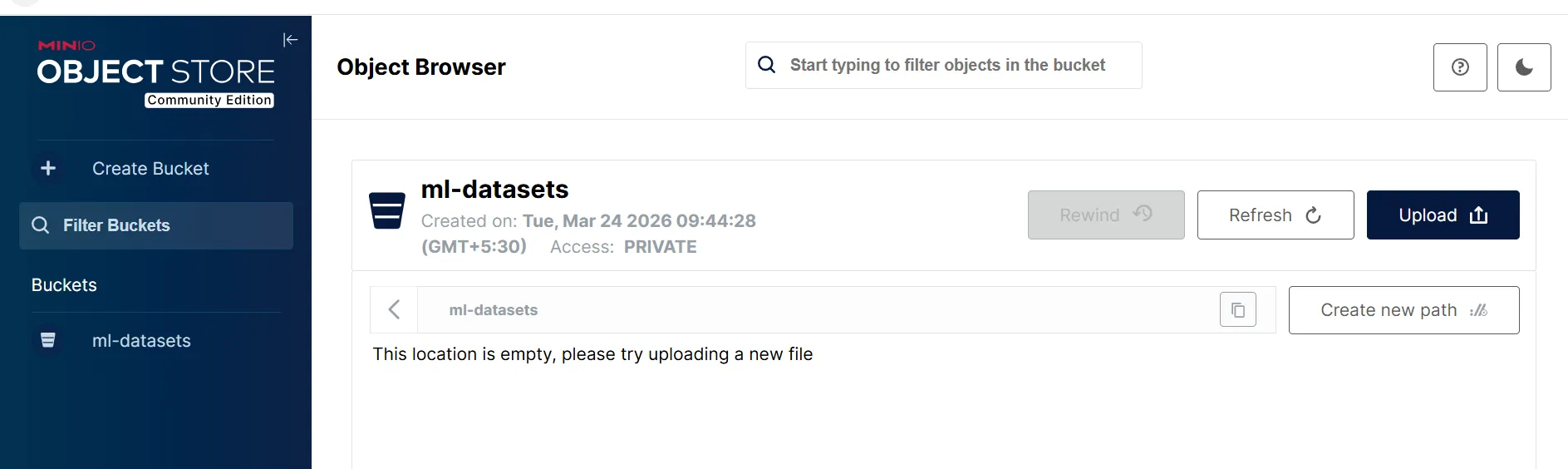 ml-datasets bucket created
Install MinIO client (mc)
The MinIO server is still running in your first terminal. Open a second SSH session to your virtual machine for the remaining steps.
ssh -i <your-key>.pem azureuser@<VM-IP>
Install the MinIO CLI tool for interacting with your storage.
wget https://dl.min.io/client/mc/release/linux-arm64/mc
chmod +x mc
sudo mv mc /usr/local/bin/
Configure the MinIO client
The MinIO client mc needs to know the address and credentials of your MinIO server before you can use it. The mc alias set command registers this information under a short name so you can refer to it in later commands without repeating the URL and credentials each time. In this case the alias is named local.
Because this is a new SSH session, the MINIO_ROOT_PASSWORD environment variable is not set. Export it again before configuring the client:
export MINIO_ROOT_PASSWORD=yourpassword
Then register the alias:
mc alias set local http://localhost:9000 admin $MINIO_ROOT_PASSWORD
The four arguments are the alias name (local), the MinIO API endpoint (http://localhost:9000), and the username and password read from the environment variables you set earlier.
Test object upload
Upload a sample object to verify functionality.
echo "hello cobalt" > test.txt
mc cp test.txt local/ml-datasets/
Confirm the file was uploaded by listing the bucket contents:
mc ls local/ml-datasets
The output is similar to:
[2026-03-24 04:16:22 UTC] 13B STANDARD test.txt
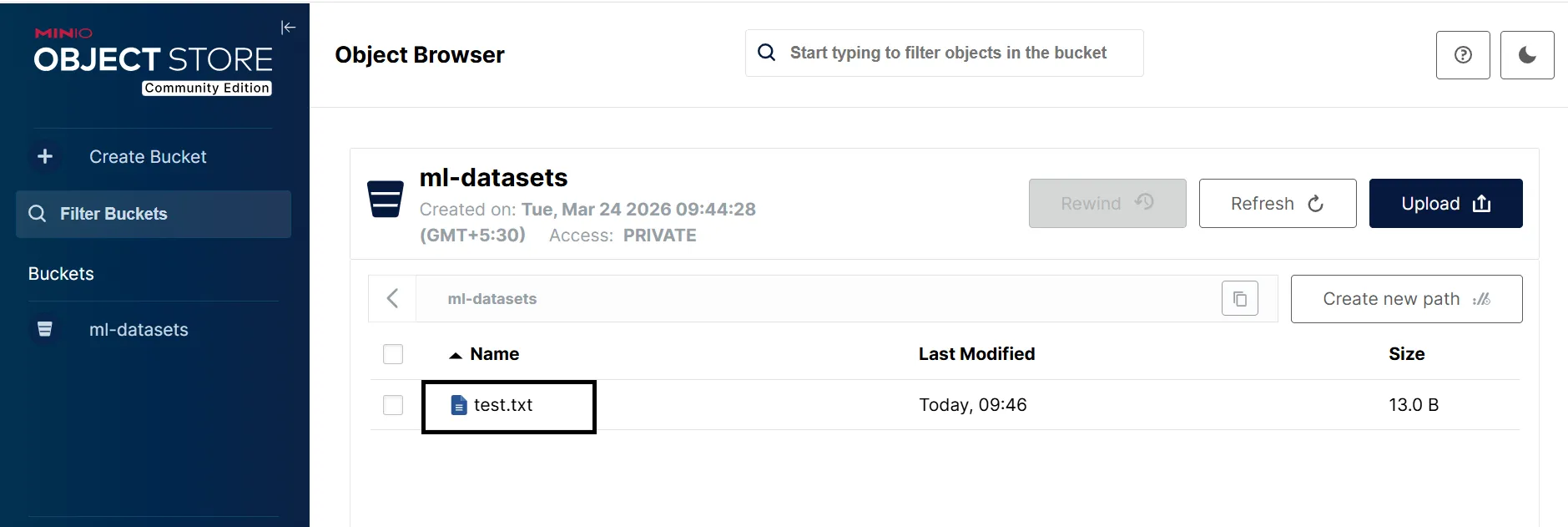 Object uploaded to MinIO
What you’ve learned and what’s next
In this section, you learned how to:
- Set up MinIO on an Azure Cobalt 100 VM
- Configure object storage using a local data directory
- Access the MinIO web console and API
- Create buckets and upload objects
- Use the MinIO CLI for storage operations
In the next section, you will:
- Benchmark MinIO to evaluate storage performance
- Validate S3 compatibility using Python SDK
- Ensure readiness for real-world application integration