Run a Minecraft server on an Arm-based Oracle Cloud Infrastructure instance
Introduction
Create and configure an Arm-based virtual machine instance on Oracle Cloud Infrastructure
Install the Minecraft server on an Arm-based virtual machine
Connect to the server from the Minecraft client
Next Steps
Run a Minecraft server on an Arm-based Oracle Cloud Infrastructure instance
Update Linux firewall to open port 25565
Update the instance’s local firewall to allow connections to port 25565.
Run the following commands:
sudo firewall-cmd --permanent --add-port=25565/tcp
sudo firewall-cmd --reload
Start a Minecraft client and connect to the server
Run your Minecraft server on the instance, then start your client on your laptop or desktop.
To start a client and connect to the server, follow these steps:
- Start your Minecraft client and log in with your Microsoft account credentials.
- Start the Minecraft Java Edition client from the launcher.
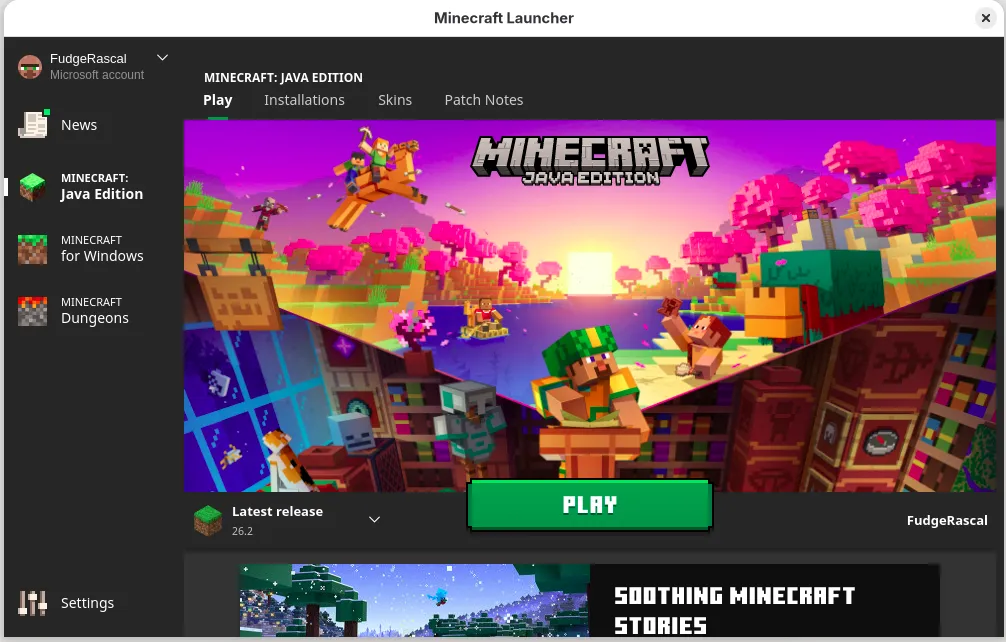 Start Minecraft Java Edition from the launcher
 - Choose Multiplayer mode - read and click through the warning that third party servers aren’t operated by Mojang.
- To add your server to the menu of available servers, choose Add server. Name your server something meaningful (for example, My OCI server) and put the IP address of your instance into the Server Address field:
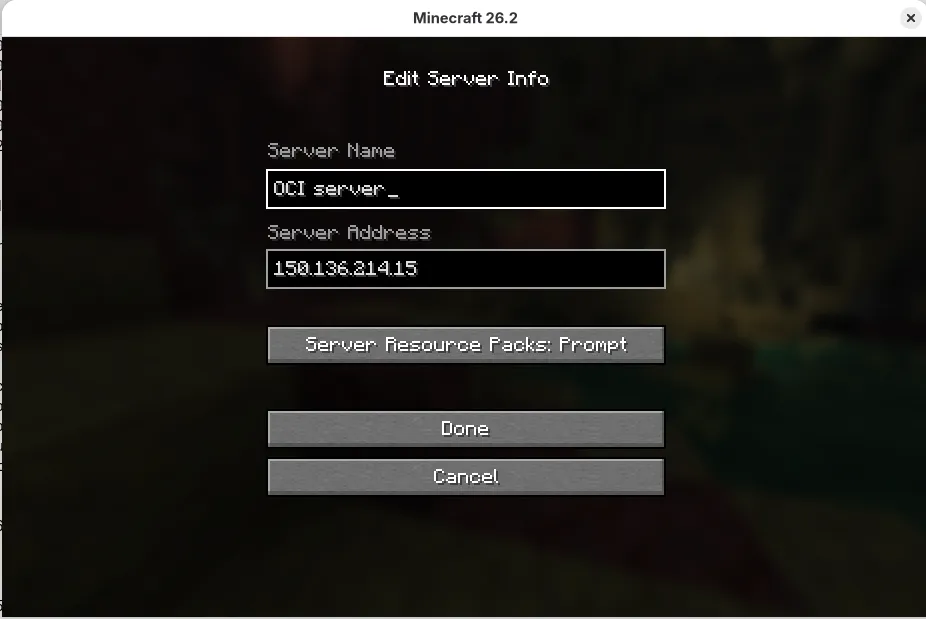 Add your OCI instance public IP address to the Server Address field
You can now join the server and start building!
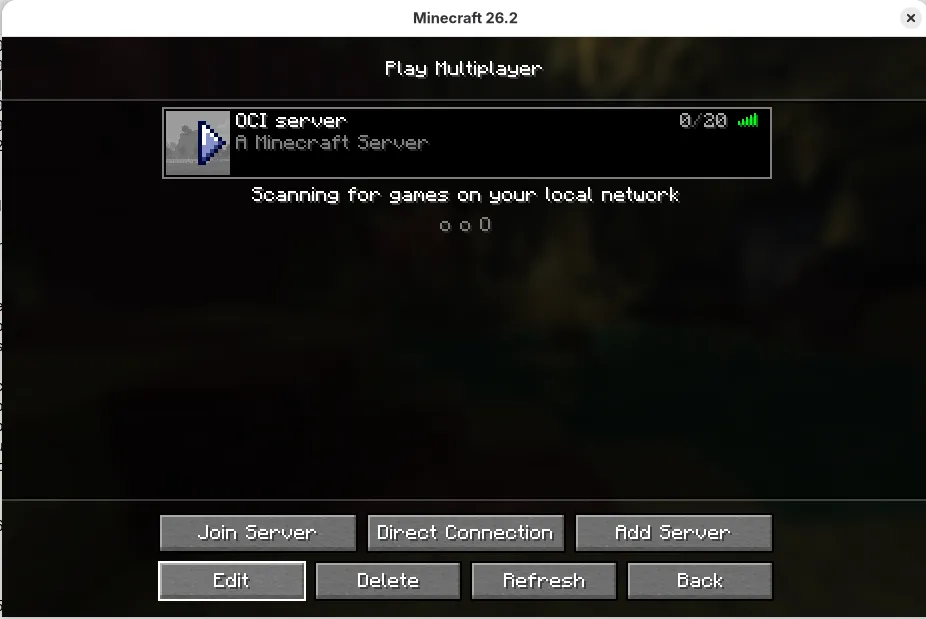 OCI server available in the Minecraft multiplayer list
What you’ve accomplished
You’ve now updated the instance’s local firewall to open port 25565, then started a client and connected it to the Minecraft server.
Now that your server is running, you can share the IP address with friends for multiplayer play. You can also explore automated startup scripts to ensure the server automatically recovers from reboots.