Characterize the memory subsystem of an Arm Linux system using ASCT
Introduction
Identify Arm CPU topology, cache hierarchy, and NUMA configuration
Analyze Arm cache hierarchy and performance characteristics
Measure Arm cache and memory latency using ASCT pointer chase
Measure Arm single-core memory bandwidth with ASCT
Measure Arm multi-core memory bandwidth and loaded latency with ASCT
Compare Arm memory subsystem performance across systems
Next Steps
Characterize the memory subsystem of an Arm Linux system using ASCT
Introduction
Identify Arm CPU topology, cache hierarchy, and NUMA configuration
Analyze Arm cache hierarchy and performance characteristics
Measure Arm cache and memory latency using ASCT pointer chase
Measure Arm single-core memory bandwidth with ASCT
Measure Arm multi-core memory bandwidth and loaded latency with ASCT
Compare Arm memory subsystem performance across systems
Next Steps
Memory subsystem impact on Arm server performance
Memory behavior is one of the primary determinants of compute performance for memory-bound applications. The CPU-side memory subsystem, including caches, interconnects, and DRAM, directly impact performance. Understanding latency, streaming bandwidth, and how caches and cores share resources is essential for diagnosing bottlenecks and tuning software on Arm servers.
Identify CPU, cache, and NUMA topology
Before you can characterize a memory subsystem, you need to understand how the system is organized. The number of cores, how they are grouped into clusters, the DRAM type, and the operating system all influence memory behavior. Knowing this topology helps interpret benchmark results.
The examples use two AWS Graviton instances:
- AWS Graviton2,
c6g.16xlarge, instance with Arm Neoverse N1 cores. - AWS Graviton4,
c8g.16xlarge, instance with Arm Neoverse V2 cores.
Both systems run Ubuntu 24.04 with 64 CPUs, 128 GB RAM, and 32 GB of storage.
These are only examples, and you can follow the same steps on any Arm Linux system.
If you want to follow along with the same instances, create two EC2 instances using the AWS console or CLI:
- A
c6g.16xlargeinstance running Ubuntu 24.04 (Graviton2) - A
c8g.16xlargeinstance running Ubuntu 24.04 (Graviton4)
Make sure both instances are accessible via SSH before continuing.
Collect basic system information
Start by setting a descriptive hostname on each system. This makes it easier to identify results later when you use $(hostname) in commands.
On the Graviton4 instance, run:
sudo hostnamectl set-hostname graviton4-c8g
On the Graviton2 instance, run:
sudo hostnamectl set-hostname graviton2-c6g
Log out and log back in for the hostname to appear in your shell prompt.
Record the kernel version and operating system. Run the following command on your system:
uname -a && cat /etc/os-release
Both systems have the same software, but this is example output, the kernel version may differ depending on updates:
        Linux graviton2-c6g 6.17.0-1007-aws #7~24.04.1-Ubuntu SMP Thu Jan 22 20:37:30 UTC 2026 aarch64 aarch64 aarch64 GNU/Linux
PRETTY_NAME="Ubuntu 24.04.4 LTS"
NAME="Ubuntu"
VERSION_ID="24.04"
VERSION="24.04.4 LTS (Noble Numbat)"
VERSION_CODENAME=noble
ID=ubuntu
ID_LIKE=debian
HOME_URL="https://www.ubuntu.com/"
SUPPORT_URL="https://help.ubuntu.com/"
BUG_REPORT_URL="https://bugs.launchpad.net/ubuntu/"
PRIVACY_POLICY_URL="https://www.ubuntu.com/legal/terms-and-policies/privacy-policy"
UBUNTU_CODENAME=noble
LOGO=ubuntu-logo
Print the CPU information:
lscpu
Pay close attention to the lscpu output. It gives you the CPU model, the number of cores, threads per core, sockets, and NUMA node configuration. Here is an example from the Graviton2 instance:
        Architecture:                aarch64
  CPU op-mode(s):            32-bit, 64-bit
  Byte Order:                Little Endian
CPU(s):                      64
  On-line CPU(s) list:       0-63
Vendor ID:                   ARM
  Model name:                Neoverse-N1
    Model:                   1
    Thread(s) per core:      1
    Core(s) per socket:      64
    Socket(s):               1
    Stepping:                r3p1
    BogoMIPS:                243.75
    Flags:                   fp asimd evtstrm aes pmull sha1 sha2 crc32 atomics fphp asimdhp cpuid asimdrdm lrcpc dcpop asimdd
                             p
Caches (sum of all):
  L1d:                       4 MiB (64 instances)
  L1i:                       4 MiB (64 instances)
  L2:                        64 MiB (64 instances)
  L3:                        32 MiB (1 instance)
NUMA:
  NUMA node(s):              1
  NUMA node0 CPU(s):         0-63
On the Graviton4 instance, you see Neoverse-V2 cores instead:
        Architecture:                aarch64
  CPU op-mode(s):            64-bit
  Byte Order:                Little Endian
CPU(s):                      64
  On-line CPU(s) list:       0-63
Vendor ID:                   ARM
  Model name:                Neoverse-V2
    Model:                   1
    Thread(s) per core:      1
    Core(s) per socket:      64
    Socket(s):               1
    Stepping:                r0p1
    BogoMIPS:                2000.00
    Flags:                   fp asimd evtstrm aes pmull sha1 sha2 crc32 atomics fphp asimdhp cpuid asimdrdm jscvt fcma lrcpc d
                             cpop sha3 asimddp sha512 sve asimdfhm dit uscat ilrcpc flagm sb paca pacg dcpodp sve2 sveaes svep
                             mull svebitperm svesha3 flagm2 frint svei8mm svebf16 i8mm bf16 dgh rng bti
Caches (sum of all):
  L1d:                       4 MiB (64 instances)
  L1i:                       4 MiB (64 instances)
  L2:                        128 MiB (64 instances)
  L3:                        36 MiB (1 instance)
NUMA:
  NUMA node(s):              1
  NUMA node0 CPU(s):         0-63
The two systems span two generations of Arm Neoverse server cores. Graviton2 uses Neoverse N1 cores with private 1 MB L2 caches per core and a 32 MB shared L3. Graviton4 uses Neoverse V2 cores with 2 MB private L2 caches per core and a 36 MB shared L3. These differences in cache sizes and memory technology directly impact the memory latency, bandwidth, and scaling behavior you observe in later benchmarks.
Notice that the Neoverse V2 Flags output is significantly longer than Neoverse N1. This reflects the newer Arm architecture: Neoverse V2 is based on Armv9, which adds extensions like SVE2, BF16, and I8MM that are absent on the Armv8-based Neoverse N1.
Check DRAM configuration
Confirm the memory size with free -h:
free -h
Both systems have 128 GB RAM with similar output:
                       total        used        free      shared  buff/cache   available
Mem:           123Gi       1.6Gi       121Gi       1.2Mi       1.2Gi       121Gi
Graviton2 instances use DDR4 memory. Graviton4 instances use DDR5 memory, which provides higher bandwidth per channel than DDR4, but typically has slightly higher access latency in nanoseconds.
Both systems have a single NUMA node, meaning all cores have uniform access to all memory. On multi-socket Arm servers with multiple NUMA nodes, memory access latency depends on which node the data resides on. The ASCT idle-latency and cross-numa-bandwidth benchmarks are designed for multi-socket systems but will show minimal variation on single-node systems like these.
Explore the core and cluster topology
Arm systems often organize cores into clusters that share a last-level cache. Understanding cluster boundaries is critical because latency and bandwidth behavior change when you cross them.
Use the extended lscpu output to see per-core details:
lscpu -e
The output is the same for both systems:
        CPU NODE SOCKET CORE L1d:L1i:L2:L3 ONLINE
  0    0      0    0 0:0:0:0          yes
  1    0      0    1 1:1:1:0          yes
  2    0      0    2 2:2:2:0          yes
  3    0      0    3 3:3:3:0          yes
  4    0      0    4 4:4:4:0          yes
  5    0      0    5 5:5:5:0          yes
  6    0      0    6 6:6:6:0          yes
  7    0      0    7 7:7:7:0          yes
  8    0      0    8 8:8:8:0          yes
  9    0      0    9 9:9:9:0          yes
 10    0      0   10 10:10:10:0       yes
 11    0      0   11 11:11:11:0       yes
 12    0      0   12 12:12:12:0       yes
 13    0      0   13 13:13:13:0       yes
 14    0      0   14 14:14:14:0       yes
 15    0      0   15 15:15:15:0       yes
 16    0      0   16 16:16:16:0       yes
 17    0      0   17 17:17:17:0       yes
 18    0      0   18 18:18:18:0       yes
 19    0      0   19 19:19:19:0       yes
 20    0      0   20 20:20:20:0       yes
 21    0      0   21 21:21:21:0       yes
 22    0      0   22 22:22:22:0       yes
 23    0      0   23 23:23:23:0       yes
 24    0      0   24 24:24:24:0       yes
 25    0      0   25 25:25:25:0       yes
 26    0      0   26 26:26:26:0       yes
 27    0      0   27 27:27:27:0       yes
 28    0      0   28 28:28:28:0       yes
 29    0      0   29 29:29:29:0       yes
 30    0      0   30 30:30:30:0       yes
 31    0      0   31 31:31:31:0       yes
 32    0      0   32 32:32:32:0       yes
 33    0      0   33 33:33:33:0       yes
 34    0      0   34 34:34:34:0       yes
 35    0      0   35 35:35:35:0       yes
 36    0      0   36 36:36:36:0       yes
 37    0      0   37 37:37:37:0       yes
 38    0      0   38 38:38:38:0       yes
 39    0      0   39 39:39:39:0       yes
 40    0      0   40 40:40:40:0       yes
 41    0      0   41 41:41:41:0       yes
 42    0      0   42 42:42:42:0       yes
 43    0      0   43 43:43:43:0       yes
 44    0      0   44 44:44:44:0       yes
 45    0      0   45 45:45:45:0       yes
 46    0      0   46 46:46:46:0       yes
 47    0      0   47 47:47:47:0       yes
 48    0      0   48 48:48:48:0       yes
 49    0      0   49 49:49:49:0       yes
 50    0      0   50 50:50:50:0       yes
 51    0      0   51 51:51:51:0       yes
 52    0      0   52 52:52:52:0       yes
 53    0      0   53 53:53:53:0       yes
 54    0      0   54 54:54:54:0       yes
 55    0      0   55 55:55:55:0       yes
 56    0      0   56 56:56:56:0       yes
 57    0      0   57 57:57:57:0       yes
 58    0      0   58 58:58:58:0       yes
 59    0      0   59 59:59:59:0       yes
 60    0      0   60 60:60:60:0       yes
 61    0      0   61 61:61:61:0       yes
 62    0      0   62 62:62:62:0       yes
 63    0      0   63 63:63:63:0       yes
On both systems, every core has its own unique L1d, L1i, and L2 index, so those caches are private. The L3 index is 0 for all cores, confirming that the system exposes a single shared LLC across all cores, although it may be physically distributed across the interconnect on each system.
Visualize the topology with hwloc
The hwloc package provides a visual representation of the hardware topology, including CPU cores, cache hierarchies, and NUMA nodes. The graphical output makes it easier to understand how cores are organized and which caches they share. Install it using the package manager:
sudo apt-get install -y hwloc
Generate a PNG diagram of the complete hardware hierarchy. The hwloc-ls command enumerates the system topology and formats it as a tree diagram showing cores, caches, and memory:
hwloc-ls --of png > topology.png
Here is the hwloc output from a Graviton2 c6g instance:
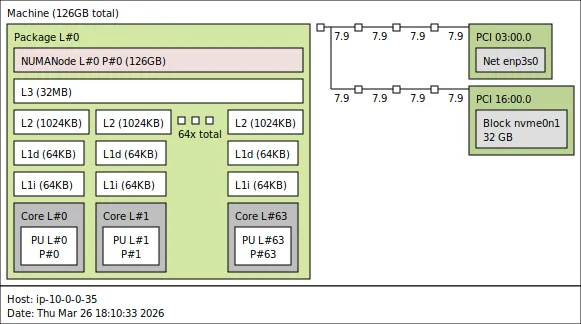 hwloc topology for Graviton2 c6g
Here is the hwloc output from a Graviton4 c8g instance:
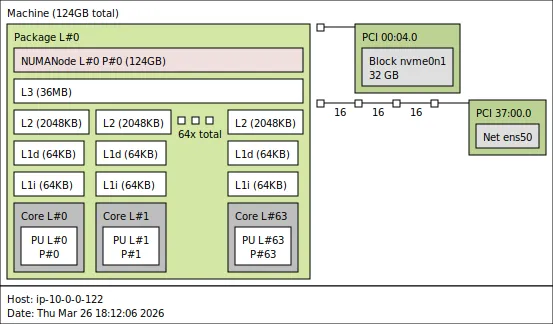 hwloc topology for Graviton4 c8g
The diagrams show the full cache hierarchy at a glance: each core has its own private L1d, L1i, and L2 caches. On Graviton4, all cores share a single L3. On systems with more cores or multiple sockets, the tree branches further, making hwloc especially useful for spotting cluster and NUMA boundaries.
Enumerate caches from sysfs
For detailed cache information, read the kernel’s sysfs entries directly.
Save the following script to a file named cache.sh:
for c in /sys/devices/system/cpu/cpu0/cache/index*; do
  echo "=== $(basename $c) ==="
  echo "Level: $(cat $c/level)"
  echo "Type:  $(cat $c/type)"
  echo "Size:  $(cat $c/size)"
  echo "Shared CPU list: $(cat $c/shared_cpu_list)"
  echo
done
Run the script on each instance:
bash ./cache.sh
On Graviton2 the output is:
        === index0 ===
Level: 1
Type:  Data
Size:  64K
Shared CPU list: 0

=== index1 ===
Level: 1
Type:  Instruction
Size:  64K
Shared CPU list: 0

=== index2 ===
Level: 2
Type:  Unified
Size:  1024K
Shared CPU list: 0

=== index3 ===
Level: 3
Type:  Unified
Size:  32768K
Shared CPU list: 0-63
On Graviton4 the output is:
        === index0 ===
Level: 1
Type:  Data
Size:  64K
Shared CPU list: 0

=== index1 ===
Level: 1
Type:  Instruction
Size:  64K
Shared CPU list: 0

=== index2 ===
Level: 2
Type:  Unified
Size:  2048K
Shared CPU list: 0

=== index3 ===
Level: 3
Type:  Unified
Size:  36864K
Shared CPU list: 0-63
Both systems have an index3 entry showing a shared L3 cache. On Graviton2, the 32 MB L3 is shared across all 64 cores. On Graviton4, the 36 MB L3 is shared across all 64 cores. The shared_cpu_list of 0-63 confirms this.
Record your system profile
Below is a summary of each system.
| Property | Graviton2 | Graviton4 |
|---|---|---|
| CPU model | Neoverse N1 | Neoverse V2 |
| Core count | 64 | 64 |
| L1D / L1I | 64 KB / 64 KB | 64 KB / 64 KB |
| L2 (private) | 1 MB | 2 MB |
| L3 (shared) | 32 MB | 36 MB |
| DRAM type | DDR4 | DDR5 |
What you’ve learned and what’s next
In this section you:
- Identified the CPU model, core count, and NUMA topology of your test systems
- Explored the cache hierarchy and cluster layout using
lscpu,hwloc, andsysfs - Built a reference table of system properties for later comparison
The next section dives deeper into the cache hierarchy and explains what each level does and why the architectural choices matter for performance.