Use Longhorn to deploy persistent storage for Kubernetes workloads on Arm-based Azure virtual machines
Introduction
Understand Longhorn on Azure Cobalt 100
Create an Arm64 Azure virtual machine powered by Azure Cobalt 100
Allow network access to the Longhorn Web UI on Azure
Install and run Longhorn on a single-node Kubernetes cluster
Validate persistent Kubernetes storage and benchmark Longhorn with fio
Next Steps
Use Longhorn to deploy persistent storage for Kubernetes workloads on Arm-based Azure virtual machines
Introduction
Understand Longhorn on Azure Cobalt 100
Create an Arm64 Azure virtual machine powered by Azure Cobalt 100
Allow network access to the Longhorn Web UI on Azure
Install and run Longhorn on a single-node Kubernetes cluster
Validate persistent Kubernetes storage and benchmark Longhorn with fio
Next Steps
Configure external traffic for Longhorn and Kubernetes
To allow external traffic for the Longhorn web UI and Kubernetes services on an Azure virtual machine (VM), open the required ports in the Network Security Group (NSG). The NSG can be attached to the VM’s network interface or subnet.
For more information about Azure setup, see Getting started with Microsoft Azure Platform .
Add inbound firewall rules in Azure
To expose the required TCP ports for Kubernetes and Longhorn, create an inbound firewall rule:
- Navigate to the Azure portal , go to Virtual Machines, and select your VM.
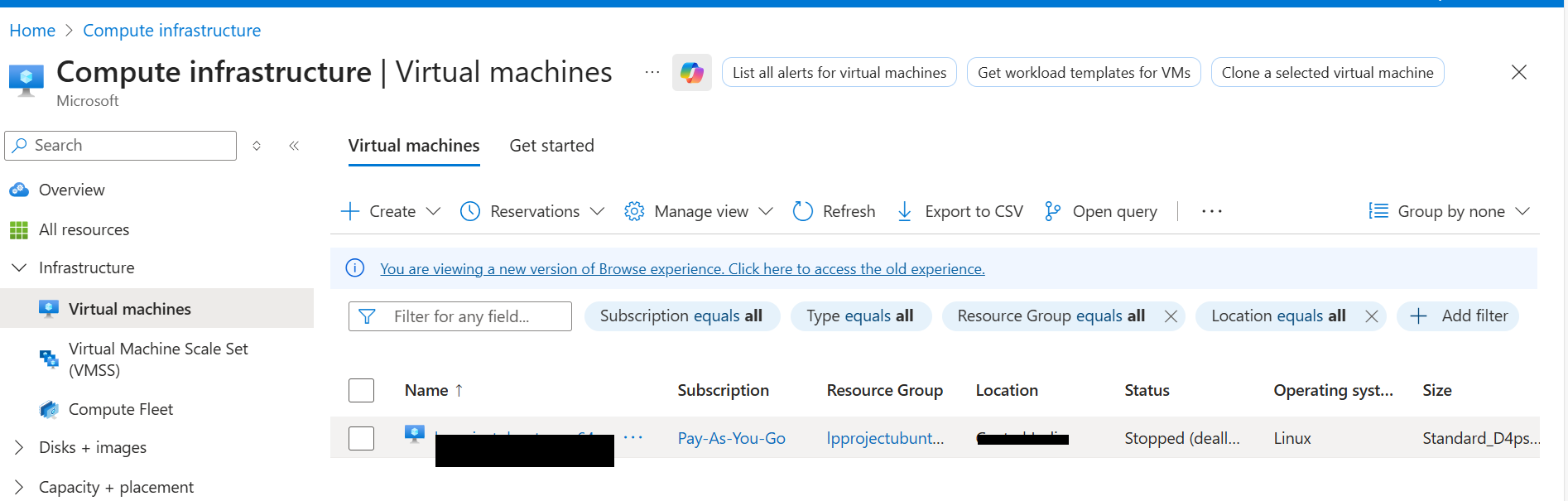 Azure Virtual Machine
- In the left menu, select Networking, then select Network settings.
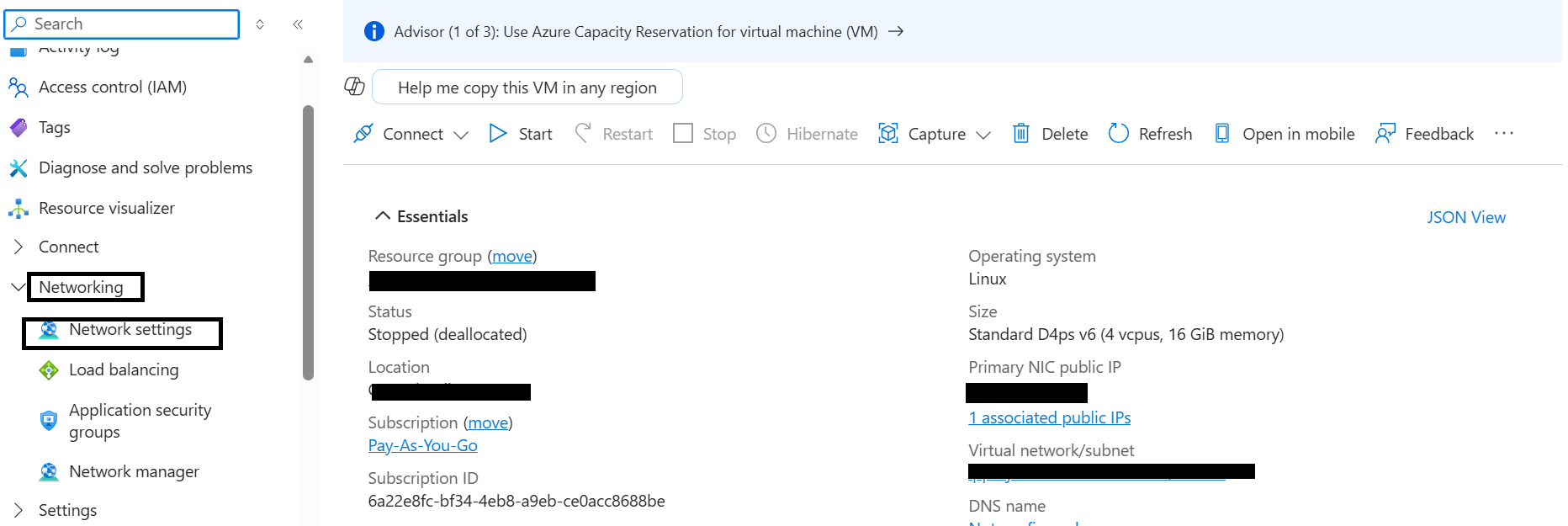 Azure Networking Settings
- Navigate to Create port rule, and select Inbound port rule.
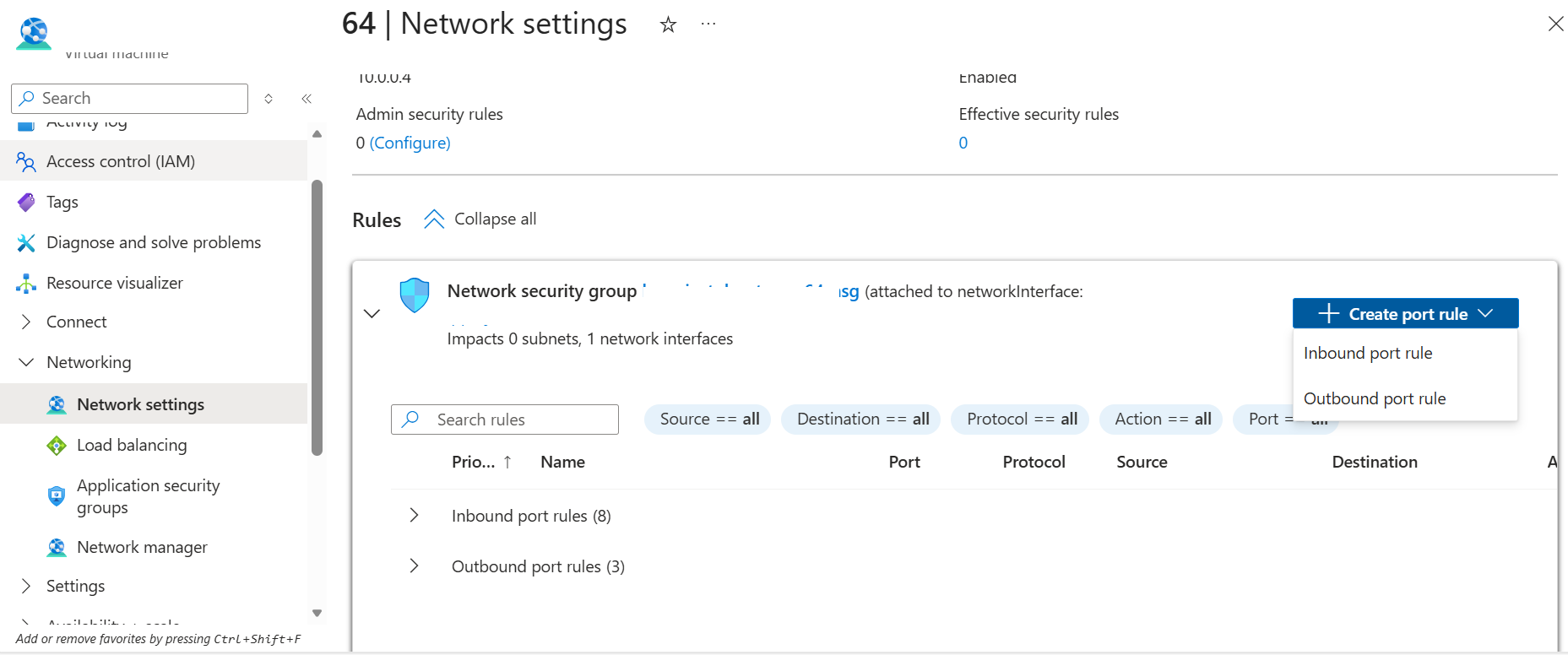 Create Inbound Port Rule
- Configure the inbound security rule with the following settings:
- Source: My IP address
- Source IP addresses: (auto-populated with your current public IP)
- Source port ranges: *
- Destination: Any
- Destination port ranges:
80,8080,6443 - Protocol: TCP
- Action: Allow
- Name:
allow-longhorn-kubernetes
This rule allows external access for port 80 for HTTP workloads, port 8080 for the Longhorn web UI, and port 6443 for the Kubernetes API server.
- After configuring the rule, select Add to save the rule.
What you’ve learned and what’s next
You’ve now configured the Azure Network Security Group to allow external traffic for Kubernetes API access, HTTP workloads, and the Longhorn Web UI. These firewall rules allow secure remote management of the VM and external access to the Kubernetes storage dashboard.
Next, you’ll install K3s Kubernetes and Longhorn on the VM.