Build RAG applications with LlamaIndex on a Google Cloud C4A virtual machine
Introduction
Learn about LlamaIndex and Google Cloud C4A for RAG applications
Configure Google Cloud firewall rules for LlamaIndex
Create a Google Cloud C4A virtual machine for LlamaIndex
Install and configure LlamaIndex on a Google Cloud C4A virtual machine
Build and test a browser-based RAG application with LlamaIndex
Next Steps
Build RAG applications with LlamaIndex on a Google Cloud C4A virtual machine
Introduction
Learn about LlamaIndex and Google Cloud C4A for RAG applications
Configure Google Cloud firewall rules for LlamaIndex
Create a Google Cloud C4A virtual machine for LlamaIndex
Install and configure LlamaIndex on a Google Cloud C4A virtual machine
Build and test a browser-based RAG application with LlamaIndex
Next Steps
Set up the virtual machine
In this section, you’ll create a Google Cloud C4A Arm-based virtual machine (VM). You’ll use the c4a-standard-4 machine type, which provides four vCPUs and 16 GB of memory. This VM will host your browser-based LlamaIndex RAG application.
Configure the C4A virtual machine in the Google Cloud console
To create a virtual machine based on the C4A instance type in the console:
- Navigate to the Google Cloud console .
- Go to Compute Engine > VM instances and select Create instance.
- Under Machine configuration, populate fields such as Instance name, Region, and Zone.
- Set Series to
C4A, then selectc4a-standard-4for Machine type.
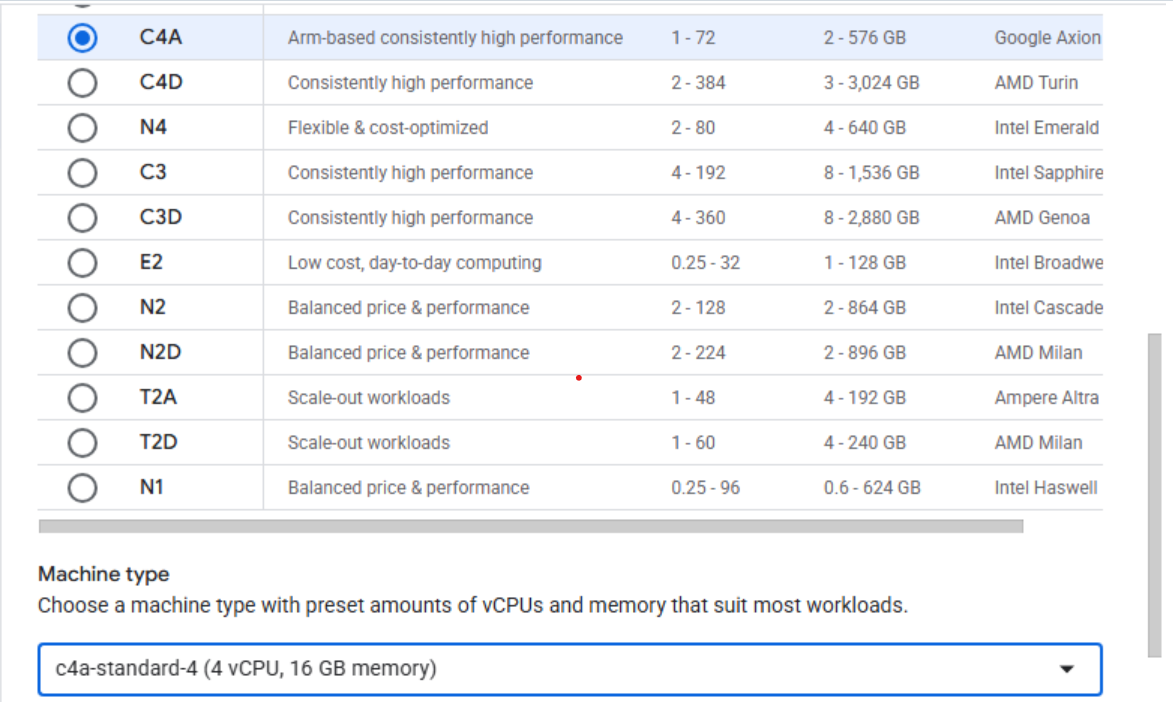 Configuring machine type to C4A in Google Cloud Console
- Under OS and storage, select Change and then choose an Arm64-based operating system image. For this Learning Path, select SUSE Linux Enterprise Server.
- For the license type, choose Pay as you go.
- Increase Size (GB) from 10 to 100 to allocate sufficient disk space, and then select Select.
- Select Networking from the column on the left.
- Under Network tags, enter
allow-llamaindex-portto link the VM to the firewall rule from the previous section and allow inbound access to port8000for the browser-based LlamaIndex RAG application and port22for SSH access. - Select Create to launch the virtual machine.
After the instance starts, select SSH next to the VM in the instance list to open a browser-based terminal session.
 Connecting to a running C4A VM using SSH
A new browser window opens with a terminal connected to your VM.
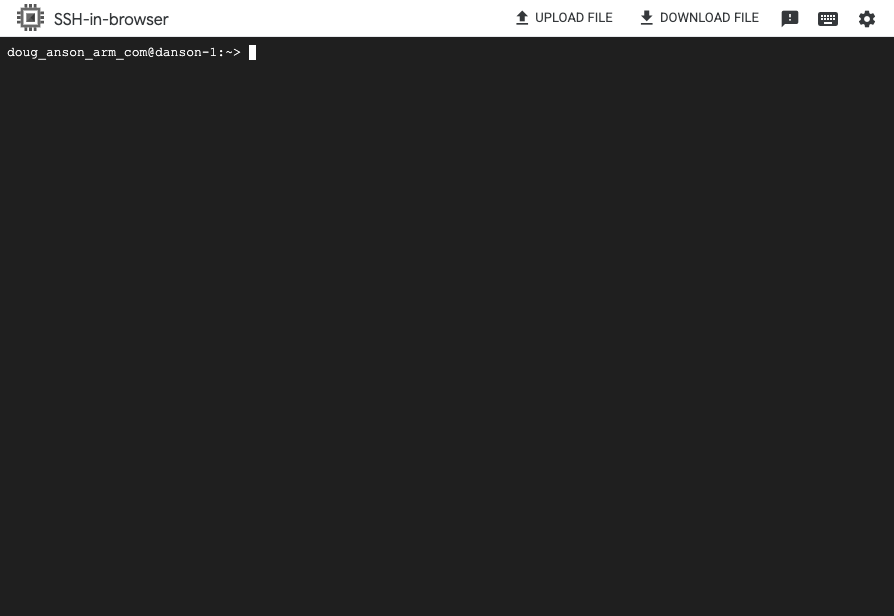 Terminal session connected to the VM
What you’ve accomplished and what’s next
You’ve now provisioned a Google Cloud C4A VM and connected to it using SSH.
Next, you’ll install LlamaIndex, Ollama, ChromaDB, and the required dependencies on your VM.