Build RAG applications with LlamaIndex on a Google Cloud C4A virtual machine
Introduction
Learn about LlamaIndex and Google Cloud C4A for RAG applications
Configure Google Cloud firewall rules for LlamaIndex
Create a Google Cloud C4A virtual machine for LlamaIndex
Install and configure LlamaIndex on a Google Cloud C4A virtual machine
Build and test a browser-based RAG application with LlamaIndex
Next Steps
Build RAG applications with LlamaIndex on a Google Cloud C4A virtual machine
Introduction
Learn about LlamaIndex and Google Cloud C4A for RAG applications
Configure Google Cloud firewall rules for LlamaIndex
Create a Google Cloud C4A virtual machine for LlamaIndex
Install and configure LlamaIndex on a Google Cloud C4A virtual machine
Build and test a browser-based RAG application with LlamaIndex
Next Steps
Allow inbound access to the LlamaIndex browser application
Create a firewall rule in Google Cloud console to expose port 8000 for the browser-based LlamaIndex RAG application.
Configure the firewall rule in the Google Cloud console
To configure a firewall rule:
- Navigate to the Google Cloud console .
- Go to VPC Network > Firewall, and select Create firewall rule.
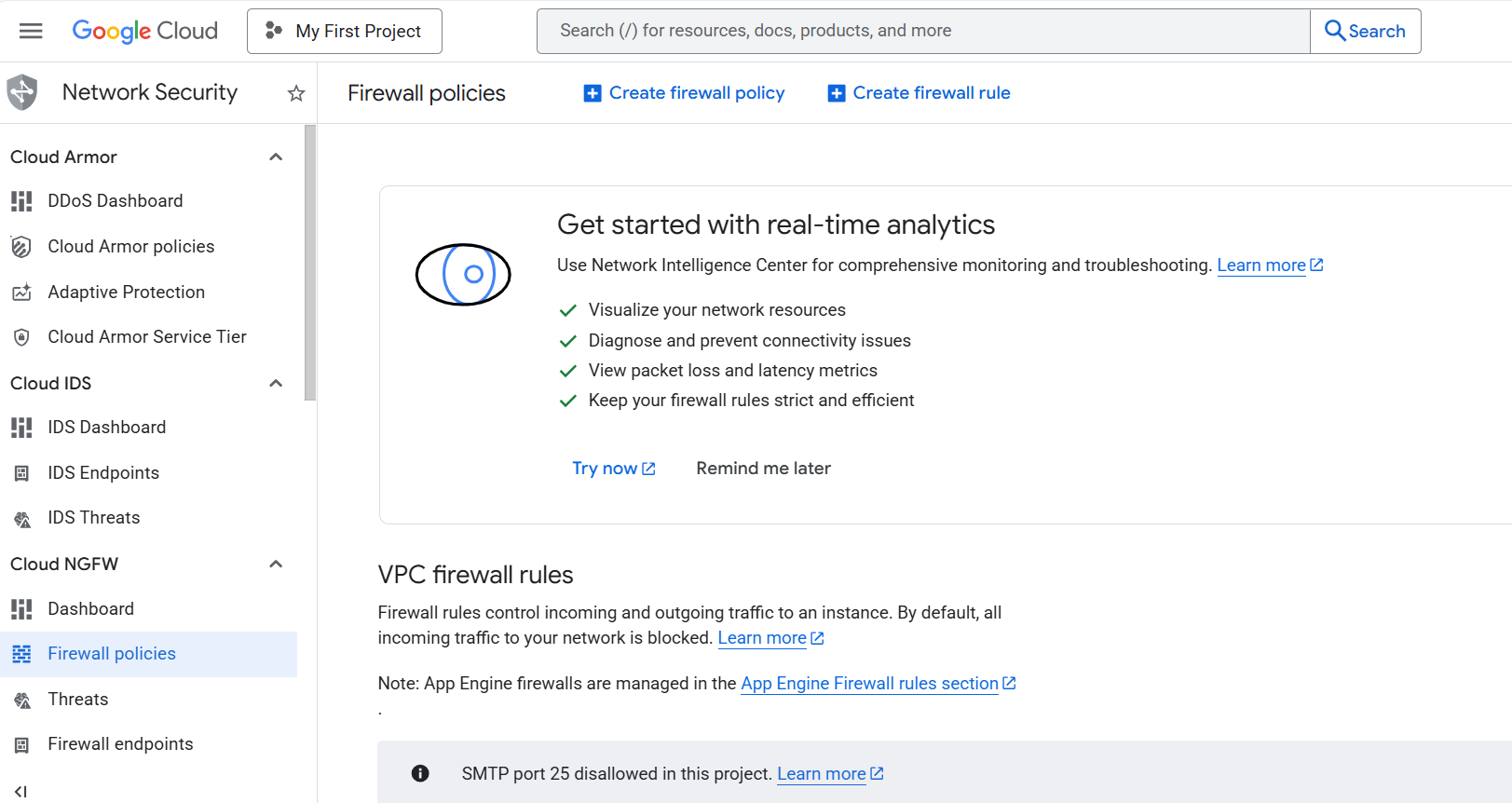 Create a firewall rule in Google Cloud console
- Set Name to
allow-llamaindex-port, then select the network you want to bind to your virtual machine. - Set Direction of traffic to Ingress, set Action on match to Allow, set Targets to All instances in the network, and set Source IPv4 ranges to 0.0.0.0/0.
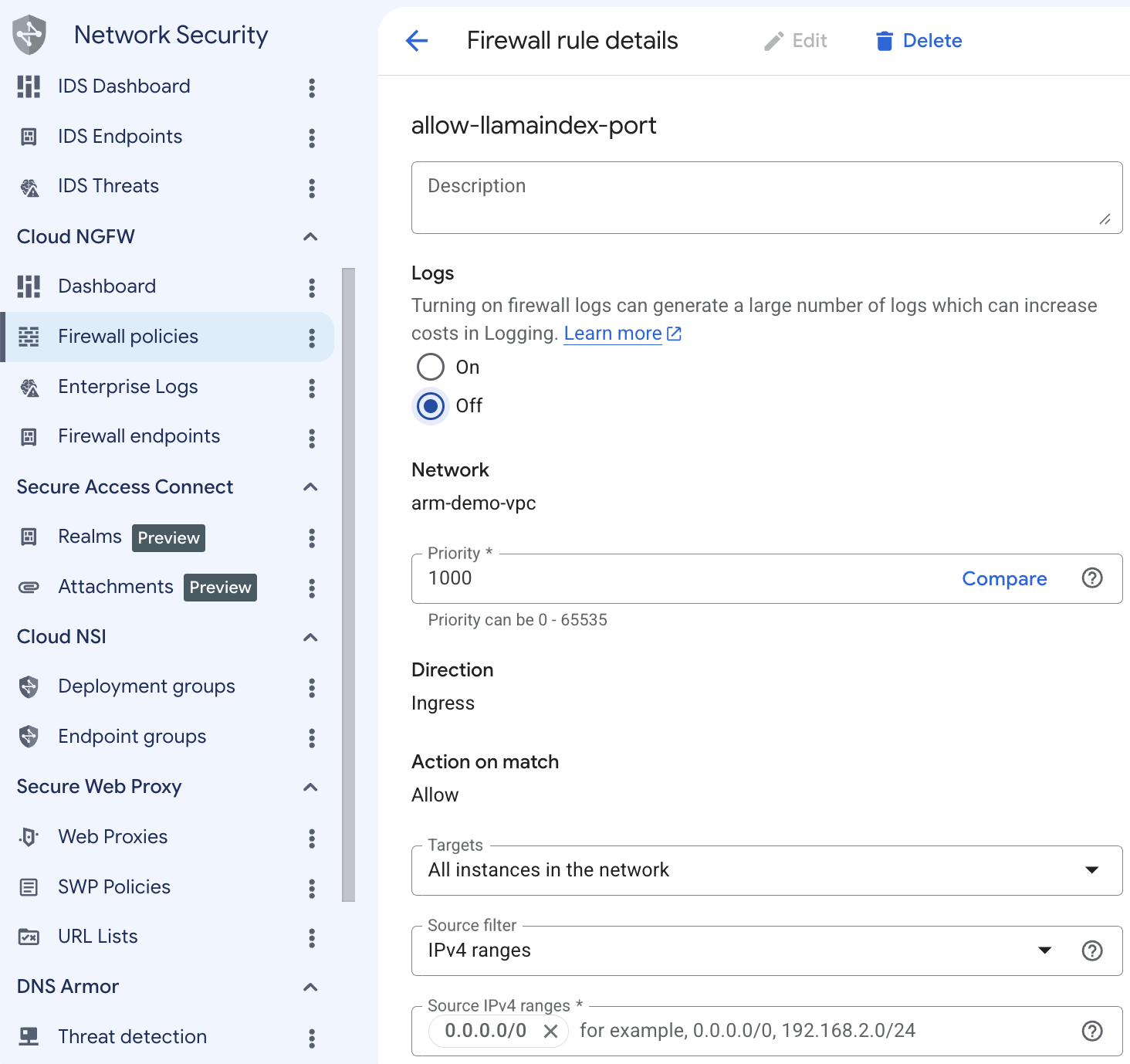 Configuring the allow-llamaindex-port firewall rule
- Under Protocols and ports, select Specified protocols and ports.
- Select the TCP checkbox. For Ports, enter
8000. Port8000is used by the FastAPI server that backs the browser-based LlamaIndex RAG application.
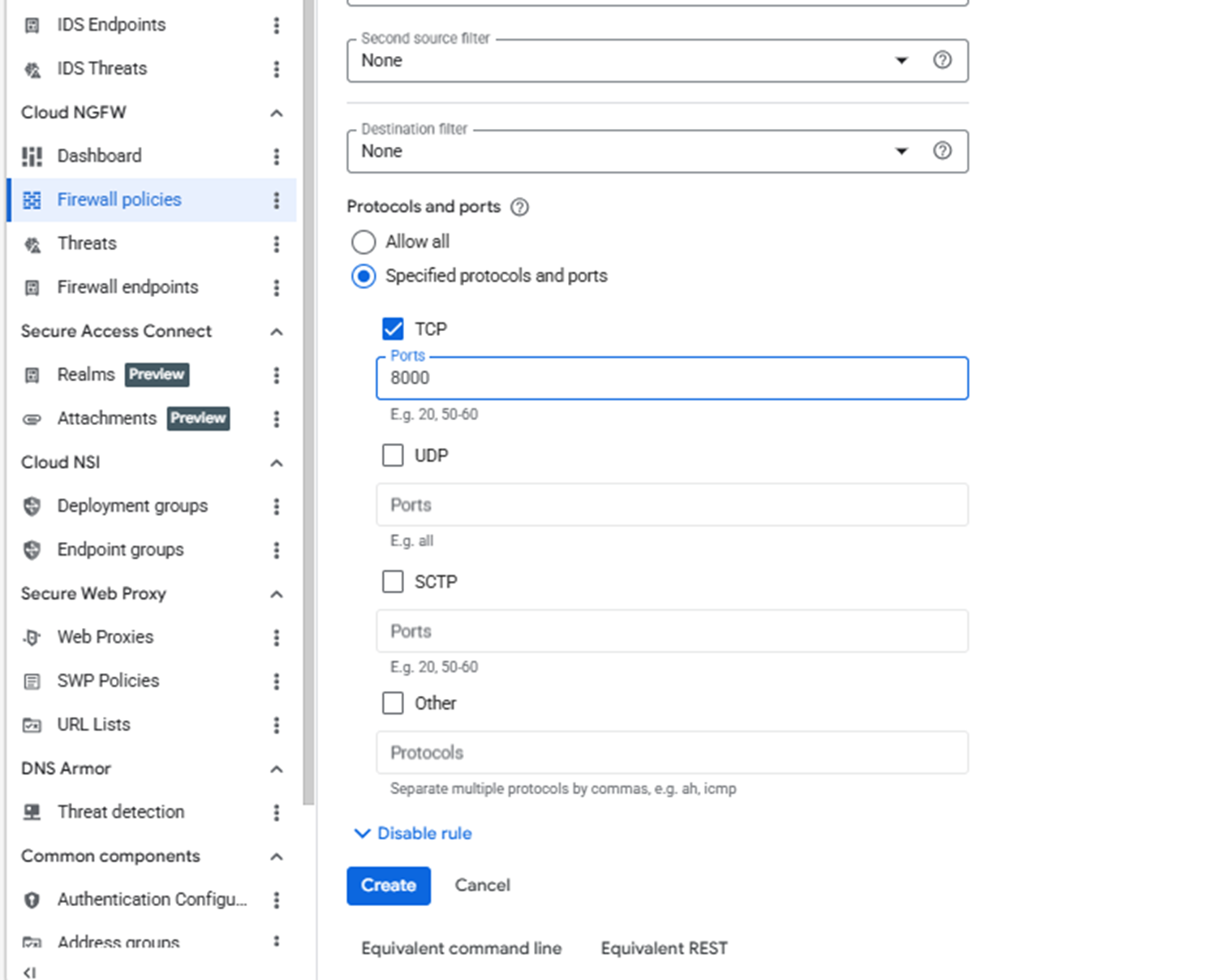 Setting the LlamaIndex browser application port in the firewall rule
- In the same TCP field, also add port
22to allow SSH access to the VM. - Select Create.
What you’ve accomplished and what’s next
You’ve now created a firewall rule that exposes port 8000 for the browser-based LlamaIndex RAG application and port 22 for SSH. You’ll attach this firewall rule to your virtual machine in the next section.
Next, you’ll create a Google Cloud C4A virtual machine and connect to it using SSH.