Deploy Keycloak on Azure Cobalt 100-based Arm64 virtual machines for identity and access management
Introduction
Understand Keycloak for identity and access management on Azure Cobalt 100-based virtual machines
Create an Azure Cobalt 100-based Arm64 virtual machine
Allow access to Keycloak and the Flask application on Azure
Deploy Keycloak on an Azure Cobalt 100-based Arm64 virtual machine
Integrate a Flask OAuth2 application with Keycloak on an Azure Cobalt 100-based Arm64 virtual machine
Next Steps
Deploy Keycloak on Azure Cobalt 100-based Arm64 virtual machines for identity and access management
Introduction
Understand Keycloak for identity and access management on Azure Cobalt 100-based virtual machines
Create an Azure Cobalt 100-based Arm64 virtual machine
Allow access to Keycloak and the Flask application on Azure
Deploy Keycloak on an Azure Cobalt 100-based Arm64 virtual machine
Integrate a Flask OAuth2 application with Keycloak on an Azure Cobalt 100-based Arm64 virtual machine
Next Steps
Configure a Keycloak realm and user
In this section, you’ll configure Keycloak realms, users, and OAuth2/OpenID Connect clients, then integrate a Flask application with Keycloak authentication and test the workflow.
Create a realm
Create a dedicated realm for the Flask OAuth2 demo application.
In the admin console:
- Select Manage Realms.
- Select Create realm.
- Enter
demo-realmas the realm name. - Select Create.
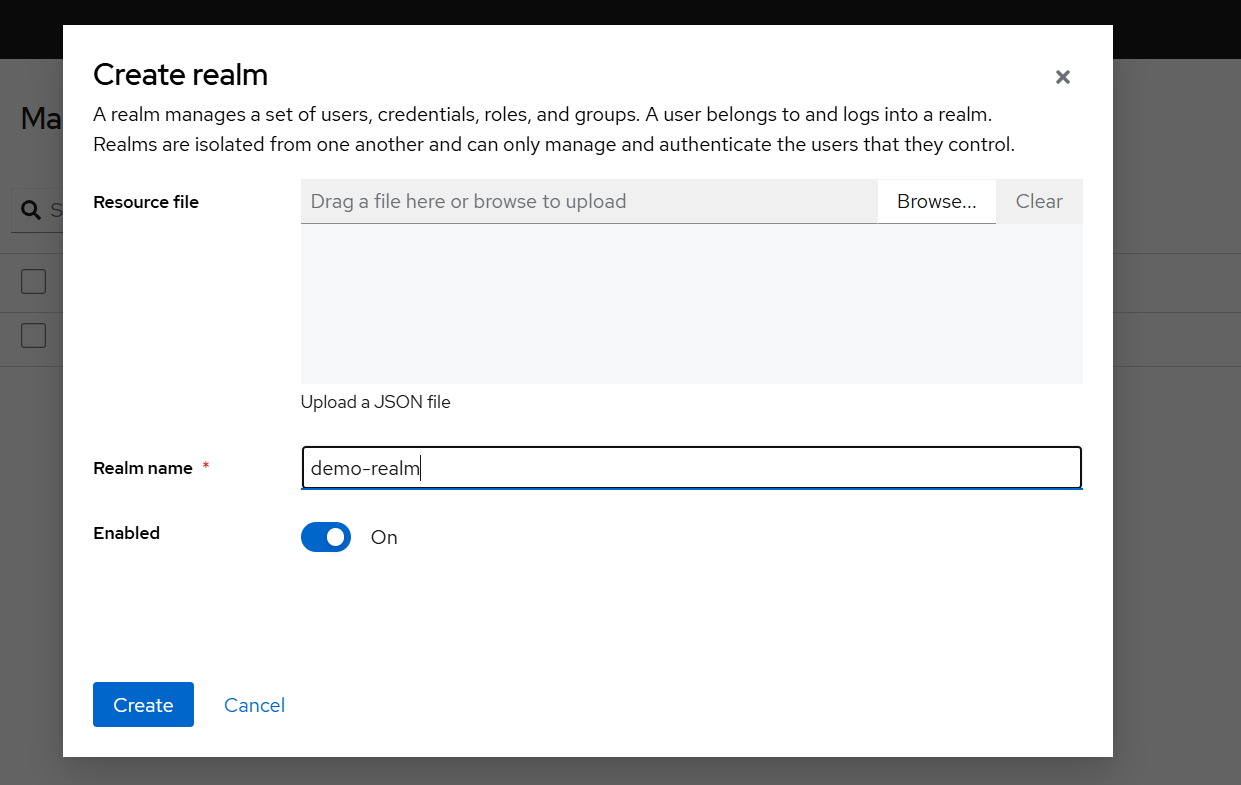 Keycloak Create Realm configuration page
Create a user
Create a user in the demo-realm for testing OAuth2 authentication:
- Navigate to Users and select Create new user.
- Set the username to
testuserand select Create. - After the user is created, navigate to Credentials and select Set password.
- Enter a password of your choice and disable the temporary password setting.
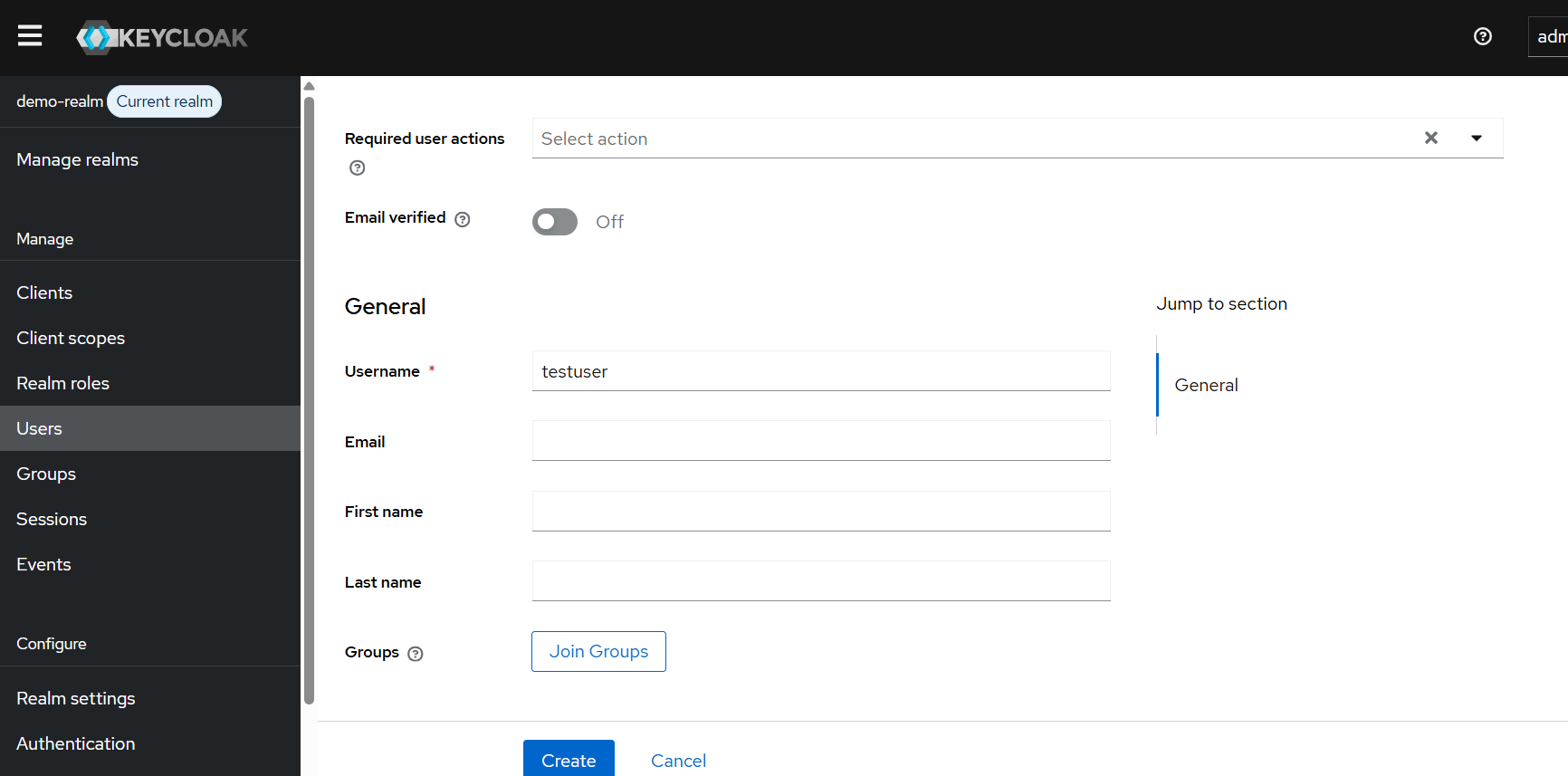 Keycloak user creation page for demo-realm
Configure OAuth2 login for the Flask application
You’ll now configure Keycloak as an OAuth2/OpenID Connect provider and build a Flask application that authenticates users through Keycloak.
Create an OpenID Connect client
Create a Keycloak client for the Flask application:
- Navigate to Clients and select Create client.
- In General Settings, enter:
Client type: OpenID Connect
Client ID: flask-demo
- Under Capability config, enter:
Client authentication: Off
Authorization: Off
- Under Login settings, set the Valid redirect URI:
http://YOUR_PUBLIC_IP:5000/*
- Save the client.
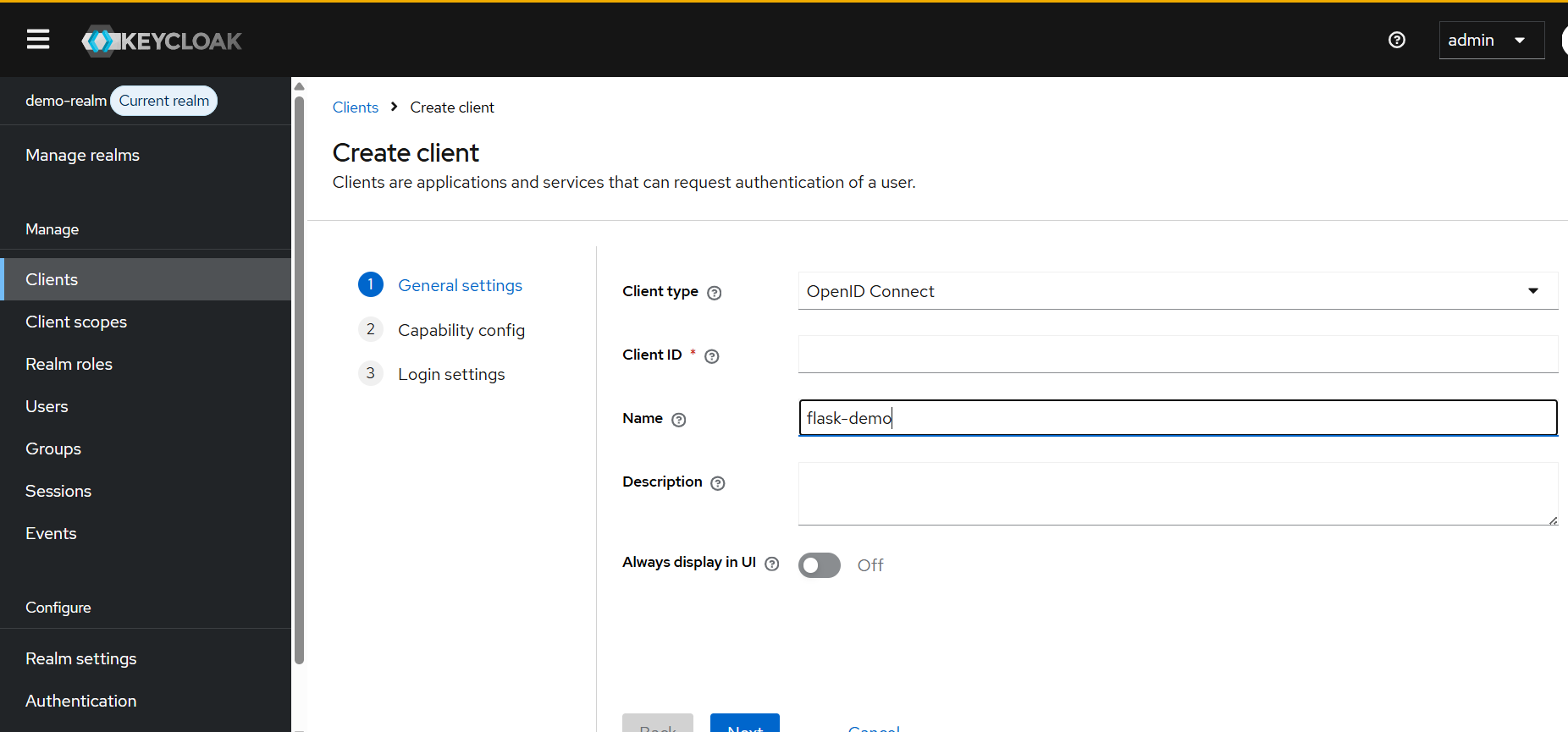 Keycloak OpenID Connect client configuration for Flask demo application
Create the Flask demo application
Create a project directory for the Flask OAuth2 application:
mkdir ~/flask-keycloak-demo
cd ~/flask-keycloak-demo
Create a Python virtual environment
Create and activate a Python virtual environment for dependency isolation:
python3 -m venv venv
Activate the virtual environment:
source venv/bin/activate
Install Flask dependencies
Install Flask and OAuth-related Python packages:
pip install flask authlib requests
Create the Flask application
Create a Flask application that implements the OAuth2 authorization code flow with PKCE using authlib. The application connects to Keycloak using the OpenID Connect discovery endpoint.
Replace YOUR_PUBLIC_IP in the app with the public IP address of your Azure VM:
cat > app.py <<'EOF'
import os
from flask import Flask, redirect, url_for, session
from authlib.integrations.flask_client import OAuth

app = Flask(__name__)
app.secret_key = os.urandom(24)

KEYCLOAK_URL = os.environ.get('KEYCLOAK_URL', 'http://YOUR_PUBLIC_IP:8080')
REALM = 'demo-realm'

oauth = OAuth(app)
keycloak = oauth.register(
    name='keycloak',
    client_id='flask-demo',
    client_secret=None,
    server_metadata_url=f'{KEYCLOAK_URL}/realms/{REALM}/.well-known/openid-configuration',
    client_kwargs={
        'scope': 'openid email profile',
        'code_challenge_method': 'S256',
    },
)

@app.route('/')
def home():
    user = session.get('user')
    if user:
        return f'Logged in as: {user.get("preferred_username", user.get("sub"))}'
    return '<a href="/login">Log in with Keycloak</a>'

@app.route('/login')
def login():
    redirect_uri = url_for('auth', _external=True)
    return keycloak.authorize_redirect(redirect_uri)

@app.route('/auth')
def auth():
    token = keycloak.authorize_access_token()
    user = token.get('userinfo')
    session['user'] = user
    return redirect(url_for('home'))

@app.route('/logout')
def logout():
    session.pop('user', None)
    return redirect(url_for('home'))

if __name__ == '__main__':
    app.run(host='0.0.0.0', port=5000)
EOF
Run the Flask application
Start the Flask application with the Keycloak URL pointing to localhost:
KEYCLOAK_URL=http://localhost:8080 python app.py
The Flask application connects to Keycloak locally on the VM. The browser redirects use the public IP automatically, because Keycloak’s hostname setting controls the URLs returned in the discovery document.
Open the application in your browser. Replace YOUR_PUBLIC_IP with the public IP address of your Azure VM:
http://YOUR_PUBLIC_IP:5000
The home page shows a login link. Select the link to be redirected to the Keycloak login page. After authenticating as testuser, you’re redirected back to the Flask application and the page displays the logged-in username.
Logged in as: testuser
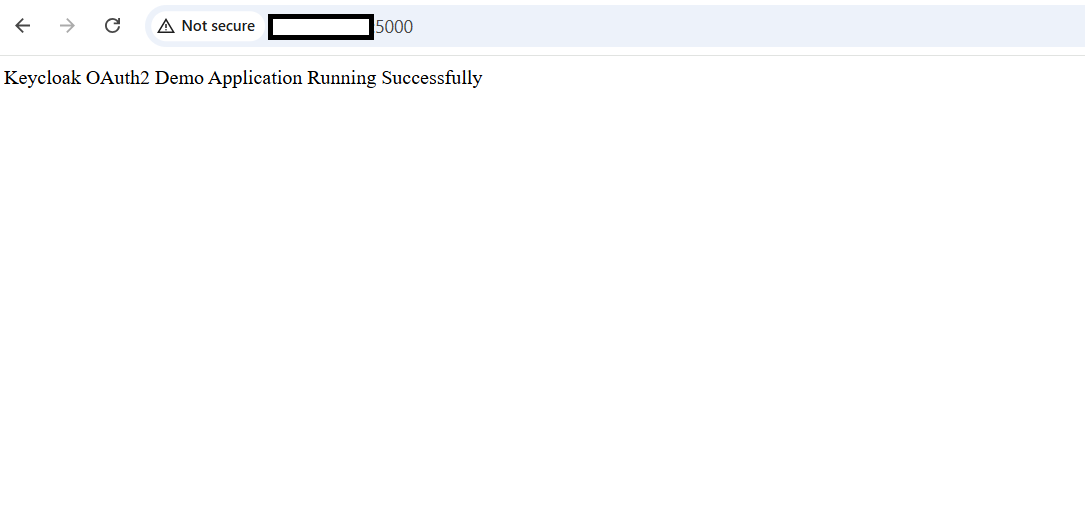 Flask OAuth2 demo application authenticated through Keycloak
Troubleshoot common issues
The following are solutions to some issues that you might encounter when you try to run the demo application:
Admin console stuck in loading
Recreate temporary directories and restart Keycloak:
sudo mkdir -p /opt/keycloak/data/tmp
sudo chown -R keycloak:keycloak /opt/keycloak/data
sudo systemctl restart keycloak
HTTPS required error
If the browser shows an HTTPS required error after logging in, disable SSL enforcement for demo-realm. Keycloak enables SSL enforcement per realm by default, so you need to apply this fix to each realm you create.
Log in to the Keycloak database:
sudo -u postgres psql -d keycloak
Disable SSL enforcement for demo-realm:
UPDATE realm
SET ssl_required = 'NONE'
WHERE name = 'demo-realm';
Exit PostgreSQL:
\q
Restart Keycloak:
sudo systemctl restart keycloak
What you’ve accomplished
You’ve now completed a full OAuth2/OpenID Connect integration on an Azure Cobalt 100-based Arm64 VM.
The Flask application authenticates users through Keycloak using the authorization code flow with PKCE, exchanging authorization codes for access tokens and retrieving user identity from the OpenID Connect userinfo endpoint.
You can build on this foundation by adding role-based access control in Keycloak, integrating additional applications into the same realm, or replacing the database SSL fix with a proper TLS certificate for production deployments.