Deploy Keycloak on Azure Cobalt 100-based Arm64 virtual machines for identity and access management
Introduction
Understand Keycloak for identity and access management on Azure Cobalt 100-based virtual machines
Create an Azure Cobalt 100-based Arm64 virtual machine
Allow access to Keycloak and the Flask application on Azure
Deploy Keycloak on an Azure Cobalt 100-based Arm64 virtual machine
Integrate a Flask OAuth2 application with Keycloak on an Azure Cobalt 100-based Arm64 virtual machine
Next Steps
Deploy Keycloak on Azure Cobalt 100-based Arm64 virtual machines for identity and access management
Introduction
Understand Keycloak for identity and access management on Azure Cobalt 100-based virtual machines
Create an Azure Cobalt 100-based Arm64 virtual machine
Allow access to Keycloak and the Flask application on Azure
Deploy Keycloak on an Azure Cobalt 100-based Arm64 virtual machine
Integrate a Flask OAuth2 application with Keycloak on an Azure Cobalt 100-based Arm64 virtual machine
Next Steps
Set up Keycloak and dependencies on the virtual machine
In this section, you’ll install Keycloak on the virtual machine (VM) that you created earlier. You’ll configure PostgreSQL as the backend database.
Update your system
Start by updating the package index and installing the latest available package updates on the VM:
sudo apt update && sudo apt upgrade -y
Install required dependencies
Install Java, PostgreSQL, Python, and utility packages required for running Keycloak and the Flask demo application:
sudo apt install -y \
openjdk-21-jdk \
postgresql \
postgresql-contrib \
python3-pip \
python3-venv \
curl \
wget \
tar
Verify Java installation
Keycloak requires Java, so verify that Java 21 is installed correctly:
java -version
The output is similar to:
        openjdk version "21.0.11" 2026-04-21
OpenJDK Runtime Environment (build 21.0.11+10-1-24.04.2-Ubuntu)
OpenJDK 64-Bit Server VM (build 21.0.11+10-1-24.04.2-Ubuntu, mixed mode, sharing)
Configure PostgreSQL database and user
Keycloak needs a persistent database to store realms, users, clients, roles, and authentication configuration.
Log in to PostgreSQL as the default postgres user:
sudo -u postgres psql
Create a database for Keycloak:
CREATE DATABASE keycloak;
Create a PostgreSQL user for Keycloak:
CREATE USER keycloakuser WITH PASSWORD 'StrongPassword123!';
Grant database access to the Keycloak user:
GRANT ALL PRIVILEGES ON DATABASE keycloak TO keycloakuser;
Connect to the Keycloak database:
\c keycloak
Grant schema permissions so Keycloak can create and manage its internal database tables:
GRANT ALL ON SCHEMA public TO keycloakuser;
ALTER SCHEMA public OWNER TO keycloakuser;
GRANT ALL PRIVILEGES ON ALL TABLES IN SCHEMA public TO keycloakuser;
GRANT ALL PRIVILEGES ON ALL SEQUENCES IN SCHEMA public TO keycloakuser;
Exit PostgreSQL:
\q
Download Keycloak
Download the Keycloak release archive, extract it, and move it to /opt/keycloak:
The following command uses Keycloak version 26.2.5. The same command works with other versions. Replace the file names in these steps with the file for your version of choice. To find the latest version, see Keycloak releases on GitHub .
cd ~
wget https://github.com/keycloak/keycloak/releases/download/26.2.5/keycloak-26.2.5.tar.gz
tar -xzf keycloak-26.2.5.tar.gz
sudo mv keycloak-26.2.5 /opt/keycloak
Create Keycloak Linux user
Create a dedicated Linux user to run Keycloak securely as a system service:
sudo useradd -r -s /bin/false keycloak
sudo chown -R keycloak:keycloak /opt/keycloak
Configure Keycloak
Create the Keycloak configuration file and connect it to the PostgreSQL database:
Replace YOUR_PUBLIC_IP with the public IP address of your Azure VM.
The db-password value must match the password you set for keycloakuser during the PostgreSQL setup step. Replace StrongPassword123! with your actual database password.
Create configuration:
sudo tee /opt/keycloak/conf/keycloak.conf > /dev/null <<EOF
db=postgres
db-url=jdbc:postgresql://localhost:5432/keycloak
db-username=keycloakuser
db-password=StrongPassword123!

hostname=http://YOUR_PUBLIC_IP:8080
hostname-strict=false

http-enabled=true
http-port=8080

health-enabled=true
metrics-enabled=true
EOF
Don’t use proxy=edge with this setup because it can cause hostname and admin console loading issues in newer Keycloak versions.
Build the Keycloak server
Build Keycloak so the server configuration is optimized and persisted before startup:
sudo /opt/keycloak/bin/kc.sh build
Create the Keycloak admin user
Bootstrap the initial admin user that you’ll use to log in to the Keycloak admin console:
sudo KC_BOOTSTRAP_ADMIN_USERNAME=admin \
KC_BOOTSTRAP_ADMIN_PASSWORD=AdminPassword123! \
/opt/keycloak/bin/kc.sh bootstrap-admin user --optimized
The output is similar to:
        Enter username [temp-admin]:
Enter password:
Enter password again:
For the username, press Enter.
For the password, enter the following password twice:
AdminPassword123!
The output is similar to:
Created temporary admin user with username admin
Configure Keycloak as a systemd service
Create a systemd service so Keycloak starts automatically and runs in the background:
sudo tee /etc/systemd/system/keycloak.service > /dev/null <<EOF
[Unit]
Description=Keycloak Server
After=network.target postgresql.service
Requires=postgresql.service

[Service]
Type=simple
User=keycloak
Group=keycloak
WorkingDirectory=/opt/keycloak
ExecStart=/opt/keycloak/bin/kc.sh start --optimized
Restart=always
RestartSec=10

[Install]
WantedBy=multi-user.target
EOF
Configure Keycloak runtime directories
Create writable runtime directories required by Keycloak for temporary files, logs, and cache:
sudo mkdir -p /opt/keycloak/data/tmp
sudo mkdir -p /opt/keycloak/data/log
sudo mkdir -p /opt/keycloak/data/cache
Set the correct ownership for the Keycloak service user:
sudo chown -R keycloak:keycloak /opt/keycloak/data
Set directory permissions:
sudo chmod -R 755 /opt/keycloak/data
Start and verify Keycloak
Start Keycloak and verify that the service is running correctly.
Reload systemd, enable the service, and start Keycloak:
sudo systemctl daemon-reload
sudo systemctl enable keycloak
sudo systemctl start keycloak
Check the service status:
sudo systemctl status keycloak
The output is similar to:
Active: active (running) since Thu 2026-06-04 15:26:27 UTC; 7s ago
View live Keycloak logs to confirm it started without errors, then press Ctrl+C to exit:
sudo journalctl -u keycloak -f
You can also optionally check whether Keycloak is listening on the expected ports:
sudo ss -tulpn | grep -E '8080|9000'
Access the Keycloak admin console
Open the Keycloak admin console in your browser. Replace YOUR_PUBLIC_IP with the public IP address of your Azure VM:
http://YOUR_PUBLIC_IP:8080/admin/
Troubleshoot HTTPS required error
If the browser shows the following message, disable SSL enforcement for the master realm for this HTTP-based Learning Path setup:
HTTPS required
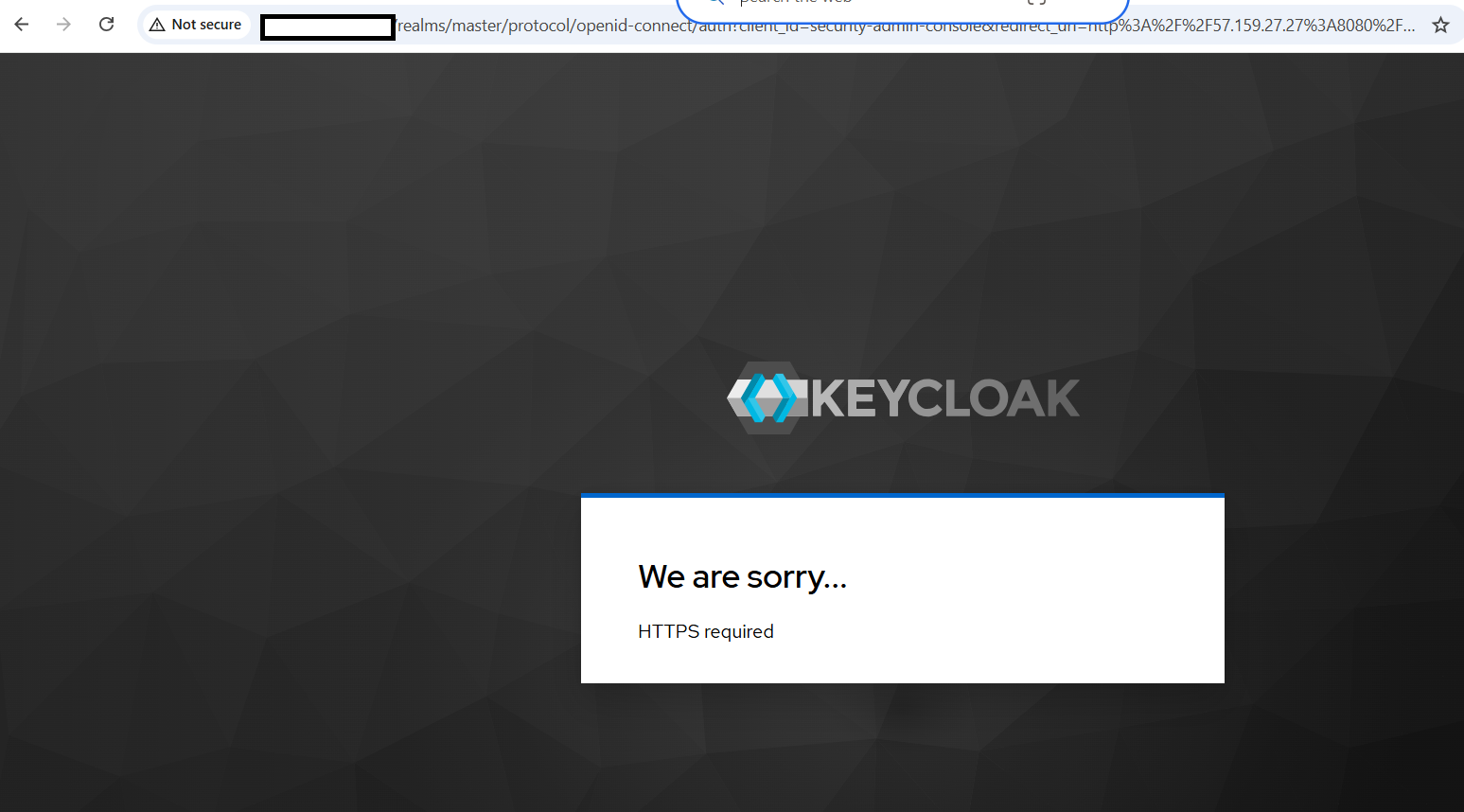 Keycloak HTTPS required error page
Log in to the Keycloak database:
sudo -u postgres psql -d keycloak
Disable SSL enforcement for the master realm:
UPDATE realm
SET ssl_required = 'NONE'
WHERE name = 'master';
Exit PostgreSQL:
\q
Restart Keycloak:
sudo systemctl restart keycloak
After restarting, open the admin console again and log in:
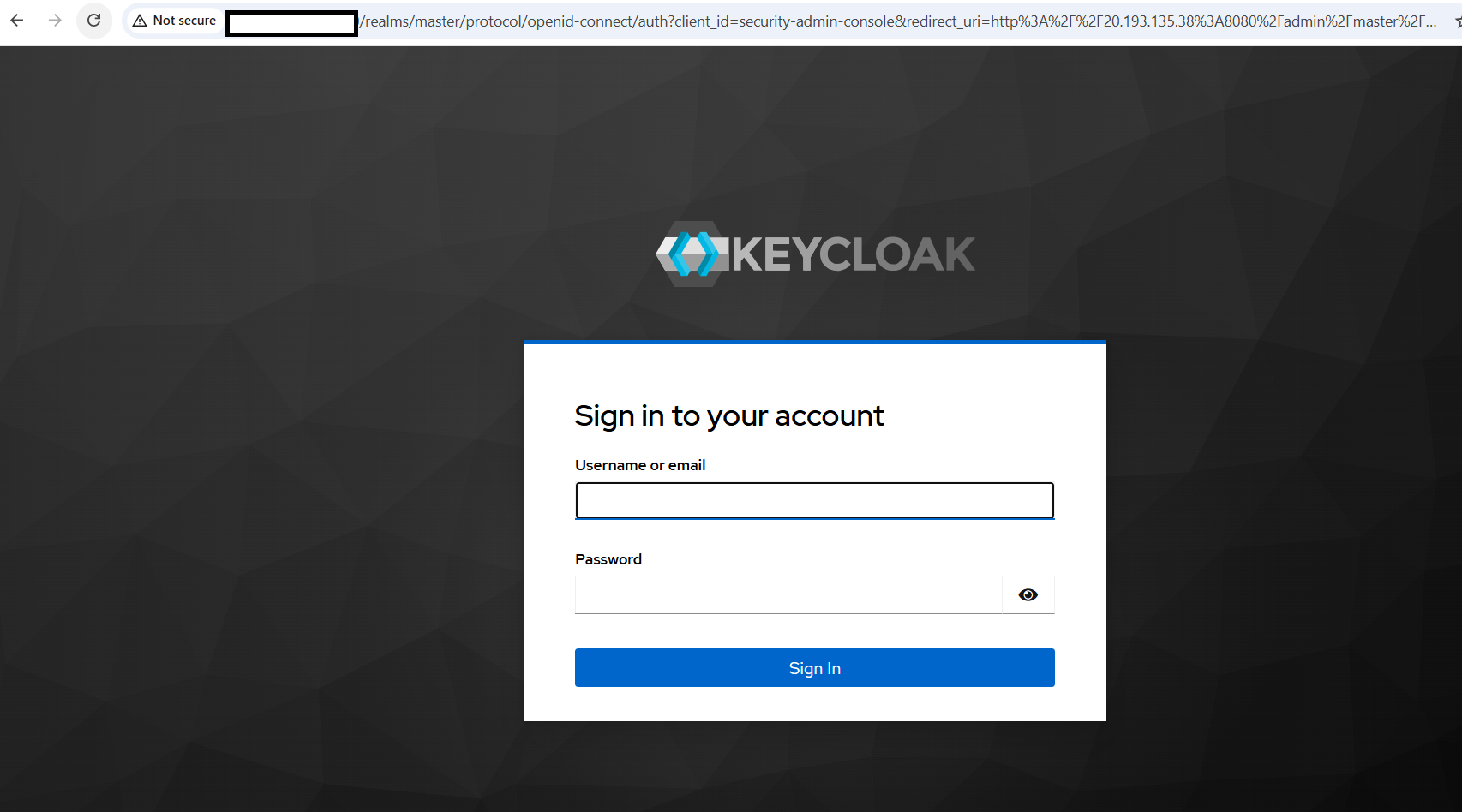 Keycloak login page
Enter the admin credentials that you created earlier:
Username: admin
Password: AdminPassword123!
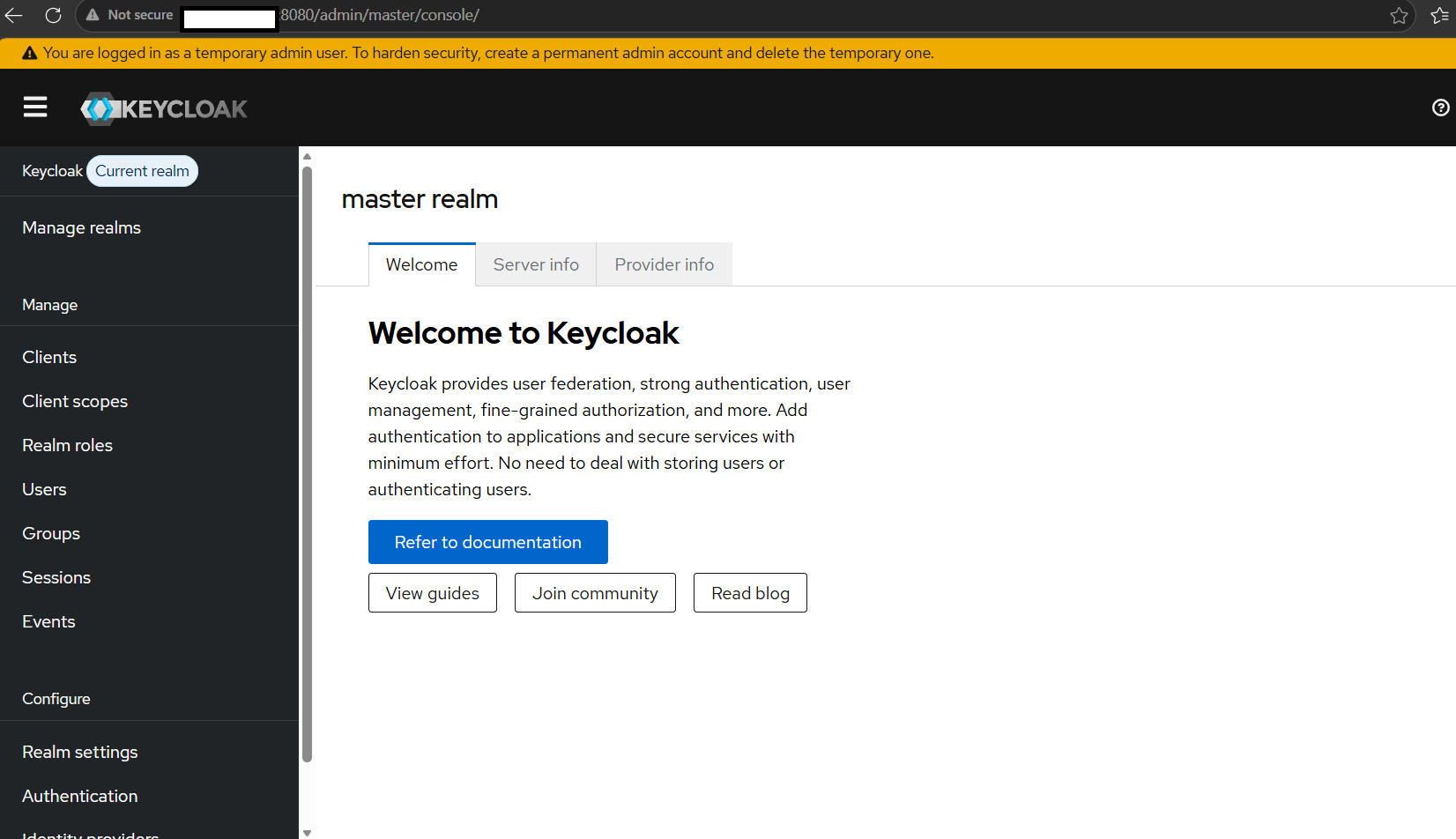 Keycloak Admin Console welcome dashboard
Verify health endpoint
Call the health endpoint:
curl http://localhost:9000/health
The output is similar to:
        {
    "status": "UP",
    "checks": [
        {
            "name": "Keycloak database connections async health check",
            "status": "UP"
        }
    ]
}
What you’ve accomplished and what’s next
You now have Keycloak running on an Azure Cobalt 100-based Arm64 VM with PostgreSQL integration, a systemd service, and a working admin console.
Next, you’ll configure a Flask application and integrate it with Keycloak using OAuth2/OpenID Connect authentication.