Deploy Keycloak on Azure Cobalt 100-based Arm64 virtual machines for identity and access management
Introduction
Understand Keycloak for identity and access management on Azure Cobalt 100-based virtual machines
Create an Azure Cobalt 100-based Arm64 virtual machine
Allow access to Keycloak and the Flask application on Azure
Deploy Keycloak on an Azure Cobalt 100-based Arm64 virtual machine
Integrate a Flask OAuth2 application with Keycloak on an Azure Cobalt 100-based Arm64 virtual machine
Next Steps
Deploy Keycloak on Azure Cobalt 100-based Arm64 virtual machines for identity and access management
Introduction
Understand Keycloak for identity and access management on Azure Cobalt 100-based virtual machines
Create an Azure Cobalt 100-based Arm64 virtual machine
Allow access to Keycloak and the Flask application on Azure
Deploy Keycloak on an Azure Cobalt 100-based Arm64 virtual machine
Integrate a Flask OAuth2 application with Keycloak on an Azure Cobalt 100-based Arm64 virtual machine
Next Steps
Configure external traffic for Keycloak and the Flask application
To allow external traffic for Keycloak and the Flask OAuth2 demo application on the Azure virtual machine, open the required ports in the network security group (NSG).
For more information about Azure setup, see Getting started with Microsoft Azure .
Add inbound firewall rules in Azure
To expose the required ports for Keycloak and the Flask application, create firewall rules:
- Navigate to the Azure portal , go to Virtual Machines, and select your virtual machine.
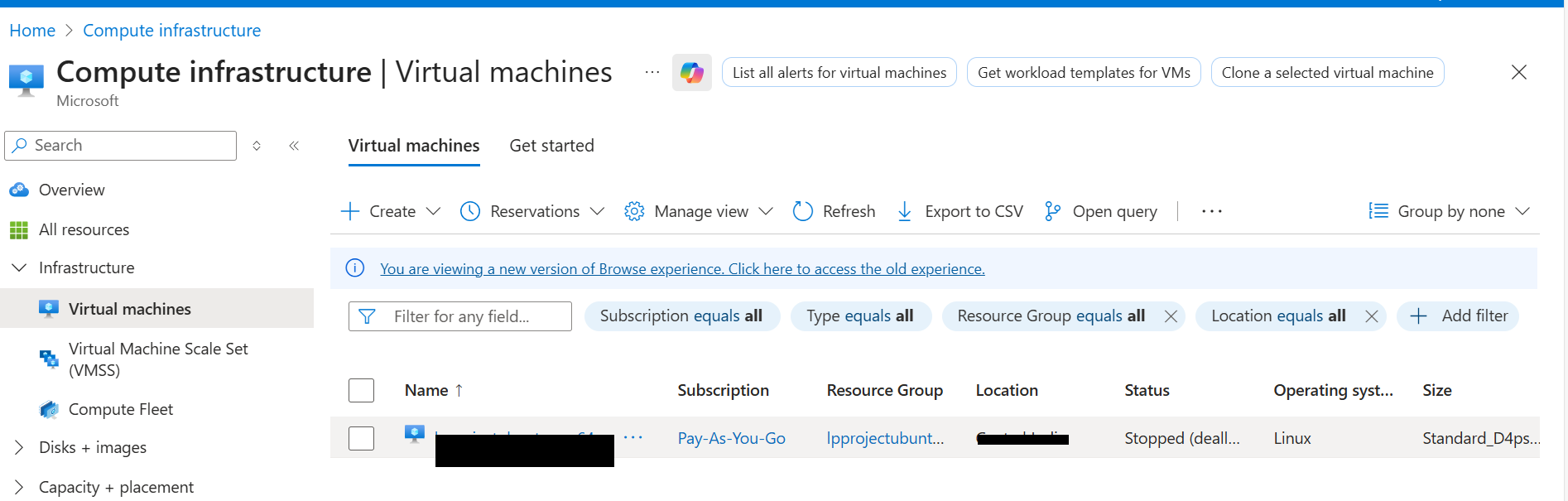 Azure Virtual machines page
- In the left menu, select Networking, then select Network settings.
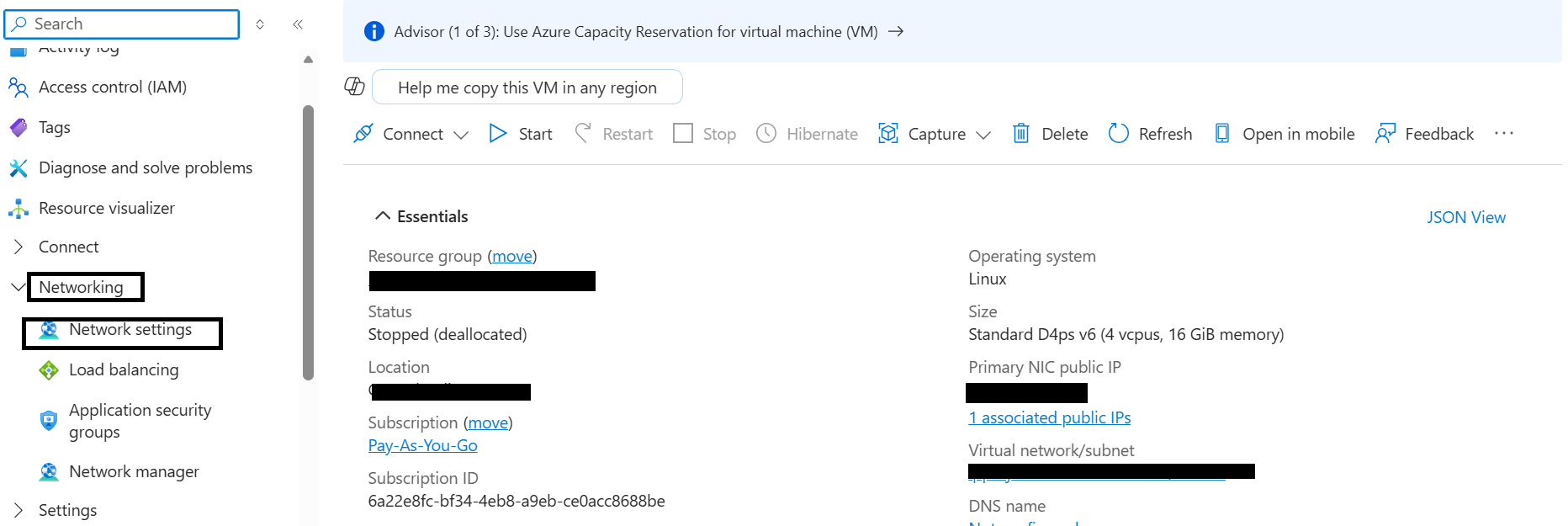 Azure VM networking settings
- Navigate to Create port rule, and select Inbound port rule.
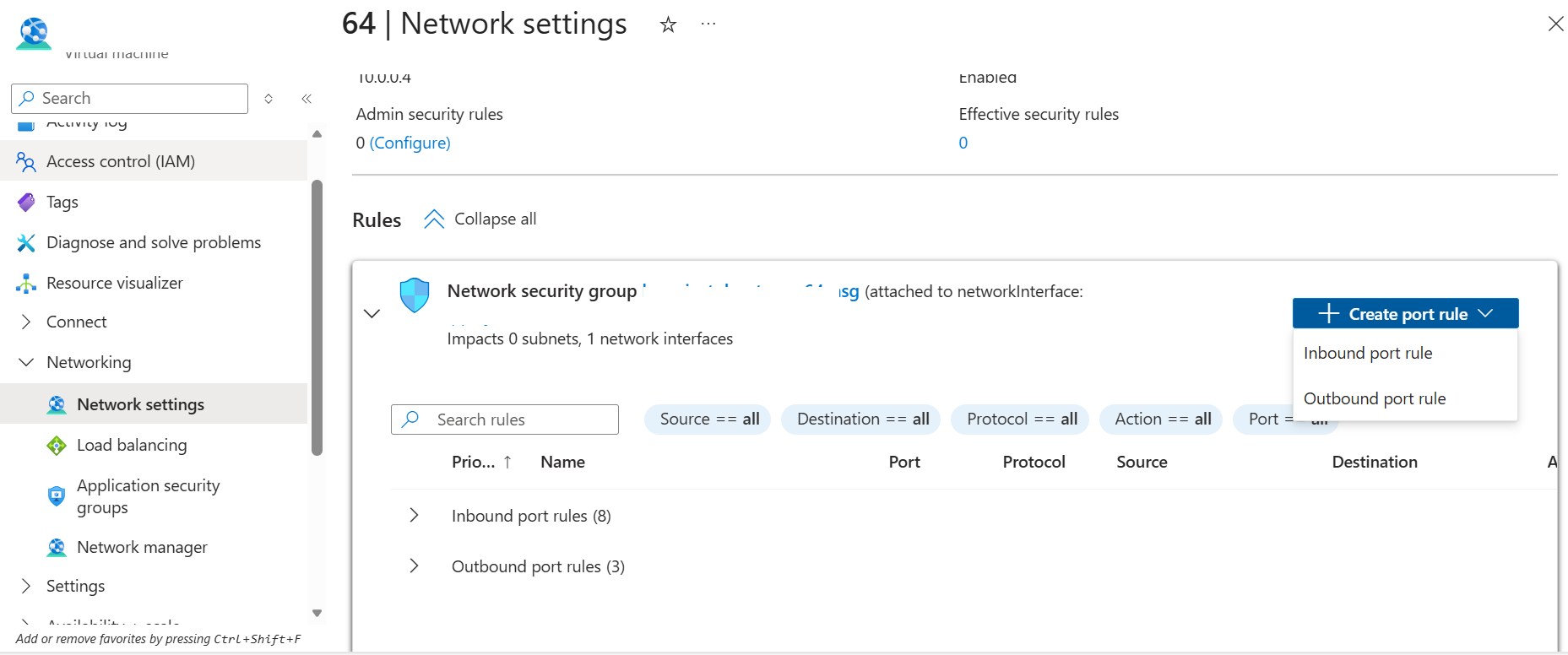 Create inbound firewall rule
- Configure inbound security rules for the following ports:
| Port | Purpose | Rule name |
|---|---|---|
8080 | Keycloak admin console | allow-keycloak-8080 |
9000 | Keycloak health and management endpoint | allow-keycloak-9000 |
5000 | Flask OAuth2 demo application | allow-flask-5000 |
Use the following settings for each rule:
- Source: My IP address
- Source IP addresses: (auto-populated with your current public IP)
- Source port ranges:
* - Destination: Any
- Protocol: TCP
- Action: Allow
Setting Source to My IP address restricts access to the ports to your current machine only. If your public IP changes or you need to access the services from another machine, update the source IP in the NSG rule.
- After filling in the details, select Add to save each rule.
You can now access:
- The Keycloak admin console on port 8080
- The Keycloak health endpoint on port 9000
- The Flask OAuth2 demo application on port 5000
What you’ve learned and what’s next
You’ve now configured the Azure network security group to allow incoming traffic for Keycloak and the Flask OAuth2 demo application that you’ll build in the following sections.
Next, you’ll install Keycloak on the VM and configure PostgreSQL as the backend database.