Autoscale HTTP applications on Kubernetes with KEDA and Kedify
Introduction
Install Kedify using Helm
Install an ingress controller for testing HTTP autoscaling
Deploy an HTTP application through Kubernetes Ingress
Configure and test HTTP autoscaling with Kedify
Next Steps
Autoscale HTTP applications on Kubernetes with KEDA and Kedify
How application autoscaling with Kedify works
Configure autoscaling for your deployed HTTP application with Kedify’s HTTP Scaler . You’ll then generate traffic and observe scale-out, scale-in, and scale-to-zero behavior when idle.
Kedify’s ingress autowiring routes traffic through its proxy so that requests are measured and drive scaling.
For more information, see Scaling Deployments, StatefulSets & Custom Resources on the KEDA website.
With ingress autowiring enabled, Kedify automatically routes traffic through its proxy before it reaches your service and deployment:
Ingress → kedify-proxy → Service → Deployment
The Kedify proxy gathers request metrics used by the scaler to make decisions.
There are three main components involved in the process:
- For the application deployment and service, there’s an HTTP server with a small response delay to simulate work.
- For ingress, there’s a public entry point that’s configured using the
application.kedahost. - For the
ScaledObject, there’s a Kedify HTTP scaler usingtrafficAutowire: ingress.
Enable autoscaling with Kedify
The application is now running. Next, enable autoscaling so that it can scale dynamically between zero and 10 replicas. Kedify holds requests while the application scales from zero, subject to client timeouts. Apply the ScaledObject by running the following command:
cat <<'EOF' | kubectl apply -f -
apiVersion: keda.sh/v1alpha1

kind: ScaledObject
metadata:
  name: application
spec:
  scaleTargetRef:
    apiVersion: apps/v1
    kind: Deployment
    name: application
  cooldownPeriod: 5
  minReplicaCount: 0
  maxReplicaCount: 10
  fallback:
    failureThreshold: 2
    replicas: 1
  advanced:
    restoreToOriginalReplicaCount: true
    horizontalPodAutoscalerConfig:
      behavior:
        scaleDown:
          stabilizationWindowSeconds: 5
  triggers:
    - type: kedify-http
      metadata:
        hosts: application.keda
        pathPrefixes: /
        service: application-service
        port: "8080"
        scalingMetric: requestRate
        targetValue: "10"
        granularity: 1s
        window: 10s
        trafficAutowire: ingress
EOF
Use the following field descriptions to understand how the ScaledObject controls HTTP-driven autoscaling and how each setting affects traffic routing and scale decisions:
type: kedify-http- Uses Kedify’s HTTP scaler.hosts,pathPrefixes- Define which requests are monitored for scaling decisions.service,port- Identify the Kubernetes Service and port that receive traffic.scalingMetric: requestRate,granularity: 1s,window: 10s,targetValue: "10"- Scale out when the average request rate exceeds ~10 requests per second (rps) per replica over the last 10 seconds.minReplicaCount: 0- Enables scale to zero when there is no traffic.trafficAutowire: ingress- Automatically wires your ingress to the Kedify proxy for seamless traffic management.
After applying the settings, the ScaledObject will appear in the
Kedify dashboard
.
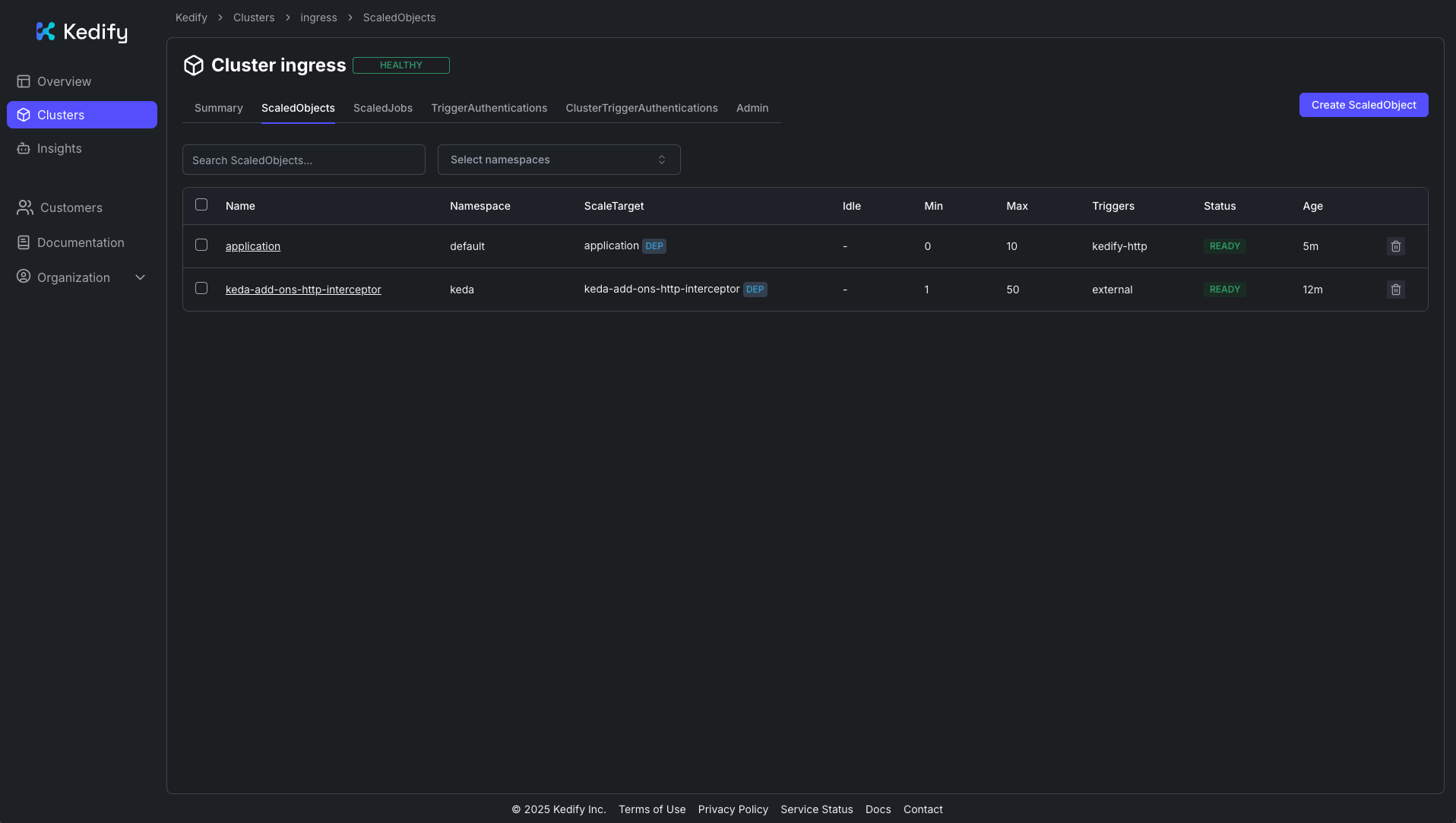 Kedify dashboard: ScaledObject
Send traffic and observe scaling
Because no traffic is currently being sent to the application, it’ll eventually scale down to zero replicas.
Verify scale to zero
To confirm that the application has scaled down, run the following command and watch until the number of replicas reaches zero:
watch kubectl get deployment application -n default
The output is similar to:
        Every 2,0s: kubectl get deployment application -n default

NAME          READY   UP-TO-DATE   AVAILABLE   AGE
application   0/0     0            0           110s
This continuously monitors the deployment status in the default namespace. After traffic stops and the idle window has passed, you should see the application deployment report 0/0 replicas. 0/0 replicas indicates that the application has successfully scaled to zero.
Verify that the app can scale from zero
Send a request to trigger scale-up:
curl -I -H "Host: application.keda" http://$INGRESS_ADDRESS
The application scales from zero to one replica automatically. You should receive an HTTP 200 OK response, confirming that the service is reachable again.
Generate load and observe scale-out
Now, generate a heavier, sustained load against the application. You can use hey, or a similar benchmarking tool:
hey -n 40000 -c 200 -t 60 -host "application.keda" http://$INGRESS_ADDRESS
While the load test is running, open another terminal and monitor the deployment replicas in real time:
watch kubectl get deployment application -n default
You’ll see that the number of replicas change dynamically.
The output is similar to:
        Every 2,0s: kubectl get deployment application -n default

NAME          READY   UP-TO-DATE   AVAILABLE   AGE
application   5/5     5            5           23m
The following is the expected behavior:
- On bursty load, Kedify scales the deployment up toward
maxReplicaCount. - When traffic subsides, replicas scale down. After the cooldown, they can return to zero.
You can also monitor traffic and scaling in the Kedify dashboard:
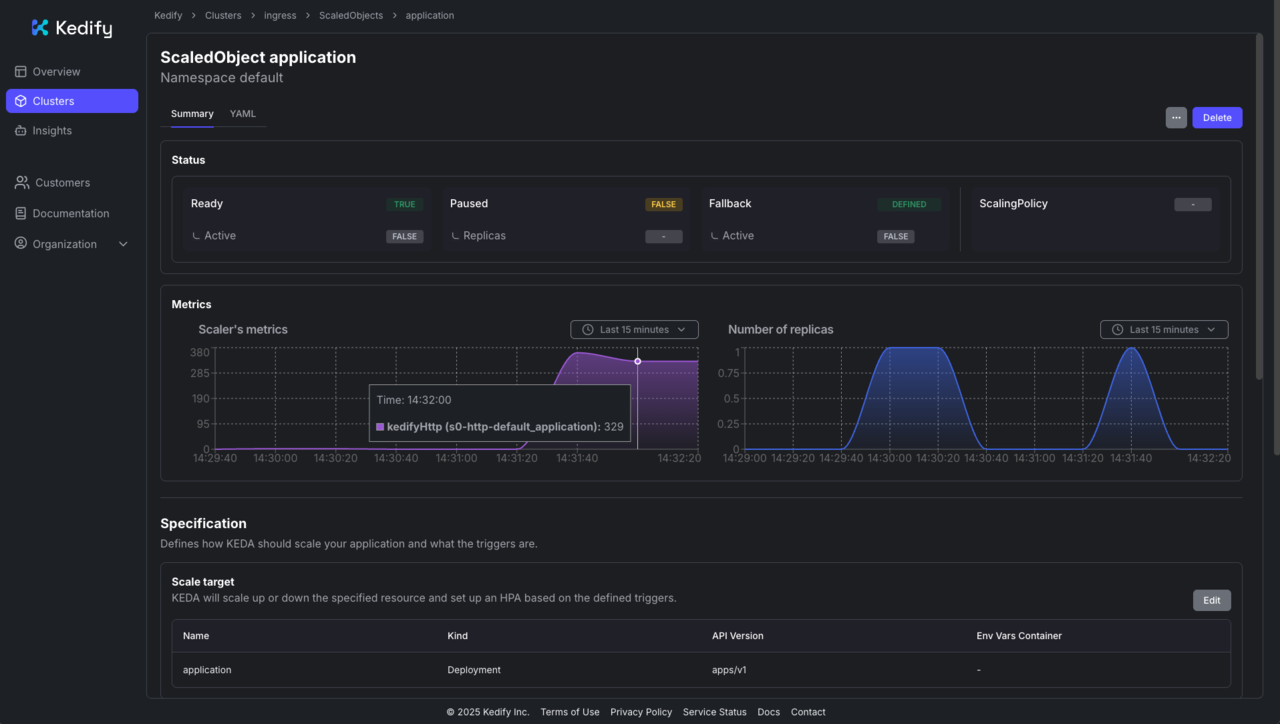 Kedify dashboard: request load and scaling over time
Clean up resources
When you’ve finished testing, remove the resources that you created to free up your cluster:
kubectl delete scaledobject application
kubectl delete ingress application-ingress
kubectl delete service application-service
kubectl delete deployment application
This will delete the ScaledObject, Ingress, Service, and Deployment associated with the demo application.
What you’ve accomplished
You’ve configured a Kedify ScaledObject and tested scale-to-zero, scale-up, and replica changes under load. You’ve monitored scaling in the dashboard. After testing, you removed the sample application resources.
You can further explore the Kedify How-To Guides for more configurations such as Gateway API, Istio VirtualService, or OpenShift Routes.