Deploy Apache Kafka on Arm-based Microsoft Azure Cobalt 100 virtual machines
Introduction
Overview
Create an Arm-based cloud virtual machine using Microsoft Cobalt 100 CPU
Install Kafka
Run baseline testing with Kafka on Azure Arm VM
Benchmark with official Kafka tools
Next Steps
Deploy Apache Kafka on Arm-based Microsoft Azure Cobalt 100 virtual machines
Introduction
You can create an Arm-based Cobalt 100 virtual machine in several ways: using the Microsoft Azure portal, the Azure CLI, or Infrastructure as Code (IaC) tools. This Learning Path uses the Azure portal to walk you through creating a virtual machine with an Arm-based Cobalt 100 processor, which is from the D-Series v6 general-purpose virtual machines.
These VMs are designed for a wide range of workloads and offer Arm-based performance with the Cobalt 100 CPU. To learn more about the Dpsv6 size series, see the official Dpsv6 size series guide from Microsoft Azure.
If you have never used the Microsoft Cloud Platform before, see the Microsoft guide on how to Create a Linux virtual machine in the Azure portal .
Create an Arm-based Azure virtual machine
Creating a virtual machine based on Azure Cobalt 100 is no different from creating any other virtual machine in Azure. To create an Azure virtual machine, launch the Azure portal and navigate to Virtual Machines.
- Select Create, and click on Virtual Machine from the drop-down list.
- Inside the Basic tab, fill in the Instance details such as Virtual machine name and Region.
- Choose the image for your virtual machine (for example, Ubuntu Pro 24.04 LTS) and select Arm64 as the VM architecture.
- In the Size field, click on See all sizes and select the D-Series v6 family of virtual machines. Select D4ps_v6 from the list.
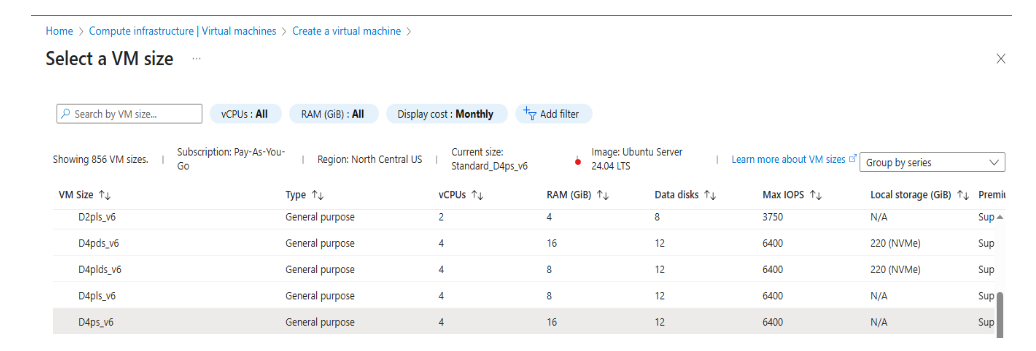 Selecting the D-Series v6 family of virtual machines
- Select SSH public key as an authentication type. Azure automatically generates an SSH key pair for you and allows you to store it for future use. It is a fast, simple, and secure way to connect to your virtual machine.
- Fill in the administrator username for your VM.
- Select Generate new key pair, and select RSA SSH Format as the SSH key type. RSA can offer better security with keys longer than 3072 bits. Give a key pair name to your SSH key.
- In the Inbound port rules, select HTTP (80) and SSH (22) as the inbound ports.
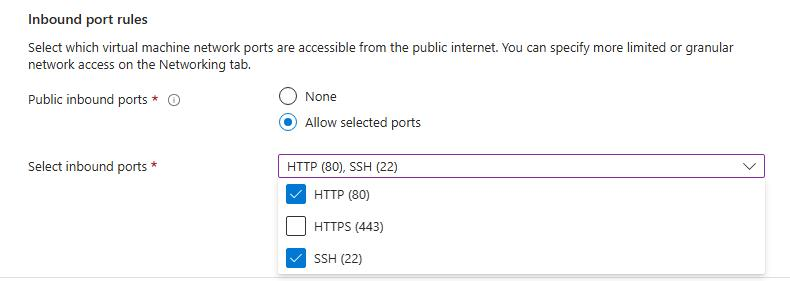 Allow inbound port rules
- Click on the Review + Create tab and review the configuration for your virtual machine. It should look like the following:
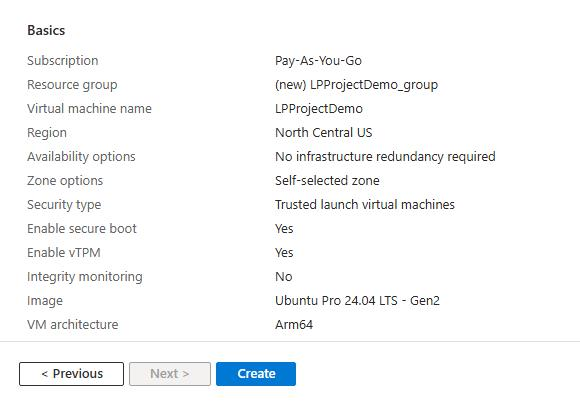 Review and create an Azure Cobalt 100 Arm64 VM
- Finally, when you are confident about your selection, click on the “Create” button, and click on the “Download Private key and Create Resources” button.
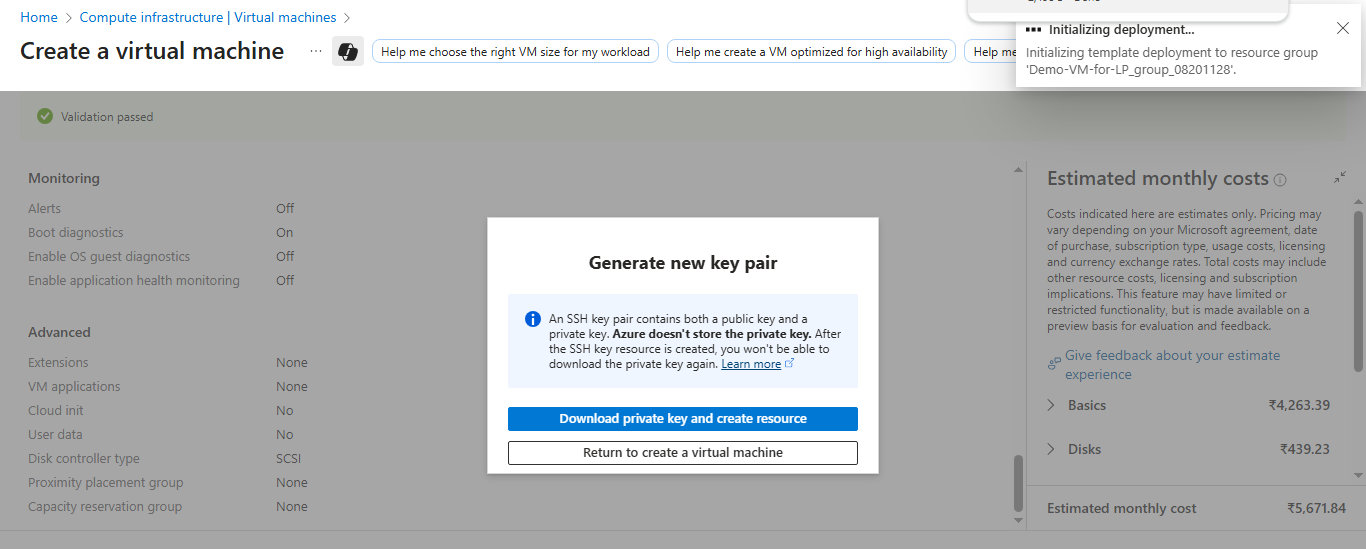 Download private key and create resources
Your virtual machine is now ready and running. To connect, use SSH with your private key and the VM’s public IP address.
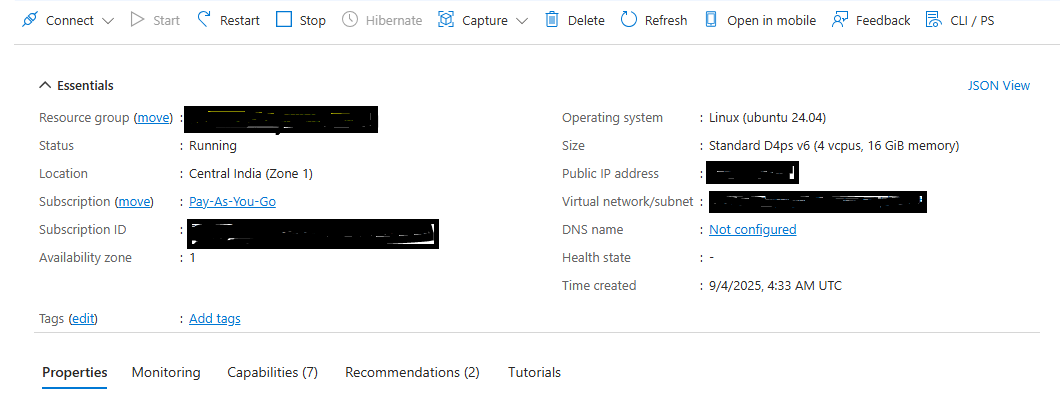 VM deployment confirmation in Azure portal
To learn more about Arm-based virtual machine in Azure, refer to Getting Started with Microsoft Azure in Get started with Arm-based cloud instances .