Deploy and validate Jenkins on Arm cloud servers
Introduction
Technology stack overview
Create an Arm-based virtual machine using Microsoft Cobalt 100
Create a firewall rule on Azure
Install Jenkins on Azure Ubuntu Arm64 virtual machine
Create a firewall rule on GCP
Create a Google Axion C4A virtual machine
Install Jenkins on GCP SUSE Arm64 virtual machine
Validate Jenkins installation
Build an Arm-native Go CI pipeline on Jenkins (GCP SUSE Arm64)
Build a Docker-based CI pipeline on Arm64
Next Steps
Deploy and validate Jenkins on Arm cloud servers
Introduction
Technology stack overview
Create an Arm-based virtual machine using Microsoft Cobalt 100
Create a firewall rule on Azure
Install Jenkins on Azure Ubuntu Arm64 virtual machine
Create a firewall rule on GCP
Create a Google Axion C4A virtual machine
Install Jenkins on GCP SUSE Arm64 virtual machine
Validate Jenkins installation
Build an Arm-native Go CI pipeline on Jenkins (GCP SUSE Arm64)
Build a Docker-based CI pipeline on Arm64
Next Steps
Validate Jenkins installation on Arm64
After installation completes, validate the Jenkins LTS setup on the Azure Ubuntu 24.04 Arm64 virtual machine. You’ll verify service health, network access, Arm architecture, and run a first pipeline.
Verify network configuration
Ensure Jenkins is listening on port 8080 and that the port is allowed at both the Azure and virtual machine levels.
Confirm Jenkins is actively listening on port 8080:
ss -lntp | grep 8080
The expected output indicates Jenkins is listening:
LISTEN 0 50 *:8080 *:*
Retrieve the initial admin password
Retrieve the automatically generated Jenkins administrator password required for first-time login:
sudo cat /var/lib/jenkins/secrets/initialAdminPassword
Copy and securely store this password for UI access.
Verify Jenkins user and home directory
Validate that the Jenkins service user exists and that the Jenkins home directory is correctly configured:
id jenkins
ls -ld /var/lib/jenkins
The output is similar to:
drwxr-xr-x 12 jenkins jenkins 4096 Dec 16 06:11 /var/lib/jenkins
Verify the Jenkins process
Confirm that the Jenkins process is running:
ps -ef | grep jenkins
The output is similar to:
        jenkins    11986       1  9 06:04 ?        00:00:38 /usr/bin/java -Djava.awt.headless=true -jar /usr/share/java/jenkins.war --webroot=/var/cache/jenkins/war --httpPort=8080
azureus+   15126    2233  0 06:11 pts/0    00:00:00 grep --color=auto jenkins
Verify Arm architecture
Ensure the virtual machine is running on Arm64 architecture:
uname -m
The output is similar to:
aarch64
Access the Jenkins UI
Open Jenkins in a local browser:
http://<VM_PUBLIC_IP>:8080
Complete UI setup
Complete the initial Jenkins setup using the web interface:
Paste the initial admin password saved previously.
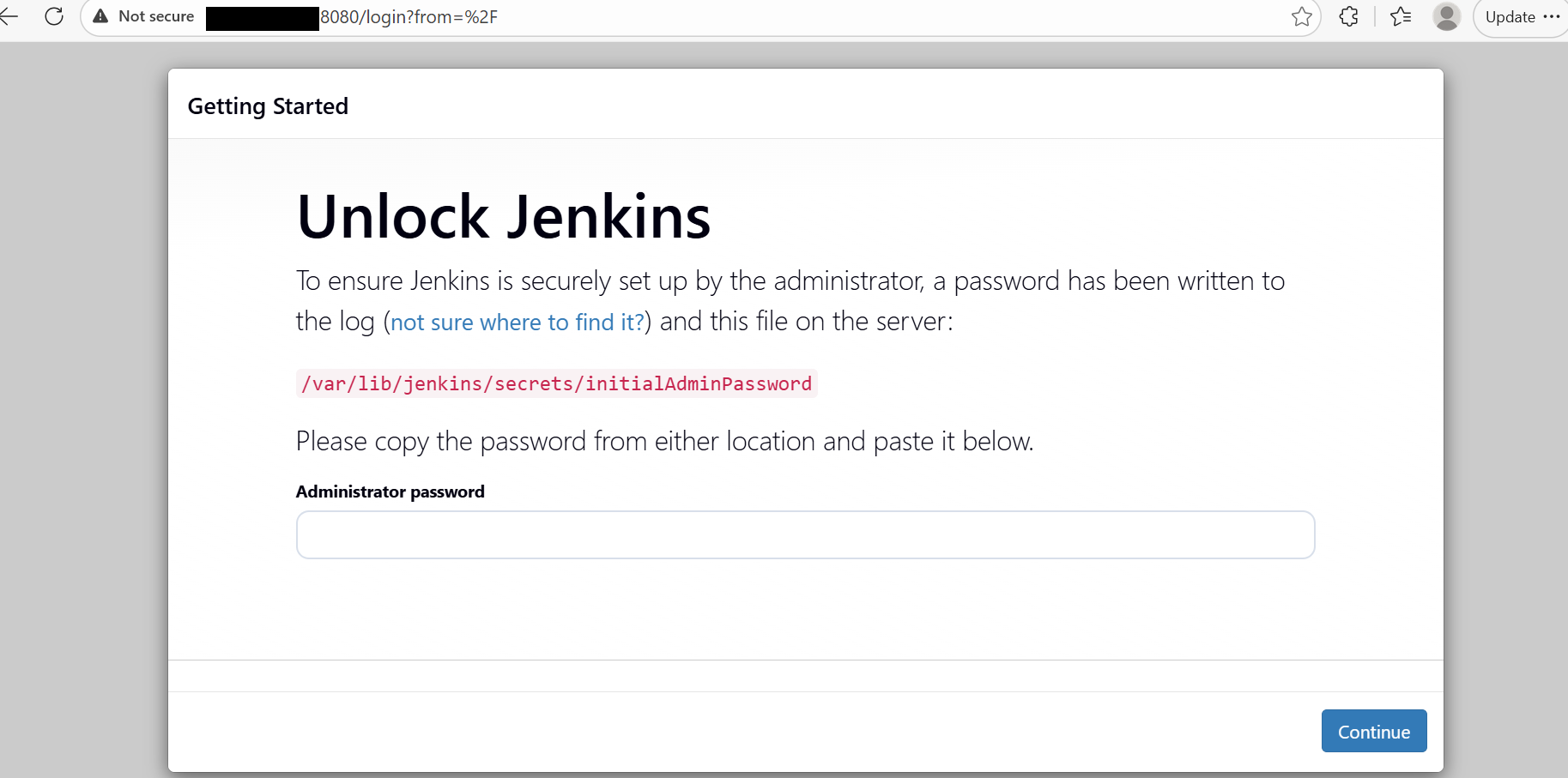 Initial Jenkins page
Select Install suggested plugins.
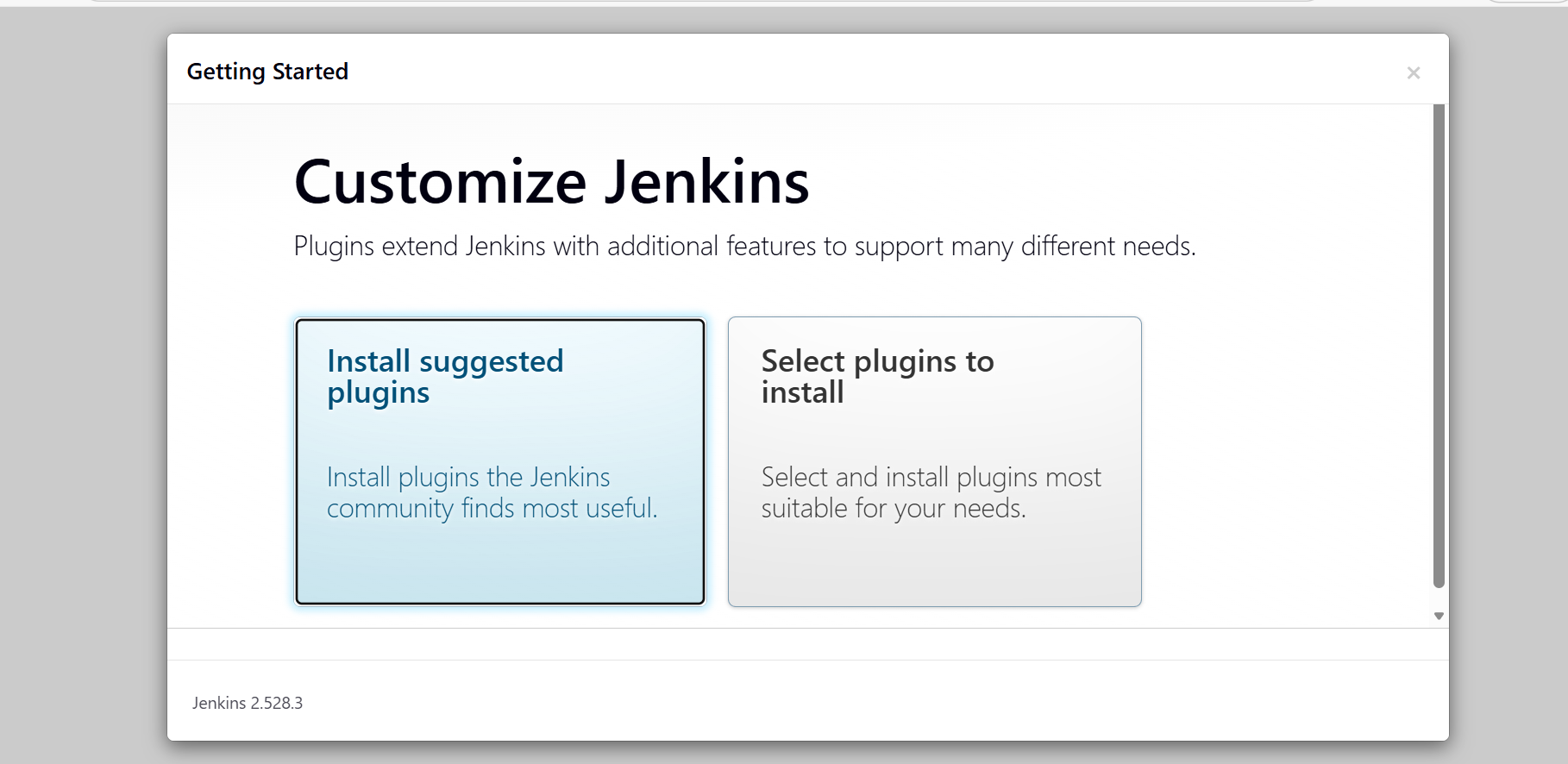 Install suggested plugins
Create an admin user.
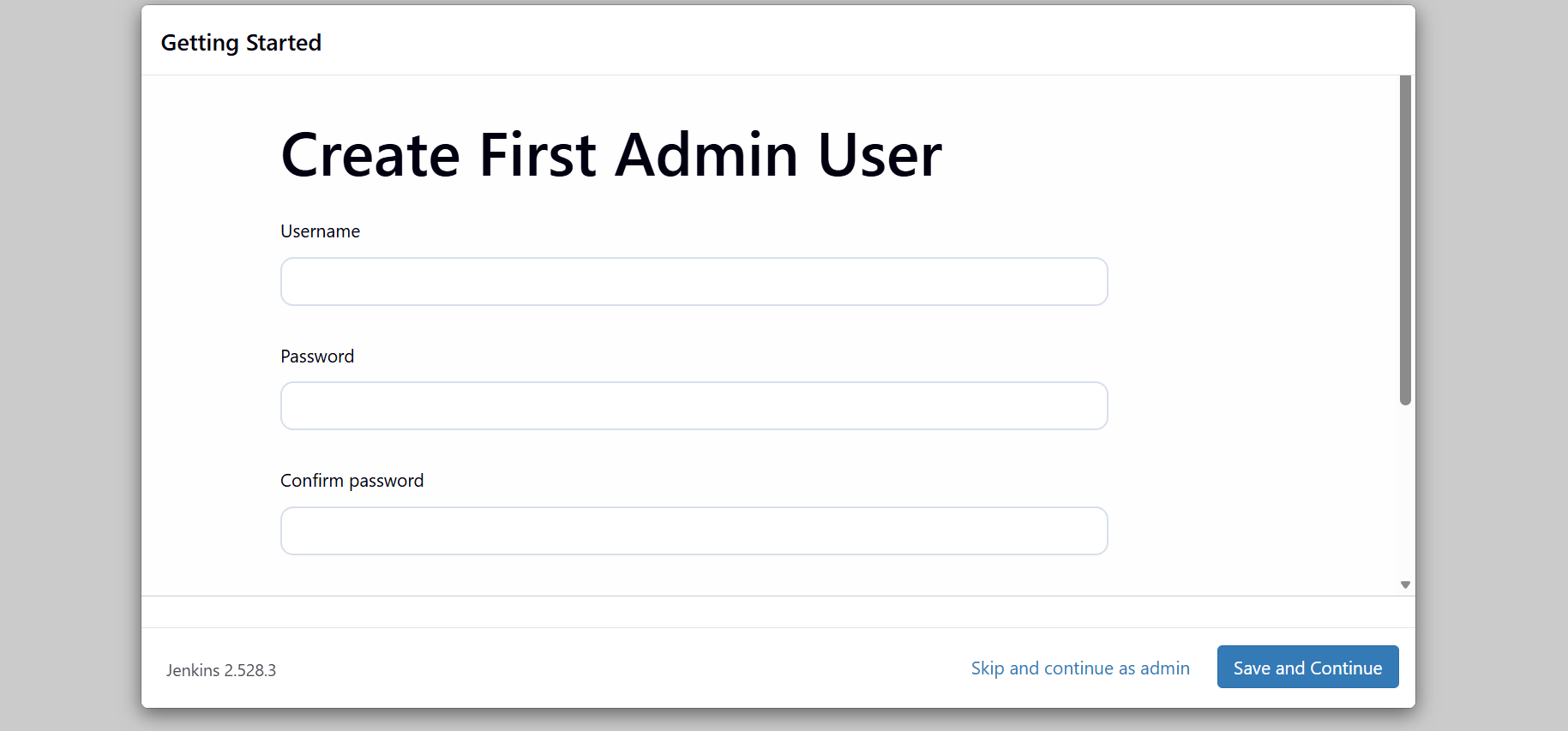 Create admin user
Finish setup and reach the Jenkins dashboard.
Execute a first Jenkins pipeline
Now that you’ve set up Jenkins, run a basic pipeline to validate that jobs can execute successfully on Arm.
Open the Jenkins dashboard (if not already open)
Navigate to the Jenkins dashboard:
http://<VM_PUBLIC_IP>:8080
Log in using your Jenkins credentials:
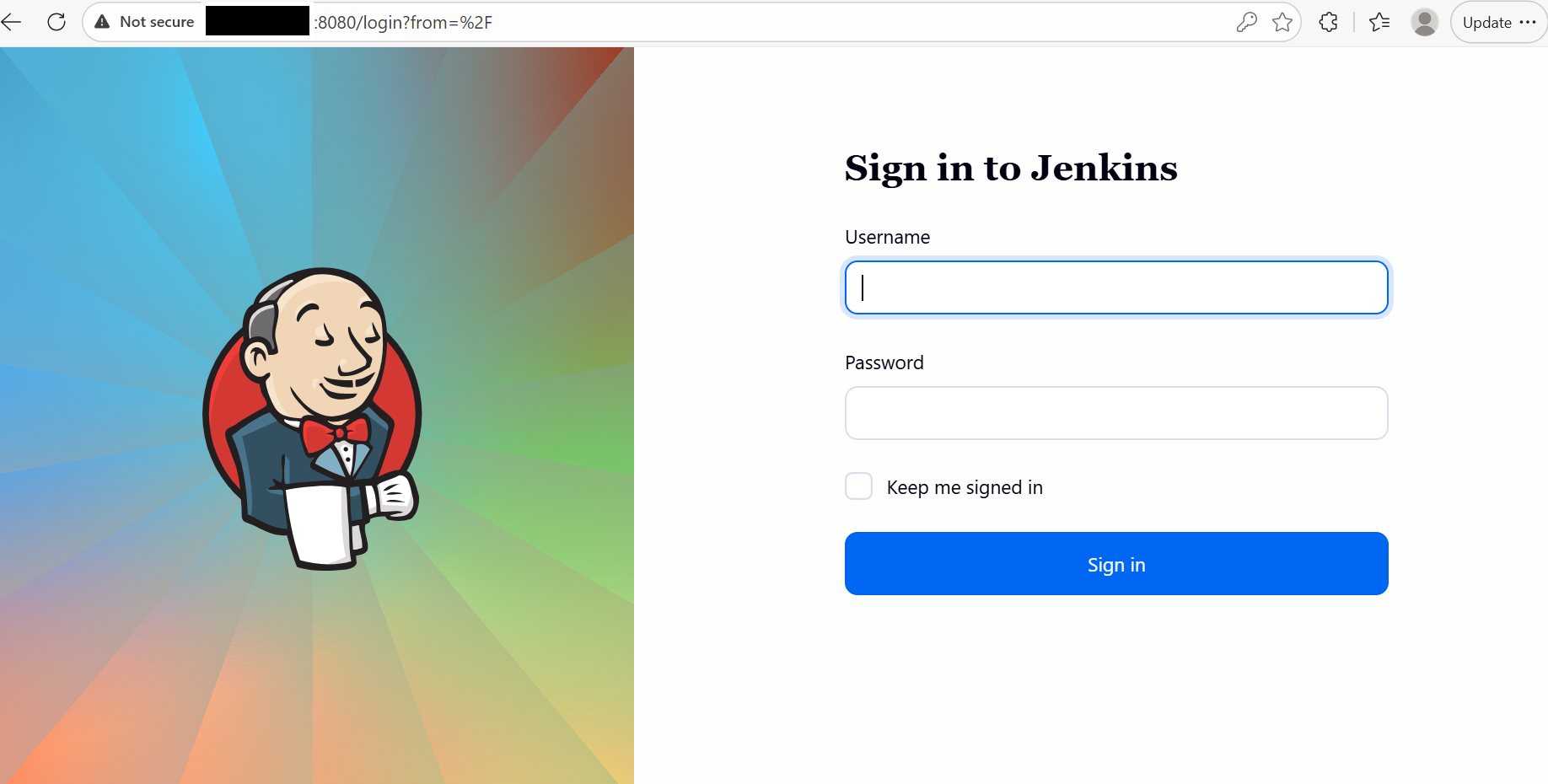 Jenkins login page
Create a new pipeline job
Create a basic pipeline job to validate execution capability:
- Click New Item (left sidebar).
- Enter item name:
armbaseline-pipeline. - Select Pipeline.
- Select OK.
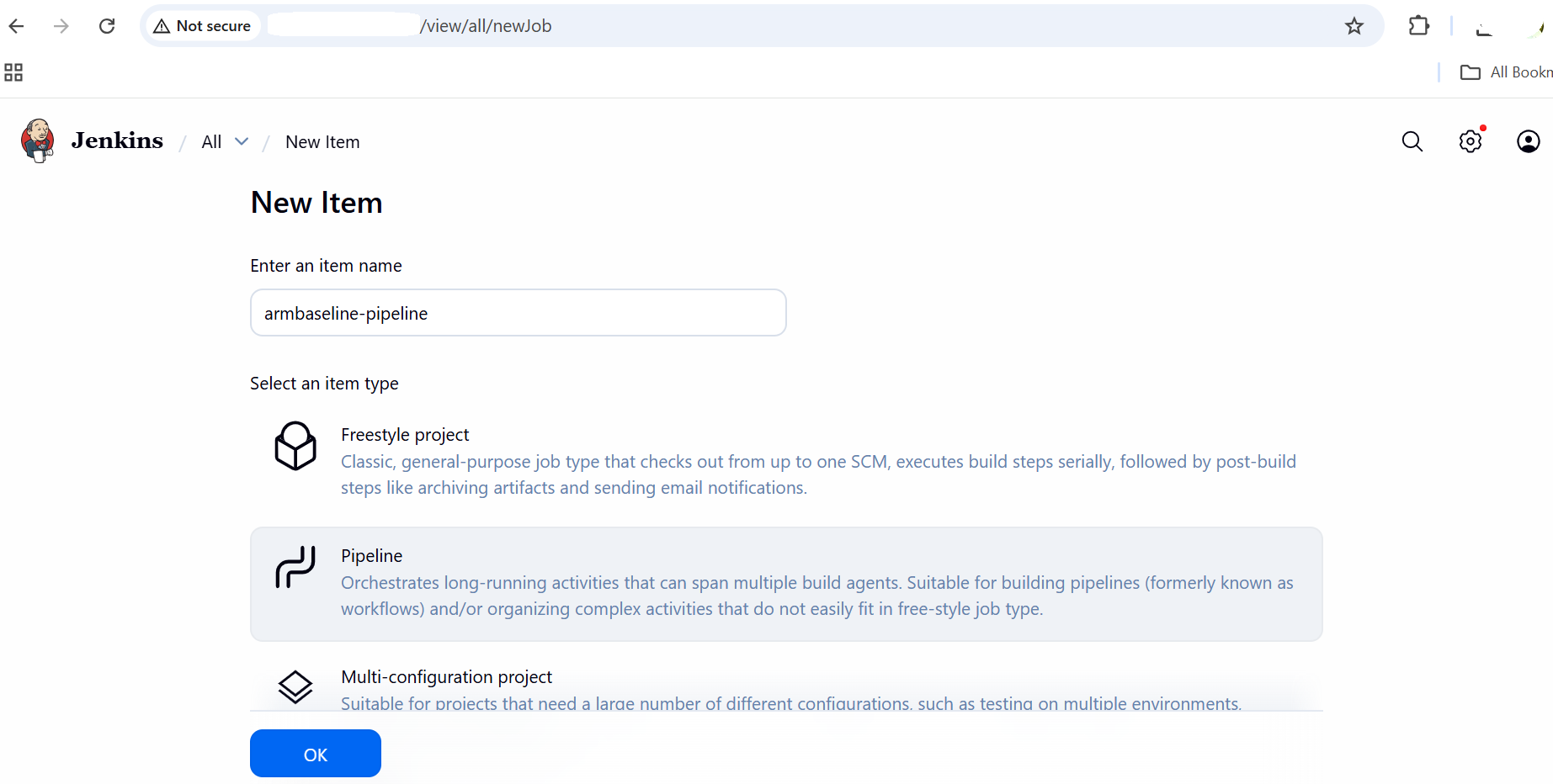 Create new pipeline item
Add the pipeline script
Configure a simple pipeline to validate Arm architecture and Java availability.
Scroll to the Pipeline section:
- Definition: Pipeline script
Paste the following script:
pipeline {
  agent any

  stages {
    stage('Arm Validation') {
      steps {
        sh 'echo "Architecture:"'
        sh 'uname -m'

        sh 'echo "Java Version:"'
        sh 'java -version'
      }
    }
  }
}
Select Save.
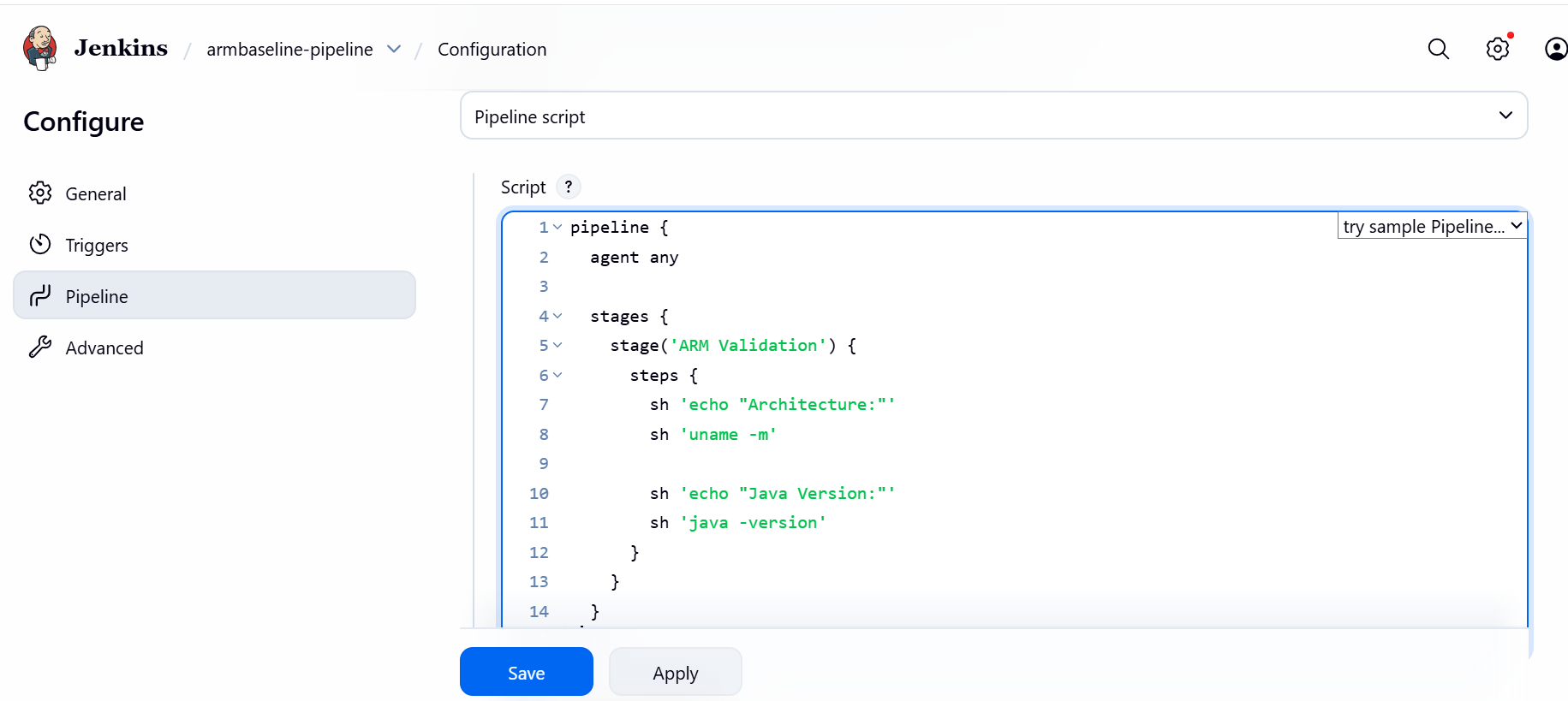 Create pipeline
Run the pipeline
Trigger the pipeline execution:
- On the job page, select Build Now.
- A build number appears under Build History.
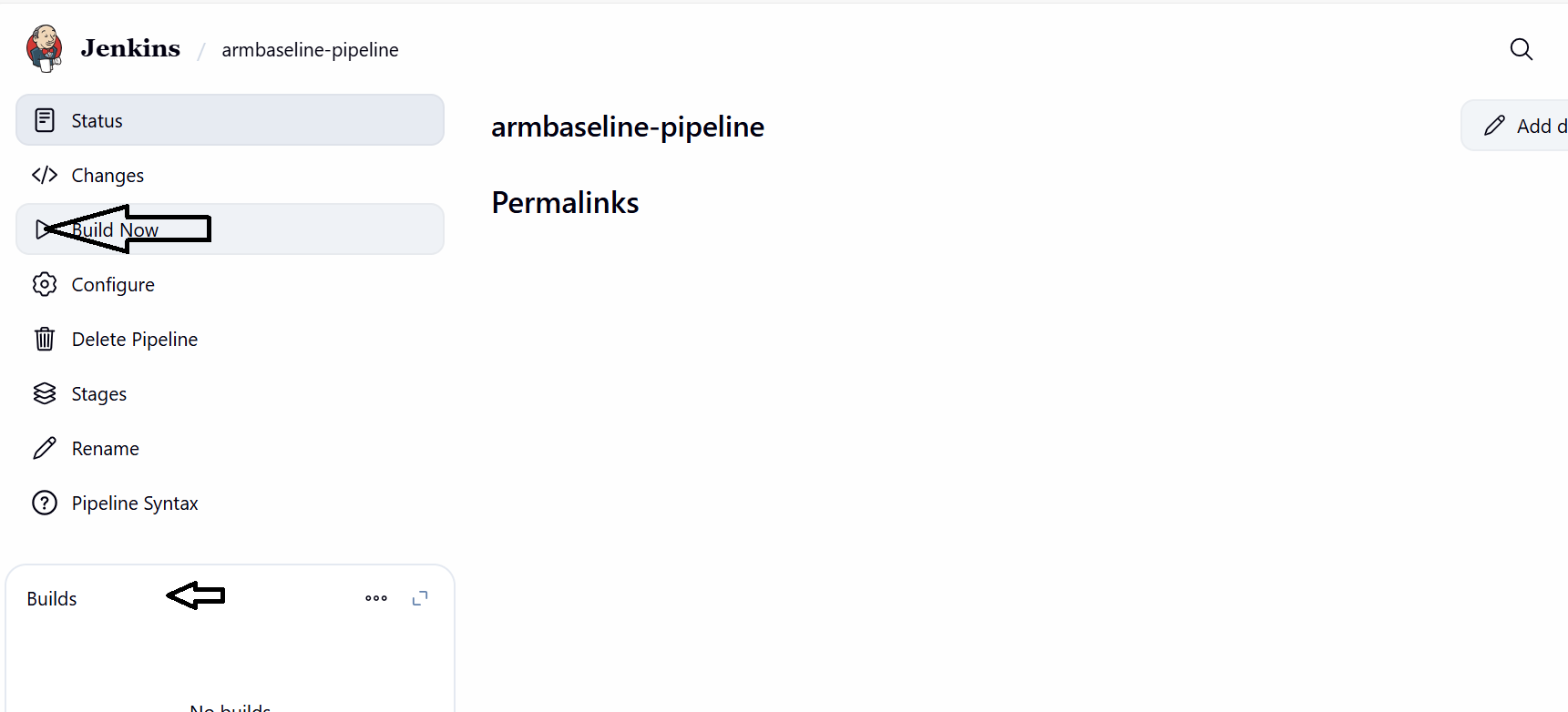 Run pipeline
View console output
Review the pipeline logs to confirm successful execution:
- Select the build number (for example,
#1). - Select Console Output.
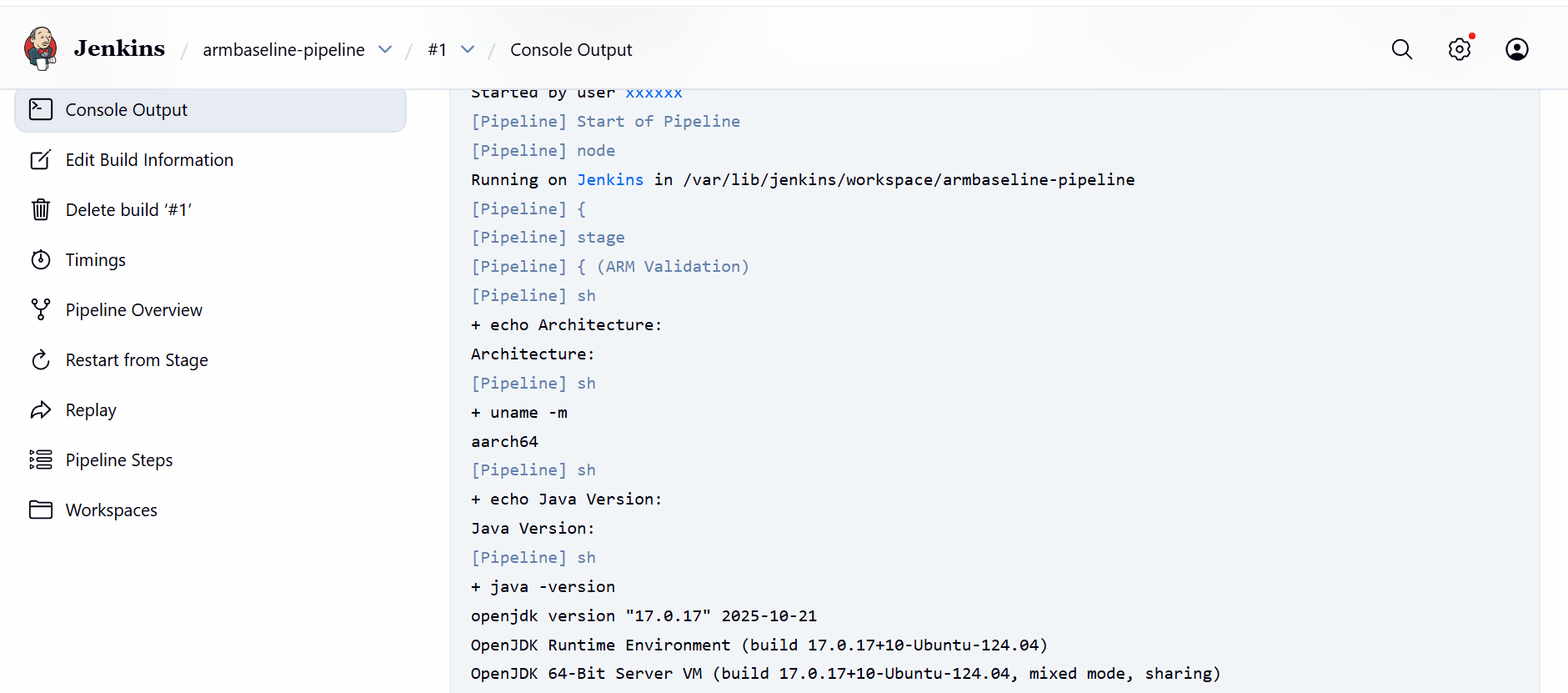 Console output
What you’ve accomplished and what’s next
You’ve successfully validated your Jenkins LTS setup on Azure Ubuntu Arm64 using Java 17. Successful pipeline execution confirms:
- Jenkins LTS is running correctly
- Java 17 is properly configured
- Jenkins jobs execute natively on Arm64
Your system is now ready for CI/CD workloads on Arm architecture. In the next section, you’ll explore more advanced CI use cases.