Deploy and validate Jenkins on Arm cloud servers
Introduction
Technology stack overview
Create an Arm-based virtual machine using Microsoft Cobalt 100
Create a firewall rule on Azure
Install Jenkins on Azure Ubuntu Arm64 virtual machine
Create a firewall rule on GCP
Create a Google Axion C4A virtual machine
Install Jenkins on GCP SUSE Arm64 virtual machine
Validate Jenkins installation
Build an Arm-native Go CI pipeline on Jenkins (GCP SUSE Arm64)
Build a Docker-based CI pipeline on Arm64
Next Steps
Deploy and validate Jenkins on Arm cloud servers
Introduction
Technology stack overview
Create an Arm-based virtual machine using Microsoft Cobalt 100
Create a firewall rule on Azure
Install Jenkins on Azure Ubuntu Arm64 virtual machine
Create a firewall rule on GCP
Create a Google Axion C4A virtual machine
Install Jenkins on GCP SUSE Arm64 virtual machine
Validate Jenkins installation
Build an Arm-native Go CI pipeline on Jenkins (GCP SUSE Arm64)
Build a Docker-based CI pipeline on Arm64
Next Steps
Configure Azure firewall for Jenkins
To allow external traffic on port 8080 for your application running on an Azure virtual machine, open the port in the Network Security Group (NSG) attached to the virtual machine’s network interface or subnet.
For more information about Azure setup, see Getting started with Microsoft Azure Platform .
Create a firewall rule in Azure
To expose the TCP port 8080, create a firewall rule.
Navigate to the Azure Portal , go to Virtual Machines, and select your virtual machine.
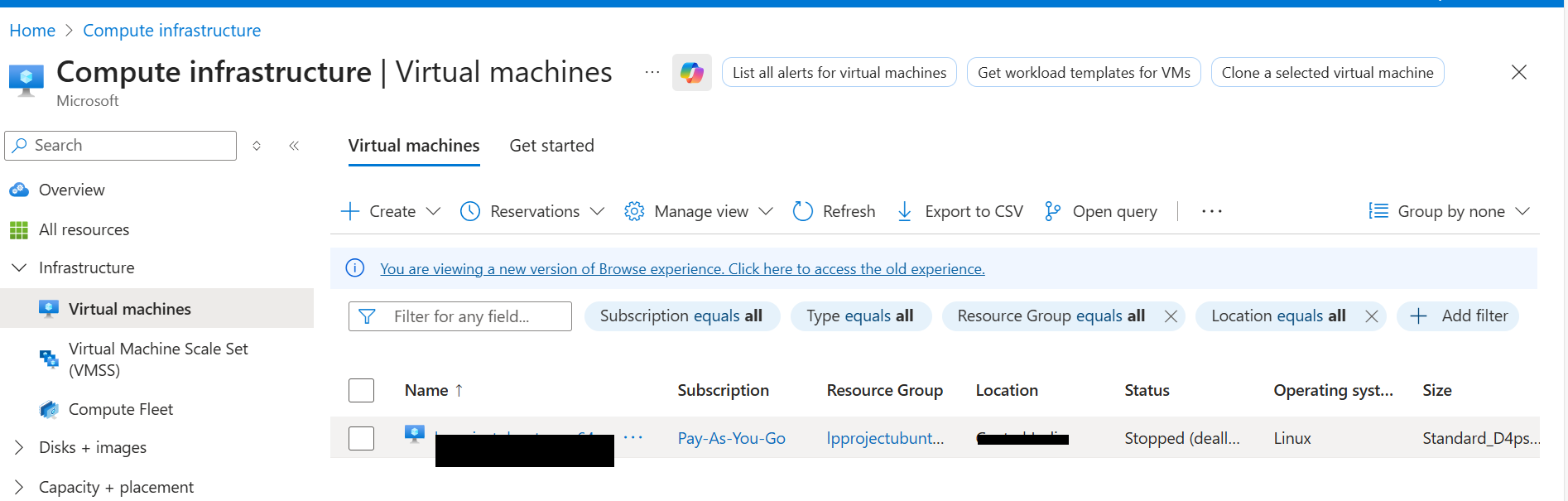 Virtual Machines
In the left menu, select Networking and in the Networking select Network settings that is associated with the virtual machine’s network interface.
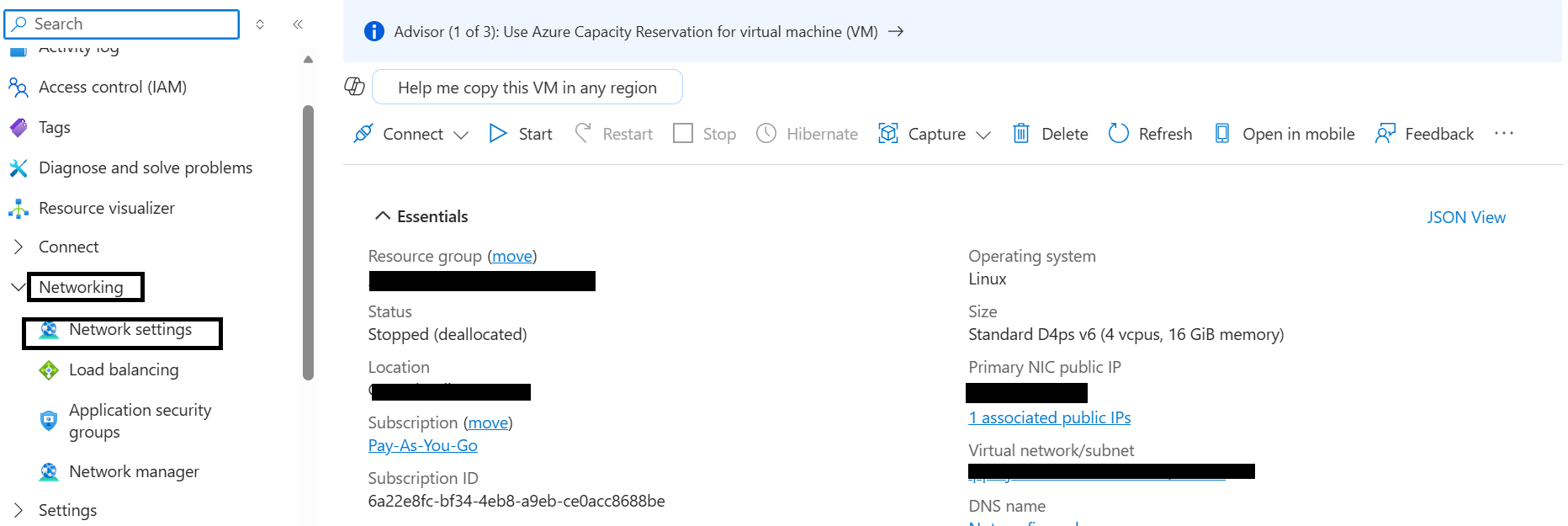 Network settings
Navigate to Create port rule, and select Inbound port rule.
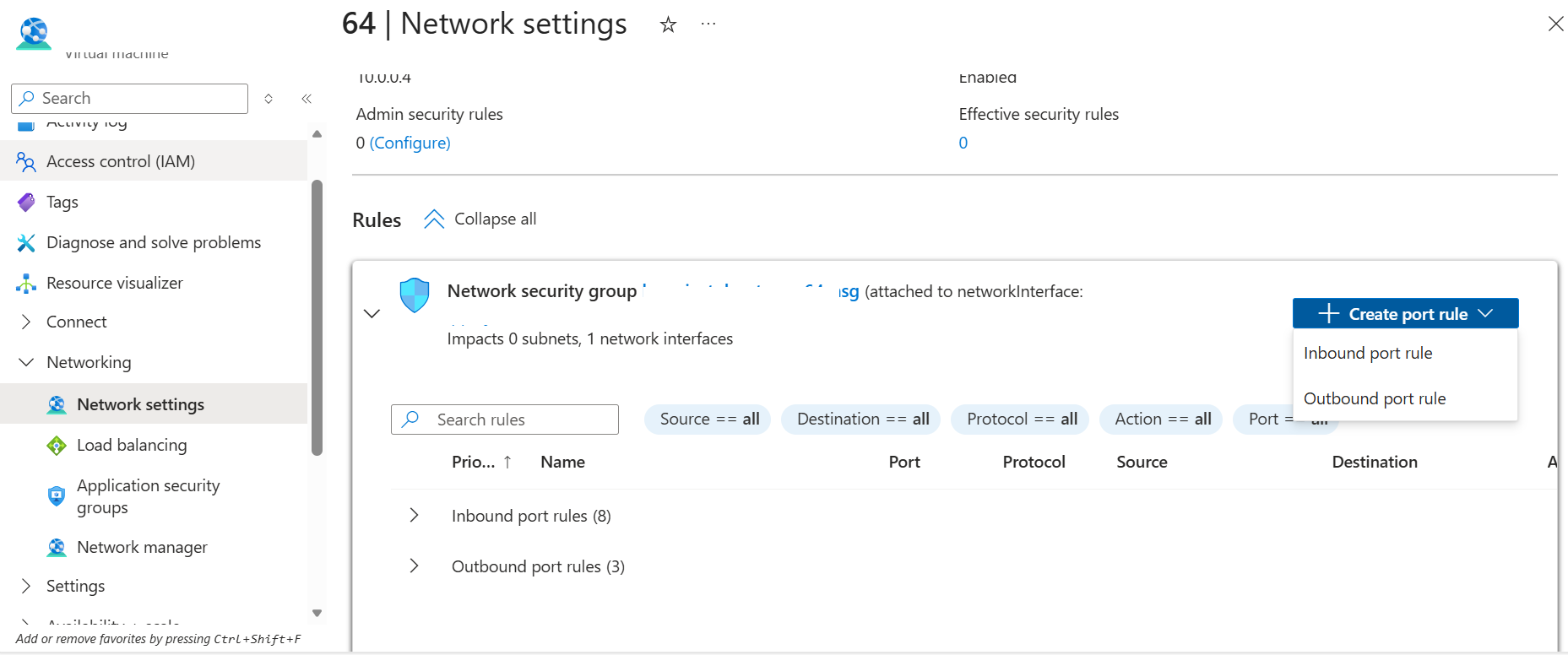 Create rule
Configure it using the following details. After filling in the details, select Add to save the rule.
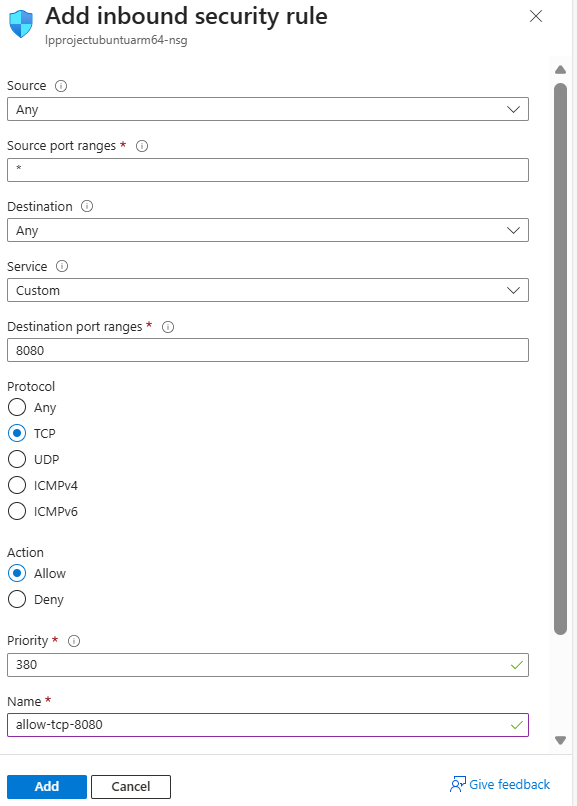 Network settings
The network firewall rule is now created.