Run Java applications on Google Axion processors
Introduction
Create an Arm-based VM instance with Google Axion CPU
Install the JDK and build an application
Test performance and optimize
Next Steps
Run Java applications on Google Axion processors
Install Java
Now that you have an Axion instance running Ubuntu 24.04, you can SSH into it via the Google Cloud console:
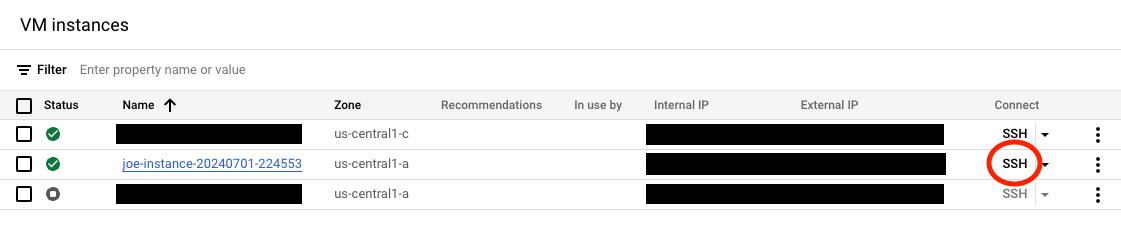
This will bring up a separate window with a shell connected to your instance.
This Ubuntu image does not include Java, so you need to install it. First update apt:
sudo apt update
Then install the default Java Runtime Environment:
sudo apt install default-jre
Check to ensure that the JRE is properly installed:
java -version
Your output will look like this:
openjdk version "21.0.3" 2024-04-16
OpenJDK Runtime Environment (build 21.0.3+9-Ubuntu-1ubuntu1)
OpenJDK 64-Bit Server VM (build 21.0.3+9-Ubuntu-1ubuntu1, mixed mode, sharing)
Once the JRE is installed, you will want to install the default JDK:
sudo apt install default-jdk
After completion of the JDK installation, check the version:
javac -version
The output will look like this:
javac 21.0.3
It’s important to ensure that your version of OpenJDK is at least 11.0.9. There is a large performance gap between OpenJDK-11.0.8 and OpenJDK 11.0.9. A patch added in 11.0.9 reduces false-sharing cache contention. For more information you can view patch JDK-8248214 .
Deploy Spring Petclinic
spring-petclinic is an example Spring-based application that is simple to build and run.
First, download the repo:
git clone https://github.com/spring-projects/spring-petclinic.git
Next, enter the cloned directory and run the build script:
cd spring-petclinic
./mvnw package
This will build the jar file. Once built, you can test the web server by running the jar:
java -jar target/*.jar
Once the application is running, you can open the web app in a web browser by visiting
http://<EXTERNAL_IP>:8080
Where <EXTERNAL_IP> is the value you obtained in the
last section
.