Install and validate Helm on Google Cloud C4A Arm-based VMs
Introduction
Get started with Helm on Google Axion C4A (Arm-based)
Create a Google Axion C4A virtual machine on Google Cloud
Install Helm
Validate Helm workflows on a Google Axion C4A virtual machine
Prepare a GKE cluster for Helm deployments
PostgreSQL Deployment Using Custom Helm Chart
Deploy Redis on GKE
Deploy NGINX with public access
Benchmark Helm concurrency on a Google Axion C4A virtual machine
Next Steps
Install and validate Helm on Google Cloud C4A Arm-based VMs
Introduction
Get started with Helm on Google Axion C4A (Arm-based)
Create a Google Axion C4A virtual machine on Google Cloud
Install Helm
Validate Helm workflows on a Google Axion C4A virtual machine
Prepare a GKE cluster for Helm deployments
PostgreSQL Deployment Using Custom Helm Chart
Deploy Redis on GKE
Deploy NGINX with public access
Benchmark Helm concurrency on a Google Axion C4A virtual machine
Next Steps
Create a custom NGINX Helm chart
In this section you’ll deploy NGINX as a frontend service on Kubernetes using a custom Helm chart. After deployment, NGINX will have public access through a LoadBalancer service with an external IP for browser access.
Create a Helm chart skeleton
Create a Helm chart skeleton that will be customized for NGINX:
helm create my-nginx
Resulting structure
my-nginx/
├── Chart.yaml
├── values.yaml
└── templates/
Clean templates
The default Helm chart includes several files that aren’t required for a basic Nginx deployment. Remove the following files from my-nginx/templates/ to avoid unnecessary complexity and template errors: ingress.yaml, hpa.yaml, serviceaccount.yaml, tests/, NOTES.txt, and httproute.yaml.
cd ./my-nginx/templates
rm -rf hpa.yaml ingress.yaml serviceaccount.yaml tests/ NOTES.txt httproute.yaml
cd $HOME/helm-microservices
Only ngnix-specific templates will be maintained.
Configure values.yaml
Replace the contents of my-nginx/values.yaml:
image:
  repository: nginx
  tag: latest

service:
  type: LoadBalancer
  port: 80
This configuration centralizes settings, allows service exposure without editing templates, and simplifies future changes.
Deployment definition (deployment.yaml)
Replace the entire contents of my-nginx/templates/deployment.yaml:
apiVersion: apps/v1
kind: Deployment
metadata:
  name: {{ include "my-nginx.fullname" . }}

spec:
  replicas: 1
  selector:
    matchLabels:
      app: {{ include "my-nginx.name" . }}

  template:
    metadata:
      labels:
        app: {{ include "my-nginx.name" . }}

    spec:
      containers:
        - name: nginx
          image: nginx
          ports:
            - containerPort: 80
Service definition (service.yaml)
Replace the entire contents of my-nginx/templates/service.yaml to expose NGINX to external traffic:
apiVersion: v1
kind: Service
metadata:
  name: {{ include "my-nginx.fullname" . }}
spec:
  type: LoadBalancer
  ports:
    - port: 80
  selector:
    app: {{ include "my-nginx.name" . }}
A LoadBalancer provides a public IP required for browser access and is a common pattern for frontend services.
Install and access
cd $HOME/helm-microservices
helm install nginx ./my-nginx
        NAME: nginx
LAST DEPLOYED: Tue Jan 20 20:07:47 2026
NAMESPACE: default
STATUS: deployed
REVISION: 1
TEST SUITE: None
Access NGINX from a browser
Get the external IP by running the following command:
kubectl get svc
Wait until EXTERNAL-IP is assigned.
        NAME                       TYPE           CLUSTER-IP       EXTERNAL-IP   PORT(S)        AGE
kubernetes                 ClusterIP      34.118.224.1     <none>        443/TCP        42m
nginx-my-nginx             LoadBalancer   34.118.238.110   34.61.85.5    80:30954/TCP   69s
postgres-app-my-postgres   ClusterIP      34.118.233.240   <none>        5432/TCP       27m
redis-my-redis             ClusterIP      34.118.229.221   <none>        6379/TCP       8m24s
Open the external IP in your browser:
http://<EXTERNAL-IP>
You should see the default NGINX welcome page:
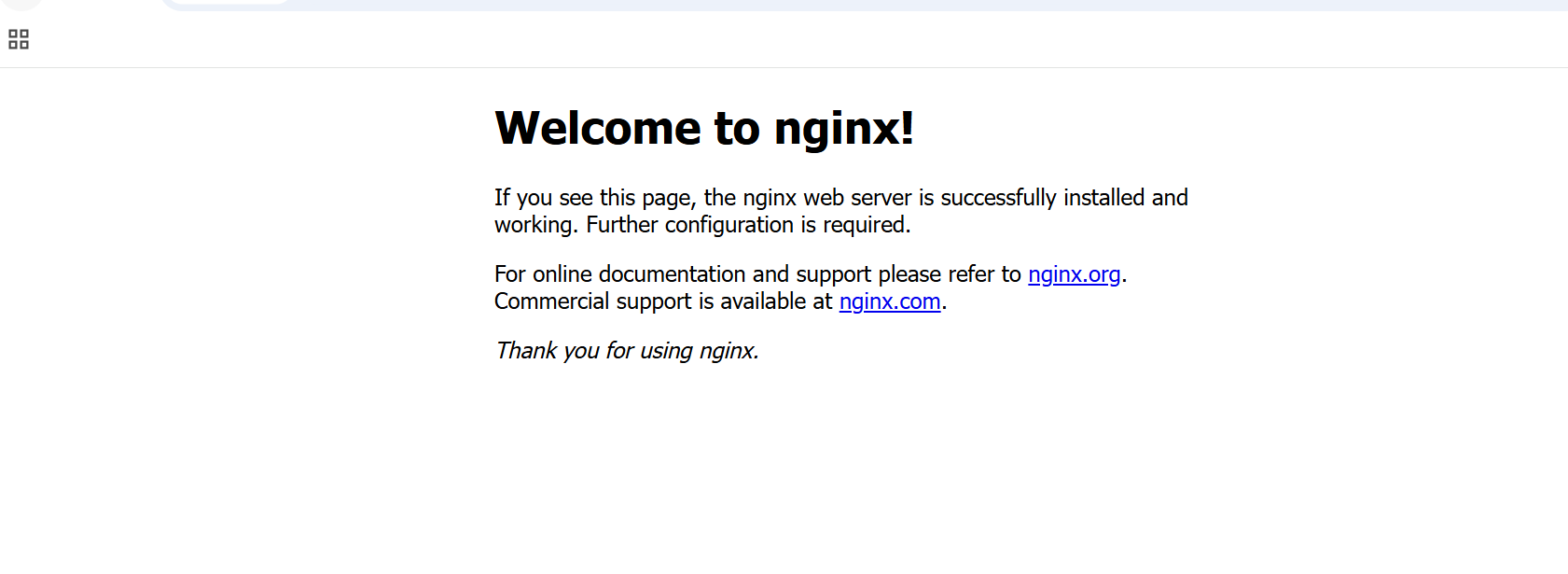 NGINX welcome page
What you’ve accomplished and what’s next
You’ve successfully deployed NGINX as a frontend service using a custom Helm chart. The deployment includes public access through a LoadBalancer with an external IP, and the infrastructure is ready to route traffic to backend services.
This completes the helm-on-gcp Learning Path. You’ve learned how to install and configure Helm on Google Cloud C4A Arm-based virtual machines, create and manage GKE clusters, deploy applications using both official and custom Helm charts, and validate Helm workflows on Arm64-based Kubernetes infrastructure.