Install and validate Helm on Google Cloud C4A Arm-based VMs
Introduction
Get started with Helm on Google Axion C4A (Arm-based)
Create a Google Axion C4A virtual machine on Google Cloud
Install Helm
Validate Helm workflows on a Google Axion C4A virtual machine
Prepare a GKE cluster for Helm deployments
PostgreSQL Deployment Using Custom Helm Chart
Deploy Redis on GKE
Deploy NGINX with public access
Benchmark Helm concurrency on a Google Axion C4A virtual machine
Next Steps
Install and validate Helm on Google Cloud C4A Arm-based VMs
Introduction
Get started with Helm on Google Axion C4A (Arm-based)
Create a Google Axion C4A virtual machine on Google Cloud
Install Helm
Validate Helm workflows on a Google Axion C4A virtual machine
Prepare a GKE cluster for Helm deployments
PostgreSQL Deployment Using Custom Helm Chart
Deploy Redis on GKE
Deploy NGINX with public access
Benchmark Helm concurrency on a Google Axion C4A virtual machine
Next Steps
Overview
In this section, you provision a Google Axion C4A VM on Google Cloud Platform (GCP) using the c4a-standard-4 machine type, which provides 4 vCPUs and 16 GB of memory.
For general guidance on setting up a Google Cloud account and project, see the Learning Path Getting started with Google Cloud Platform .
Provision a Google Axion C4A VM in the Google Cloud Console
To create a VM using the C4A instance type:
- Open the Google Cloud Console .
- Go to Compute Engine > VM instances, and then select Create instance.
- Under Machine configuration:
- Specify an Instance name, Region, and Zone.
- Set Series to C4A.
- Select c4a-standard-4 as the machine type.
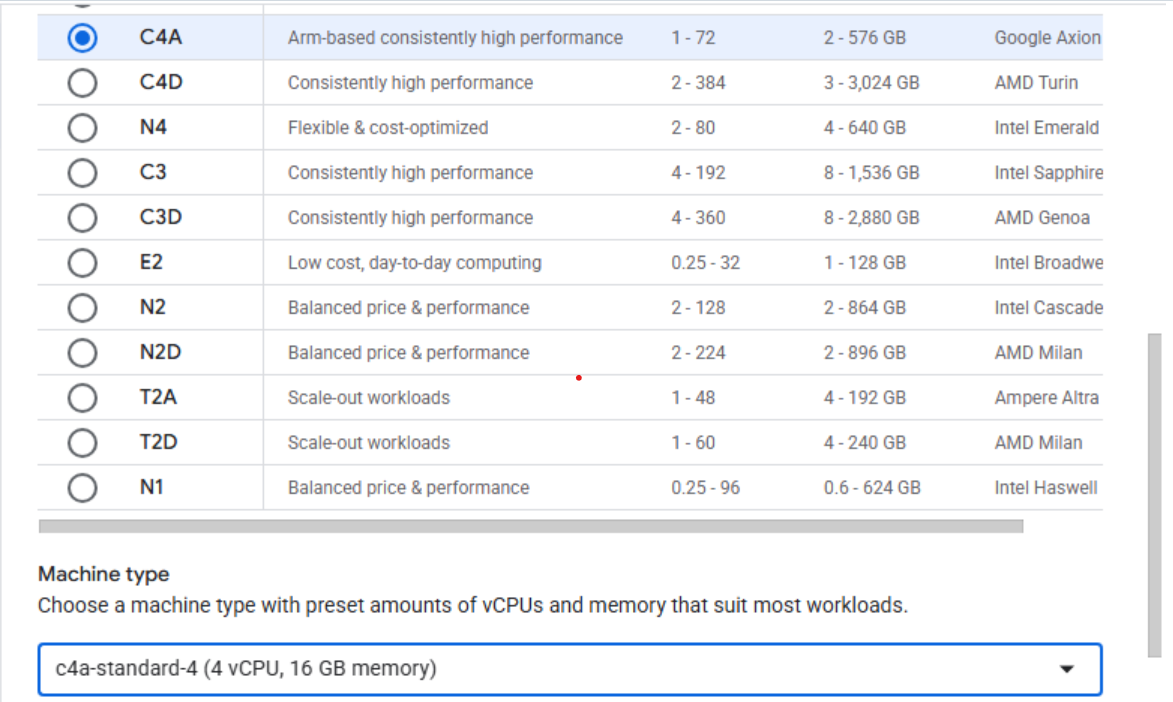 Creating a Google Axion C4A VM in the Google Cloud Console
- Under OS and storage, select Change, and then choose an Arm64-based operating system image.
- For this Learning Path, select SUSE Linux Enterprise Server.
- For the license type, choose Pay as you go.
- Increase Size (GB) from 10 to 50 to allocate sufficient disk space.
- Select Choose to apply the changes.
- Under Networking, enable Allow HTTP traffic and Allow HTTPS traffic to simplify access for later Kubernetes testing.
- Select Create to launch the virtual machine.
After the instance starts, click SSH next to the VM in the instance list to open a browser-based terminal session.
 Connecting to a running C4A VM using SSH
A new browser window opens with a terminal connected to your VM.
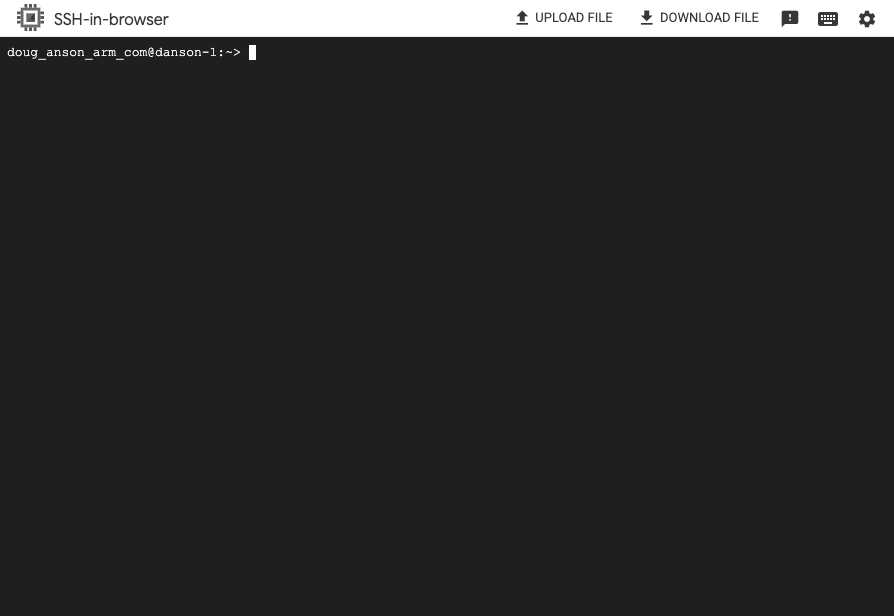 Terminal session connected to the VM
Next, install Helm on your VM.