Deploy Gardener on Google Cloud C4A (Arm-based Axion VMs)
Introduction
Get started with Gardener on Google Axion C4A (Arm Neoverse-V2)
Create a Google Axion C4A Arm virtual machine for Gardener
Install Gardener on your Arm-based SUSE VM
Verify Gardener cluster health and functionality
Benchmark Gardener cluster security with kube-bench
Next Steps
Deploy Gardener on Google Cloud C4A (Arm-based Axion VMs)
Create your Google Axion C4A VM
In this section, you’ll provision a Google Axion C4A Arm-based virtual machine on Google Cloud Platform (GCP) to host your Gardener installation. The C4A series uses Arm Neoverse-V2 cores, providing cost-effective performance for cloud-native workloads like Kubernetes cluster management.
You’ll use the c4a-standard-4 machine type, which provides 4 vCPUs and 16 GB of memory, which is sufficient resources for running Gardener Local with Garden, Seed, and Shoot clusters.
For detailed GCP setup instructions, see the Learning Path Getting started with Google Cloud Platform .
Configure machine settings
Navigate to the Google Cloud Console and go to Compute Engine > VM Instances. Click Create Instance.
Under Machine configuration, configure the following settings:
- Set Instance name to a descriptive name like
gardener-vm - Select your preferred Region and Zone (C4A instances are available in select regions)
- Set Series to C4A
- Select c4a-standard-4 for the machine type
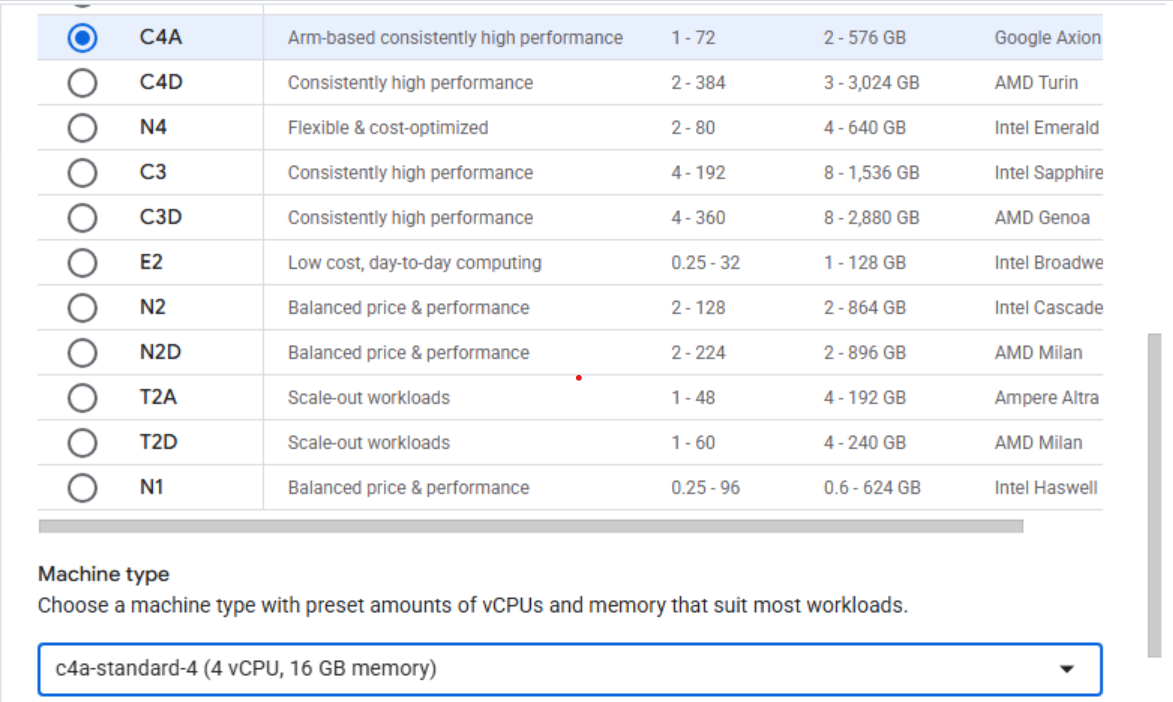 Virtual machine creation interface
Select the operating system
Under Boot disk, click Change to configure the operating system and storage.
Select SUSE Linux Enterprise Server as your operating system. SUSE provides excellent support for Arm64 architecture and includes the container tools needed for Gardener.
For the license type, select Pay As You Go to use SUSE’s subscription-based licensing.
Increase the disk size from the default 10 GB to 50 GB by setting Size (GB) to 50. Gardener requires additional storage for Docker images, Kubernetes components, and cluster data.
Click Select to confirm your boot disk configuration.
Configure networking
Under Firewall, enable both Allow HTTP traffic and Allow HTTPS traffic. These settings allow your Gardener cluster to serve web traffic and API endpoints.
Create and connect to your VM
Click Create to provision your virtual machine. The VM creation takes one to two minutes.
After creation completes, locate your running instance in the VM instances list. Click SSH to open a browser-based terminal connection to your VM.
 Google Cloud Console VM instances list
A new browser window opens with a terminal shell connected to your VM:
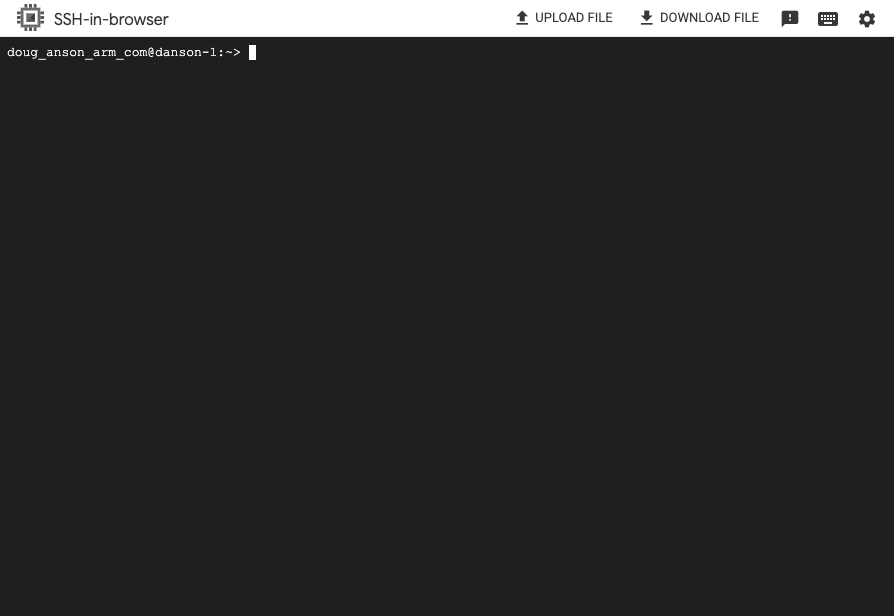 Browser-based SSH terminal window
Verify your Arm64 VM
Confirm that your VM is running on Arm64 architecture:
uname -m
The output is:
aarch64
This confirms your VM is running on Arm64 (aarch64) architecture, ready for Gardener installation.
Summary and what’s next
You have successfully created a Google Axion C4A Arm-based virtual machine running SUSE Linux Enterprise Server. Your VM is configured with the resources needed to run Gardener Local and is ready for software installation. You’re now ready to install Gardener and its dependencies!