Benchmark Linux kernel performance on Arm servers with Fastpath
Introduction
Understand the Fastpath kernel benchmarking workflow
Set up the kernel build host
Set up the Fastpath host
Set up the System Under Test
Generate and execute the benchmark plan
Analyze the benchmark results
Next Steps
Benchmark Linux kernel performance on Arm servers with Fastpath
Provision the kernel build host
CPU-optimized instances compile kernels quickly. In this example, a Graviton m6g.12xlarge instance is used. It will be referred to as the kernel build host throughout the rest of the guide.
The following steps involve launching an EC2 instance. You can perform all EC2 instance creation steps using the AWS Management Console or AWS CLI. For step-by-step instructions to bring up an EC2 instance using the console, see Get started with Arm-based cloud instances or the AWS tutorial Get started with Amazon EC2 .
Create the kernel build host with the following specifications:
- Name - fastpath-build
- Operating system - Ubuntu
- AMI - Ubuntu 24.04 LTS (Arm)
- Architecture - 64-bit Arm
- Instance type -
m6g.12xlarge - Key pair - select or create a key for SSH
- Security group - allow SSH inbound from your IP and cluster peers
- Storage - 200 GB gp3
Choose the method that suits you best to create this instance:
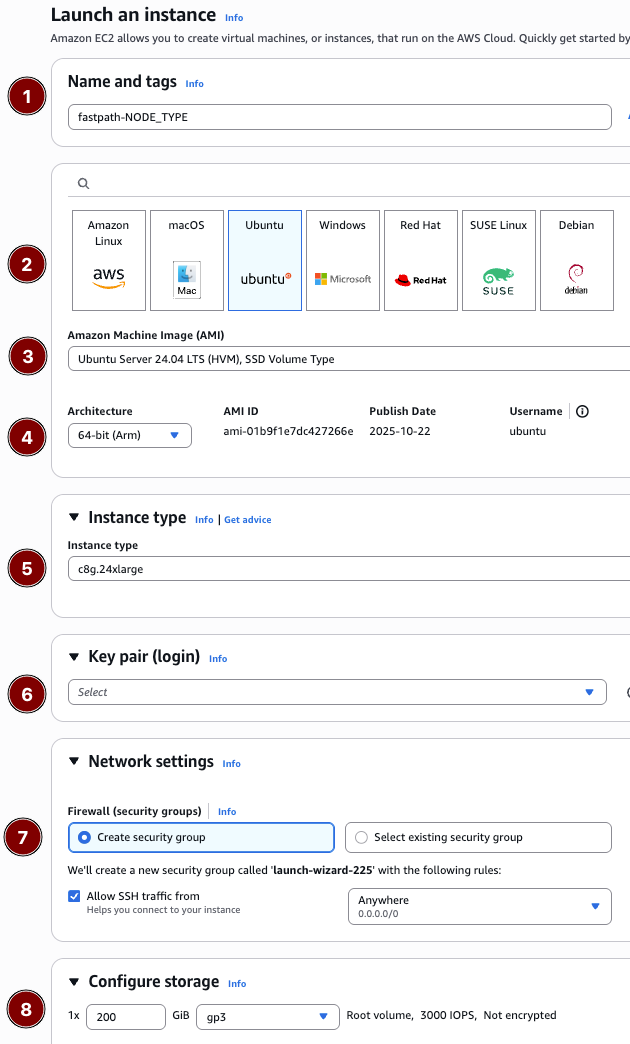 AWS Console
# Replace the placeholders with values from your account/environment
aws ec2 run-instances \
  --image-id resolve:ssm:/aws/service/canonical/ubuntu/server/24.04/stable/current/arm64/hvm/ebs-gp3/ami-id \
  --instance-type m6g.12xlarge \
  --key-name <KEY_PAIR_NAME> \
  --subnet-id <SUBNET_ID> \
  --security-group-ids <SECURITY_GROUP_ID> \
  --associate-public-ip-address \
  --block-device-mappings '[{"DeviceName":"/dev/sda1","Ebs":{"VolumeSize":200,"VolumeType":"gp3","DeleteOnTermination":true}}]' \
  --tag-specifications 'ResourceType=instance,Tags=[{Key=Name,Value=fastpath-build},{Key=fastpath:role,Value=build}]'
cat <<'EOF' > build-host.yaml

# README FIRST!
#
# 1. Click the copy icon to save this file to your clipboard.
# 2. Paste it into your terminal, it will be saved as `build-host.yaml`
# 3. Go to the CloudFormation console at https://us-east-1.console.aws.amazon.com/cloudformation/home
# 4. Click "Create stack -> With new resources (standard)"
# 5. Choose "Upload a template file" in the CloudFormation console.
# 6. Name the stack "fastpath-build", enter remaining required values, then click "Submit" to create the stack.


AWSTemplateFormatVersion: '2010-09-09'
Description: >-
  Fastpath Learning Path - Build host for kernel compilation (Ubuntu 24.04 LTS on Graviton m6g.12xlarge).

Parameters:
  LatestUbuntuAmiId:
    Type: 'AWS::SSM::Parameter::Value<AWS::EC2::Image::Id>'
    Default: /aws/service/canonical/ubuntu/server/24.04/stable/current/arm64/hvm/ebs-gp3/ami-id
    Description: SSM parameter for the latest Ubuntu 24.04 LTS (Arm) AMI.
  InstanceType:
    Type: String
    Default: m6g.12xlarge
    AllowedValues:
      - m6g.12xlarge
      - m6g.8xlarge
      - m6g.4xlarge
    Description: Instance size for the build host.
  KeyPairName:
    Type: AWS::EC2::KeyPair::KeyName
    Description: Existing EC2 key pair to enable SSH access.
  VpcId:
    Type: AWS::EC2::VPC::Id
    Description: VPC where the build host will run.
  SubnetId:
    Type: AWS::EC2::Subnet::Id
    Description: Subnet (preferably public) for the build host.
  SSHAllowedCidr:
    Type: String
    Default: 0.0.0.0/0
    Description: CIDR block allowed to SSH into the build host.
  BuildSecurityGroupId:
    Type: String
    Default: ''
    Description: Security group ID of the Fastpath host to allow peer-to-peer SSH.
  RootVolumeSizeGiB:
    Type: Number
    Default: 200
    MinValue: 100
    MaxValue: 1024
    Description: Size (GiB) of the gp3 root volume.

Conditions:
  HasFastpathPeer: !Not [ !Equals [ !Ref BuildSecurityGroupId, '' ] ]

Resources:
  BuildSecurityGroup:
    Type: AWS::EC2::SecurityGroup
    Properties:
      GroupDescription: Enable SSH access for Fastpath build host
      VpcId: !Ref VpcId
      SecurityGroupIngress:
        - IpProtocol: tcp
          FromPort: 22
          ToPort: 22
          CidrIp: !Ref SSHAllowedCidr
      SecurityGroupEgress:
        - IpProtocol: -1
          CidrIp: 0.0.0.0/0
      Tags:
        - Key: Name
          Value: fastpath-build-sg

  BuildHost:
    Type: AWS::EC2::Instance
    Properties:
      ImageId: !Ref LatestUbuntuAmiId
      InstanceType: !Ref InstanceType
      KeyName: !Ref KeyPairName
      SubnetId: !Ref SubnetId
      SecurityGroupIds:
        - !Ref BuildSecurityGroup
      BlockDeviceMappings:
        - DeviceName: /dev/sda1
          Ebs:
            VolumeSize: !Ref RootVolumeSizeGiB
            VolumeType: gp3
            Encrypted: true
            DeleteOnTermination: true
      Tags:
        - Key: Name
          Value: fastpath-build
        - Key: fastpath:role
          Value: build

Outputs:
  InstanceId:
    Description: ID of the build host EC2 instance.
    Value: !Ref BuildHost
  PublicIp:
    Description: Public IPv4 address (if assigned) to reference as BUILD_PUBLIC_IP.
    Value: !GetAtt BuildHost.PublicIp
  PrivateIp:
    Description: Private IPv4 address to reference as BUILD_PRIVATE_IP.
    Value: !GetAtt BuildHost.PrivateIp
  SecurityGroupId:
    Description: Security group attached to the build host.
    Value: !Ref BuildSecurityGroup
EOF
When the instance reports a running state, note the public and private IP addresses as BUILD_PUBLIC_IP and BUILD_PRIVATE_IP. You’ll need these values later.
Clone the kernel build repository on the build host
The kernel build repository contains build scripts and configuration files to compile kernels.
To clone the repository, first, SSH into the m6g.12xlarge host using the configured key pair.
For more information, see the section Install required dependencies in this Learning Path.
Run the commands from that section on the build host.
sudo apt update
sudo apt install -y git python3 python3-pip python3-venv python-is-python3 build-essential bc rsync dwarves flex bison libssl-dev libelf-dev btop yq jq
git clone https://github.com/geremyCohen/arm_kernel_install_guide.git ~/arm_kernel_install_guide
cd ~/arm_kernel_install_guide
chmod +x scripts/*.sh
Build with the kernel build utility script
With the repository cloned, you can now produce kernels with Fastpath support.
Normally, to manually build, you’d have to:
- Update the host and install proper versions of every kernel build dependency
- Find and use the current stock kernel config
- Clone the upstream kernel tree to fetch the desired versions and clean the tree between builds
- For each kernel version, copy the base config into the workspace, and append all Fastpath-specific options
- Run tuxmake for each kernel with the proper options
- Repeat the entire process for the second tag, ensuring the builds don’t collide
- Verify both kernel directories contain the required files
The scripts/kernel_build_and_install.sh script bundles all those steps together in a single easy-to-use command.
Which kernels should you build and test with Fastpath?
The answer to this question depends on what you’re trying to accomplish.
If you’re running through the Fastpath tutorial for the first time and getting used to how it works, use kernel versions v6.18.1 and v6.19-rc1.
Once you’re familiar with the process and want to explore and test further, choose any specific kernel versions based on your use case.
Compile and build Fastpath-enabled kernels 6.18.1 and 6.19-rc1
Warning messages are expected at compile-time. Warnings can be safely ignored, however fatal errors should be investigated.
To compile kernels with Fastpath options:
On the build host, navigate to the arm_kernel_install_guide folder you just cloned.
cd ~/arm_kernel_install_guide
Open the Custom tags with Fastpath enabled section from this Learning Path, and follow the instructions to run the build script.
./scripts/kernel_build_and_install.sh --tags v6.18.1,v6.19-rc1 --fastpath true
The output should be similar to the following (always refer to the above link for the latest command line):
[2026-01-08 18:13:14] Updating apt metadata
Kernel build settings:
  Repo:                git://git.kernel.org/pub/scm/linux/kernel/git/stable/linux.git
  Branch:              linux-rolling-stable
  Tags:                v6.18.1,v6.19-rc1
  Config file:         /boot/config-6.14.0-1018-aws
  Kernel dir base:     /home/ubuntu/kernels/linux
  Output base:         /home/ubuntu/kernels
  Fastpath configs:    true
  64K page size:       false
  Kernel install:      false
...
I: build output in /home/ubuntu/kernels/6.18.1-ubuntu
[2026-01-08 18:32:03] [v6.18.1-1] Build artifacts are located in /home/ubuntu/kernels/6.18.1-ubuntu+
I: build output in /home/ubuntu/kernels/6.19.0-rc1-ubuntu
[2026-01-08 18:32:06] [v6.19-rc1-2] Build artifacts are located in /home/ubuntu/kernels/6.19.0-rc1-ubuntu+
The script builds two kernel images. This process may take some time. On a m6g.12xlarge instance, expect approximately 30 minutes for both kernel builds to complete.
Monitor the console output for the BUILD COMPLETE message.
Once finished, you’re ready to move on to the next step, where you prepare the Fastpath host.
What you’ve accomplished and what’s next
In this section, you:
- Provisioned a high-performance Graviton build host
- Installed kernel build dependencies and utility scripts
- Compiled two Fastpath-enabled kernels (v6.18.1 and v6.19-rc1) using tuxmake
Next, you’ll set up the Fastpath host to orchestrate the benchmarking workflow and copy the compiled kernels for testing.