Deploy a container on AWS Graviton processors with Amazon ECS Managed Instances
Introduction
Set up IAM roles and an Arm-compatible task definition
Create a capacity provider for Graviton-based instances
Run a container as an Amazon ECS task on AWS Graviton
Clean up AWS resources
Next Steps
Deploy a container on AWS Graviton processors with Amazon ECS Managed Instances
Understand capacity providers and Graviton selection
When you use Amazon ECS Managed Instances, a capacity provider manages the compute capacity for your tasks. It defines a launch template that tells Amazon ECS how to launch instances. The template specifies the instance profile, networking, storage, and the instance requirements used to select instance types.
Instead of naming specific instance types, you can describe the attributes that you need, such as vCPU count, memory, and CPU manufacturer. Amazon ECS selects matching instance types automatically based on the attributes, as well as factors such as availability and resource requirements.
AWS Graviton is Amazon’s family of Arm-based processors, built on Arm Neoverse cores. To target Graviton, you’ll combine two settings:
- The task definition’s
runtimePlatform.cpuArchitecturevalue ofARM64, which you set earlier. - The capacity provider’s CPU manufacturers attribute, which filters the instance pool to Amazon-built Graviton CPUs. The console value of the attribute is Amazon, and the AWS CLI value is
amazon-web-services.
Before you begin
Ensure that you have a VPC with public subnets and a security group that allows inbound traffic on TCP port 80. If you need to create a security group, see
Create a security group for your Amazon EC2 instance
.
Create the cluster and capacity provider
You can use the console or the AWS CLI to create the cluster and the capacity provider.
Create the cluster and capacity provider using the console
To create a cluster and a custom capacity provider in the AWS Management Console:
Navigate to the console for Amazon ECS .
Select Clusters.
Select Create cluster.
Under Cluster configuration, for Cluster name, enter ecs-managed-instances-cluster.
Under Infrastructure - advanced, select Fargate and Managed Instances as the method for obtaining compute capacity.
For Instance profile, select the ecsInstanceRole instance profile that you created earlier.
For Infrastructure role, select the ecsInfrastructureRole infrastructure role that you created earlier.
For Instance selection, select Use custom - advanced. By default, CPU (vCPU) and Memory (MiB) are configured as the first two instance attributes.
To add a third instance attribute, select Add instance attribute.
For the third attribute, select CPU manufacturers for Attribute, then select Amazon as the Attribute value. Leave the CPU (vCPU) and Memory (MiB) attribute values as defaults. You’ll see a list of instance types that match the criteria:
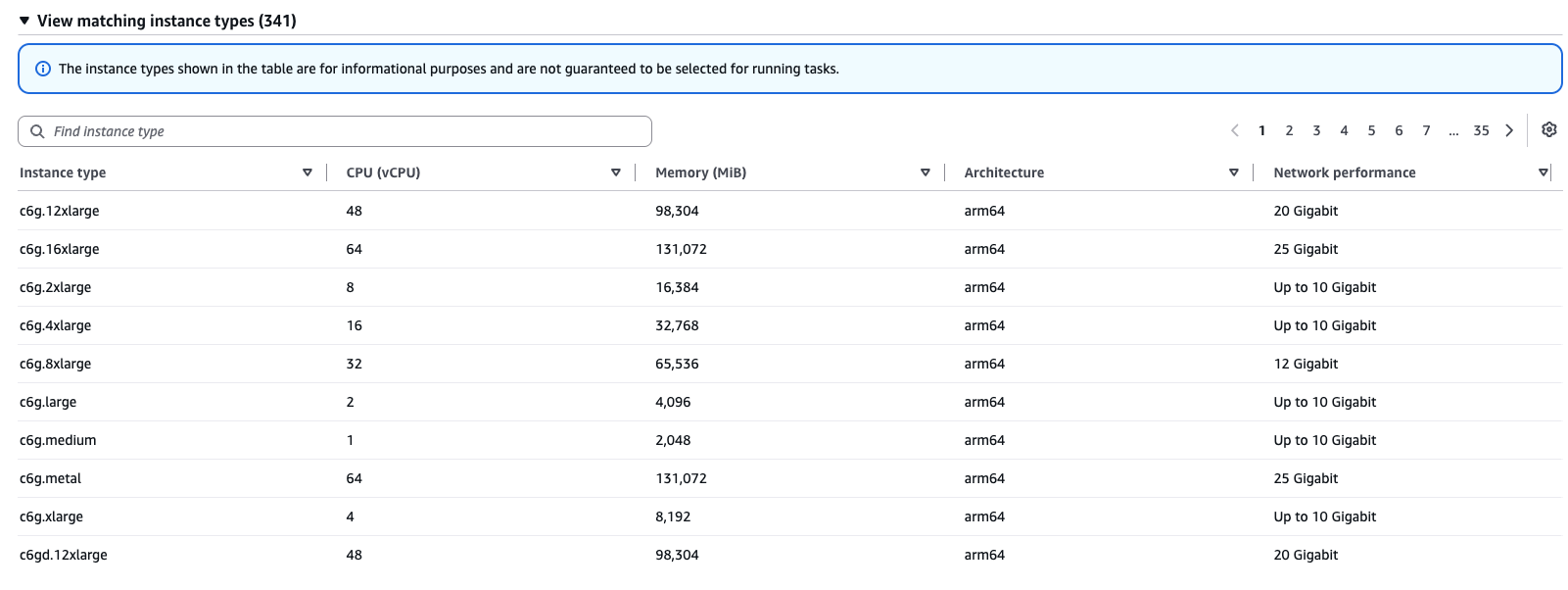 Arm64 instance types matching the capacity provider requirements
Under Network settings, configure the following:
- For VPC, select an available VPC such as the default VPC.
- For Subnets, select available subnets that are associated with the VPC.
- For Security group, select Use an existing security group, then select a security group that has port
80open for inbound traffic.
Leave other settings as defaults and select Create.
Create the cluster and capacity provider using the CLI
To create the cluster, run:
aws ecs create-cluster \
  --cluster-name ecs-managed-instances-cluster
Create a file named managed-instances-capacity-provider.json with the following contents. Replace <account-id>, <public-subnet-id>, and <security-group-id> with values from your AWS account:
{
  "name": "graviton-managed-instances-cp",
  "cluster": "ecs-managed-instances-cluster",
  "managedInstancesProvider": {
    "infrastructureRoleArn": "arn:aws:iam::<account-id>:role/ecsInfrastructureRole",
    "instanceLaunchTemplate": {
      "ec2InstanceProfileArn": "arn:aws:iam::<account-id>:instance-profile/ecsInstanceRole",
      "networkConfiguration": {
        "subnets": [
          "<public-subnet-id>"
        ],
        "securityGroups": [
          "<security-group-id>"
        ]
      },
      "storageConfiguration": {
        "storageSizeGiB": 30
      },
      "capacityOptionType": "ON_DEMAND",
      "instanceRequirements": {
        "vCpuCount": {
          "min": 1,
          "max": 4
        },
        "memoryMiB": {
          "min": 4096,
          "max": 8192
        },
        "cpuManufacturers": [
          "amazon-web-services"
        ],
        "instanceGenerations": [
          "current"
        ],
        "bareMetal": "excluded"
      }
    },
    "propagateTags": "CAPACITY_PROVIDER"
  }
}
The vCPU and memory ranges support the resources requested by the nginx task definition while giving Amazon ECS a choice of matching instance types. The amazon-web-services CPU manufacturer is the CLI value for the attribute that’s equivalent to Amazon in the console.
Create the ECS Managed Instances capacity provider and associate it with the cluster:
aws ecs create-capacity-provider \
  --cli-input-json file://managed-instances-capacity-provider.json
Associate the capacity provider with the cluster and make it the default capacity provider strategy:
aws ecs put-cluster-capacity-providers \
  --cluster ecs-managed-instances-cluster \
  --capacity-providers graviton-managed-instances-cp \
  --default-capacity-provider-strategy \
    capacityProvider=graviton-managed-instances-cp,weight=1
Confirm that the capacity provider is associated with the cluster:
aws ecs describe-clusters \
  --clusters ecs-managed-instances-cluster \
  --query 'clusters[0].{capacityProviders:capacityProviders,defaultStrategy:defaultCapacityProviderStrategy}'
By specifying a requirement for CPUs manufactured by Amazon, you filter the instance pool to instances based on Amazon-built CPUs, which are AWS Graviton processors. Combined with the ARM64 architecture in your task definition, this ensures that Amazon ECS runs your task on an Arm-based Graviton instance.
What you’ve accomplished and what’s next
You’ve created an Amazon ECS cluster in which you’ll run your container. You’ve also configured a capacity provider that uses a security group allowing inbound traffic on port 80. The capacity provider uses CPU manufacturer requirements to filter for Arm-based instance types.
Next, you’ll run a container on an Arm-based instance that meets these instance requirements.