Monitor Azure Cobalt 100 Arm64 virtual machines using Dynatrace OneAgent
Introduction
Overview of Azure Cobalt 100 and Dynatrace
Create an Azure Cobalt 100 Arm64 virtual machine
Create a firewall rule on Azure
Install Dynatrace OneAgent on Azure Ubuntu Arm64 virtual machine
Install Dynatrace ActiveGate on Azure Ubuntu Arm64 virtual machine
Next Steps
Monitor Azure Cobalt 100 Arm64 virtual machines using Dynatrace OneAgent
Install Dynatrace ActiveGate on Azure Ubuntu Arm64
Dynatrace ActiveGate acts as a secure gateway between monitored environments and the Dynatrace SaaS platform.
It improves scalability, enables Kubernetes monitoring, and routes monitoring traffic efficiently.
In this guide, you’ll install Dynatrace ActiveGate on an Azure Ubuntu 24.04 LTS Arm64 virtual machine running on Azure Cobalt 100 processors.
After installation completes, ActiveGate:
- Runs as a system service
- Listens on port 9999 for Dynatrace communication
- Connects to your Dynatrace SaaS environment
- Operates natively on Arm64 (
aarch64) architecture
Verify OneAgent installation
ActiveGate is commonly installed on a host that already has Dynatrace OneAgent installed.
This allows ActiveGate to securely route monitoring traffic from OneAgent to the Dynatrace environment.
Verify that OneAgent is running:
sudo systemctl status oneagent
If OneAgent isn’t installed, install it first using the previous guide.
Log in to Dynatrace
Open your Dynatrace environment in a browser.
https://<ENVIRONMENT-ID>.live.dynatrace.com
Example:
https://qzo722404.live.dynatrace.com
This is your Dynatrace SaaS environment URL.
Navigate to the ActiveGate deployment page
From the Dynatrace main dashboard:
- Select Search on the upper left and search for Deployment.
- Select Deployment status.
- Choose ActiveGate.
- Select Install ActiveGate.
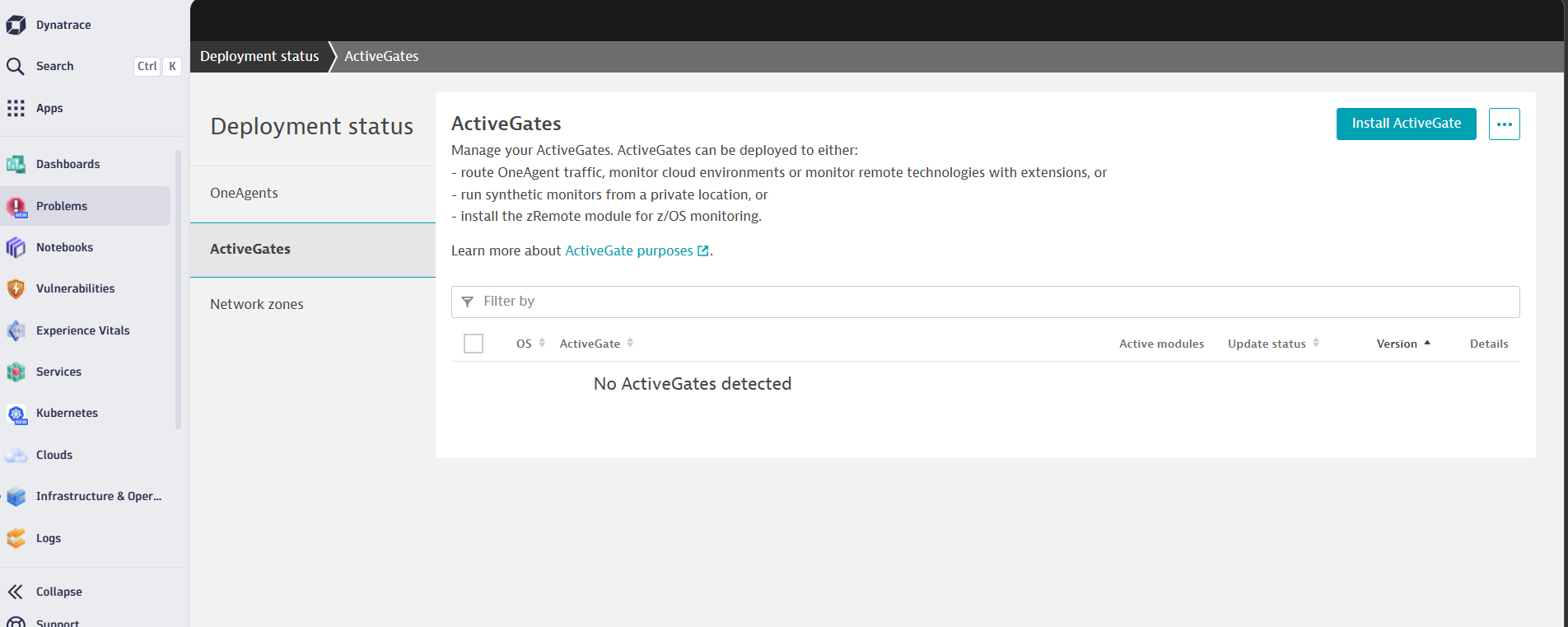 Dynatrace ActiveGate not yet installed
Dynatrace generates an installation command specifically for your environment.
Select Arm architecture
On the installer configuration page:
- Platform -> Linux
- Architecture -> ARM64
- Select Generate token to create an authentication token
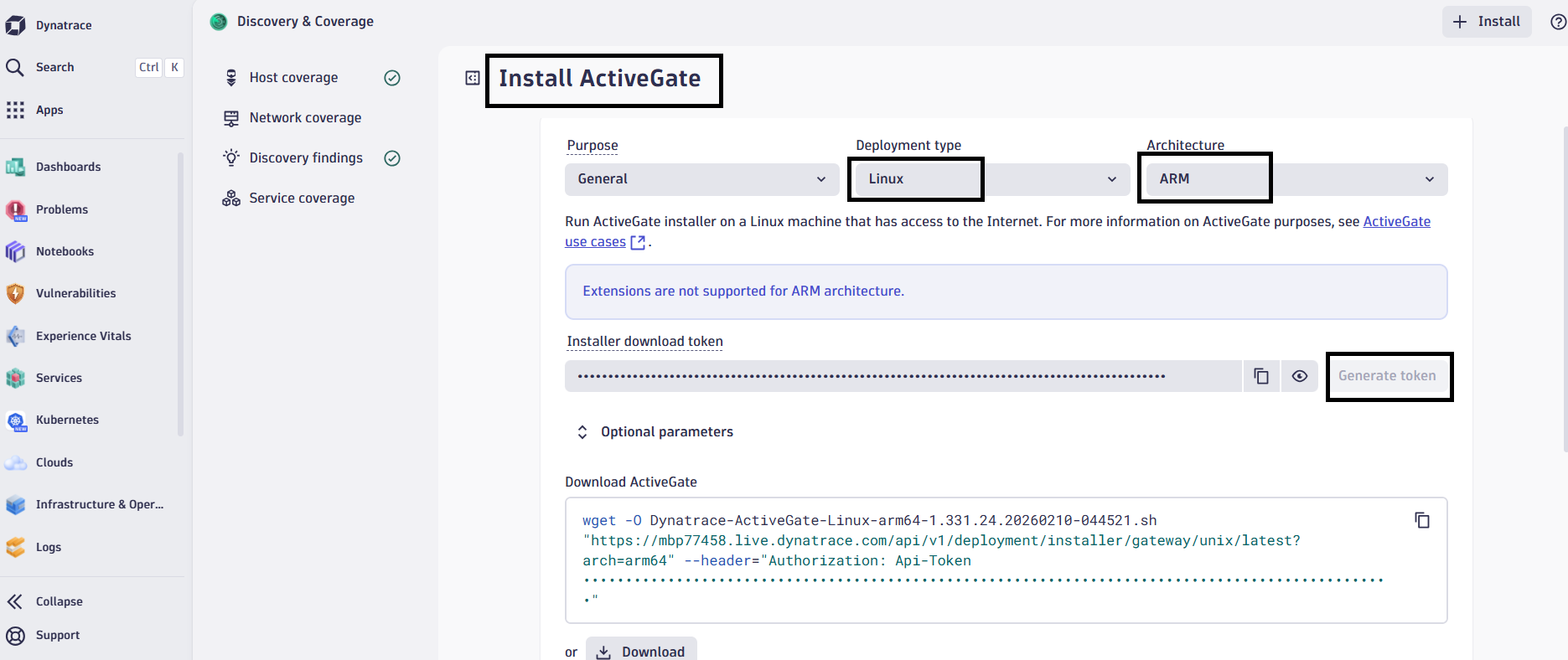 Dynatrace ActiveGate installation configuration
This ensures that the installer downloads the Arm64-compatible ActiveGate binaries.
Copy the ActiveGate installer command
Dynatrace generates a command similar to the following:
Download ActiveGate:
wget -O Dynatrace-ActiveGate-Linux-arm.sh \
"https://<ENVIRONMENT-ID>.live.dynatrace.com/api/v1/deployment/installer/gateway/unix/latest?arch=arm" \
--header="Authorization: Api-Token <API_TOKEN>"
Example:
wget -O Dynatrace-ActiveGate-Linux-arm.sh \
"https://qzo72404.live.dynatrace.com/api/v1/deployment/installer/gateway/unix/latest?arch=arm" \
--header="Authorization: Api-Token DT_API_TOKEN"
Verify signature:
wget https://ca.dynatrace.com/dt-root.cert.pem
( echo 'Content-Type: multipart/signed; protocol="application/x-pkcs7-signature"; micalg="sha-256"; boundary="--SIGNED-INSTALLER"'; echo; echo; echo '----SIGNED-INSTALLER'; cat Dynatrace-ActiveGate-Linux-arm.sh ) | openssl cms -verify -CAfile dt-root.cert.pem > /dev/null
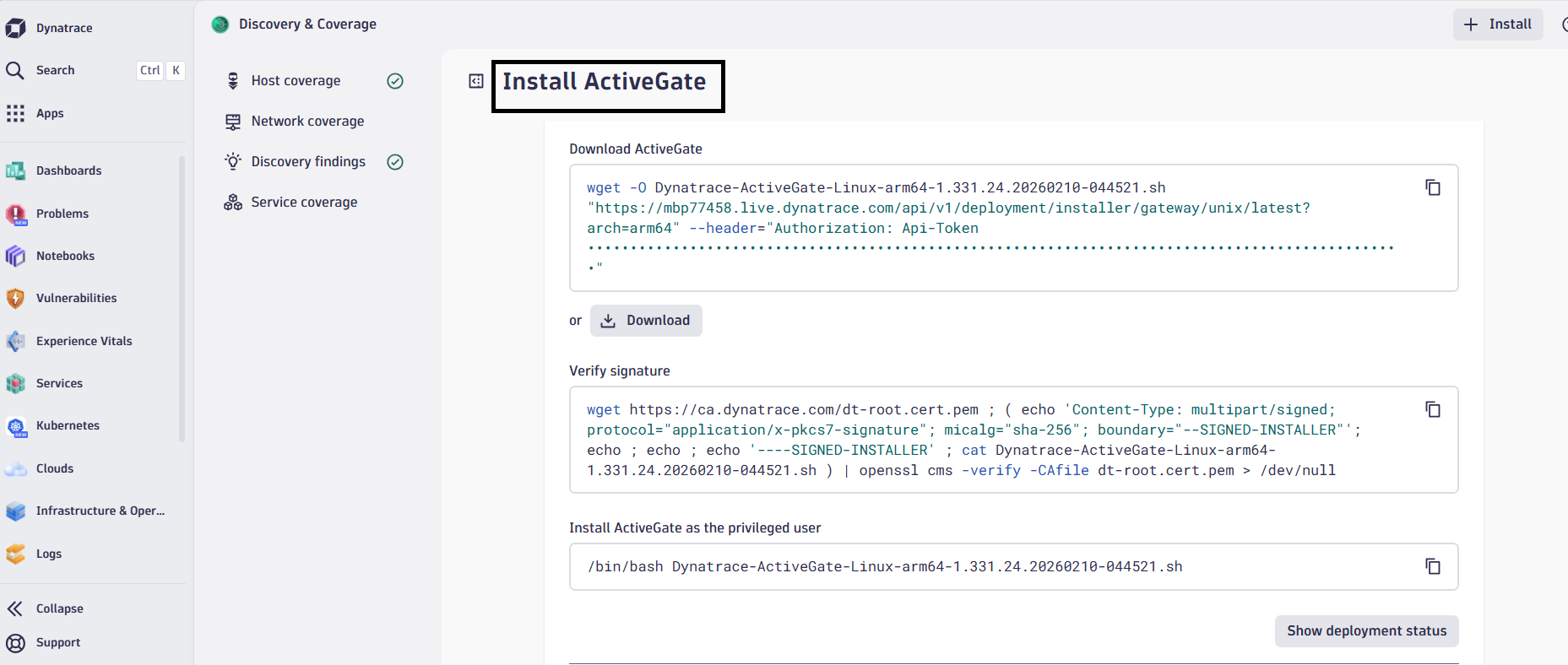 Dynatrace ActiveGate installer command
Install ActiveGate as the privileged user:
Copy the command under “Install ActiveGate as the privileged user” from your dashboard and prepend “sudo " to it to launch the install:
sudo /bin/bash Dynatrace-ActiveGate-Linux-arm.sh
The installer automatically performs the following tasks:
- Downloads ActiveGate components
- Installs the ActiveGate service
- Configures communication with Dynatrace SaaS
- Starts the ActiveGate service
The output is similar to:
        2026-03-12 05:59:21 UTC Starting Dynatrace ActiveGate AutoUpdater...
2026-03-12 05:59:21 UTC Checking if Dynatrace ActiveGate AutoUpdater is running ...
2026-03-12 05:59:21 UTC Dynatrace ActiveGate AutoUpdater is running.
2026-03-12 05:59:21 UTC Cleaning autobackup...
2026-03-12 05:59:21 UTC Removing old installation log files...
2026-03-12 05:59:21 UTC
2026-03-12 05:59:21 UTC --------------------------------------------------------------
2026-03-12 05:59:21 UTC Installation finished successfully.
Verify the ActiveGate service
Check that the ActiveGate service is running.
sudo systemctl status dynatracegateway
The output is similar to:
        ● dynatracegateway.service - Dynatrace ActiveGate service
     Loaded: loaded (/etc/systemd/system/dynatracegateway.service; enabled; preset: enabled)
     Active: active (running) since Thu 2026-03-12 05:59:07 UTC; 1min 7s ago
    Process: 20280 ExecStart=/opt/dynatrace/gateway/dynatracegateway start (code=exited, status=0/SUCCESS)
This confirms that ActiveGate started successfully.
Verify the ActiveGate communication port
ActiveGate communicates using port 9999.
Verify that the port is listening:
sudo ss -tulnp | grep 9999
The output is similar to:
tcp LISTEN 0 50 *:9999 *:* users:(("java",pid=20319,fd=403))
This confirms that ActiveGate is accepting incoming connections.
Confirm ActiveGate in Dynatrace UI
Open the Dynatrace web interface and navigate to:
Deployment Status → ActiveGates
You should see your ActiveGate instance listed with:
- Host name
- Version
- Status: Connected
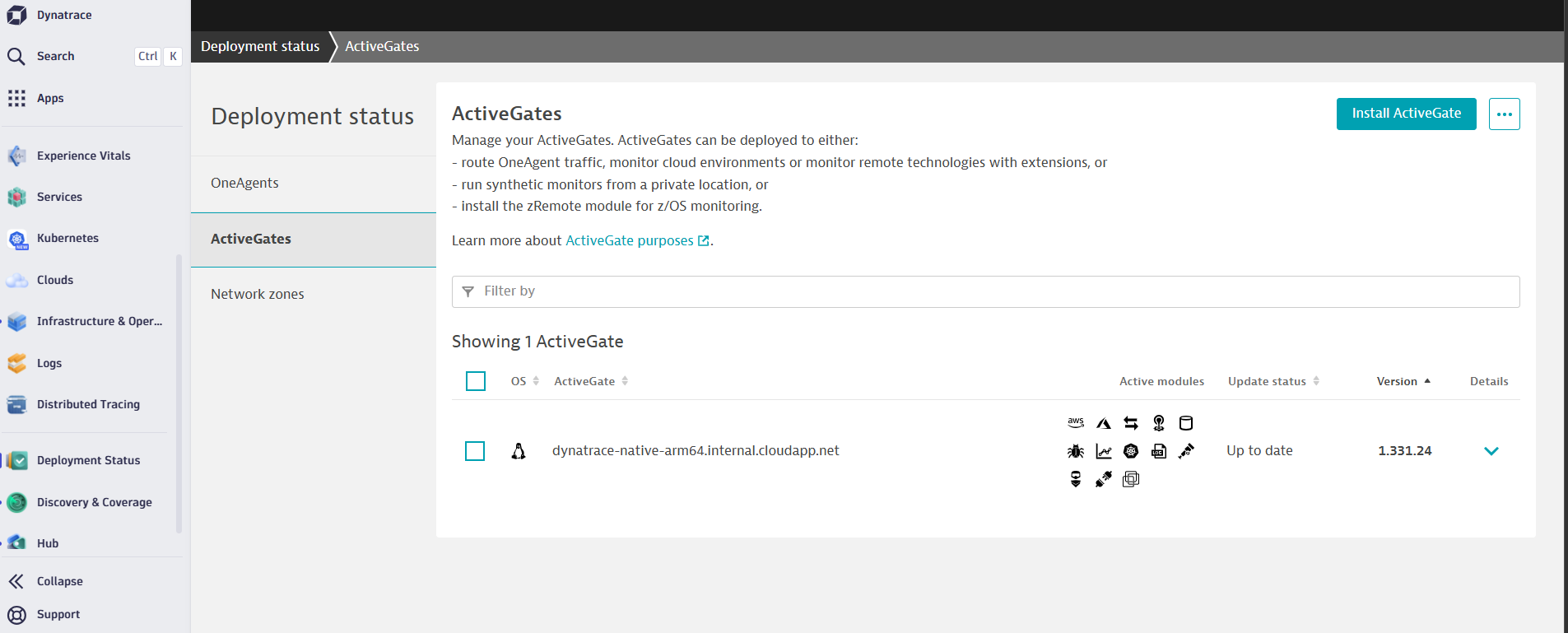 Dynatrace ActiveGate deployment status
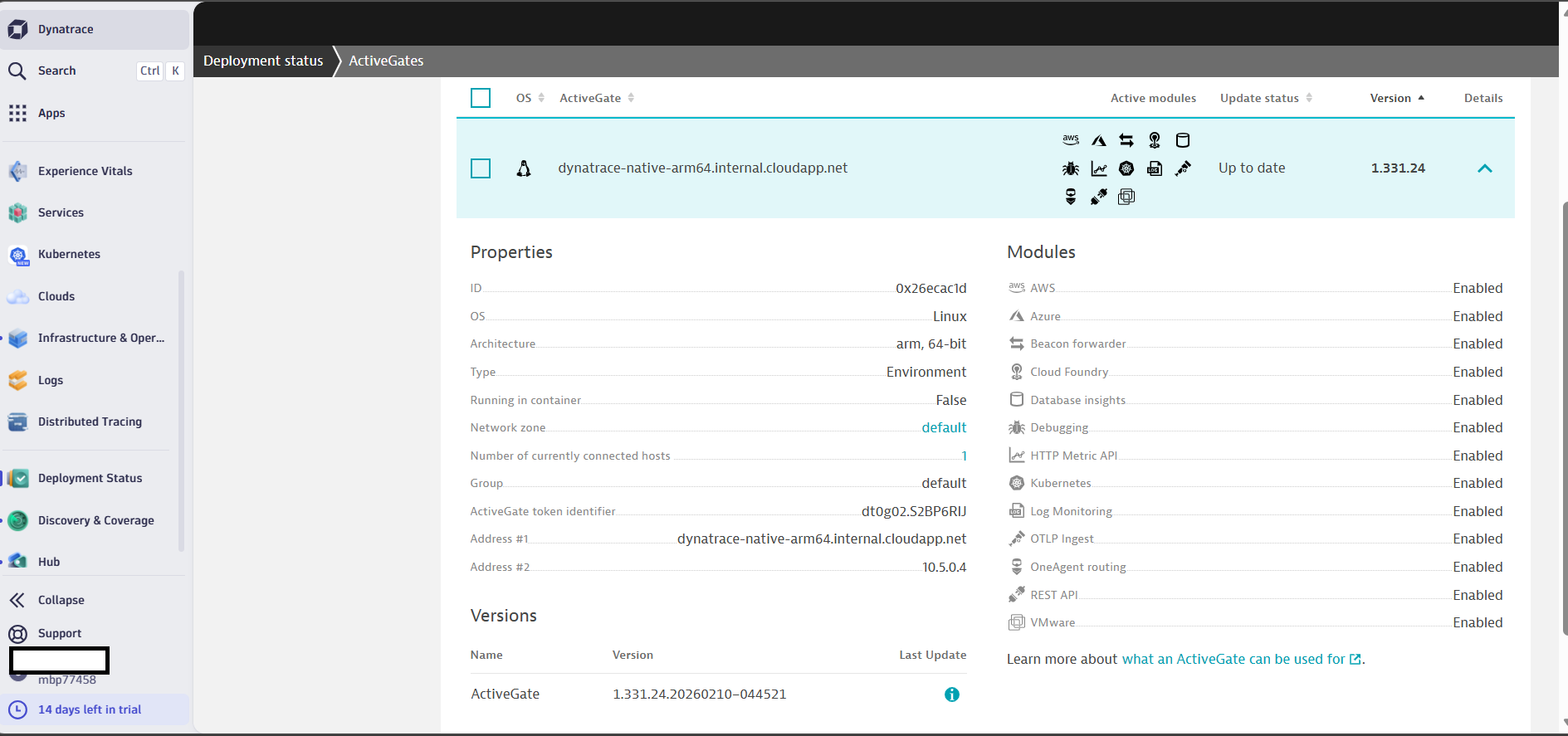 Dynatrace ActiveGate details view
Test application monitoring with Nginx
To validate that Dynatrace is collecting monitoring data correctly, deploy a simple web server on the virtual machine. Dynatrace OneAgent automatically detects and monitors the process.
Install Nginx
Update the package index and install the Nginx web server.
sudo apt update
sudo apt install -y nginx
Check the Nginx service status
sudo systemctl status nginx
The output is similar to:
Active: active (running)
Verify process detection in Dynatrace
Dynatrace OneAgent automatically discovers running processes and services.
Return to the Dynatrace web interface and navigate to:
Infrastructure & Operations → Hosts
Select your monitored host and open:
Processes
You should see a process similar to:
nginx
Dynatrace automatically begins collecting metrics such as:
- CPU usage
- memory consumption
- network activity
- request throughput
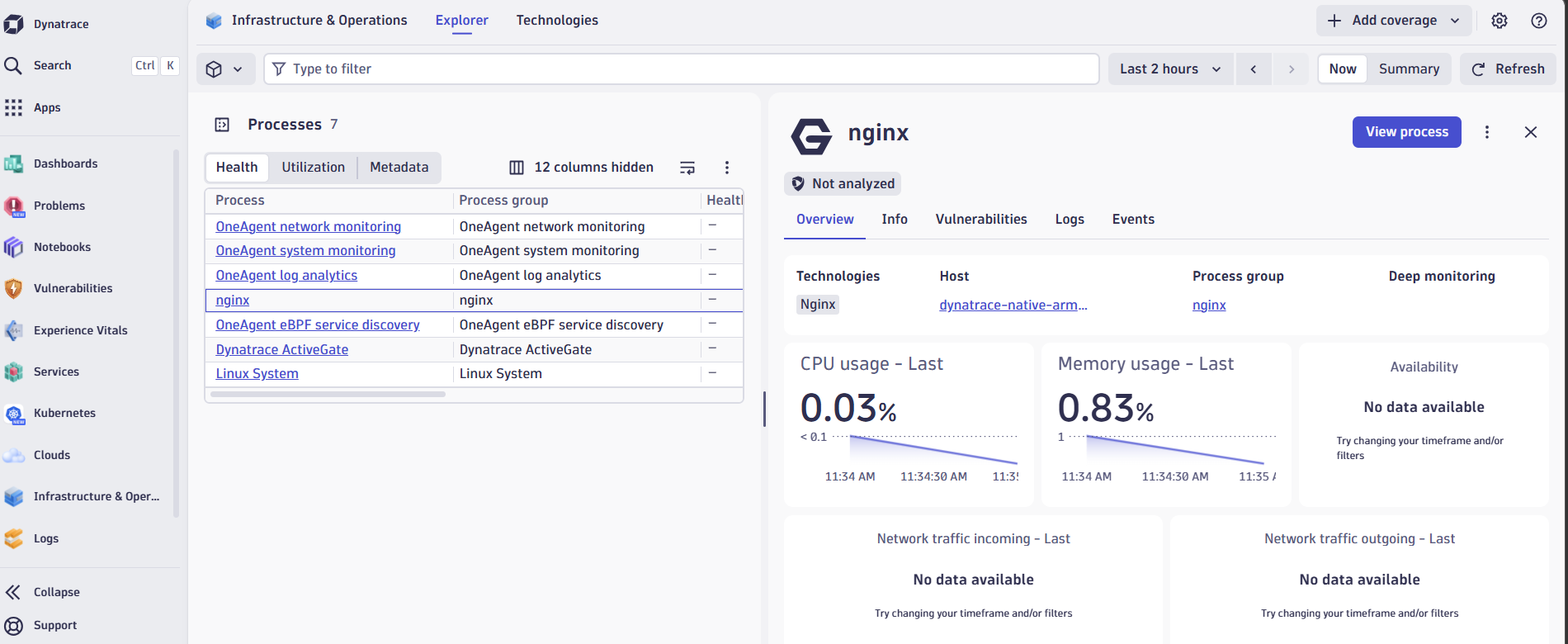 Dynatrace NGINX process monitoring dashboard
What you’ve learned
Your Azure Cobalt 100 virtual machine now has a complete Dynatrace monitoring stack. OneAgent monitors host resources and processes, while ActiveGate securely routes monitoring data to your Dynatrace environment through port 9999. The entire setup operates natively on Arm64 architecture, providing full observability for your applications and infrastructure.