Deploy Django on Arm-based Google Cloud C4A
Introduction
Get started with Django on Google Axion C4A
Configure firewall rules for Django on Google Cloud
Create a Google Axion C4A Arm virtual machine on GCP
Install Django on your Arm-based VM
Verify Django installation and run the development server
Deploy Django on GKE Axion with managed data services
Build a Django REST API with PostgreSQL and Redis
Containerize and deploy Django on Axion GKE
Benchmark Django application performance on Arm
Next Steps
Deploy Django on Arm-based Google Cloud C4A
Introduction
Get started with Django on Google Axion C4A
Configure firewall rules for Django on Google Cloud
Create a Google Axion C4A Arm virtual machine on GCP
Install Django on your Arm-based VM
Verify Django installation and run the development server
Deploy Django on GKE Axion with managed data services
Build a Django REST API with PostgreSQL and Redis
Containerize and deploy Django on Axion GKE
Benchmark Django application performance on Arm
Next Steps
Verify Django installation
In this section, you’ll confirm that Django is installed correctly and can serve web requests on your Google Cloud C4A VM. You’ll create a Django project, run the development server, and access it from your browser.
Run the following command to create a new Django project named myproject:
django-admin startproject myproject
cd myproject
This generates the following directory structure:
myproject/
├── manage.py
└── myproject/
    ├── settings.py
    ├── urls.py
    ├── asgi.py
    └── wsgi.py
The manage.py file is Django’s command-line utility for project management. The inner myproject/ folder contains your project’s core settings and URL configuration.
Run initial database migrations
Set up your project’s database by running migrations, which create the required tables for Django’s built-in apps:
python3 manage.py migrate
The output shows all migrations applied successfully (marked “OK”).
Configure ALLOWED_HOSTS for external access
Before starting the Django development server, you must configure your ALLOWED_HOSTS setting to allow access from your VM’s external IP. This ensures that Django accepts HTTP requests from outside localhost (for example, when testing in a browser from another machine).
Navigate to your project settings directory:
cd ~/myproject/myproject/
Open settings.py using a text editor:
edit myproject/settings.py
Locate the ALLOWED_HOSTS line inside the file:
ALLOWED_HOSTS = []
Update it to allow your VM’s external IP address:
To make your Django app accessible from your VM’s external IP address, update it to:
ALLOWED_HOSTS = ['*']
For development and testing only, you can use ALLOWED_HOSTS = ['*'] to allow all hosts. However, for production deployments, always specify explicit domain names or IP addresses such as ALLOWED_HOSTS = ['your-external-ip', 'your-domain.com'].
ALLOWED_HOSTS = ['your-external-ip', 'your-domain.com']
Now that you’ve configured ALLOWED_HOSTS, start the development server:
python3 manage.py runserver 0.0.0.0:8000
This starts the Django development server on port 8000, listening on all network interfaces.
Access Django in your browser
Open a web browser on your local machine and navigate to:
http://<YOUR_VM_EXTERNAL_IP>:8000
Replace <YOUR_VM_EXTERNAL_IP> with the public IP address of your GCP VM.
You should see the Django welcome page with the message “The install worked successfully!”:
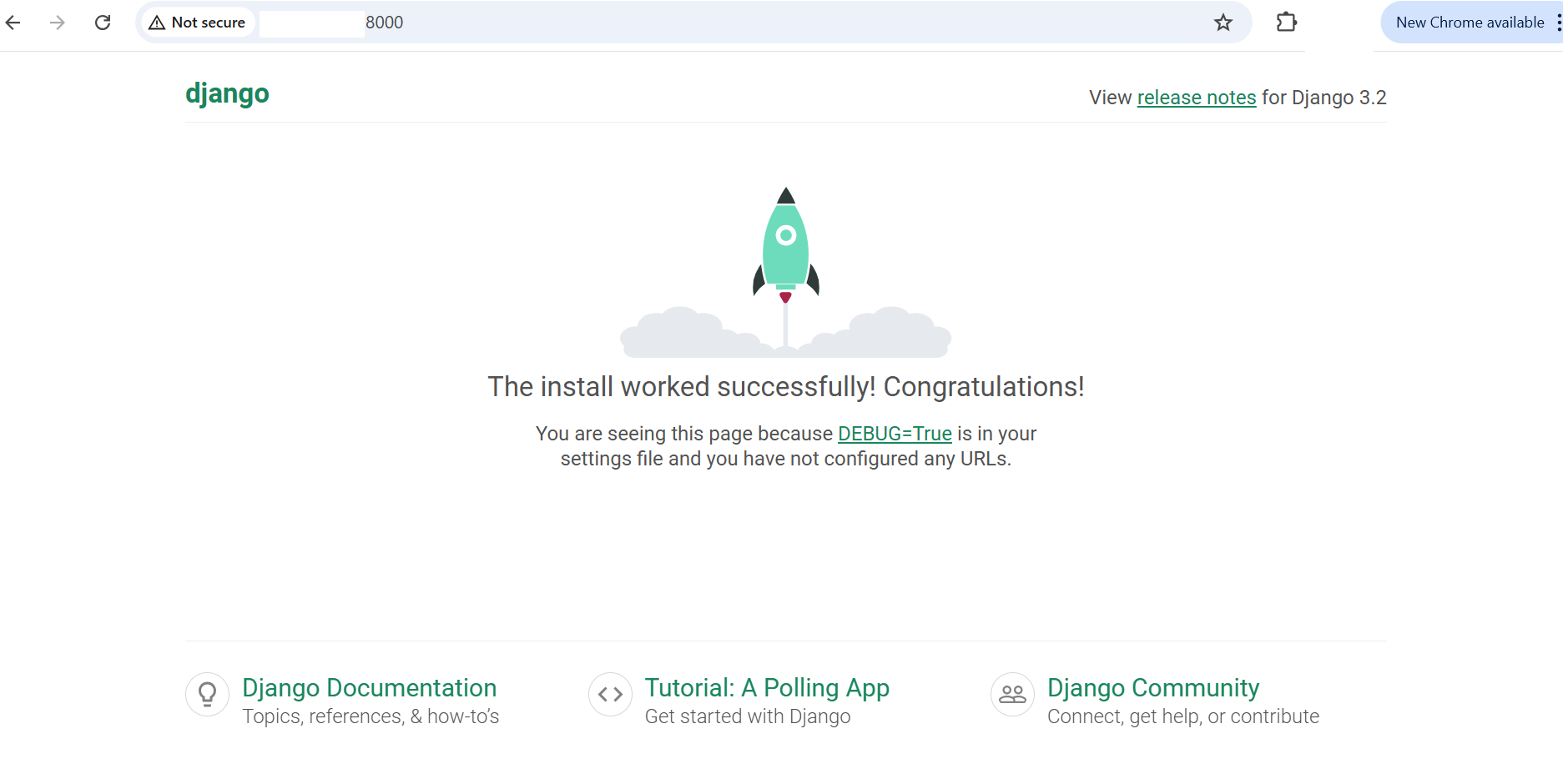 Django welcome page
Build a simple Django app with custom routing
This section demonstrates that Django’s application routing and view rendering work correctly by creating a simple app with a custom view.
Stop the server
Press Ctrl + C in your terminal to stop the Django development server.
Create a new Django app
Within your Django project directory, create a new app named hello:
python3 manage.py startapp hello
This generates the following directory structure with files for views, models, configuration, and more:
        hello/
├── admin.py
├── apps.py
├── models.py
├── tests.py
├── views.py
└── urls.py
Define a view function
Edit hello/views.py and replace the entire file with:
from django.http import HttpResponse

def home(request):
    return HttpResponse("<h1>Hello, Django on GCP SUSE ARM64!</h1>")
This simple view function returns a basic HTML message as an HTTP response.
Create URL configuration for your app
Create a new file hello/urls.py:
from django.urls import path
from . import views

urlpatterns = [
    path('', views.home, name='home'),
]
This maps the root URL path to your home() view function.
Include the app in your project’s main URLs
Edit myproject/urls.py to include the hello app’s URLs:
"""myproject URL Configuration

The `urlpatterns` list routes URLs to views. For more information please see:
    https://docs.djangoproject.com/en/3.2/topics/http/urls/
Examples:
Function views
    1. Add an import:  from my_app import views
    2. Add a URL to urlpatterns:  path('', views.home, name='home')
Class-based views
    1. Add an import:  from other_app.views import Home
    2. Add a URL to urlpatterns:  path('', Home.as_view(), name='home')
Including another URLconf
    1. Import the include() function: from django.urls import include, path
    2. Add a URL to urlpatterns:  path('blog/', include('blog.urls'))
"""

from django.contrib import admin
from django.urls import path, include

urlpatterns = [
    path('admin/', admin.site.urls),
    path('', include('hello.urls')),
]
This tells Django to route the root path to your hello app.
Register the app in Django settings
Django needs to know about your new app. Edit myproject/settings.py and add 'hello' to the INSTALLED_APPS list:
INSTALLED_APPS = [
    'django.contrib.admin',
    'django.contrib.auth',
    'django.contrib.contenttypes',
    'django.contrib.sessions',
    'django.contrib.messages',
    'django.contrib.staticfiles',
    'hello',
]
Start the server again
Restart the Django development server:
python3 manage.py runserver 0.0.0.0:8000
Test your custom app
Open your browser and navigate to:
http://<YOUR_VM_EXTERNAL_IP>:8000
Your browser displays your custom message:
 Django custom app
What you’ve accomplished and what’s next
In this section, you:
- Created a Django project and ran the development server
- Built a custom Django app with routing and views
- Verified that Django serves web requests successfully on your Arm VM
Next, you’ll set up the complete GKE infrastructure with Cloud SQL and Memorystore for production deployment.