Overview
In this section, you will learn how to provision a Google Axion C4A Arm virtual machine on Google Cloud Platform (GCP) using the c4a-standard-4 (4 vCPUs, 16 GB memory) machine type in the Google Cloud Console.
For support on GCP setup, see the Learning Path Getting started with Google Cloud Platform .
Provision a Google Axion C4A Arm VM in Google Cloud Console
To create a virtual machine based on the C4A instance type:
- Navigate to the Google Cloud Console .
- Go to Compute Engine > VM Instances and select Create Instance.
- Under Machine configuration:
- Populate fields such as Instance name, Region, and Zone.
- Set Series to
C4A. - Select
c4a-standard-4for machine type.
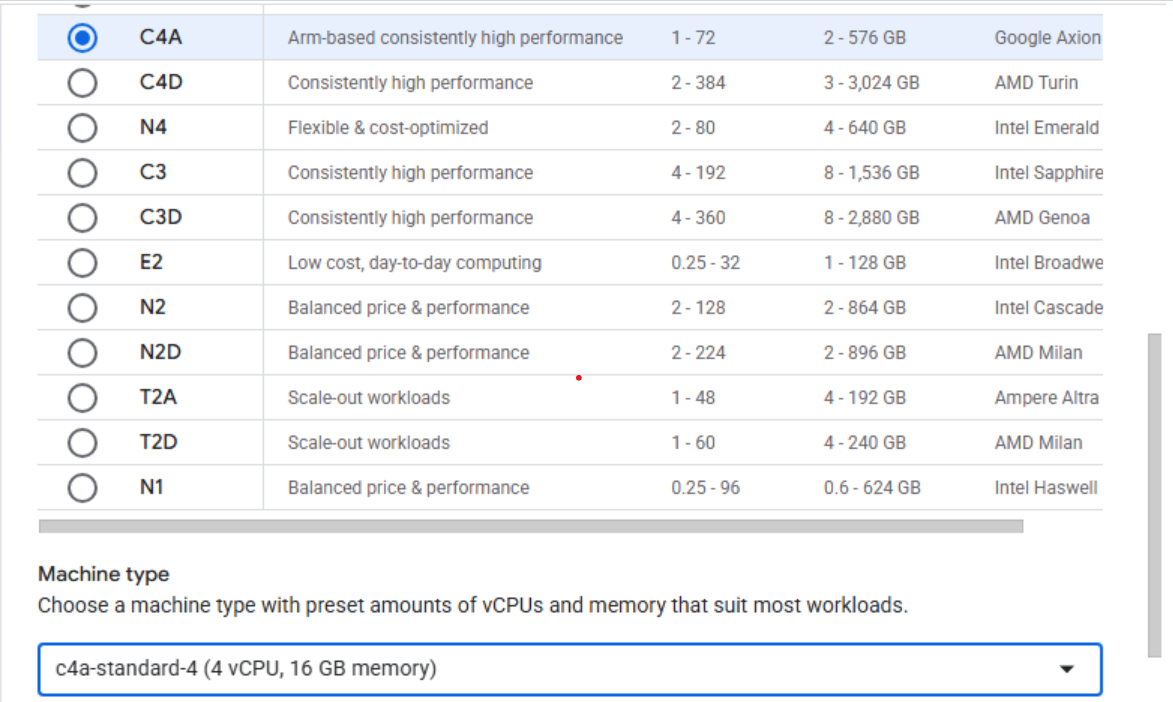 Creating a Google Axion C4A Arm virtual machine in Google Cloud Console
- Under OS and Storage, select Change. Choose an Arm64-based OS image. For this Learning Path, select SUSE Linux Enterprise Server.
- For the license type, select Pay As You Go.
- Click Select to confirm your OS choice.
- Under Networking, enable Allow HTTP traffic.
- In the Network tags field, add
allow-tcp-8091to allow Couchbase traffic.
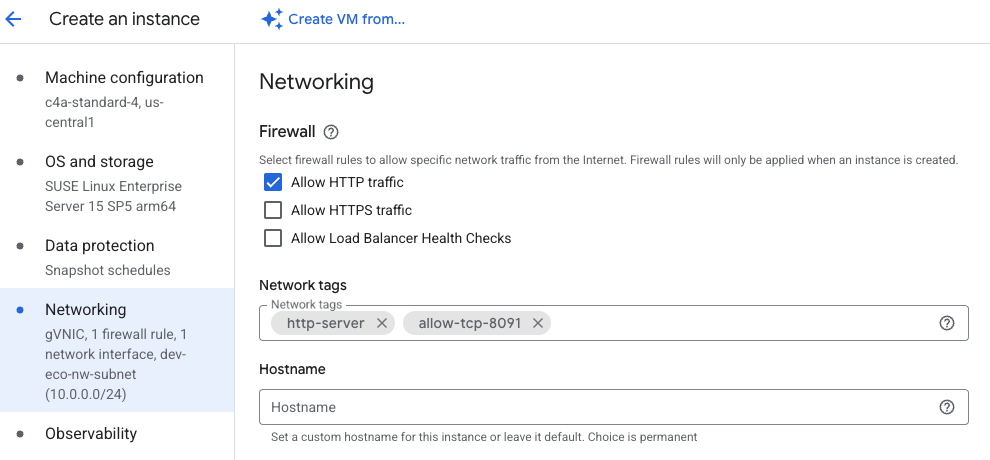 Adding the TCP/8091 firewall rule to our VM
- Select Create to launch your VM instance.
- After the VM is ready, you’ll see an SSH button next to your instance in the VM list. The public IP address for your VM also appears here.
- Copy the public IP address—you’ll need it later to connect to Couchbase.
- Select SSH to open a shell session directly in your browser.
 Invoke a SSH session into your running VM instance
A window from your browser should come up and you should now see a shell into your VM instance:
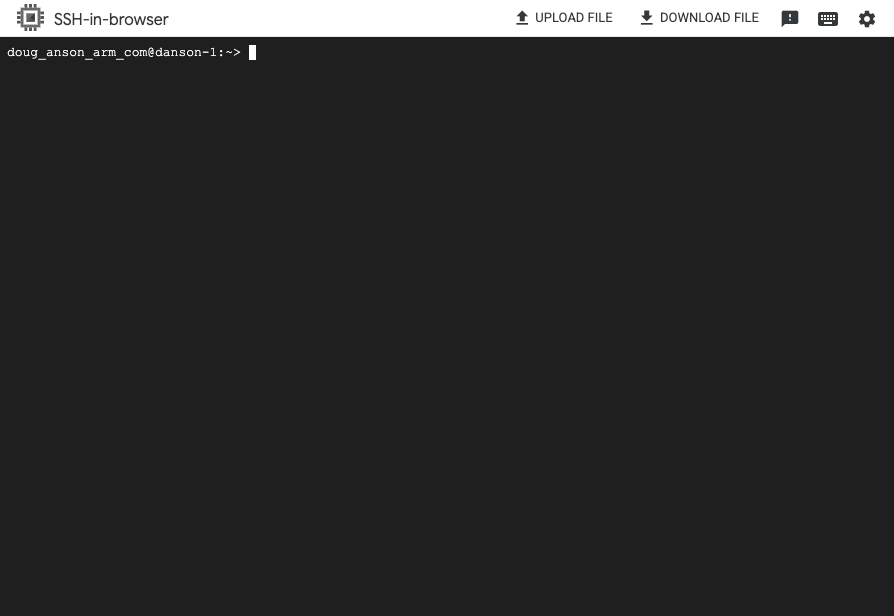 Terminal shell in your VM instance
Next, let’s install Couchbase!