Overview
In this section you’ll learn how to create a firewall rule in Google Cloud Console to allow traffic on TCP port 8091. This step is required for the Learning Path to ensure your Couchbase deployment is accessible.
If you need help setting up Google Cloud Platform (GCP), see the Learning Path Getting started with Google Cloud Platform .
Create a firewall rule in GCP
To expose TCP port 8091 for Couchbase, start by creating a new firewall rule in Google Cloud Console:
- Open the Google Cloud Console .
- In the navigation menu, select VPC network > Firewall.
- Select Create firewall rule.
You’ll use this rule to allow incoming traffic on TCP port 8091, which is required for Couchbase access on your Arm-based VM.
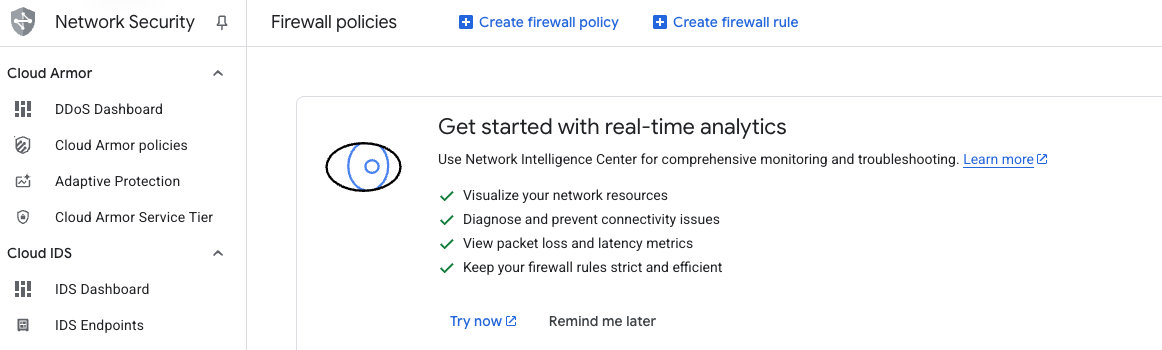 Create a firewall rule
- Set Name to
allow-tcp-8091. - Select the network you want to use for your VM. The default is
autoscaling-net, but your organization might use a different network. - Set Direction of traffic to Ingress.
- Set Action on match to Allow.
- For Targets, select Specified target tags and enter
allow-tcp-8091in the Target tags field. - In Source IPv4 ranges, enter
0.0.0.0/0.
This configuration allows incoming TCP traffic on port 8091 from any IPv4 address.
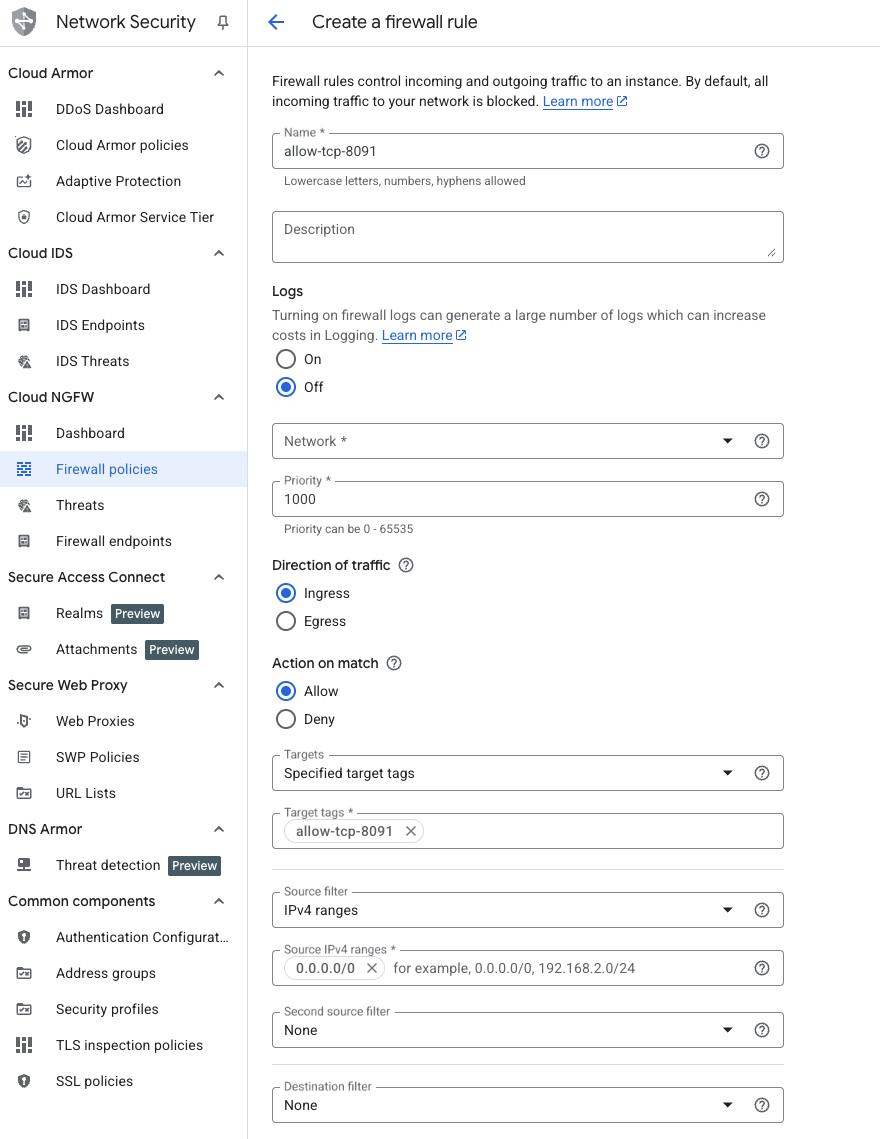 Creating the TCP/8091 firewall rule
Specify protocols and ports
Next, configure the protocols and ports for your firewall rule:
- Under Protocols and ports, select Specified protocols and ports.
- Check the TCP box.
- In the Ports field, enter
8091. - Select Create to finish adding the firewall rule.
This step ensures that only TCP traffic on port 8091 is allowed through the firewall.
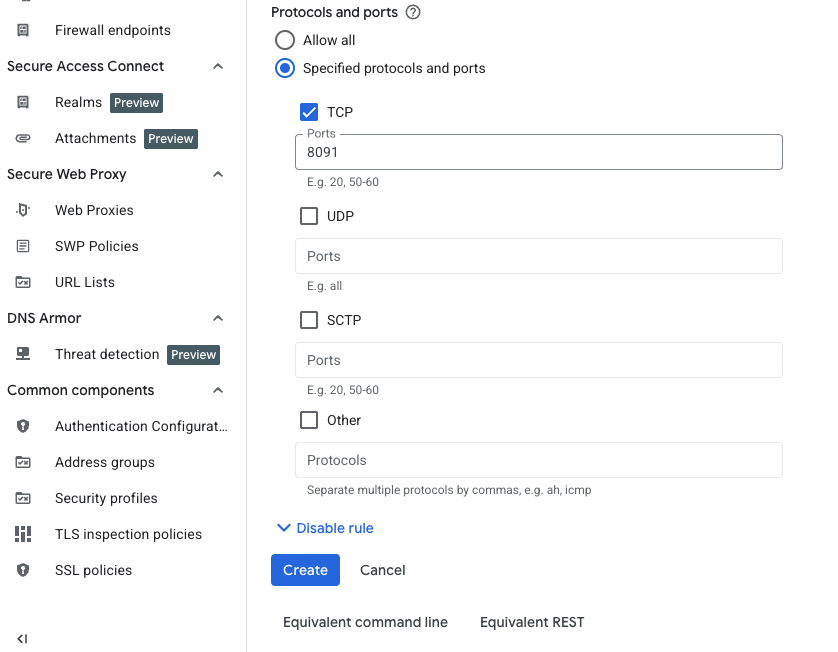 Specifying the TCP port to expose
Your network firewall rule has now been created. You’re ready to continue with VM creation.