Verify Couchbase cluster health and prepare a benchmarking bucket
This section guides you through verifying that Couchbase is installed and running on your GCP SUSE VM with Arm64 architecture. You’ll set up your cluster, confirm your node is healthy, and use the web console to create a bucket. After completing these steps, your environment is ready for benchmarking.
Set up the default cluster
Once Couchbase is running, set up your default cluster for the first time.
Open the Couchbase Web Console in your browser using your VM’s public IP address from the previous step:
http://<VM-Public-IP>:8091
Select Set up new cluster to begin the initial configuration.
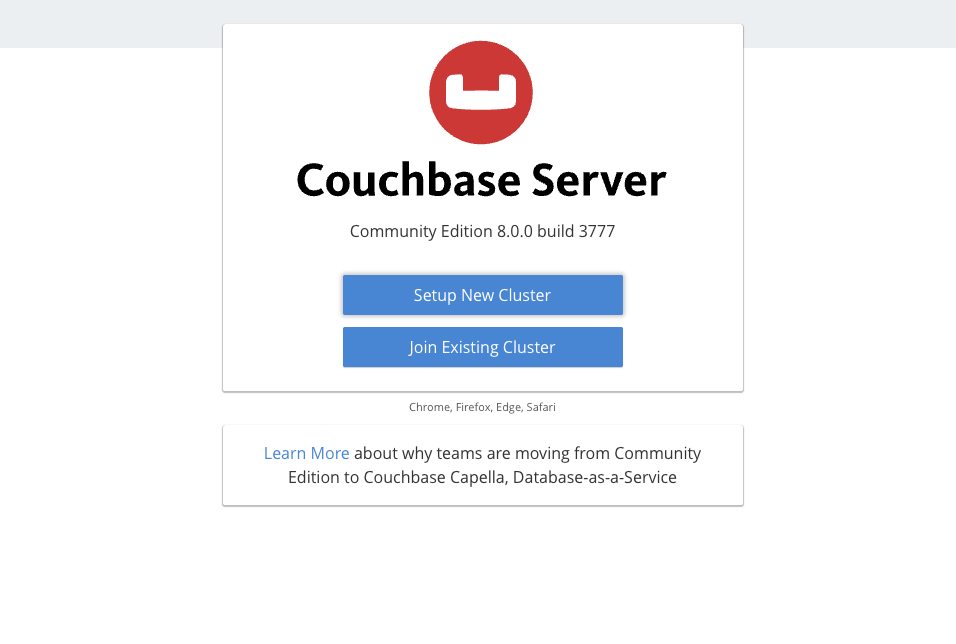 Set up new cluster
Provide a name for your cluster (for example, “my_cluster”) and create a password for your administrator account (leaving the username as the default Administrator).
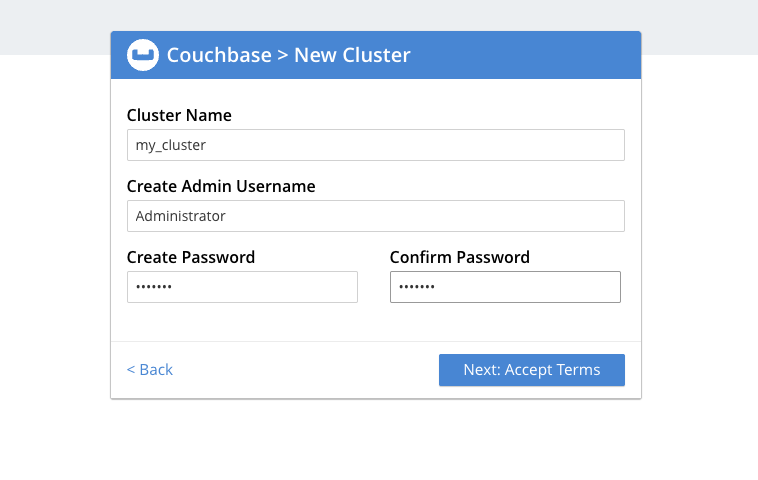 Create cluster and admin count
Check the Accept Terms box to agree to the license terms. Then select Configure Disk Memory Services to continue with the cluster setup.
Create cluster and admin count
Check the Accept Terms box to agree to the license terms. Then select Configure Disk Memory Services to continue with the cluster setup.
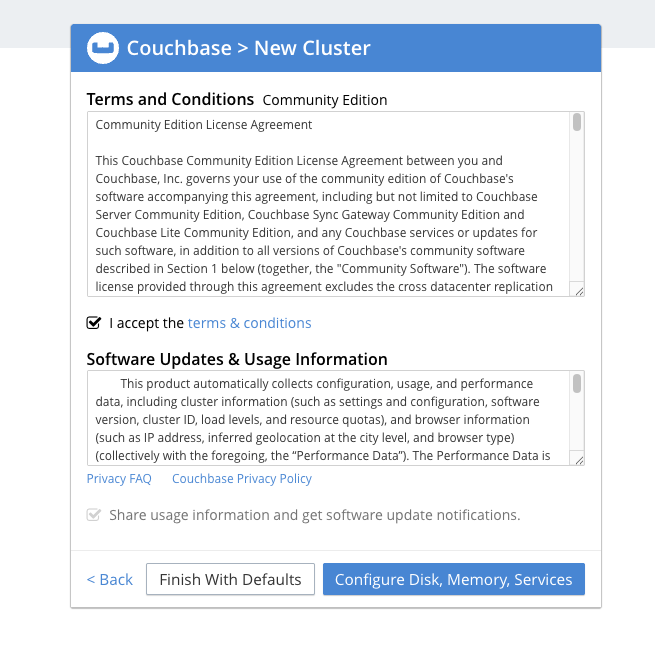 Accept Terms
Accept the defaults of your cluster configuration and select “Save & Finish”.
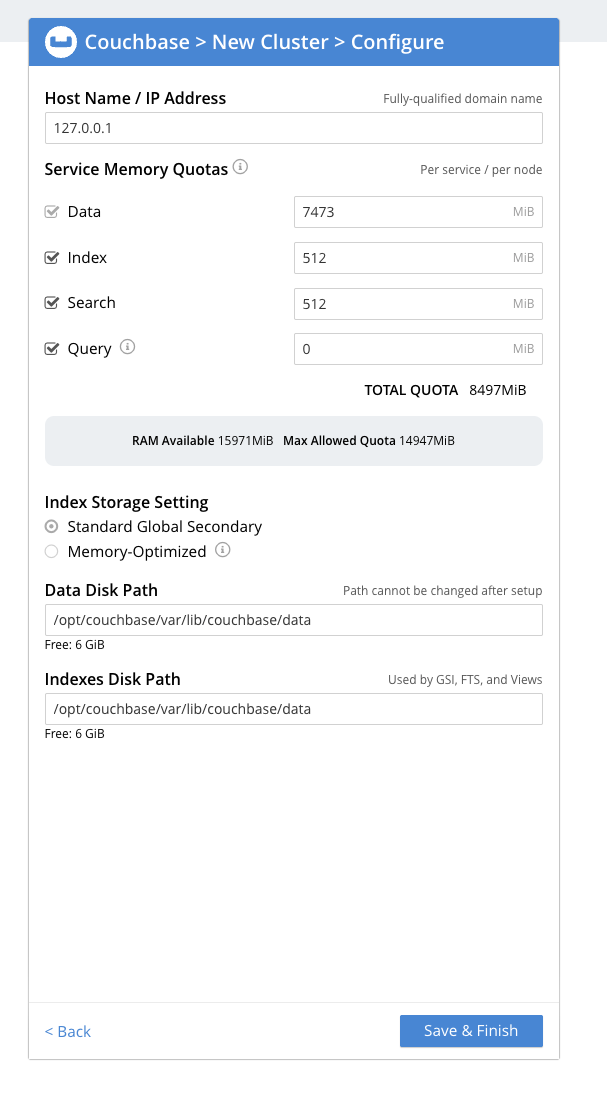 Finalize configuration
Your default cluster is now set up. Save the password you created for your Administrator account. You’ll need this password for future steps, including verifying cluster health and creating your benchmarking bucket.
Finalize configuration
Your default cluster is now set up. Save the password you created for your Administrator account. You’ll need this password for future steps, including verifying cluster health and creating your benchmarking bucket.
Verify cluster nodes
Run the following command to verify that your Couchbase node is healthy. Replace password with the Administrator password you set earlier.
/opt/couchbase/bin/couchbase-cli server-list \
  -u Administrator -p password --cluster localhost
The expected output is:
ns_1@cb.local 127.0.0.1:8091 healthy active
If you see healthy active, your Couchbase node is running correctly and ready for benchmarking.
/opt/couchbase/bin/couchbase-cli server-list \
  -u Administrator -p password --cluster localhost
ns_1@cb.local 127.0.0.1:8091 healthy active
Prepare a Couchbase bucket for benchmarking
Once the service is running, you can access the Couchbase Web Console to create a bucket for benchmarking.
Open the Couchbase Web Console in your browser. Enter your VM’s public IP address from the previous step, followed by :8091. For example:
http://<VM-Public-IP>:8091
Use the admin username (default is “Administrator”) and password you created during Couchbase cluster setup in the previous step.
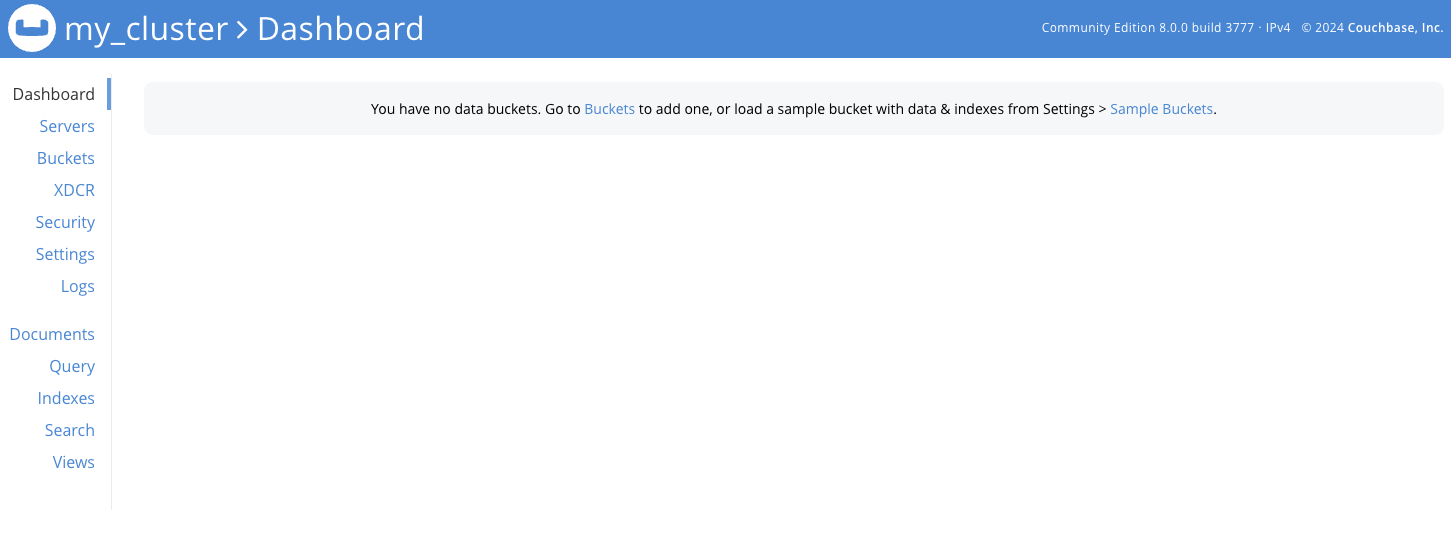 Couchbase Dashboard
On the left sidebar, select Buckets to view your bucket list.
In the upper right corner, select Add Bucket to start creating a new bucket for benchmarking.
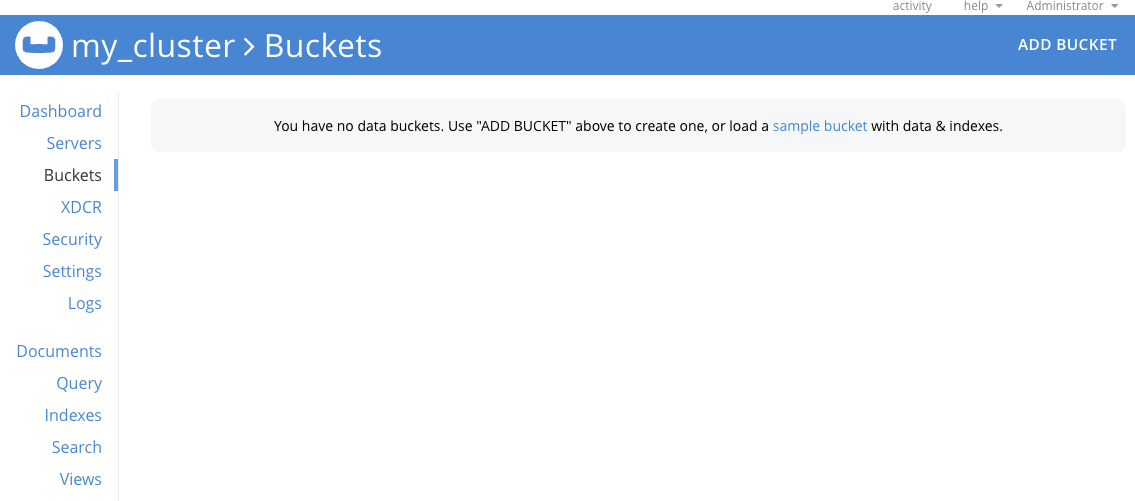 Create Bucket
Now name your bucket benchmark. For Bucket Type, select Couchbase. Set the Memory Quota to 512 MB. These settings help ensure your benchmarking results are accurate and consistent on your Arm-based GCP VM.
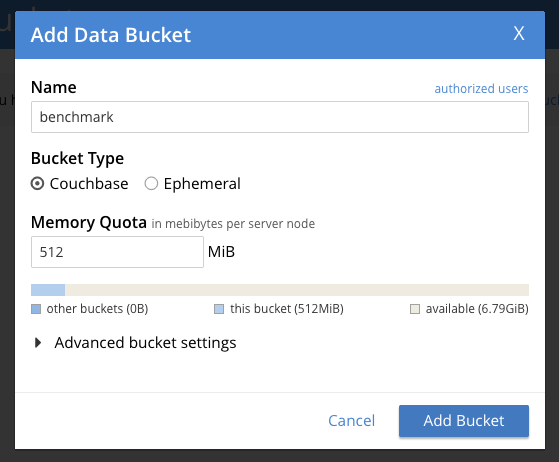 Create Bucket
| Parameter | Value |
|---|---|
| Bucket Name | benchmark |
| Bucket Type | Couchbase |
| Memory Quota | 512 MB |
You should now see that your bucket has been created:
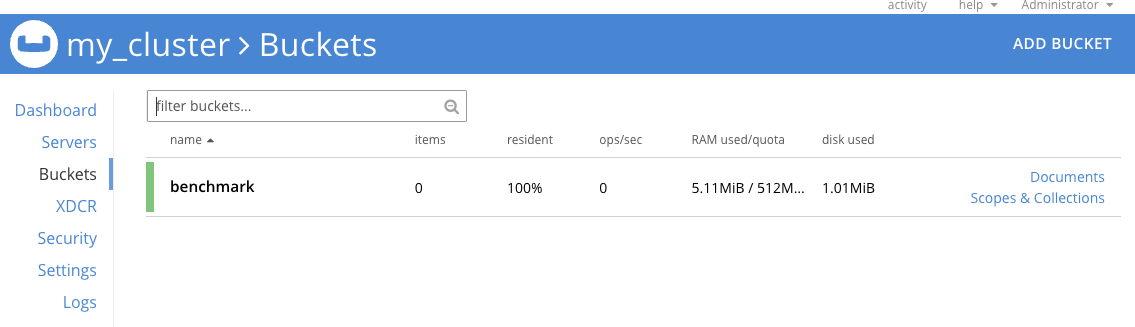 Created Bucket
Understanding buckets in Couchbase
A bucket in Couchbase works like a database. It stores and organizes your data. In this guide, you created a benchmark bucket specifically for load testing and performance benchmarking. Setting the Memory Quota (RAM Quota) ensures Couchbase reserves enough memory for fast, in-memory data operations. This helps you get accurate performance results on your Arm-based GCP VM.
You can now proceed to the next section for benchmarking to measure Couchbase’s performance.